


Key Takeaways
- Elementor has no table widget in the core plugin or in Elementor Pro, so a table in Elementor comes from HTML code, containers, a table plugin or an addon widget.
- The HTML widget is the way to create a table in Elementor without a plugin: paste table, tr, th and td tags and add a short style block for borders and padding.
- A Grid container can imitate a table, but a 3 column, 4 row table needs 12 separate Text Editor widgets and the result is not a real HTML table.
- TablePress 3.4 adds its own Elementor widget called TablePress table, and its tables can be sorted, searched and paginated by visitors.
- The Master Addons Dynamic Table widget builds a real HTML table from header and body cells in the Elementor panel and stacks rows into cards on devices up to 768px wide.
To create a table in Elementor you need a workaround, because Elementor does not ship a table widget. The four that work are an HTML widget with your own code, a Grid container, a TablePress table, and an addon widget such as Dynamic Table.
We built a table each of the four ways on Elementor 4.3 and looked at every one on a desktop and on a phone.
Table of Contents
Does Elementor have a table widget?
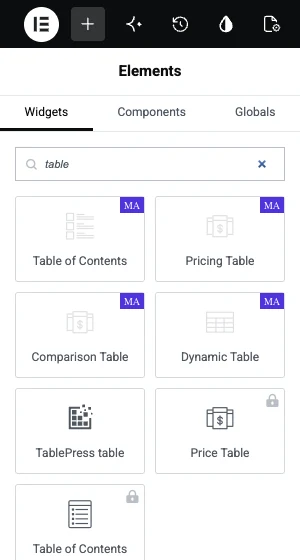
No. Search for “table” in the Elementor panel and the only built-in results are Table of Contents and Price Table, and both belong to Elementor Pro. Neither one makes rows and columns of data. Price Table is a single pricing card, and Table of Contents lists the headings on the page.
Which way should you use?
Pick by how big the table is and who will edit it later.
| Way | Plugin needed | Best for | Watch out for |
|---|---|---|---|
| HTML widget | None | One small table, edited by someone who reads HTML | Every change means editing code |
| Grid container | None | A few cells that need buttons or images | One widget per cell, and it is not a real table |
| TablePress | TablePress | Long tables, CSV or Excel imports, sorting and search | Styling happens outside Elementor |
| Table widget | An addon such as Master Addons | Schedules, spec sheets and price lists you edit in Elementor | No sorting or import in Dynamic Table |
Way 1: Create a table in Elementor with the HTML widget
This is the way to make a table in Elementor without a plugin. You write a plain HTML table and Elementor prints it as it is.
- Edit the page with Elementor and drag the HTML widget into a container.
- Paste the code below into the HTML Code field.
- Change the text between the tags. Each
tris a row, eachthis a header cell and eachtdis a body cell. - Click Publish.
<table class="simple-table">
  <thead>
    <tr><th>Plan</th><th>Storage</th><th>Price</th></tr>
  </thead>
  <tbody>
    <tr><td>Starter</td><td>10 GB</td><td>$5 a month</td></tr>
    <tr><td>Team</td><td>100 GB</td><td>$15 a month</td></tr>
    <tr><td>Business</td><td>1 TB</td><td>$45 a month</td></tr>
  </tbody>
</table>

<style>
.simple-table { width: 100%; border-collapse: collapse; }
.simple-table th, .simple-table td { padding: 12px 16px; border: 1px solid #e4e7ec; text-align: left; }
.simple-table th { background: #101223; color: #fff; }
.simple-table tbody tr:nth-child(even) { background: #f6f6f7; }
</style>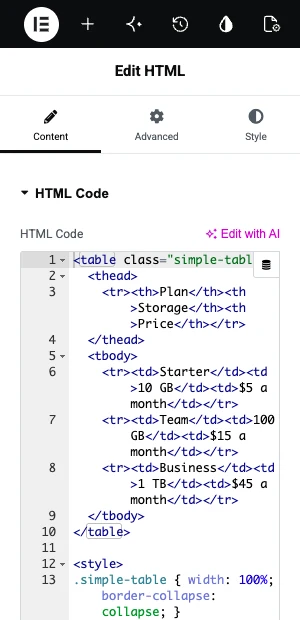

The table is light and it is a real table element, which search engines and screen readers understand. It is harder to maintain, though. A client who wants to add a row has to edit HTML, and a missing closing tag breaks the layout.
Way 2: Build a table with a Grid container
A Grid container lays widgets out in rows and columns, so it can look like a table. It suits a small block where cells hold buttons, icons or images.
- Add a container and set Container Layout to Grid.
- Set Columns to the number of columns you need and Rows to the number of rows, header included.
- Set Gaps to 0 so the cells touch.
- Drag one Text Editor widget into each cell and type its text.
- On each widget open Advanced, then add Padding and a 1px Border. Give the header cells a background color.

The widget count grows fast. Three columns and four rows already need 12 widgets, and a 5 by 10 table needs 50. Borders double up where cells meet unless you tune each side. The output is a set of divs, so a screen reader does not announce it as a table. Keep this method for a handful of cells.
Way 3: Add a TablePress table to Elementor
TablePress is a table plugin with more than 600,000 active installs. You build the table on its own admin screen and then place it in Elementor. It is the right pick for long tables, because it imports Excel, CSV, HTML and JSON files and lets visitors sort, search and page through the rows.
- Install and activate TablePress.
- Go to TablePress, then Add New to type a table, or Import to upload a file.
- Save the table and note its ID.
- Edit your page with Elementor and search for TablePress table. Drag the widget in and choose your table in the Table dropdown.
- If you prefer a shortcode, drag in the Shortcode widget and enter
[table id=1 /]with your own ID.
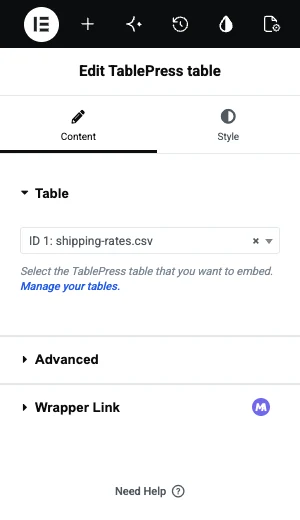
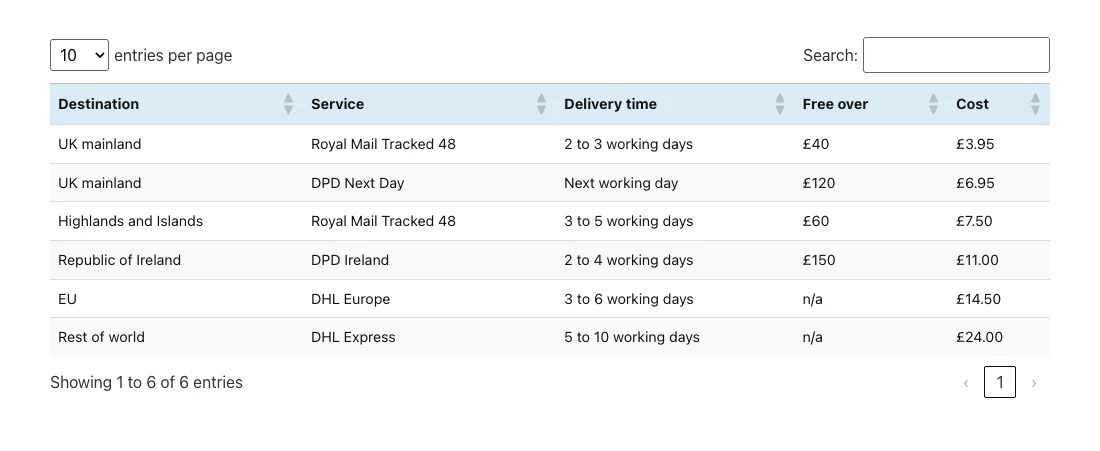
The widget has no Style tab, so colors and fonts come from TablePress settings and your own CSS. On our 390px test phone the five-column table also ran past the right edge until we turned on Horizontal Scrolling in the table’s settings.
Way 4: Use a table widget
An addon widget keeps the whole job inside Elementor. You type cells in the panel and style the table in the Style tab, the same way you work with any other widget. We will use the Dynamic Table widget from Master Addons here.
- Install Master Addons and check that Dynamic Table is switched on in its widget settings.
- Edit the page with Elementor, search for Dynamic Table and drag it in. It starts with a sample four-column table.
- Open Table Head. Add one Table Header Cell per column and type each Column Name.
- Open Table Body. Add one Table Body Cell per cell, left to right. Turn on New Row? on the first cell of every row after the first.
- To merge cells, open a cell’s Options tab and set Column Span or Row Span.
- Style the header, body and stripes in the Style tab, then publish.
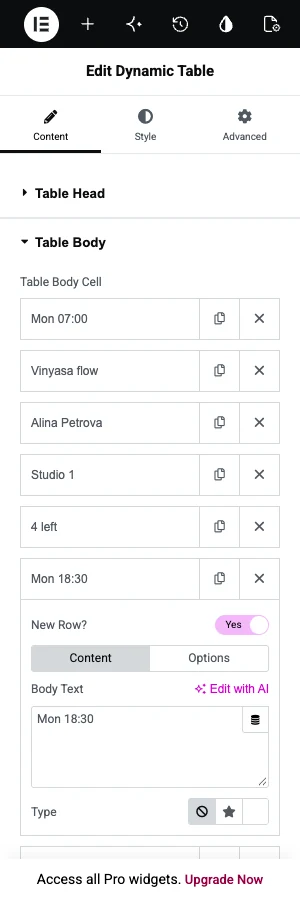
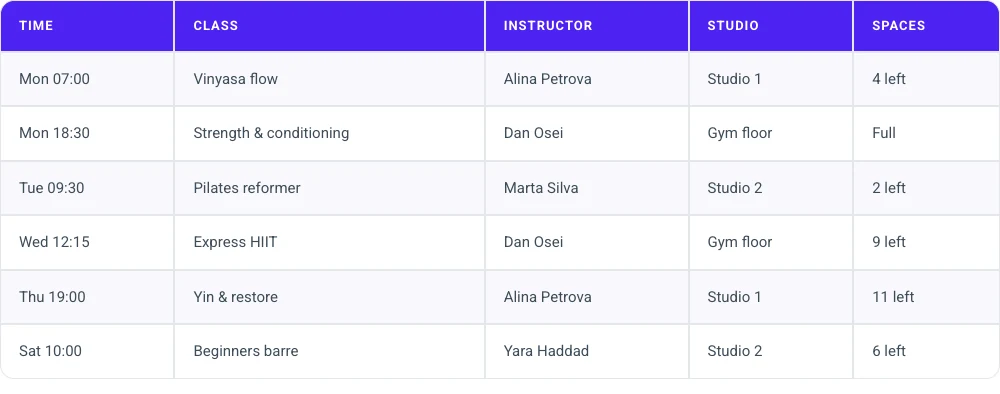
Each cell can hold text, an icon or an image, and the text fields accept dynamic tags. Responsive Table? in the Settings section is on by default, so on devices up to 768px wide every row becomes a card with the column names as labels.
Want to see it before you install anything? The Dynamic Table page has three live tables and eight demo layouts you can open.
Dynamic Table does not sort, search, paginate or import files. Each cell is typed by hand, which is fine for 30 cells and tiring for 300, so for big data sets go back to Way 3.
Mistakes to avoid
- Building the table in the Text Editor widget. It has no table button, so you end up writing HTML in its Text tab anyway. The HTML widget is the cleaner place for that code.
- Using a pricing widget for data. Price Table and Pricing Table widgets are built for plans with a buy button. They are the wrong shape for rows of data.
- Forgetting phones. A five-column table rarely fits a 390px screen. Decide whether rows should stack, scroll sideways or lose a column.
- Building 50 cells from widgets. If the grid method needs more than about a dozen widgets, switch to a real table.
Frequently asked questions
How do I create a table in Elementor without a plugin?
Drag the HTML widget onto the page and paste table code made of table, tr, th and td tags, plus a short style block for borders and padding. For a few cells you can also set a container to Grid and place one Text Editor widget in each cell.
Does Elementor Pro have a table widget?
No. Elementor Pro adds Price Table and Table of Contents, and neither one creates rows and columns of data. For a data table you still need HTML, a table plugin such as TablePress, or an addon widget.
What is the easiest way to add a table in Elementor?
For a table you will edit inside Elementor, a table widget is the easiest, because cells and styling sit in the panel. For a long table that already exists as a spreadsheet, importing the file into TablePress is faster than typing it.
Can I copy a table from Excel into Elementor?
Not directly into a widget. Save the sheet as a CSV or Excel file and import it into TablePress, then place that table with the TablePress table widget. Pasting a block of cells into a table widget puts all of it in one cell.
Are Elementor tables responsive?
It depends on how the table was made. An HTML table keeps its columns and can overflow on a phone unless you add CSS. Dynamic Table stacks rows into cards at 768px and below. TablePress has a Horizontal Scrolling option in each table’s settings.
Final thoughts
There are four ways to create a table in Elementor. Use the HTML widget for one small table and no plugin, a Grid container for a few cells with buttons or images, TablePress for long or imported data, and a table widget when you want to edit and style the table inside Elementor.
If the last one fits, Dynamic Table is part of Master Addons along with its other widgets.
Related reading
