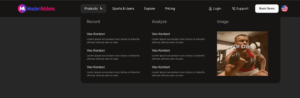

Free Elementor Mega Menu Builder: Multi-Column Menus Without Elementor Pro

The Mega Menu extension in Master Addons turns any item in your WordPress menu into a wide, multi-column dropdown, and it is free. You design each panel in the normal Elementor editor, so you can drop in headings, link lists, images, buttons, forms or product grids. Set the width, choose whether it opens on hover or click, and pick a transition. Elementor Pro is not required.

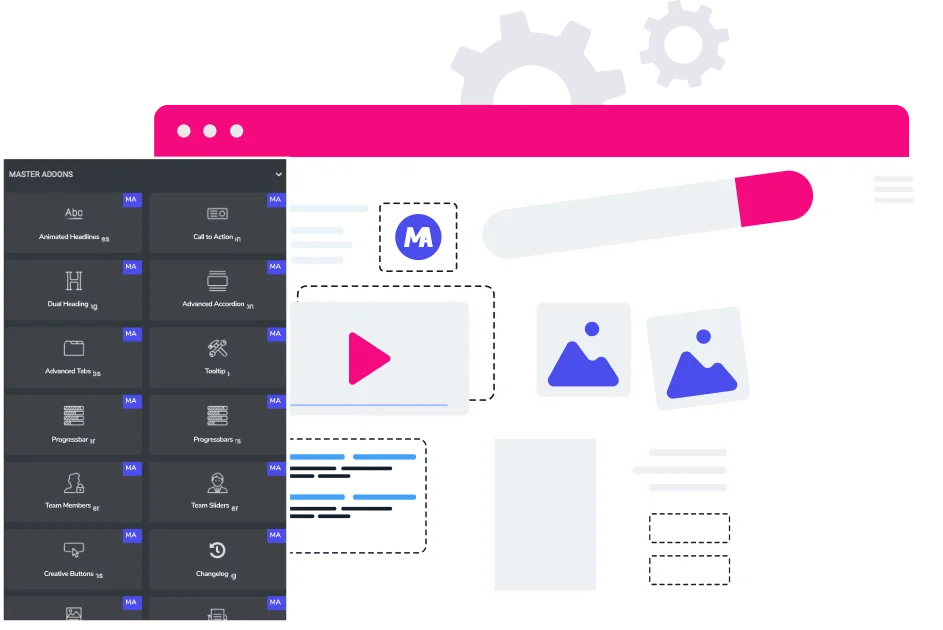
Drag-and-Drop Visual Builder

Drag-and-Drop Visual Builder

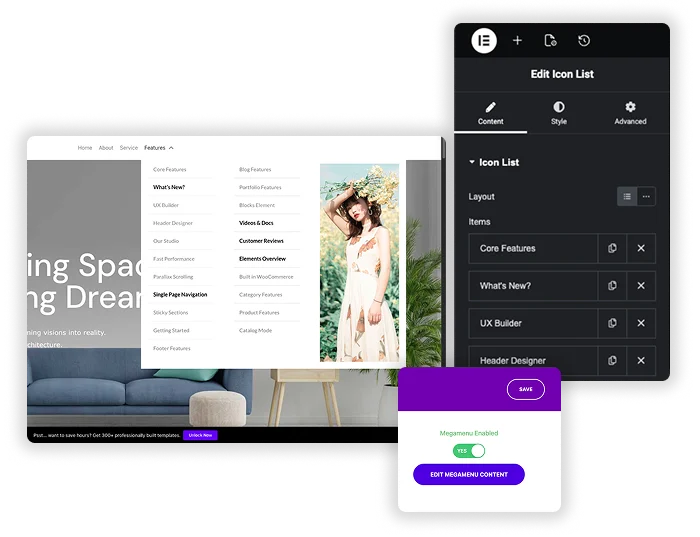
Why learn a complicated new interface? Build your mega menu in the same, familiar Elementor editor you use every day. Just click “Edit Megamenu Content” on any menu item and a live editor opens. Drag in widgets like Images, Headings, Buttons, Contact Forms, or even product grids. See your changes in real-time and create a truly custom navigation experience without a single line of code.

  • Full Elementor Access: Use any Elementor widget or Master Addons widget (like Dual Heading, Animated Text) in your menu.
  • Real-Time Preview: Design visually with instant feedback, just like building a page.
  • Unlimited Layouts: Create multiple columns, grids, or a single wide panel. The structure is completely up to you.

Width, triggers and transitions

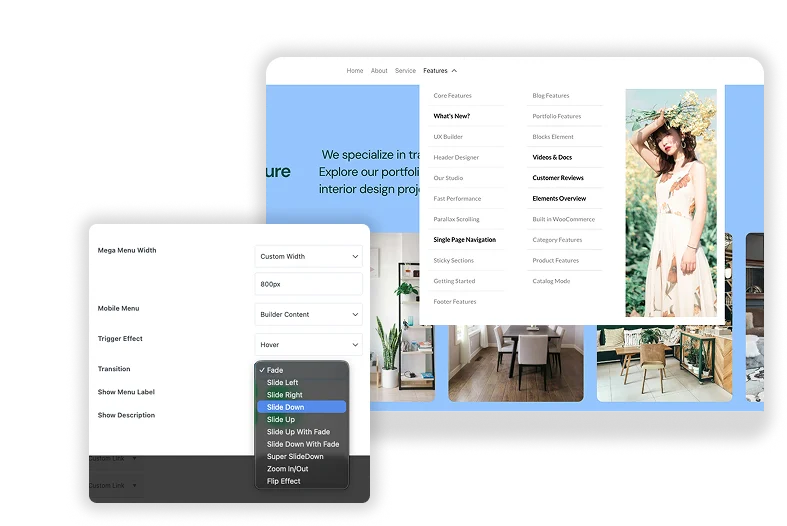
Each panel is a regular Elementor template, so whatever you can build on a page can go in the menu, including widgets that pull in recent posts or product categories. Then decide how the panel behaves: open it on hover or on click, pick a transition, and set the width to Default, Full Width or a custom pixel value.

  • Width options: Default, Full Width, or Custom Width in pixels.
  • Hover or click: hover for quick browsing, click when you want visitors to open panels on purpose.
  • Transitions: Fade, Slide Up, Slide Down, Slide Left, Slide Right, Zoom In/Out, Flip Effect and more.
  • Mobile Menu setting: choose what phones show inside the toggle menu, including the designed panel.
Flexible Content & Smart Triggers
Menu Items with Icons & Badges

Menu badges, icons and descriptions

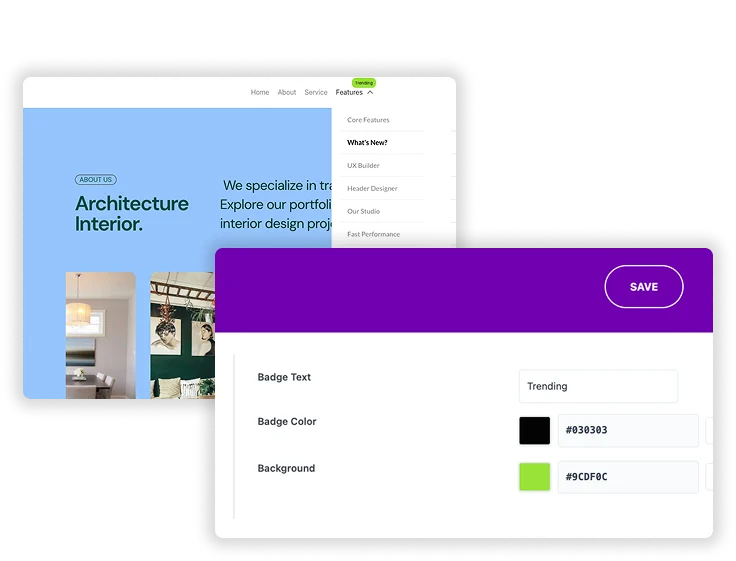
Highlight key menu items with a small badge such as “NEW” or “SALE”, with its own text, color and background. With Master Addons Pro you can also add an icon next to the label, change the icon color, and show a label or a short description under the item.

  • Badges (free): short text badges with custom colors to flag promotions or new sections.
  • Menu icons (Pro): pick an icon for each item and set its color.
  • Labels and descriptions (Pro): add context under a menu item.
Template Viewer
Facebook
Twitter
WhatsApp
Copy Link
Buy Now
Mega menu
Mega menu

Frequently Asked Questions For Mega Menu

Learn the most asked queries users have about Mega Menu and find answers in one place.
How do I actually place this mega menu on my site?

You enable and design the mega menu from Appearance, Menus. To display it, use your theme’s menu location or the free Nav Menu widget: drop it into a header template built with the Master Addons Theme Builder, select your menu, and the panels render on the front end. For the full walkthrough, read how to create a mega menu in Elementor without Pro.

If you overload it with dozens of high-resolution images and complex scripts, it can have an impact. The key is to be smart. Optimize your images, use it to highlight key content, and avoid embedding overly heavy widgets. Used wisely, the performance impact is minimal compared to the UX benefit.

Yes, absolutely! Mega Menu is enabled on a per-menu-item basis. You can turn it on for your “Services” item and design a complex menu for it, while leaving your “About” item as a simple dropdown. You have complete control for each top-level link.

Do I need Elementor Pro for a mega menu?

No. Elementor’s own mega menu is part of Elementor Pro, but this extension works with the free version of Elementor. If you are new to the idea, start with what a mega menu is and when your site needs one, or see a worked example in the restaurant mega menu guide. It works best with a header built in Elementor, since some themes with rigid custom headers can clash with the styling.

Yes. The panel opens in the normal Elementor editor, so you can insert sections from the Master Addons template library or your own saved templates, then adjust them for the menu.

Trending Elementor Widgets & Extensions

Build sophisticated websites in less time.

Glassmorphism element for Elementor by Master Addons

Glassmorphism

Home Free Elementor Glassmorphism Extension: Frosted Glass Effect in One Toggle Glassmorphism is the frosted...
View Details
Extend Beyond the Max Width

Container Extras

Home Tired of your stunning designs being confined to rigid container limits? Container Extras by...
View Details
Pattern extension

Patterns

Home Transform flat, static containers into visually engaging design elements with the Master Addons Patterns...
View Details
Exact Replicas in a Single Action

Post/Page Duplicator

Home Streamline your workflow and eliminate repetitive setup with the Master Addons Post/Page Duplicator. This...
View Details
Reading progress bar extension

Reading Progress Bar

Home Ever start reading a long article and wonder how much is left? So do...
View Details
September Sale

40% off everything

Every Master Addons Pro plan, annual and lifetime. One code, eight days.

00days
00hrs
00min
00sec

Ends Monday 14 September, 23:59 ET

  • Personal1 site $129$77
  • Business5 sites $199$119
  • DeveloperUnlimited sitesBest for agencies $599$359

Pay once. No renewal, ever.

Coupon code MALIFE40
Get 40% off now
  • 30,000+ active installs
  • 4.5/5 from 212 reviews
  • 14-day money back