

Key Takeaways
- Elementor has no dedicated control to show or hide a section on click, so the three working methods are the Accordion widget, a content toggle widget and a button with a short script.
- The Elementor Accordion widget hides any widgets inside an item until its title is clicked, and Default State set to All collapsed keeps the item closed on page load.
- The Master Addons Toggle Content widget works as a show and hide switch when one of its two options is left empty and the other holds the section.
- A button can show or hide any Elementor container with about ten lines of JavaScript in an HTML widget, using one CSS class on the button and one on the container.
- Elementor Display Conditions and the Responsive hide settings do not react to clicks, because they decide what shows by rule or by device before the visitor does anything.
To show or hide a section on click in Elementor, put the section inside something that opens when clicked. The Accordion widget does this with no extra plugin. A content toggle gives you a Show and Hide switch. A button with a few lines of script can reveal any container on the page. Elementor does not have a single “show on click” setting, so one of these three is the route.
Each method below was built and tested on Elementor 4.3. Pick by how the trigger should look: a title bar, a switch or a button.
Table of Contents
Which method fits your page
All three methods hide a section until a click. They differ in what the visitor clicks and how much setup they need.
| Accordion | Content toggle | Button and script | |
|---|---|---|---|
| What visitors click | A title bar | A Show and Hide switch | Any button or icon |
| Hidden content sits | Inside the widget | Inside the widget, or in a saved template | Anywhere on the page |
| Code needed | None | None | About ten lines |
| Needs | Elementor | Master Addons Pro | Elementor |
| Best for | Extra details, FAQs, Read More | A clear on and off choice | A button far from the section it opens |
Method 1: The Accordion widget
The Accordion widget is the quickest way to show a section on click, because each item is a container that accepts any widget. Whatever you put inside stays hidden until the title is clicked.
- Edit the page with Elementor and drag the Accordion widget to where the hidden section should be.
- Delete the items you do not need. For one hidden section, keep one item.
- Type the title visitors will click, such as Show delivery details.
- Click inside the item and add your content: text, images, a form or a whole container layout.
- Open Interactions and set Default State to All collapsed.
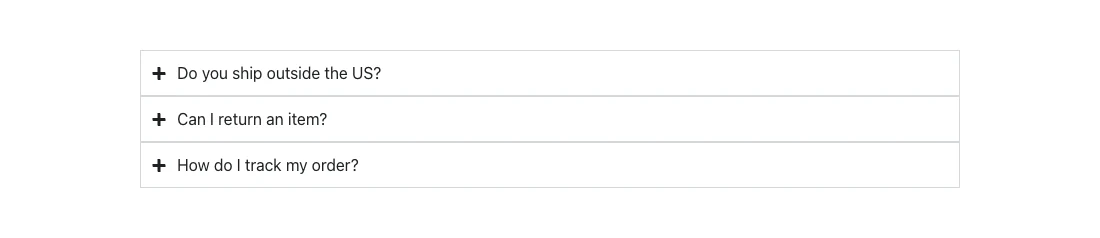
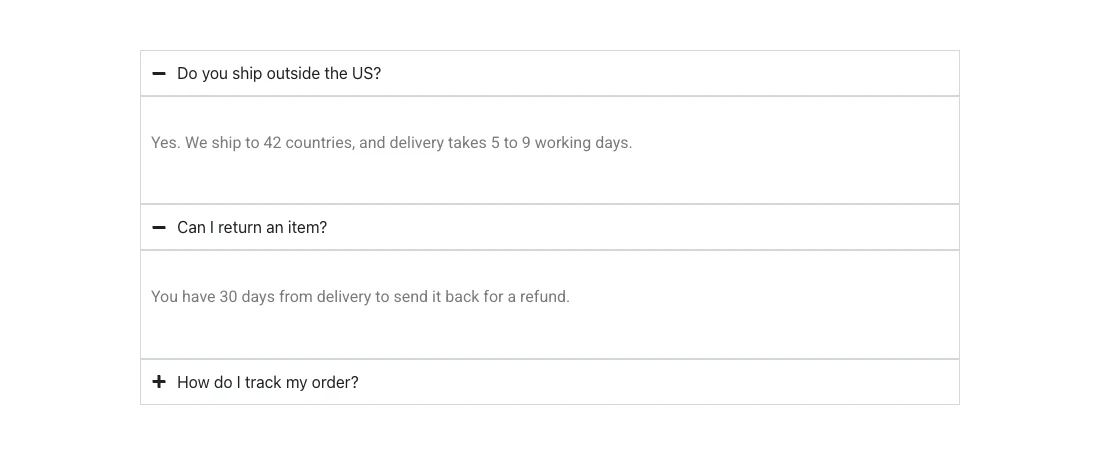
The limit of this method is the look. The trigger is always a title bar directly above the content. If you need a styled button, or a trigger somewhere else on the page, use Method 3. For more title styles, the Advanced Accordion widget is an option.
Method 2: A content toggle with an empty option
A content toggle normally switches between two blocks. Leave one block empty and it becomes a show and hide switch: one label shows nothing, the other shows your section.
These steps use Toggle Content from Master Addons Pro. We tested the empty option on Elementor 4.3 and it leaves no gap or placeholder.
- Drag Toggle Content onto the page.
- In the Elements list, label the first item Hide details and delete the sample text so its content is empty.
- Label the second item Show details. Write the content in the editor, or set Type to Template and pick a saved template for a full layout.
- Open Toggle Settings and leave Active Index on 1, so the page loads with the section hidden.
- Set Position to Before if the switch should sit above the section, or After to put it below.


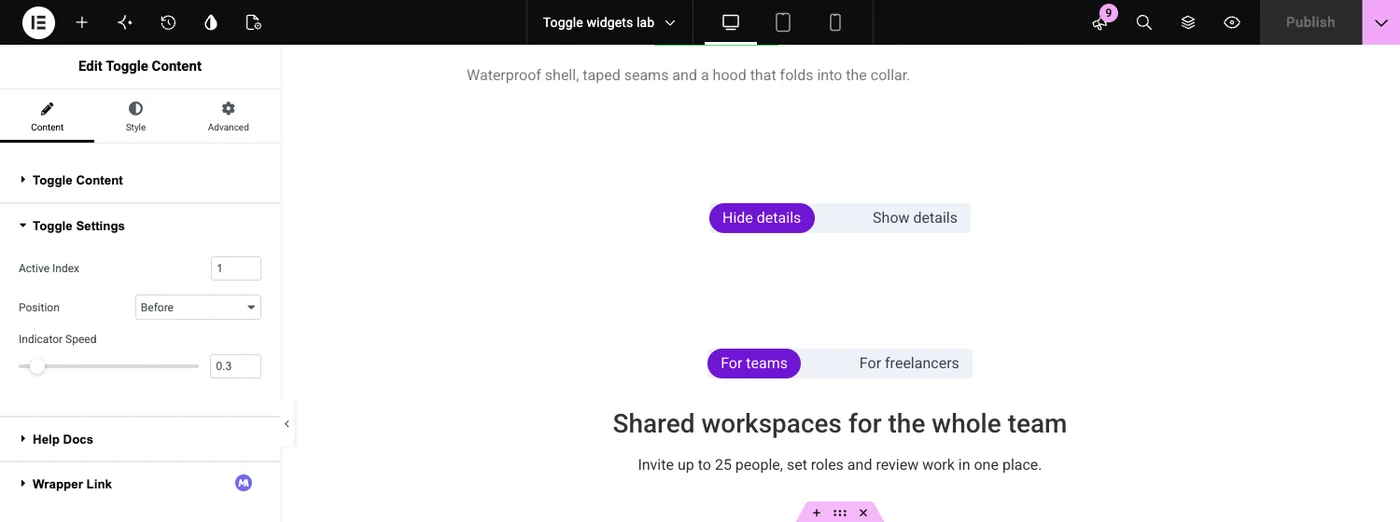
The switch makes the state obvious, which suits optional details such as nutrition facts, technical specs or terms. To flip it the other way, with the section visible first, set Active Index to 2.
Switching between two sections? The Toggle Content widget page has billing switches, spec tables and eight more live demos.
Method 3: A button and a short script
Use a script when the trigger must be a normal button, or when the button and the section are in different places. You add one CSS class to the button, one to the section, and paste a small snippet into an HTML widget.
- Add a Button widget. In Advanced > CSS Classes, type
show-hide-button. Leave the button’s link field empty. - Select the container you want to hide. In Advanced > CSS Classes, type
show-hide-target. - Drag an HTML widget anywhere on the page and paste the code below.
- Update the page and test it on the front end.
<style>
.show-hide-target { display: none; }
.show-hide-target.is-open { display: flex; }
.elementor-editor-active .show-hide-target { display: flex; }
</style>

<script>
document.addEventListener("DOMContentLoaded", function () {
  document.querySelectorAll(".show-hide-button a, .show-hide-button button").forEach(function (button) {
    button.addEventListener("click", function (event) {
      event.preventDefault();
      document.querySelectorAll(".show-hide-target").forEach(function (target) {
        target.classList.toggle("is-open");
      });
    });
  });
});
</script>
The first style rule hides the container. The second shows it once the script adds the is-open class. The third keeps the container visible inside the Elementor editor, so you can still edit it. Each click on the button adds or removes the class.

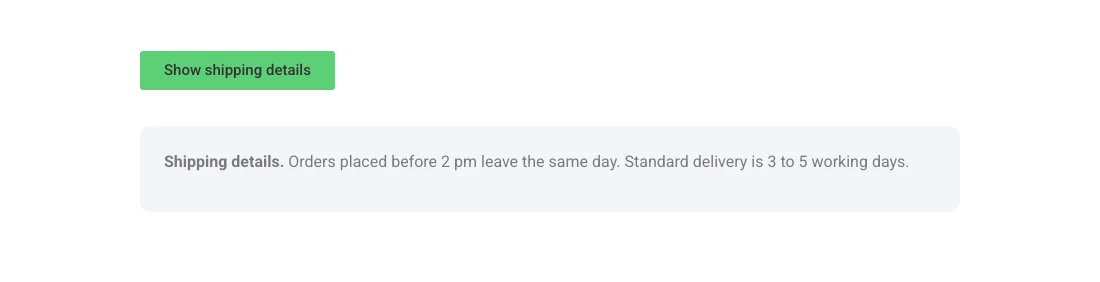
Three notes on this method. Every container with the class opens together, so use different class names if you need separate pairs on one page. The button text does not change by itself. And if a caching or script optimisation plugin delays JavaScript, the first click can be ignored until the script loads.
If the section should open over the page, use a popup. See how to add a popup in Elementor.
What does not work: Display Conditions and Responsive settings
Two Elementor features sound like they should do this and do not. Both hide content, but neither reacts to a click.
- Responsive settings. Advanced > Responsive has Hide On Desktop, Hide On Tablet and Hide On Mobile. They hide an element by screen size, all the time.
- Display Conditions. Elementor’s display conditions show or hide an element by rule, such as login status, user role, date or browser. The decision is made when the page loads.
They are the right tools when the site should decide what a visitor sees. We cover them in Elementor display conditions, and the Display Conditions extension page lists every rule it supports. When the visitor should decide, use one of the three click methods above.
Frequently asked questions
How do I show a hidden section when a button is clicked in Elementor?
Give the button the CSS class show-hide-button and the section the class show-hide-target, then add an HTML widget with a short script that toggles a class on the section when the button is clicked. With no code, put the section inside an Accordion item instead.
Can Elementor show or hide a section on click without a plugin?
Yes. The Accordion widget hides whatever is inside an item until its title is clicked, and it is part of Elementor itself. For a custom button, an HTML widget with a few lines of JavaScript does the same job with no extra plugin.
Why does my hidden section also disappear in the Elementor editor?
Your CSS hides it everywhere, including the editor preview. Add a rule that shows it while editing: .elementor-editor-active .show-hide-target { display: flex; }. You can also open the Structure panel and select the hidden container from there.
Is content hidden behind a click bad for SEO?
Not when the content is in the page HTML, which is the case for all three methods here. Search engines can read it. Keep the page’s main content visible by default, and use click-to-show for supporting details.
Can I hide a section until a visitor logs in?
That calls for a condition. Use Display Conditions with a Login Status rule so the section only loads for logged-in visitors. A click-based method would still send the content to everyone’s browser.
Final thoughts
There are three dependable ways to show or hide a section on click in Elementor. Use the Accordion widget when a title bar is fine, a content toggle with one empty option when you want a visible switch, and a button with a short script when the trigger has to sit somewhere else.
If you end up switching between two sections more often than hiding one, the Toggle Content widget is built for that.
Related reading
