

Key Takeaways
- An Elementor price list is a list with one price per row, for menus, service rates and parts lists; it is a different widget from a pricing table, which has one price per card.
- Elementor’s own Price List widget is part of Elementor Pro, with a title, description, price and optional image per item.
- The Master Addons Dynamic Table widget builds a price list as a real HTML table: a header row with column widths, a body repeater where each item starts a new row, striped rows and a responsive mode for phones.
- A pricing table widget is the wrong tool for a menu, because ten dishes would mean ten cards, but it is the right one for two or three service packages with a feature list each.
- Prices in a list should be right aligned in their own column so the eye can run down them, and descriptions should stay to one line per item.
- A table-based price list is plain text in the page, so every dish name and price is readable by search engines and screen readers.
An Elementor price list is a list of items with a price on each line: a restaurant menu, a salon’s service rates, a workshop’s parts list. It is not a pricing table. A pricing table has one price per card and sells plans; a price list has one price per row and informs. Elementor puts its Price List widget in Elementor Pro, so on the free plugin you need another route.
This guide shows three ways to build one and when each fits. Route 1 is Elementor Pro’s Price List widget. Route 2 is the Dynamic Table widget from Master Addons, which turns a menu into a clean table with a price column. Route 3 is pricing cards for the case where the “list” is two or three packages with features, which is a pricing table job after all.
Table of Contents
Price list vs pricing table
A price list has many items and one price each; a pricing table has few plans and a feature list each. The menu at a restaurant is a price list. The three hosting plans on a SaaS site are a pricing table. Mixing them up is the usual reason a menu built in Elementor looks wrong: ten dishes as ten pricing cards is a wall of boxes, and three plans as a list hides the features that sell them.
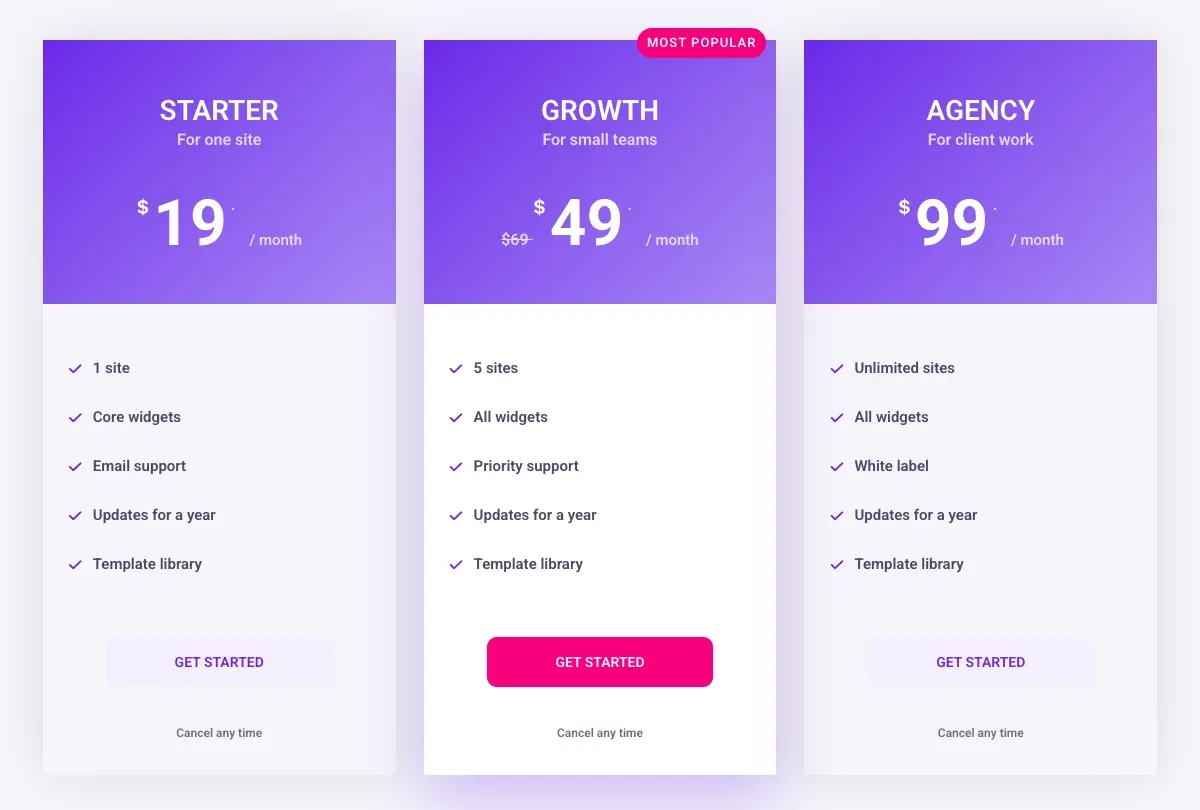
So the first question is how many items you have and whether each one needs a feature list. More than four items with a price and a one-line description: price list. Two to four items with several features each: pricing table.
Route 1: Elementor Pro’s Price List widget
Elementor Pro has a Price List widget made for menus. Each item in its repeater has a title, a description, a price, an optional image and a link, and the widget draws a dotted or solid separator between the title and the price. The Style tab controls the list spacing, the separator style and the image size. It needs Elementor Pro, so on the free plugin the widget does not appear in the panel.
If you already pay for Pro, this is the shortest route for a classic menu. What it does not do is columns: every item is one line with the price pushed to the right, so a list that needs a size or quantity column, or three prices per item (small, medium, large), does not fit. Source: Elementor’s Price List widget help page.
Route 2: a menu with the Dynamic Table widget
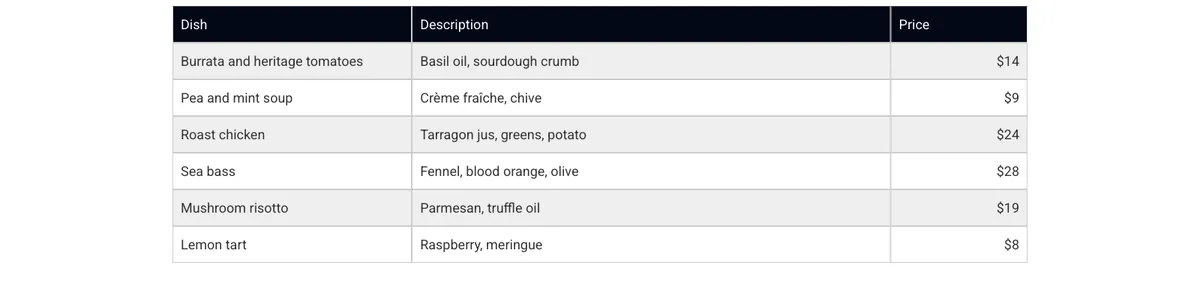
The Dynamic Table widget builds a real HTML table in the Elementor panel: a header repeater for the columns and a body repeater for the cells. For a price list that means a Dish column, a Description column and a Price column, with each menu item on its own row. The widget is in the Master Addons plugin and does not need Elementor Pro.
Set up the columns
- Drop the Dynamic Table widget onto the page and open the Header repeater.
- Add three header cells: Dish, Description, Price. On each one, turn on Custom Width and set 28, 56 and 16 percent so the description gets the room and the price column stays narrow.
- Set the Price header’s alignment to right.
Add the items
- Open the Body repeater. Each entry is one cell. Add the first dish name and turn on Start New Row for it.
- Add the description as the next cell and the price as the third, with the price cell aligned right.
- Repeat for every item: a new row starts on the dish name, then two more cells. Six items is eighteen cells.
A cell can carry an icon or an image instead of text, which is how a menu gets a small photo next to a dish or a leaf icon on the vegetarian rows. Cells can also span columns, so a course heading such as “Mains” can sit on a row of its own across the full width.
Style it like a menu
In the Style tab, set the header background to a dark colour and the header text to white, turn on Striped Rows so every second row is tinted, and give the table a one-pixel border in a light grey. Keep the body text at the same size as your paragraphs and make the price column bold if you want the eye to land on the numbers. The widget’s responsive mode stacks each row into a block on phones, with the column header printed next to each value, so a three-column menu stays readable without sideways scrolling.
Route 3: service packages as pricing cards
Some “price lists” are really two or three packages: a one-off service and a monthly plan, or a basic and a premium tier of the same job. Each package has a few things included, and the reader is choosing between them. That is a pricing table, and the Pricing Table widget does it in one card per package with the price large and the inclusions as a list.
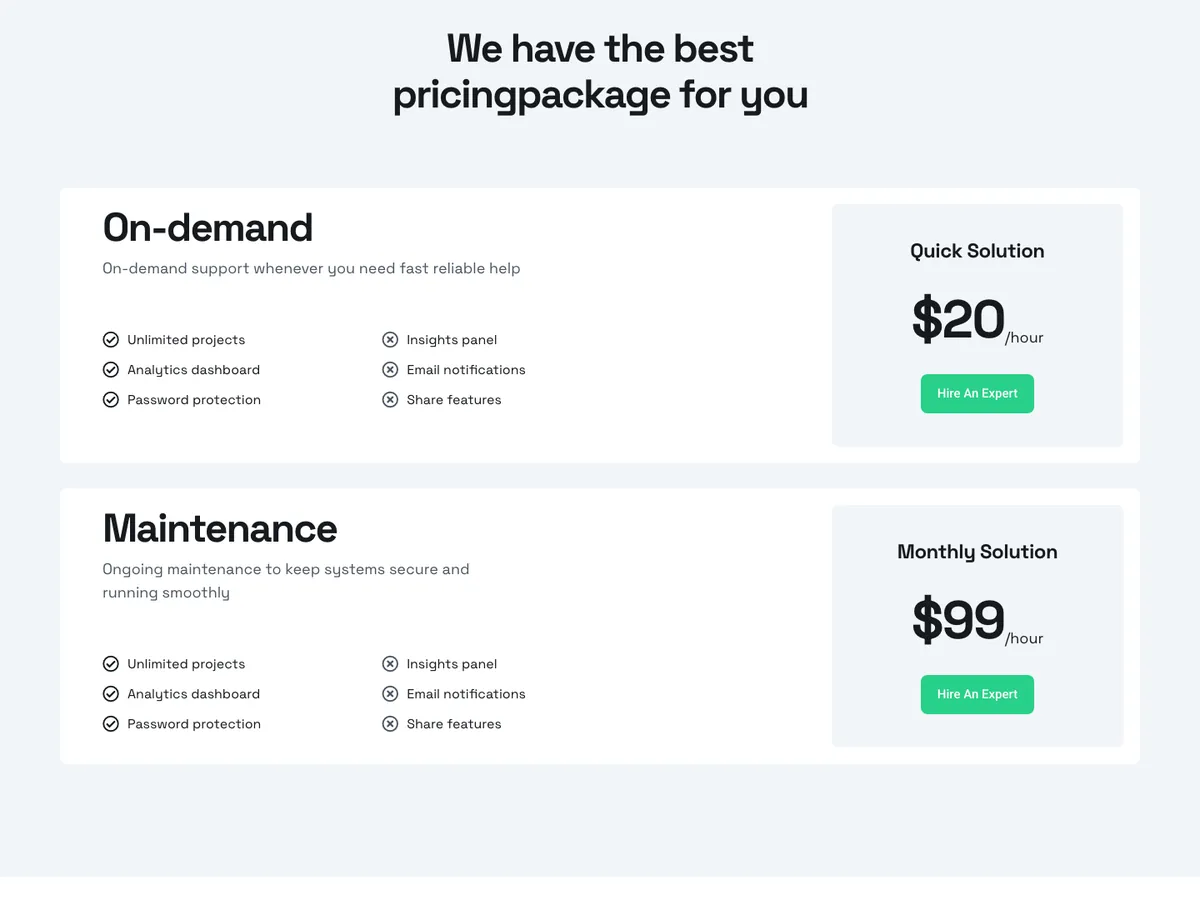
The section above, from the Template Library, shows the shape: a wide row per package with the name and description on the left, the included and excluded items in two columns, and the price with a button on the right. It is a price list in spirit and a pricing table in structure, and the rule of thumb holds: few items, several features each, so cards. More card designs are in the pricing table templates post.
Price list design rules
- Prices in their own column, right aligned. The reader scans the prices as a column. A price tucked after the description on each line cannot be scanned.
- One line per description. “Basil oil, sourdough crumb” is enough. A paragraph per dish turns the list into a page.
- Group by course or category with a full-width heading row, and keep the groups in the order a customer would order.
- Show the currency once in the header or the first price, or keep the symbol on every price; mixing the two looks like an error.
- Keep it text. A menu uploaded as an image cannot be searched, read aloud or updated without a designer. A table in Elementor is text.
- Check it on a phone. A three-column table at 390 pixels wide needs the stacked mode on, and the price should still come right after the dish name.
Which route to pick
| If you | Use | Because |
|---|---|---|
| Have Elementor Pro and a simple one-price menu | Route 1, Price List widget | Made for the job, dotted separator built in. |
| Run free Elementor, or need a size or quantity column | Route 2, Dynamic Table | Real columns, striped rows, stacks on phones. |
| Have two to four packages with features each | Route 3, Pricing Table cards | Few items, a feature list each, one button per package. |
| Need prices that vary by size (small, medium, large) | Route 2, Dynamic Table | One column per size on the same row. |
Need a menu with a price column and no Elementor Pro? The Dynamic Table widget builds it as a real table in the Elementor panel, with striped rows and a stacked layout for phones.
Frequently asked questions
Is the Elementor price list widget free?
No. The Price List widget is part of Elementor Pro and does not appear in the free plugin’s panel. On free Elementor, a price list comes from an addon table widget such as the Master Addons Dynamic Table, or from pricing cards when the list is really a few packages.
What is the difference between a price list and a pricing table?
A price list has many items with one price each and no feature lists, like a menu. A pricing table has a few plans with a feature list and a button each, like hosting tiers. Use a list for items and a table of cards for plans.
How do I make a restaurant menu in Elementor without Pro?
Use the Master Addons Dynamic Table widget: add Dish, Description and Price header cells with custom widths, then add each item as three body cells with Start New Row on the first. Turn on striped rows and the responsive mode so the menu stacks on phones.
Can a price list have more than one price per item?
Yes, with a table. Add one column per size or option, such as Small, Medium and Large, and put each price in its own cell on the item’s row. Elementor Pro’s Price List widget shows one price per item.
Should a menu be an image or text?
Text. An image menu cannot be searched, read by screen readers or updated without redoing the image, and it blurs on retina phones. A table or list widget keeps every dish and price as text on the page.
Final thoughts
A price list in Elementor is one price per row, and the route depends on what you have. Elementor Pro’s Price List widget covers a simple menu for Pro users. The Master Addons Dynamic Table covers the same menu on free Elementor and adds columns for sizes, quantities or courses. Two or three packages with features are a pricing table, not a list, and the Pricing Table widget handles those as cards.
Start with the Dynamic Table widget page for the menu route, or the Pricing Table widget page if your list is really a set of packages.
Related reading
