

Key Takeaways
- An Elementor pricing table toggle needs two sets of cards, one with monthly prices and one with yearly prices, and a control that shows one set at a time.
- The free Elementor plugin can do it with the Nested Tabs widget: one tab per billing period, a row of pricing cards inside each tab, with no addon.
- The Toggle Content widget in Master Addons Pro gives the switch the look people expect, a pill with Monthly and Yearly labels, and loads each set from a saved section template.
- The Master Addons Pricing Table widget holds one price per card and has no billing switch of its own, so every route on this page pairs it with a second widget.
- Templates saved from an Elementor container are stored as the Container type, and the Toggle Content section list only shows Section type templates, so save the pricing row as a Section.
- Show yearly prices per month with a “billed yearly” note so the two toggle states compare like for like.
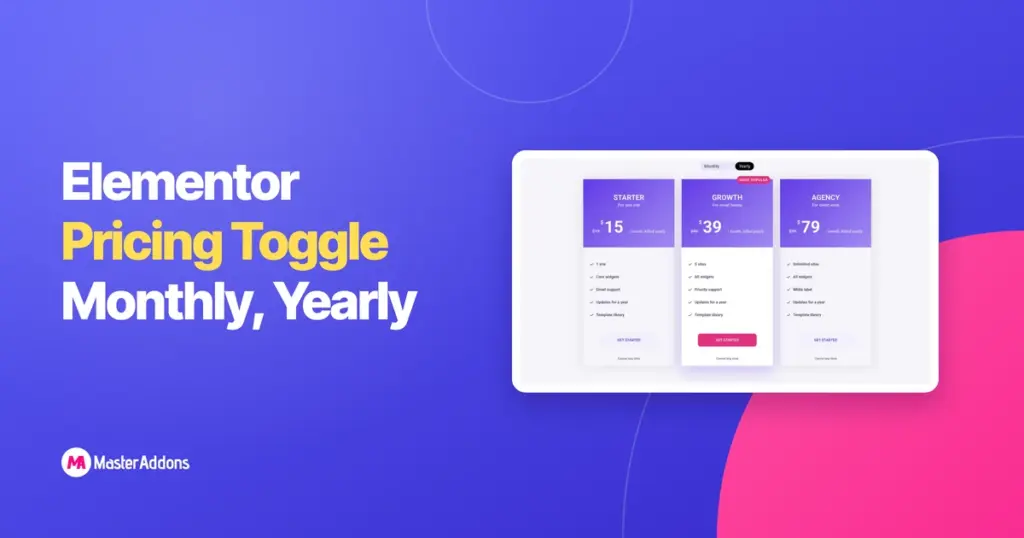
An Elementor pricing table toggle is a switch above the plans that flips every card between monthly and yearly prices. Elementor has no widget that does this on its own, and most addon pricing tables hold a single price per card, so the toggle is always built from two parts: two sets of cards and something that shows one set at a time.
This guide builds the toggle three ways on the same three plans. Route 1 uses the free Elementor Nested Tabs widget. Route 2 uses the Toggle Content widget from Master Addons with two saved section templates, which is the version that looks like a real billing switch. Route 3 covers widgets that ship with a switch built in and what you give up for the convenience.
Table of Contents
How a pricing toggle works in Elementor
A pricing toggle is two complete pricing rows and a control that hides one of them. When a visitor clicks Yearly, the monthly row is hidden and the yearly row is shown. Nothing recalculates. That is why the monthly and yearly cards can be built with any pricing widget, including ones with a single price field.
The control is the part that changes between routes. Nested Tabs gives you tab buttons. Toggle Content gives you a pill switch with a sliding indicator. A widget with a built-in switch gives you its own control and its own card design. The cards underneath stay the same in the first two routes, so pick the cards first and the control second.
One rule holds for every route: show the yearly price as a per-month figure with a note that it is billed yearly. “$39 / month, billed yearly” next to “$49 / month” lets the reader see the saving without doing arithmetic. A yearly total next to a monthly price looks more expensive even when it is cheaper.
Step 1: build the monthly and yearly cards
Build the monthly row first, then duplicate it and change the prices. In Elementor, add a container with three child containers side by side and drop one Pricing Table widget into each. Set the plan name, subtitle, price and period in the Content tab. Give the middle card Highlight Table and a ribbon so the row has a default plan.
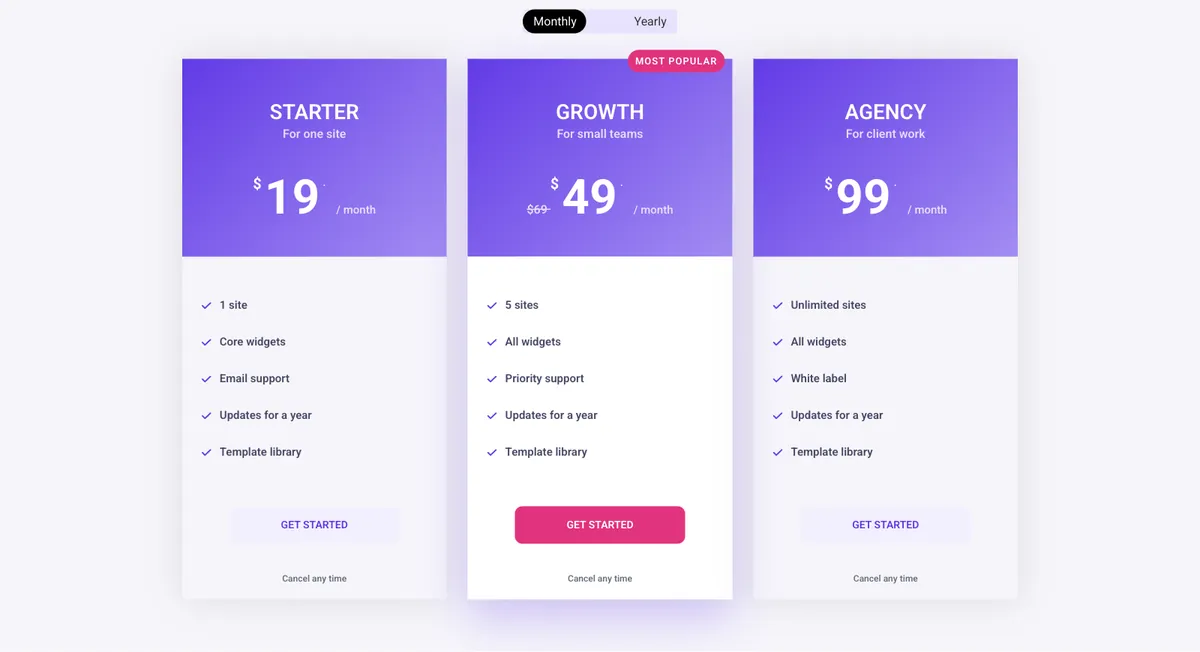
Now right-click the parent container and choose Duplicate. In the copy, open each card and change the price. For yearly billing, turn on the Sale switch, enter the monthly price as the Original Price and the yearly per-month price as the Price, and set the period to “/ month, billed yearly”. The crossed-out monthly figure does the selling.
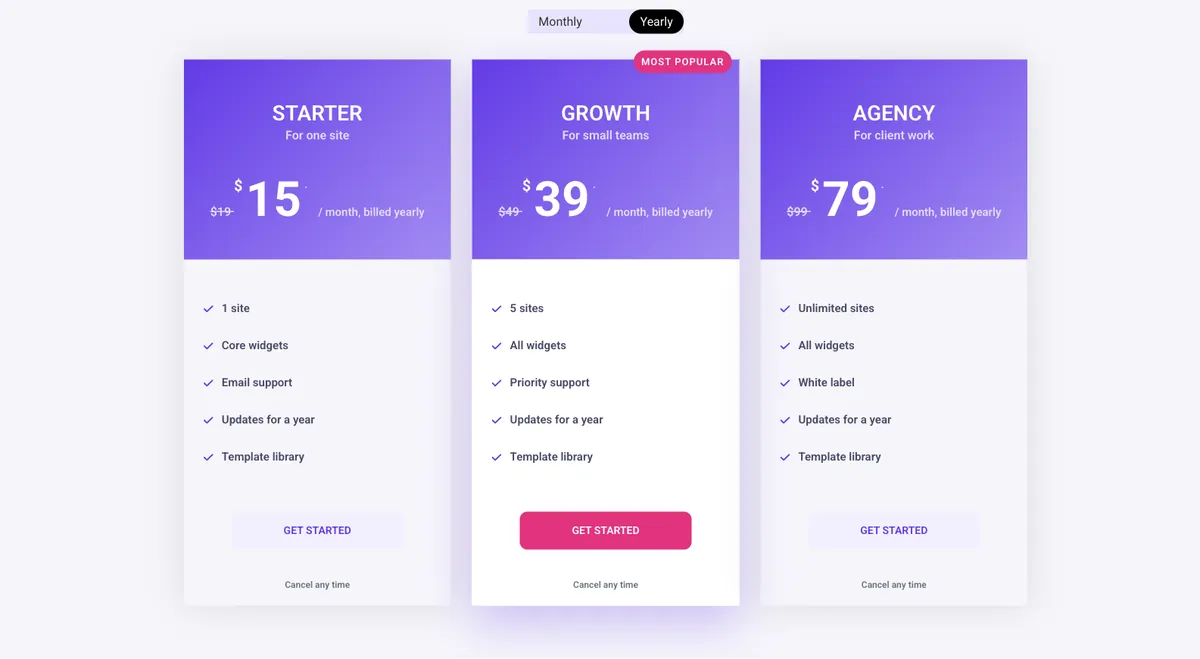
You now have two rows on the page. Routes 1 and 2 decide how they are shown one at a time.
Route 1: Nested Tabs (free Elementor)
The Nested Tabs widget in the free Elementor plugin puts a container inside every tab, so a whole pricing row fits in a tab panel. It needs the Flexbox Container feature, which is on by default on current Elementor installs.
- Drag the Tabs widget (the nested one, with the container icon) onto the page above where the pricing should sit.
- In the Content tab, rename Tab #1 to Monthly and Tab #2 to Yearly. Delete the third tab.
- Drag the monthly pricing container into the Monthly tab panel and the yearly container into the Yearly panel. Use the Navigator (the layers panel) if the drop target is hard to hit.
- In the Style tab, set the tab title alignment to centre and give the active tab your accent colour.
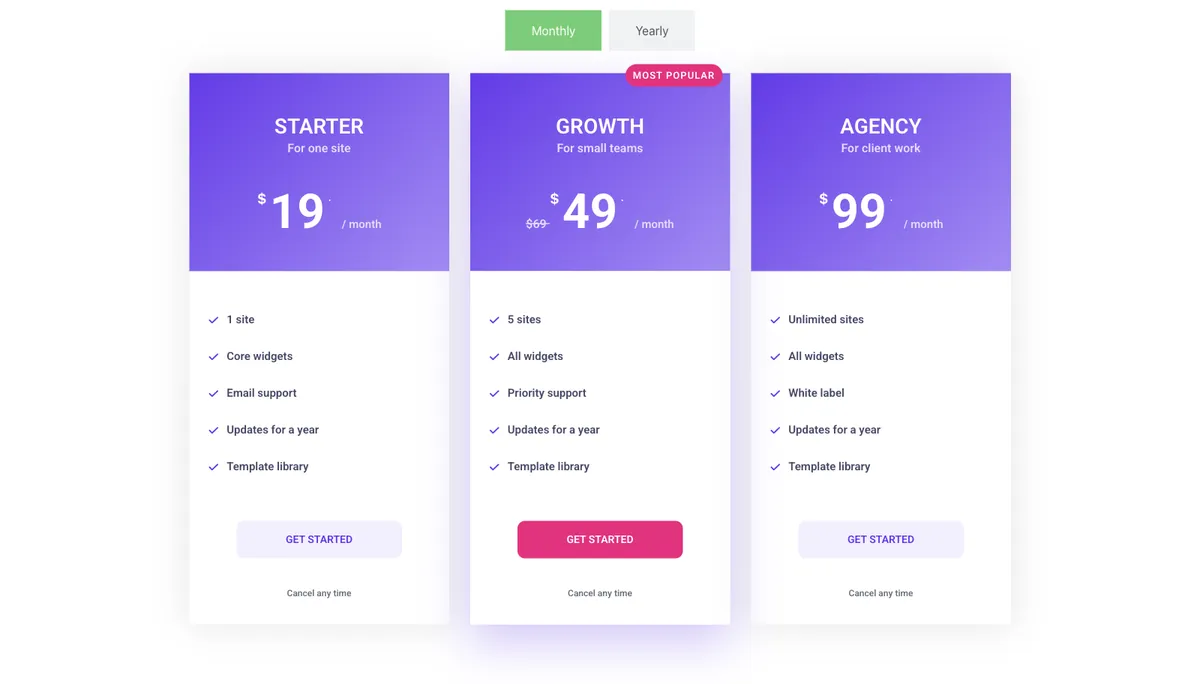
The result works, and it costs nothing. What it does not look like is a billing switch. Tabs read as navigation, so some visitors miss that the yearly prices exist. You can style the two tab titles into a pill shape with border radius and background colours, which gets close. On phones, Nested Tabs turns into an accordion below the breakpoint you set, so check that the Monthly panel is the one open by default.
Route 2: Toggle Content with two section templates
The Toggle Content widget shows one of several pieces of content behind a pill switch, and each piece can be a saved Elementor template. Two saved pricing rows plus this widget is a monthly and yearly toggle that looks like the ones on SaaS pricing pages. Toggle Content is part of Master Addons Pro.
Save each row as a section template
- Right-click the handle of the monthly pricing container and choose Save as Template.
- Name it “Pricing monthly” and save. Do the same for the yearly container as “Pricing yearly”.
- Open Templates > Saved Templates in the WordPress admin and check the Type column.
Elementor saves a container as the Container type, and the Toggle Content widget’s section list only shows templates of the Section type, which is why step 3 checks the column. If your two templates say Container, the “Choose section” dropdown will show nothing. The fix is to build the row inside a legacy section (Elementor > Settings > Features, or add a section from the Navigator) before saving, or to choose Page as the template type in the widget and save the rows as page templates instead. Both routes work; the Section one keeps the widget’s defaults.
Add the Toggle Content widget
- Drag Toggle Content from the Master Addons group onto the page where the pricing belongs. Delete the two original pricing containers, since the templates now hold them.
- In the Elements repeater, open the first item. Set the Label to Monthly, Type to Template, Template Type to Section, and pick “Pricing monthly” under Choose section.
- Open the second item, set the Label to Yearly and pick “Pricing yearly”.
- Under Toggle Settings, leave Active Index at 1 so Monthly shows first, and set the active colour to your accent.
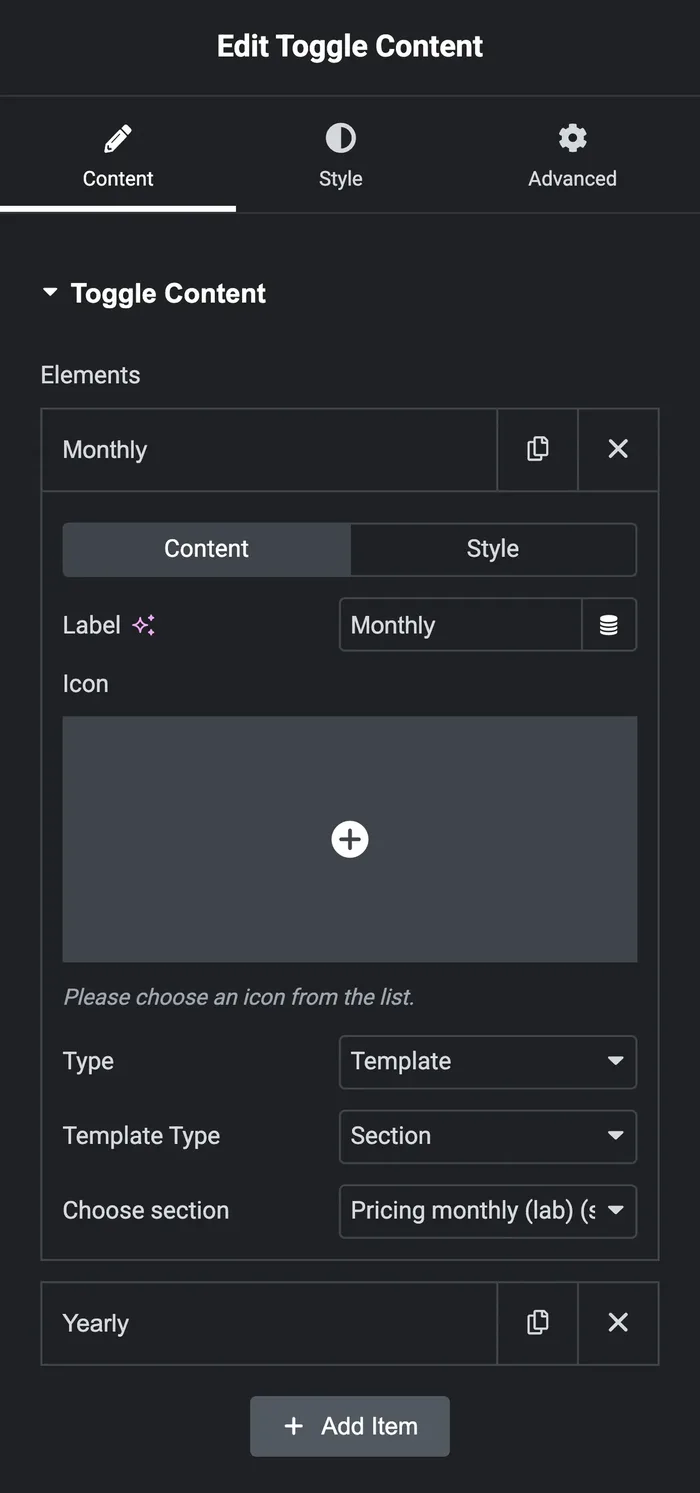
Preview the page and click Yearly. The monthly row slides out and the yearly row slides in, with the pill indicator moving across. The Style tab controls the pill size, label colours and the space between the switch and the content.
The widget does not enqueue the saved template’s own stylesheet, so if a card looks unstyled on the front end, set its colours in the widget controls rather than in the template’s page settings, or clear the Elementor cache from Elementor > Tools. If you edit a plan later, edit the saved template under Templates > Saved Templates, not the page; the page only references it.
Route 3: a pricing widget with a built-in switch
Some addons ship a pricing widget with a billing switch already inside it, so you enter a monthly price and a yearly price per card and the widget draws the toggle. HT Mega has a Flip Switcher Pricing Table widget that works this way. Most others, including Essential Addons, Premium Addons, PowerPack and The Plus Addons, do what Route 2 does: a separate toggle or switcher widget (Pro in each of those plugins) wrapping two sets of cards. The pricing table widget comparison lists which plan each toggle widget sits in.
The Master Addons Pricing Table widget has one price field per card and no built-in switch, which is why this guide pairs it with Toggle Content. The trade-off with a built-in switch is design: you are limited to that widget’s card layouts and its switch style. With two sets of cards, every control in the Pricing Table widget stays available, including the five layouts, the ribbon and the feature tooltips, and you can change the switch without rebuilding the cards.
If you want the switch inside one widget, check three things before you commit: whether the widget’s yearly price can show the monthly figure struck through, whether the switch label text is editable, and how the cards stack on a phone.
Ready-made toggle pricing sections
The Master Addons Template Library has pricing sections with the toggle already wired. “Billing Switch Pricing Cards” uses Toggle Content with two pricing rows, and “Billing Toggle Pricing Tabs” does the same with tabs, including a three-year option. Import one from Templates > Master Addons Templates in the editor, then swap the plan names, prices and features. The pricing table templates post has more sections like these, with the settings behind each one.
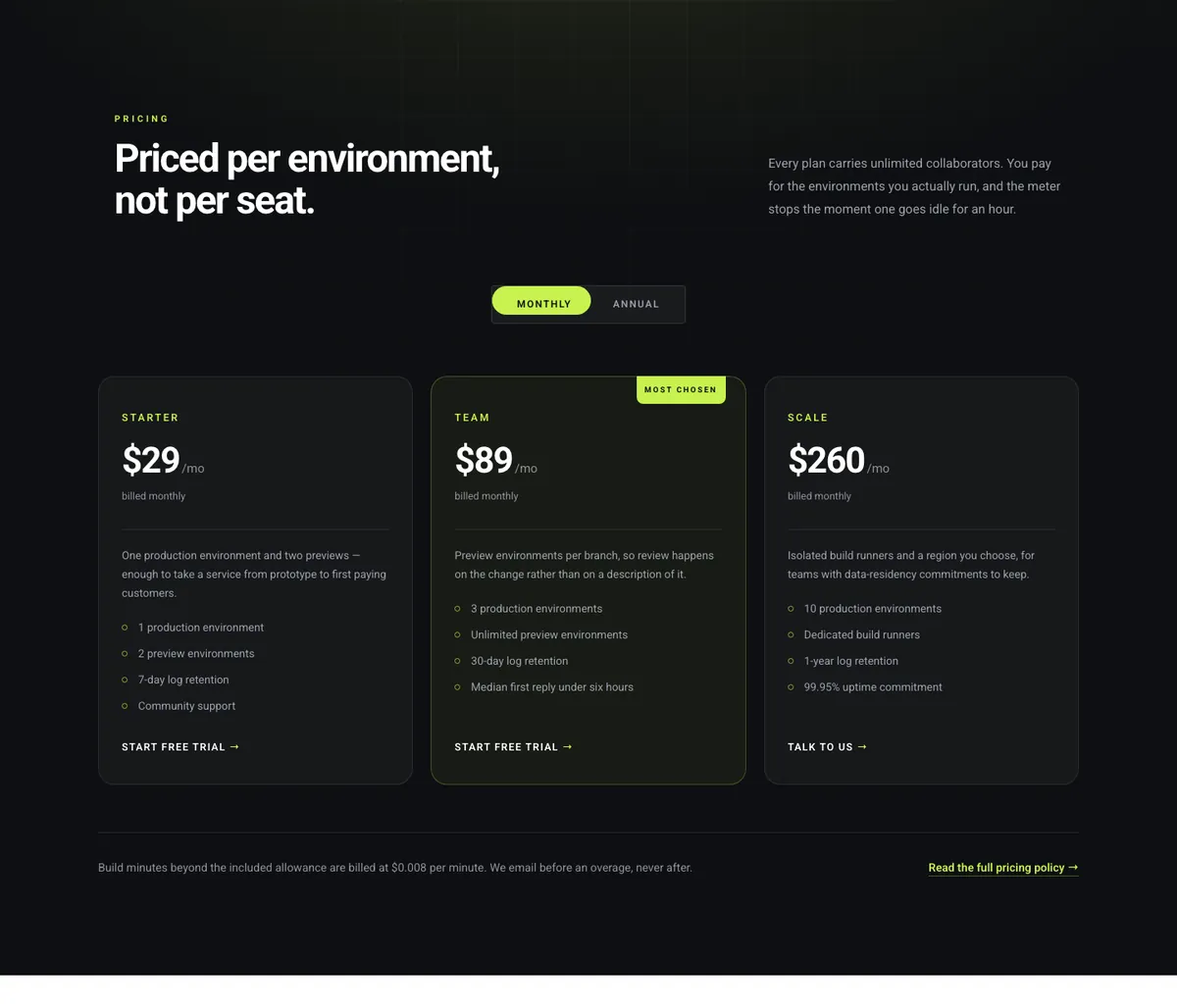
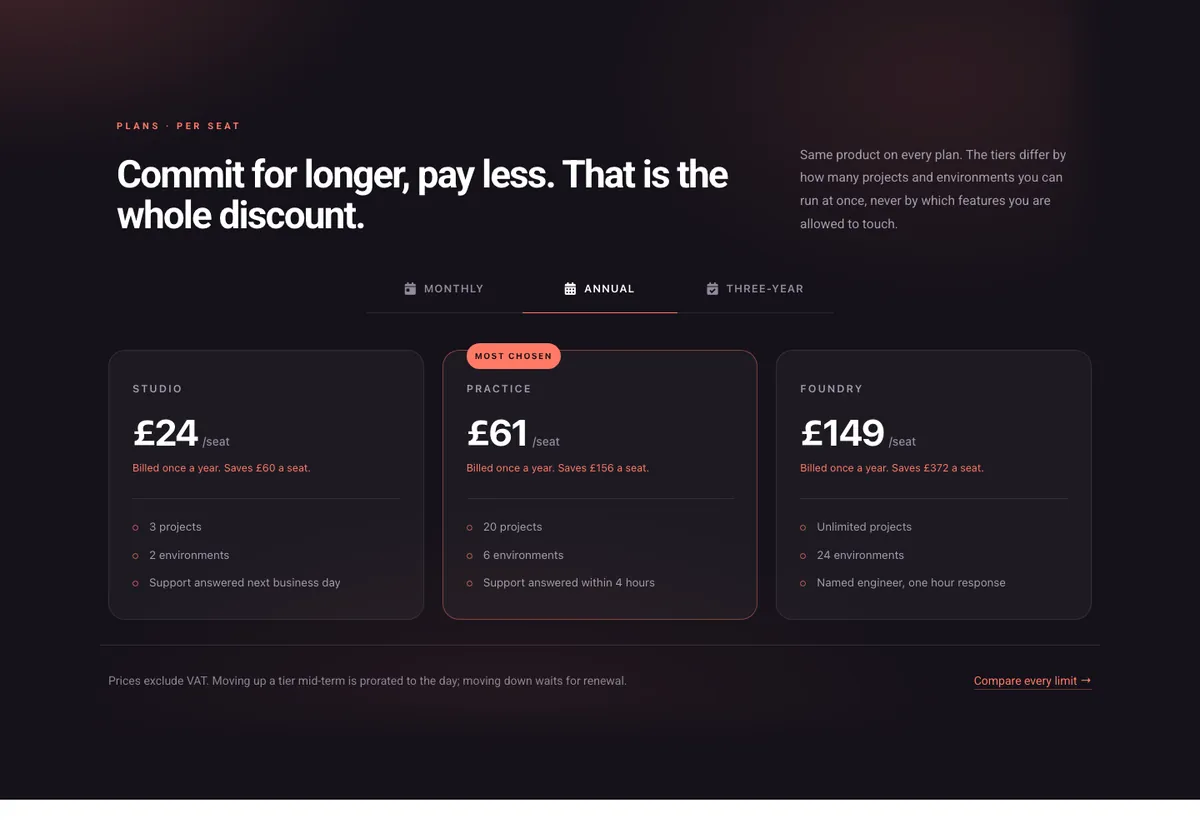
Both sections are built with Master Addons Pro widgets, so they need the Pro plugin active to import.
Which route to pick
| If you | Use | Why |
|---|---|---|
| Run free Elementor and want it done today | Route 1, Nested Tabs | No addon, and the pricing cards can be any widget. |
| Want a switch that looks like a billing toggle | Route 2, Toggle Content | Pill switch, sliding indicator, templates you can reuse on other pages. |
| Have three billing periods or more | Route 2 or Route 1 | Both take any number of items; a built-in switch usually takes two. |
| Want the fewest widgets on the page | Route 3, built-in switch | One widget per card, at the cost of layout choice. |
Want the switch without building it twice? The Toggle Content widget shows any saved template behind a Monthly and Yearly pill, so the Pricing Table cards keep all five layouts, the ribbon and the tooltips.
Frequently asked questions
Does Elementor have a pricing toggle widget?
No. Elementor Pro’s Price Table widget holds one price per card and has no billing switch. The free plugin’s Nested Tabs widget can show two pricing rows as Monthly and Yearly tabs, which is the closest built-in option.
Can the Master Addons Pricing Table switch between monthly and yearly on its own?
No. Each Pricing Table card has one price, one original price for sales and one period. Build a monthly row and a yearly row, save each as a section template, and show them through the Toggle Content widget from Master Addons Pro.
Why is my saved template missing from the Toggle Content dropdown?
Elementor saves a container as the Container template type, and the dropdown lists Section type templates only. Save the row from a legacy section, or set Template Type to Page in the widget and save the rows as page templates.
Should the yearly price show the total or the per-month amount?
Show the per-month amount with a “billed yearly” note, and use the Sale switch to strike through the monthly price. The reader then compares like with like and sees the saving on the card instead of calculating it.
Does a pricing toggle hurt SEO?
No. Both rows are in the page HTML, and the hidden row is hidden with CSS, so search engines read every price. Keep the plan names and prices as text rather than images.
Final thoughts
A monthly and yearly toggle on an Elementor pricing table is two pricing rows and one control. Nested Tabs gives you the control for free and reads as tabs. Toggle Content, in Master Addons Pro, gives you a pill switch and loads each row from a saved section template, with the one catch that the templates must be the Section type. A widget with the switch built in saves a step and costs you layout choice.
Start with the cards on the Pricing Table widget page, which has a live toggle built exactly this way, then add the switch that fits your plan.
Related reading
