

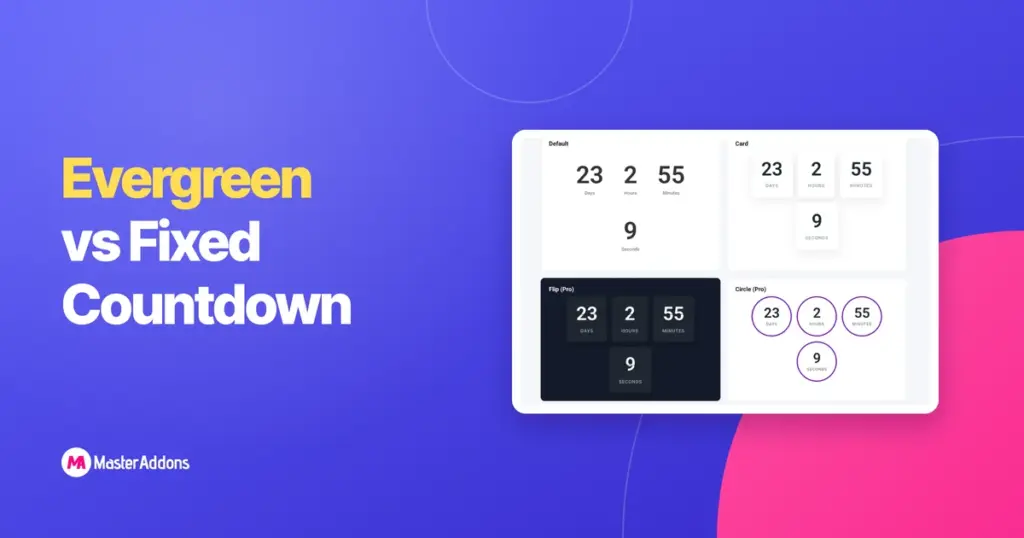
Key Takeaways
- An evergreen countdown timer starts a separate deadline for each visitor, usually from the moment they first open the page, and stores that start time in a cookie, in the browser’s localStorage or against the visitor’s IP address.
- A fixed-date countdown counts to one calendar moment that every visitor shares, which fits product launches, event dates and sales with a published end time.
- A recurring countdown restarts on a set interval, such as every 24 hours or every Friday at 15:00, and every visitor sees the same cycle because the schedule lives on the server.
- Elementor Pro’s Countdown widget offers Due Date and Evergreen Timer types with Redirect, Hide and Show Message actions after expiry, and it has no recurring option.
- The Master Addons Countdown Timer widget counts to a fixed date on each visitor’s local clock, adds a server-side Repeat countdown cycle in Master Addons Pro, and has no evergreen mode or after-expire action.
- HurryTimer covers evergreen and fixed timers in its wordpress.org version and adds recurring schedules in Pro, while Countdown & Clock covers all three types with evergreen and recurring at its Gold tier.
An evergreen countdown timer is a timer that starts counting when a particular visitor first opens the page, so two people who arrive an hour apart see two different deadlines. A fixed countdown counts to one date and time that is the same for everyone. A recurring countdown counts to the next point in a repeating cycle, such as midnight tonight, and then starts over.
Below you’ll see how each type works, where the three get mixed up, which WordPress plugins and Elementor addons offer which, and what each one does when the clock reaches zero. The Master Addons Countdown Timer handles fixed dates and, in Pro, recurring cycles. For a per-visitor evergreen timer you need Elementor Pro, HurryTimer or Countdown & Clock.
One link in this post, to Ultimate Addons for Elementor, is an affiliate link. If you buy through it we may earn a commission, at no extra cost to you.
Table of Contents
Fixed-date countdown
A fixed-date countdown counts to a single moment on the calendar, such as 15 December at 18:00, and every visitor sees the same number of days, hours, minutes and seconds left. In Elementor Pro’s Countdown widget it is the Due Date type; in the Master Addons Countdown Timer it is the one control in the Timer section, called Countdown Date & Time.
Fixed dates fit anything with a real end that you can publish in advance: a product launch, a conference or webinar, a ticket price step, a Black Friday sale that ends Sunday at midnight, or a coming soon page for a site that opens on a known day. The number on screen is simply true, so a fixed timer holds up better than the other two types when a visitor looks closely.
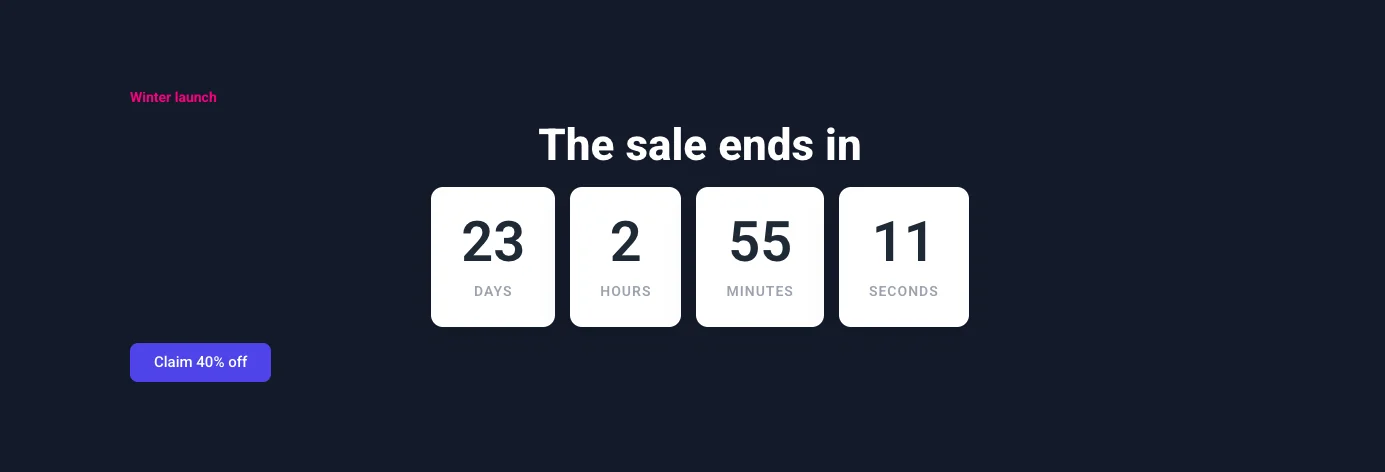
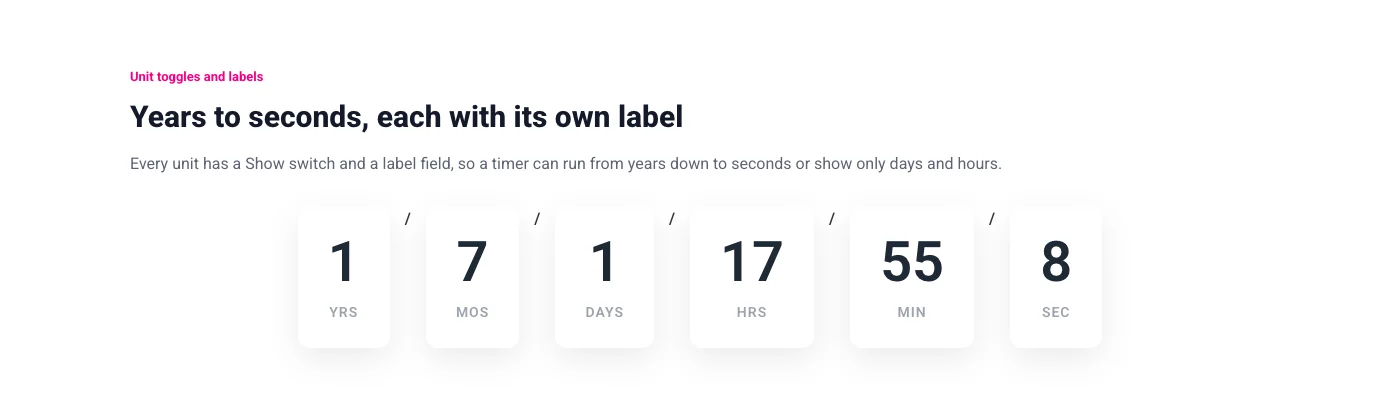
The widget shows any of six units, from years down to seconds, each with a Show switch and a label field, so a launch a year away can show Yrs and Mos while a flash sale shows only Hrs, Min and Sec. Four layouts (Block, Inline, Block Table and Inline Table) decide whether the units sit in boxes or in one line with a separator character between them.
Whose clock does a fixed date use?
Tools handle this differently, and this is where fixed timers go wrong. The Master Addons widget builds the end time in the visitor’s browser, so a deadline of 18:00 ends at 18:00 on each visitor’s own clock. For a sale that ends “tonight” in every market that is what you want. For a webinar that starts at one moment worldwide, write the time zone next to the timer, because a visitor eight hours ahead of you sees the timer end eight hours before your event. Ultimate Addons reads the WordPress time zone instead and falls back to UTC+0 if none is set, Premium Addons lets you choose between the two, and Elementor’s help article for the Countdown widget does not mention time zones, so test a Due Date from a browser in another zone before a launch.
Need a fixed-date timer without Elementor Pro? The Master Addons Countdown Timer page has ten live demos, the four layouts and the ten style presets, with the Repeat countdown cycle in Master Addons Pro.
Evergreen countdown
An evergreen countdown gives each visitor a personal deadline measured from their own first visit. You set a duration, say 2 hours or 3 days, and the timer starts when a visitor lands on the page. Someone who arrives at 09:00 sees it end at 11:00; someone who arrives at 14:00 sees it end at 16:00. The page never needs editing, which is where the name comes from.
How the timer remembers each visitor
For a personal deadline to hold, the tool has to record when that visitor’s clock started, and there are three places to keep that record. A cookie is a small value the browser stores for the site, and it is the most common choice. The browser’s localStorage holds the same value without sending it to the server; The Plus Addons’ Scarcity countdown calls this Track User Data, and with it set to No the timer restarts on every page load. An IP address record lives on the server, so clearing the browser does not reset it; the Evergreen Countdown Timer plugin by Data443 uses a cookie and the IP together. Thrive Ultimatum adds a Lockdown mode that the vendor says survives a device switch and a cleared cookie.
Elementor Pro’s Countdown widget has an Evergreen Timer type with Hours and Minutes fields that accept dynamic tags. The help article describes it as “every single visitor gets the same countdown time frame you set” and does not say how the widget tracks return visits, so test it in a private window before you rely on the behavior.
Resets and what happens on a return visit
What an expired evergreen timer does next is a setting in most tools. Elfsight’s Personal Countdown persists across sessions and can repeat after a period you choose, The Plus Addons has Enable Loop with a Delay Minute value, and HurryTimer lets you decide what the expired timer shows. A timer that silently restarts on every visit is the version people remember as fake.
Why evergreen timers exist, and the honesty problem
Evergreen timers come from email funnels and webinar replays. A subscriber who joined the list on Tuesday gets a 48-hour offer that ends on Thursday; one who joined on Friday gets until Sunday. No launch calendar can produce that, and a fixed timer would be expired or irrelevant for most of the list. The same logic applies to a first-visit discount in a popup, one of the formats in our popup conversion rate statistics.
Trouble starts when nothing backs the deadline. If the discount still works after the timer hits zero, or the timer shows “2 hours left” again tomorrow, the visitor learns that the number means nothing. Tie the countdown to something that ends: HurryTimer Pro deactivates the coupon code when the timer runs out, and a loop delay in The Plus Addons at least pauses the offer. Page caching can also trip you up. A caching layer that stores rendered HTML with a start time inside it can hand every visitor the same stale start, and Elementor’s Element Cache can hold widget markup for up to a day, so switch the widget’s cache setting off.
The Master Addons Countdown Timer has no evergreen mode. Its clock always points at the date in Countdown Date & Time, or at the next step of the Repeat countdown cycle described below, and both are shared by everyone who opens the page. If the deadline has to differ per visitor, use Elementor Pro’s Countdown widget set to Evergreen Timer, HurryTimer, or Countdown & Clock.
Recurring countdown
A recurring countdown counts to the next point in a fixed schedule, then starts again, and every visitor sees the same cycle: a daily deal that ends at midnight, an “order by 15:00 for same-day dispatch” notice, a weekly livestream. The difference from an evergreen loop is who shares the clock. A recurring timer runs on one calendar for the whole site, while The Plus Addons’ loop restarts per visitor and so stays evergreen.
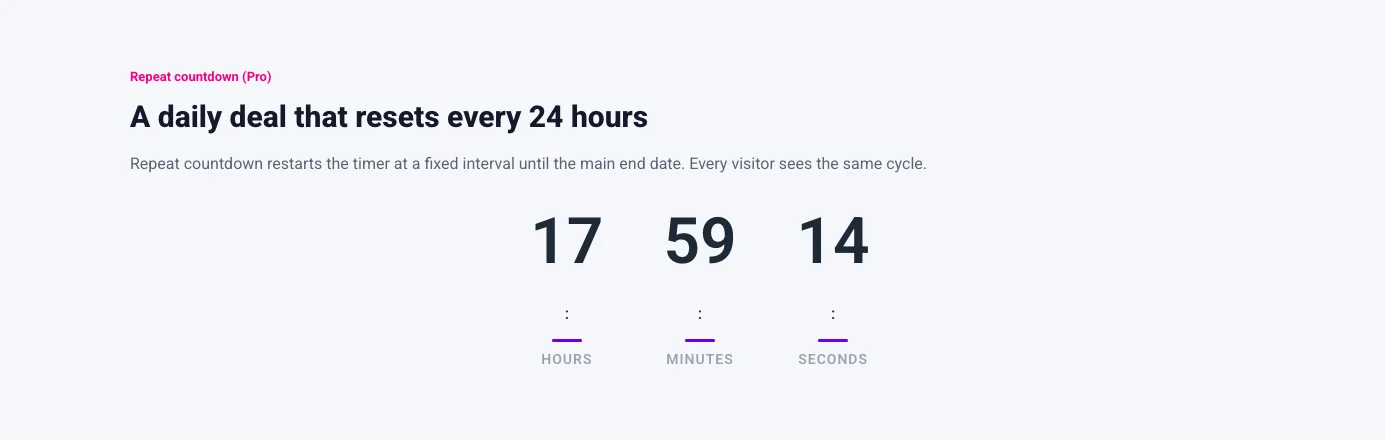
In the Master Addons widget, Repeat countdown is a switch in the Timer section that needs Master Addons Pro. Turn it on and set a reset interval in years, months, days, hours or minutes. The widget calculates the current cycle on the server and stores it in a transient, which is why two visitors in different places see the same figures, and the cycle repeats until the main Countdown Date & Time is reached. A December daily deal can reset every 24 hours and then stop for good on 31 December without anyone editing the page. The Countdown Timer documentation lists the interval fields.
Other tools phrase recurring differently. Countdown & Clock has an Upcoming Day Of Week type for a timer that always points at the next Friday. Ultimate Addons’ FAQ gives the example of the 15th of each month at 10 AM for 9 hours, and HurryTimer puts recurring schedules in its Pro plans. Elementor Pro’s widget has no recurring option, so a daily deal there means editing the Due Date by hand. For opening times the Business Hours widget is the better fit, and the Current Time widget shows a clock that counts up instead of down.
Which plugins do which
The table lists what each product’s own pages state, checked on 2 Nov 2026. “Not stated” means the vendor page does not say, and a Pro label means the type needs that vendor’s paid plan.
| Product | Fixed date | Evergreen | Recurring | After-expire actions | Builder |
|---|---|---|---|---|---|
| Elementor Pro Countdown | Yes (Due Date) | Yes (Evergreen Timer, hours and minutes) | No | Redirect, Hide, Show Message | Native Elementor Pro widget, from $60 a year |
| Master Addons Countdown Timer | Yes (Countdown Date & Time) | No | Yes (Repeat countdown, Master Addons Pro, same cycle for every visitor) | None, the numbers stop at 0 and stay visible | Elementor widget, no Elementor Pro needed |
| HurryTimer | Yes | Yes | Pro (schedules and multiple deadlines) | Hide, message, redirect; several at once in Pro | Shortcode, works with Elementor, Divi, Beaver Builder, WPBakery and Gutenberg |
| Countdown & Clock | Yes | Yes (Gold tier) | Yes (Upcoming Day Of Week, Gold tier) | Hide; show text and redirect in Pro; count up after expiry | Shortcode and Gutenberg block; Elementor not stated |
| Elfsight Countdown Timer | Yes (Countdown to Date) | Yes (Personal Countdown) | Yearly or scheduled repeat | Hide, message, redirect | Hosted widget pasted as embed code |
| Ultimate Addons for Elementor | Yes | Yes | Yes (for example the 15th of each month) | Hide, redirect, message | Elementor widget, UAE Pro from $69 a year |
| The Plus Addons | Yes (Normal, in the wordpress.org version) | Yes (Scarcity, Pro, localStorage) | Not stated; the loop restarts per visitor | Pro: message, template swap, redirect | Elementor widget |
| Royal Addons | Yes | Pro | Not stated | Not stated | Elementor widget |
Some numbers to help you choose. HurryTimer has 20,000+ active installs, a 4.8 rating from 170 reviews and a 28 Oct 2026 update; Pro starts at $39 a year or $69 lifetime for one site. Countdown & Clock has 10,000+ installs and a 4.7 rating from 183 reviews, with evergreen and recurring at the $24.98 one-time Gold tier. Elfsight is a hosted service with a free plan limited to one widget and 200 views a month. The Master Addons vs Ultimate Addons comparison sets the two Elementor addons’ plans side by side, and the Elementor addons roundup covers the rest of the field.
How to choose
Start from the deadline, then pick the tool that offers that type on the builder you already use.
| If you need | Type | Start with |
|---|---|---|
| A launch, event or sale with one published end date | Fixed date | Master Addons Countdown Timer, or Elementor Pro’s Due Date if you have Pro |
| A coming soon or maintenance page | Fixed date | Master Addons Countdown Timer on a coming soon template |
| A daily deal or an order cutoff that comes around every day | Recurring | Master Addons Repeat countdown (Pro), Countdown & Clock, Ultimate Addons |
| A timer that points at the next Friday every week | Recurring | Countdown & Clock (Upcoming Day Of Week), HurryTimer Pro |
| A per-subscriber offer in an email funnel or webinar replay | Evergreen | Elementor Pro Countdown (Evergreen Timer), HurryTimer, Countdown & Clock |
| A first-visit discount inside a popup | Evergreen | Elementor Pro’s Evergreen Timer in a popup, or HurryTimer’s shortcode in a Master Addons popup |
| An evergreen deadline that must survive a cleared cookie | Evergreen | Evergreen Countdown Timer by Data443 (cookie and IP), Thrive Ultimatum Lockdown |
| A timer that must hide or redirect the page at zero | Any | Elementor Pro, HurryTimer or Countdown & Clock; with Master Addons, pair the timer with Display Conditions |
What happens when the timer hits zero
The three types end differently. A fixed timer reaches zero once and stays there. A recurring timer reaches zero and starts the next cycle, so visitors rarely see 00:00 for more than a second. An evergreen timer reaches zero per visitor, so the page has to decide what that person sees next while everyone else still has time left.
Elementor Pro’s Countdown widget has three Actions After Expire: Redirect to a URL, Hide the widget, or Show Message with its own text and styling. They arrived in Elementor Pro 2.2.0 in November 2018 after a GitHub issue pointed out that the widget had none. HurryTimer offers hide, a custom message and a redirect in its wordpress.org version, and Countdown & Clock hides the timer and puts text and redirect in Pro.
The Master Addons Countdown Timer has no after-expire action. When the end date passes, the numbers stop at 0 and the widget stays on the page. If the offer block has to disappear, put the timer and its button in a container and apply Display Conditions, a Master Addons Pro extension, with a date range that ends at the same moment as the timer. A second container with “this sale has ended” and a date range starting at that moment takes its place. For an offer on its own schedule, build it as a popup in the Popup Builder and set the popup’s dates, so the timer and the popup retire together; the popup examples post has sale popups with timers.
Frequently asked questions
What is an evergreen countdown timer?
An evergreen countdown timer is a timer that starts from each visitor’s first visit instead of counting to one shared date. You set a duration such as 48 hours, the tool records the visitor’s start time in a cookie, in localStorage or against their IP address, and the deadline is personal to them. Email funnels, webinar replays and first-visit offers use it.
Does Elementor have an evergreen countdown timer?
Elementor Pro does. The Countdown widget has a Type control with Due Date and Evergreen Timer, and the evergreen option takes Hours and Minutes fields that accept dynamic tags. Free Elementor has no countdown widget of any type, so without Pro you need an addon widget or a plugin shortcode.
Does the Master Addons Countdown Timer support evergreen timers?
No. The Master Addons Countdown Timer counts to a fixed Countdown Date & Time, and Master Addons Pro adds a Repeat countdown cycle that is calculated on the server and shown identically to every visitor. For a per-visitor timer, use Elementor Pro’s Countdown widget, HurryTimer or Countdown & Clock alongside Master Addons.
What is the difference between a recurring and an evergreen countdown?
A recurring countdown follows one schedule for the whole site, such as a reset every 24 hours or every Friday at 15:00, so every visitor sees the same remaining time. An evergreen countdown follows each visitor’s own start time, so remaining times differ from person to person, and a loop setting that restarts one visitor’s clock is still evergreen.
What happens to an evergreen timer when a visitor clears cookies?
With cookie-only or localStorage-only tracking, the record is gone and the visitor gets a fresh timer on the next visit. Tools that also record the IP address, such as the Evergreen Countdown Timer plugin by Data443, keep the original deadline. Elementor Pro’s help article does not document how its Evergreen Timer handles return visits, so test it before a campaign.
Final thoughts
Pick the type before the plugin. A fixed date is one calendar moment for everyone and suits launches, events and sales with a public end. A recurring timer is one schedule for everyone that repeats, which covers daily deals and weekly cutoffs. An evergreen timer is a personal deadline per visitor, stored in a cookie, in localStorage or by IP, and it only works when something real expires with it. Elementor Pro’s Countdown widget does fixed and evergreen with Redirect, Hide and Show Message at zero and has no recurring mode. HurryTimer does evergreen and fixed with recurring in Pro, and Countdown & Clock does all three. The Master Addons Countdown Timer does fixed dates on each visitor’s local clock plus the Repeat countdown cycle in Master Addons Pro; it has no evergreen mode and stops at 0, so pair it with Display Conditions when the block has to go away. The pricing page lists which plan those two come with.
Related reading
