


Key Takeaways
- Elementor’s Portfolio widget is on the Pro list. It pulls from posts or a custom post type and builds the filter tabs from their taxonomy terms.
- On a free Elementor install you can build the same grid by hand, where each project is an item you fill in rather than a post the widget queries.
- The hand built route gives every project a title, a subtitle, up to two buttons with their own URLs, and a ribbon such as New or Popular.
- It is not post driven, so a new project means adding an item, not publishing a post. For a studio with eight to thirty pieces that is usually a fair trade.
- Decide by how the work is stored: if your projects are already posts with categories, the Pro widget wins; if they live in a folder of images, the manual grid is quicker.
A portfolio page has to show the work, let people narrow it to the kind of work they came for, and give them a way through to the detail. The filter bar handles the middle part, turning a long scroll into two clicks.
Elementor has a widget for this and it sits behind Pro. This post covers what that widget does, then the manual route that works on a free install, with the limits of each.
Table of Contents
What the Elementor Portfolio widget does
Portfolio is a Pro widget, and the important part is where its content comes from: it runs a query. You point it at posts or a custom post type, set Posts Per Page, and the widget builds the grid from the featured image and the title of each post.
The filter bar is a separate section in the panel with its own Show switch, which is off by default, and a Taxonomy dropdown. Pick the taxonomy and its terms become the tabs. That is the step people miss when they ask why their Portfolio widget has no filter.
Layout gives you responsive Columns from 1 to 6, starting at 3 on desktop, 2 on tablet and 1 on mobile, a Masonry switch, and an Item Ratio slider that crops every card to the same proportion when masonry is off.
When your projects already exist as posts, this is a real advantage: publish a case study, tag it, and it appears in the grid with no layout work. The cost is that the card shows what the post holds. There are no per project fields, and the whole card links to the post.
The other catch is the obvious one. It needs Pro, and if your work is not stored as posts you have to create a post for every project before the widget has anything to show.
The manual route on a free install
The other way is a gallery widget that filters, where each project is a row you fill in. The Filterable Image Gallery works this way and runs on a free Elementor install, so the steps are:
- Drop the widget on the page and add one item per project in the Gallery Contents repeater.
- Give each item a Filter Label. That text becomes the tab, so “Branding”, “Web” and “Photography” give you three tabs plus the All tab.
- Fill in the title and the subtitle. A project name and a line like “Brand identity, 2026” is usually enough.
- Add a button, or two, pointing at the live site and the case study.
- Set Columns, then decide whether to crop cards to a uniform height with Image Aspect Ratio.
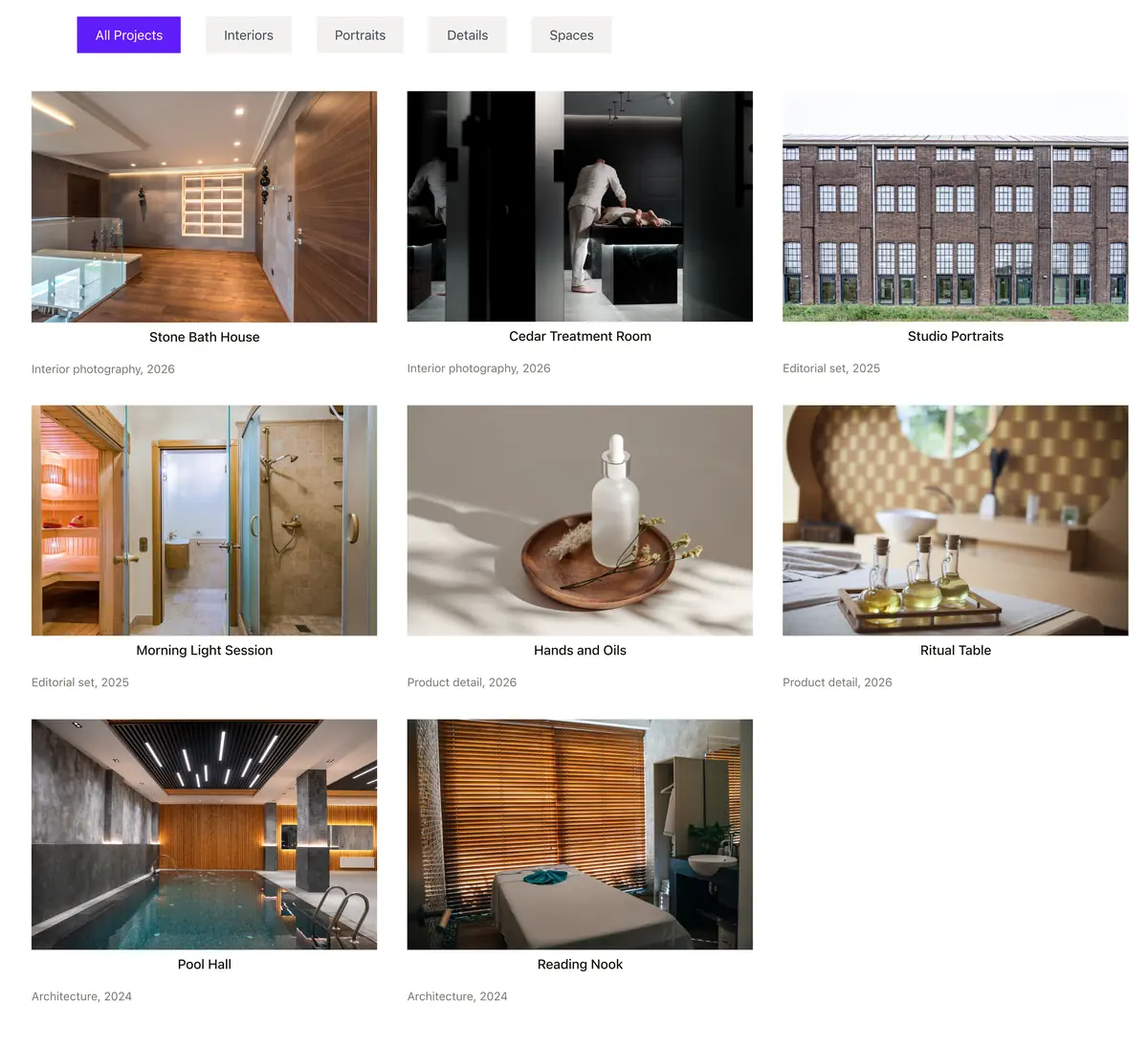
Click a tab and the grid narrows to that category without reloading the page.

What goes on a project card
Each repeater row carries the fields that make up the card, and this is what you get in exchange for filling them in by hand.
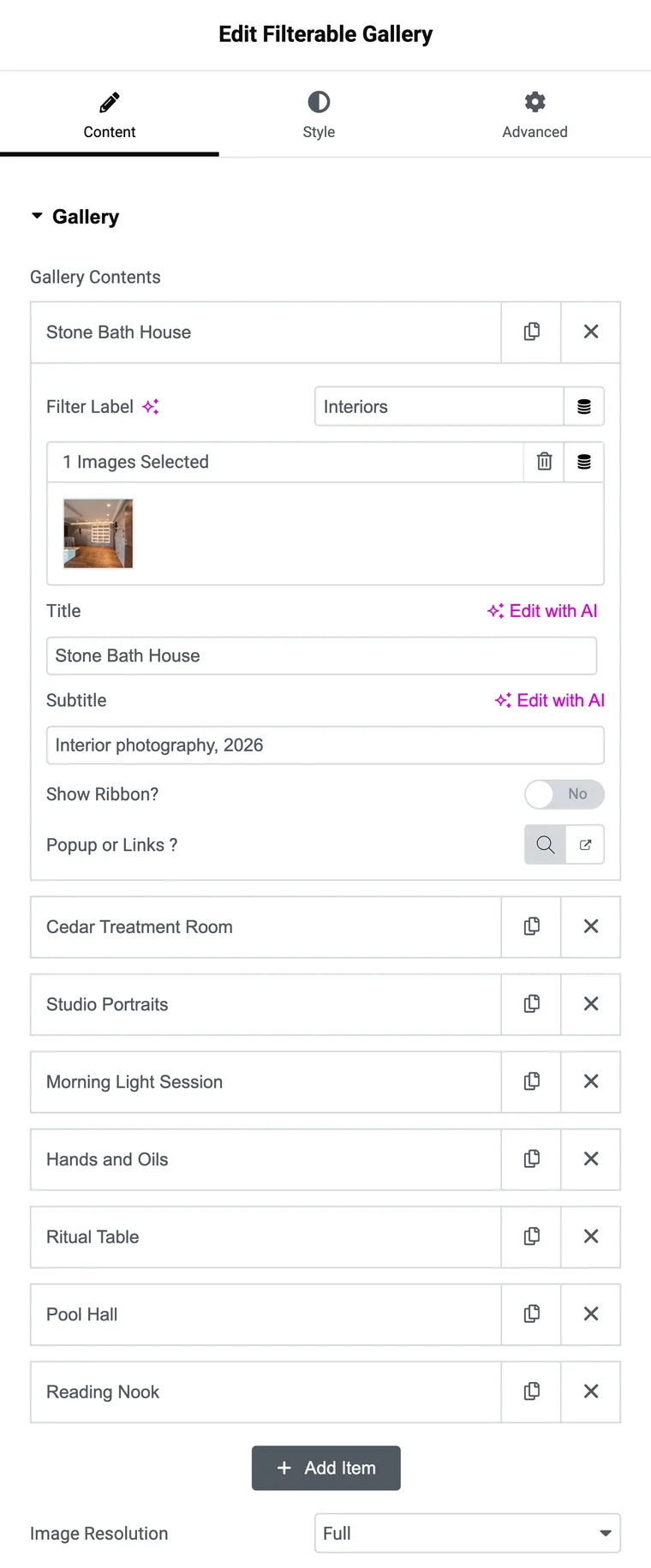
| Field | Use it for |
|---|---|
| Filter Label | The category tab. Comma separate when a project belongs in two. |
| Title | The project name. |
| Subtitle | Client, discipline or year. “Brand identity, 2026” reads well. |
| Ribbon | A corner badge. The preset list includes New, Popular, Sale and Updated. |
| Button One and Button Two | Two links per card, so one can go to the live site and one to the case study. |
| Popup or Links | Open the image in a lightbox instead of sending people away. |
Ribbons are worth a thought on a portfolio. One “New” badge on your most recent project pulls the eye to the work you most want seen, and a plain grid has no way to do that.
Which route fits your site
| Elementor Portfolio widget | Filterable gallery widget | |
|---|---|---|
| Needs Elementor Pro | Yes | No |
| Where projects live | Posts or a custom post type | Items you fill in on the page |
| Filter tabs come from | Taxonomy terms, after you switch the filter bar on | The Filter Label on each item |
| Adding a project later | Publish a post, it appears | Add an item and save the page |
| Per project buttons | No | Two, each with its own URL |
| Badge or ribbon | No | Yes |
| Columns | 1 to 6, responsive | 1 to 6, one value for all screens |
| Masonry | Yes, a switch | A switch, but the grid stays in rows |
| Lightbox on the image | No, the whole card links to the post | Yes, with the popup option |
| Best for | Sites where case studies are already posts | Studios with a fixed set of pieces |
There is a volume line in this decision too. At eight to thirty projects, filling in items is quick and you get the per card controls. Past a hundred, a query driven widget is the saner option, because nobody wants to maintain a hundred repeater rows by hand.
Five things that make a portfolio grid work
- Keep categories to four or five. Nine tabs is a second navigation menu with a filter’s name on it.
- Decide on cropping early. Image Aspect Ratio crops every card to the same height; leaving it off keeps each image’s own proportions.
- Write subtitles that say something. “Client, year” beats “Project” on every card.
- Pick one click behaviour per card. A lightbox and a case study button on the same card make two different promises.
- Check the column count on a phone. The Columns value applies to every screen size, so three columns on desktop is where a phone starts too.
Frequently asked questions
Is the Elementor Portfolio widget free?
No, Portfolio is a Pro widget. The free plugin has the Image Gallery widget, which is a grid with a lightbox and no filter bar.
Can I build a filterable portfolio without Elementor Pro?
Yes, with an addon widget that filters a grid. The categories come from a label you type on each item rather than from post taxonomy.
Can a project appear under two categories?
Yes. Put both names in the Filter Label field, separated by a comma.
Can the grid pull my projects from posts?
Not with the manual route. The gallery is a list of items you fill in, so a new project means adding an item. If a post driven grid is what you need, that is the Pro Portfolio widget’s job.
How many projects is too many for a hand built grid?
There is no hard limit, but every item loads with the page, since the widget has no load more or pagination. Around thirty to forty pieces is a comfortable ceiling.
Final thoughts
Both routes end with the same thing on screen: a grid, a row of category buttons, and work a visitor can narrow in one click. Where your projects live decides which one you use. Posts with categories point at the Pro widget. A folder of images and a short list of disciplines point at the manual grid, which does not ask for a licence.
Related reading
