

Key Takeaways
- All six examples are live demo pages built with the same widget, so you can open each one and click the tabs yourself.
- Every one uses four categories plus an All tab, which keeps the bar on a single line on a laptop.
- The All tab is renamed in each design: “All listings”, “Full menu”, “All work”, “All projects”, “Shop all” and “Every destination”.
- Column counts run from two for interiors case studies to four for the restaurant menu and the shop grid.
- Two of the six put buttons on every card, two use a hover icon that opens the image, and two use neither.
A filterable gallery looks different depending on what it holds. A restaurant menu wants dense four column cards with prices, an interiors studio wants two big columns and a case study link, and a photographer wants the pictures to carry everything.
The six designs below are live demo pages you can click through. Each entry notes the categories, the column count and the settings that give it its character, so you can copy the shape that matches your content.
Table of Contents
The six examples at a glance
| Example | Categories | Items | Columns | Card links |
|---|---|---|---|---|
| Property listings | Apartments, Villas, Townhouses, Offices | 8 | 3 | Two buttons |
| Restaurant menu | Small Plates, Mains, Desserts, Cocktails | 8 | 4 | Hover icon |
| Wedding photography | Ceremony, Portraits, Reception, Details | 9 | 3 | Hover icon |
| Interior projects | Residential, Hospitality, Retail, Workplace | 8 | 2 | One button |
| Product catalogue | Bags, Footwear, Watches, Outerwear | 8 | 4 | Two buttons |
| Travel destinations | Europe, Asia, Americas, Africa | 8 | 3 | Hover icon |
Filterable gallery examples
1. Property listings
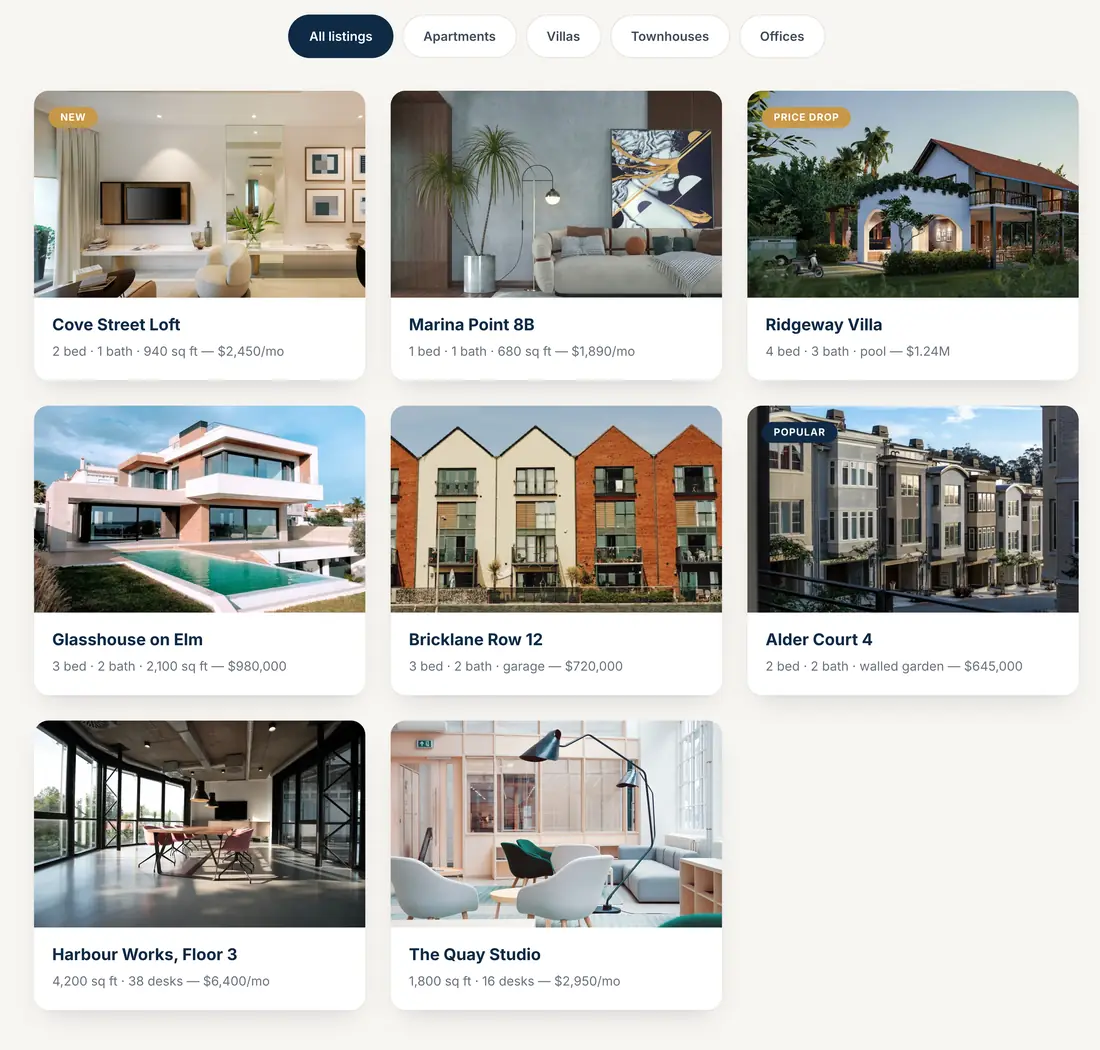
Eight listings across four categories, with the All tab renamed to “All listings”. Each card carries the property name as the title and the specification line as the subtitle, so “2 bed, 1 bath, 940 sq ft, $2,450/mo” sits under the photo. Two buttons per card handle the two things a visitor wants: details, and a viewing.
The detail worth copying is the ribbon: a corner badge reading New or Price Drop on two of the eight cards pulls the eye without touching the layout.
2. Restaurant menu
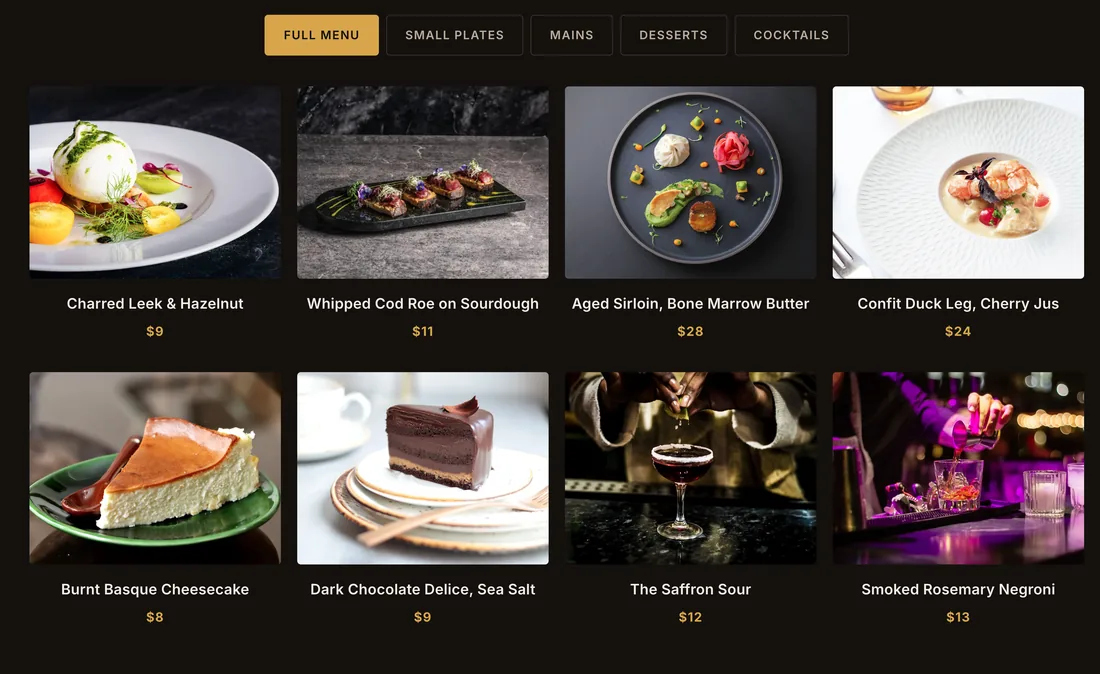
Four columns on a dark background, with the All tab reading “Full menu”. The dish name is the title and the price is the subtitle, which is the whole menu structure in two fields. Courses become the filter, so a visitor who only wants dessert gets there in one click.
Four columns works here because the photos are tight crops of single dishes. Wide scene photography at four columns would be unreadable.
3. Wedding photography
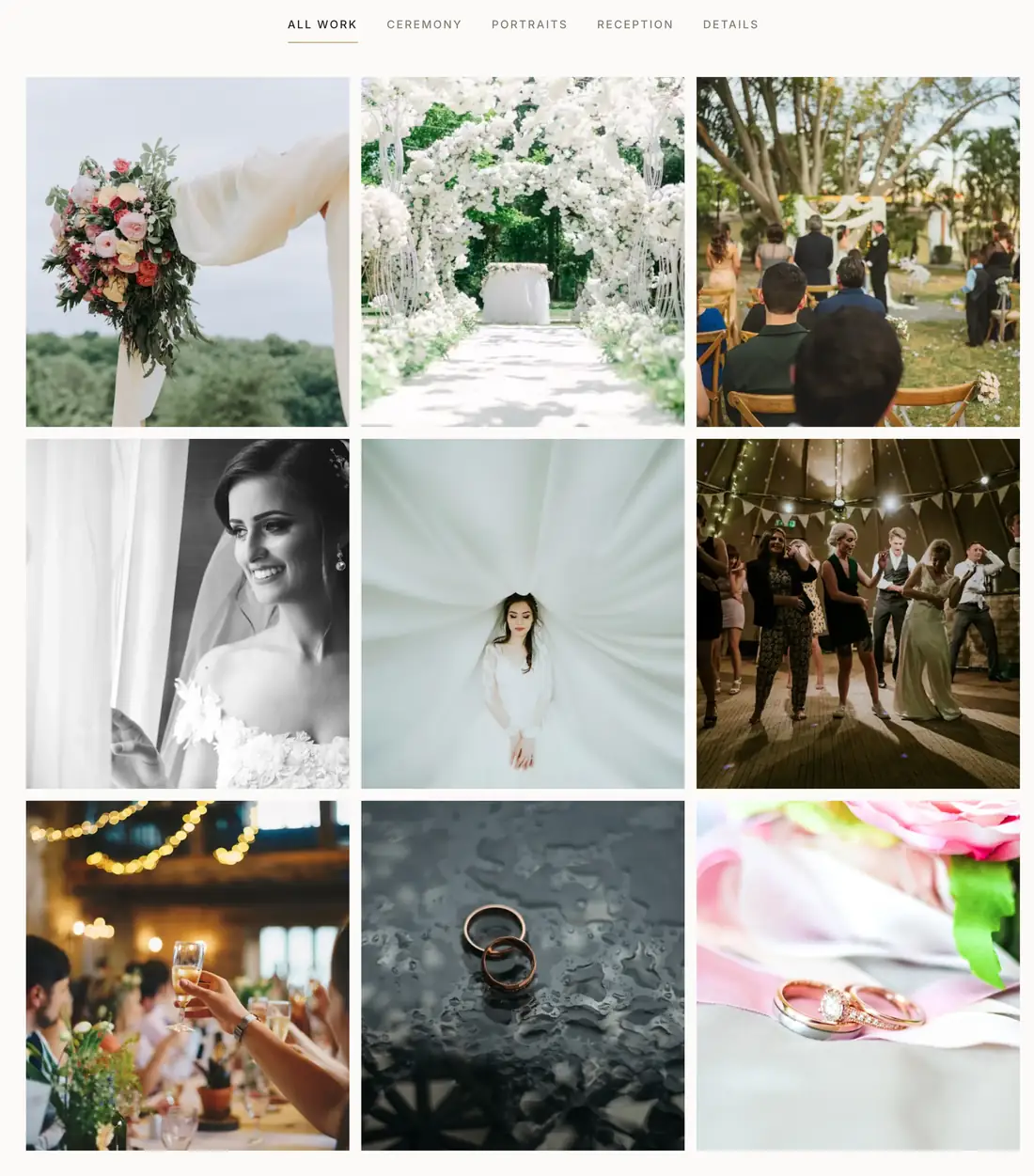
Nine frames, four parts of the day, and almost no text. The All tab says “All work” and the cards use a hover icon rather than buttons, so a click opens the picture instead of navigating away. This is the design to copy when the photographs are the product.
What makes it work is what it leaves out: no ribbons, no buttons, and no subtitles competing with the images.
4. Interior projects
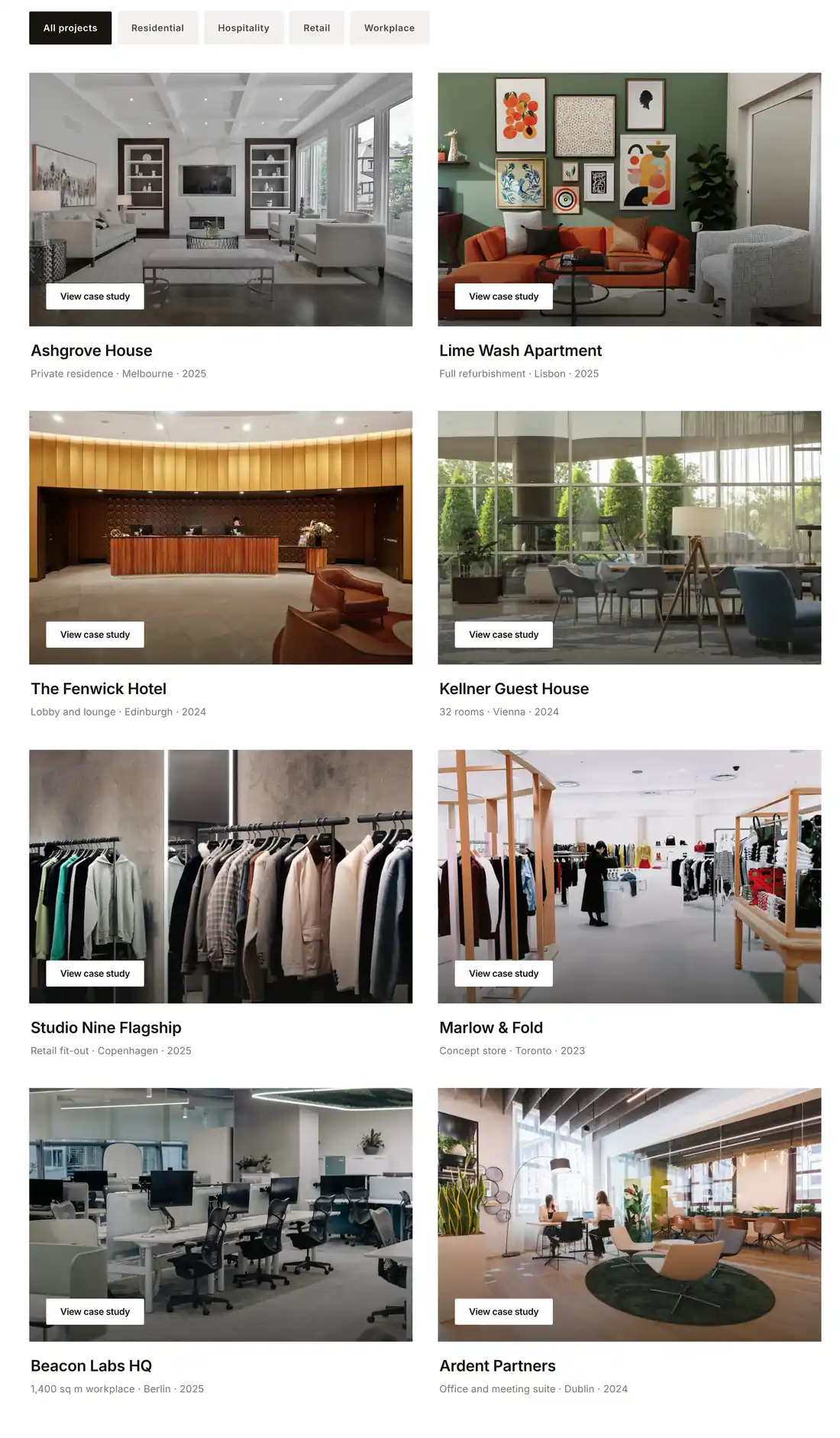
Two columns, so each project gets real space, with the overlay set to show at all times rather than on hover. One button per card, reading “View case study”. The filter bar is aligned left rather than centred, which suits the editorial feel.
Two columns is the choice worth copying for work that deserves a second look. Eight projects at two columns still fits in one screen of scrolling.
5. Product catalogue
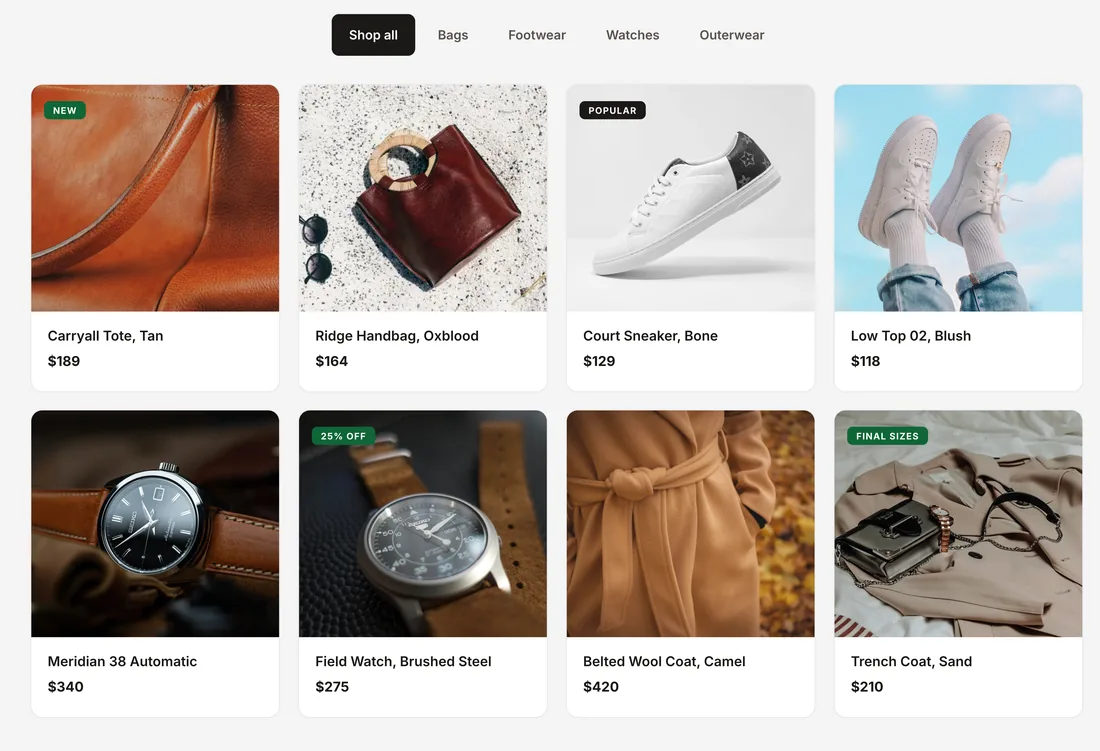
Four columns, product name as the title, price as the subtitle, and two buttons reading “Quick view” and “Add to bag”. The All tab says “Shop all”. It looks like a shop page without being one: the cards are images with links rather than products, so nothing goes in a cart. For a lookbook that points at a store, that is enough.
The two button pattern is the useful part: one soft action, one firm one.
6. Travel destinations
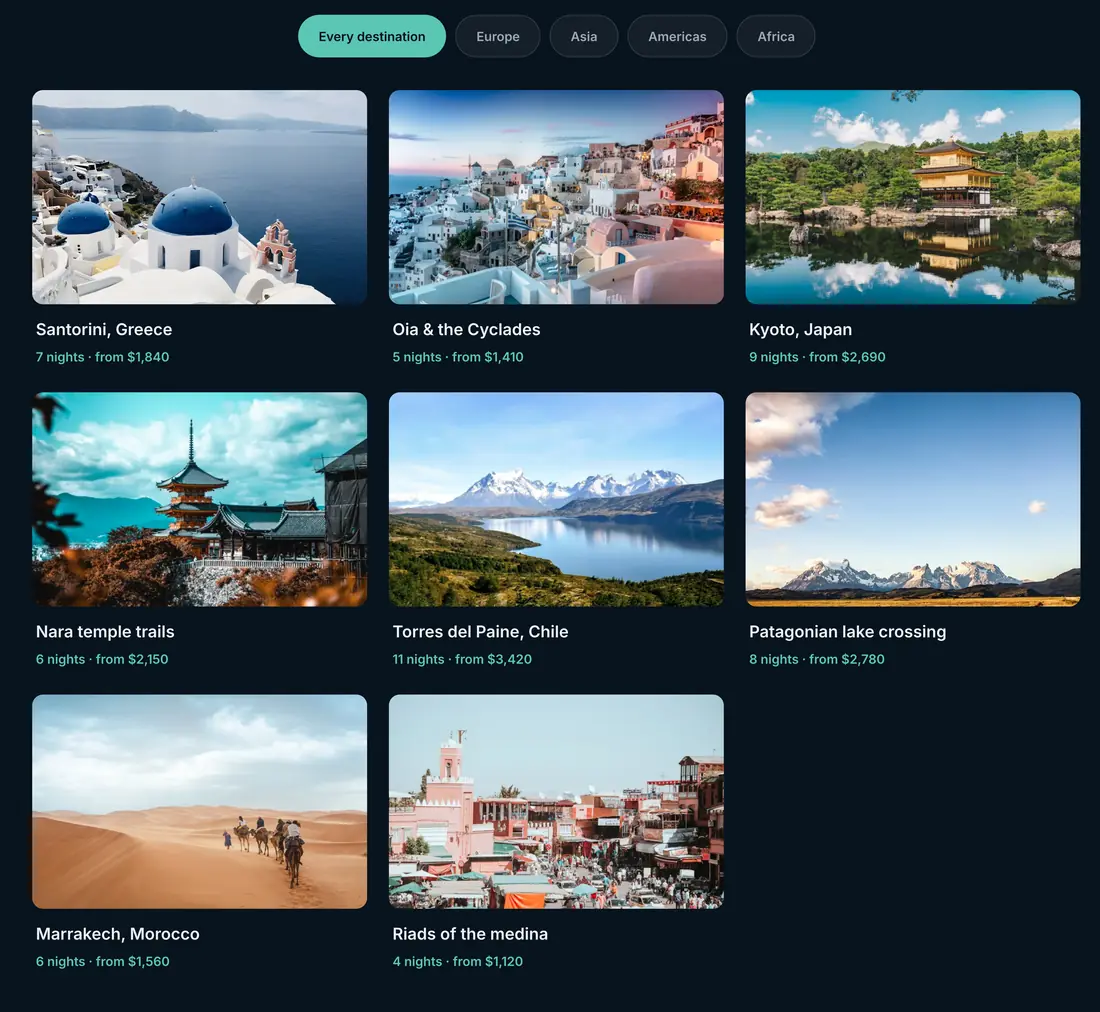
Continents as the filter, with the All tab renamed “Every destination”. The hover scale is set higher than the other demos, so cards lift more noticeably under the cursor. Titles name the place and subtitles add the detail.
The renamed All tab does real work here. “Every destination” tells a visitor what the set is; “All” tells them nothing.
What the six have in common
- Four categories in all six designs. Four tabs plus All fits on one line on a laptop and wraps to two on a phone.
- The All tab is renamed every time, with six different labels and none left at the default.
- Title on top, detail underneath, in every design that uses text at all.
- The column count follows the photography: tight crops take four columns, scenes and rooms take two or three.
- One click behaviour per card, either buttons or a lightbox icon, never both.
Building one of these
Each design is the same widget with different settings. The build is: add an item per image, type a Filter Label on each one to create the tabs, set Columns, then decide whether cards crop to a uniform height with Image Aspect Ratio or keep their own proportions. Titles, subtitles and the overlay behaviour live in the Overlay Setting section, and the two buttons sit on each item.
The full walkthrough is in how to create a filterable gallery in Elementor, and the widget itself is the Filterable Image Gallery.
Frequently asked questions
Can I import these examples as templates?
They are demo pages rather than importable kits. Rebuilding one takes about ten minutes, since the structure is a handful of settings and your own images.
How many categories should a filter bar have?
Four is the pattern across all six designs. Past six the bar wraps on a laptop and starts to read like a second menu.
Can one image appear under two tabs?
Yes. Put both category names in the Filter Label field, separated by a comma.
Do the demos use masonry?
No. All six crop cards to a uniform height, which is why the grids look tidy. Masonry is a separate switch for sets with mixed orientations.
Can the shop example take payments?
No. It is a gallery with buttons, so the cards link wherever you point them. Checkout belongs to WooCommerce.
Final thoughts
Six designs, one widget, and four decisions between them: how many columns, whether the cards crop, what the buttons do, and what the All tab is called. Start from the example closest to your content and change those four.
Related reading
