

Key Takeaways
- The Master Addons library has 211 Elementor page templates, and 16 of them are built as landing pages with one offer and one repeated call to action.
- The 16 Elementor landing page templates split into 7 SaaS trial and demo pages, 5 product and app signup pages, and 4 lead capture and booking pages.
- The landing page designs run 4 to 13 sections, while a standard business homepage in the same library runs 11 to 22 sections.
- Sabrion and Finix are the shortest landing page templates in the set at 4 sections each, and both use a “14 Days Free Trial” call to action.
- An imported landing page should be set to the Elementor Canvas page layout so the theme header and footer do not appear around it.
- Importing a page from Pages, MA Import, Import Pages publishes it straight away, so switch it to draft first on a live site.
Elementor landing page templates are ready-made pages built around a single offer, so a visitor from an ad or an email sees one message and one button. The Master Addons template library has 16 of them among its 211 page designs, and this post goes through every one.
They are grouped by the conversion they are built for: trial signups, product and app signups, and lead capture or booking. For each design you get the actual call-to-action wording and the section count, so you can judge the fit before you import anything.
Table of Contents
What makes a landing page template different from a homepage
A landing page has one job and a homepage has about six. That is why dropping a general business homepage onto a paid campaign rarely works: the visitor arrives with one question and gets a menu, a services grid and a blog feed. The designs below share four traits, and you can use them to judge any template.
- One call to action, repeated. Sabrion says “Start 14 Days Free Trial” and nothing else. A services homepage offers Read More, Learn More, Contact Us and View All in the same scroll.
- Few sections. Most of these run 4 to 9 sections. A standard business homepage in the same library runs 11 to 22.
- The offer is in the first screen. “Presenting the best no-code website solution” tells you what you get before you scroll.
- Proof close to the ask. Testimonials, logos or numbers sit next to the button.
All 16 Elementor landing page templates compared
Shorter pages suit a simple offer, and longer ones suit a product that needs explaining. Each name opens its live demo in a new tab.
| Template | Built for | Main call to action | Sections (by heading) |
|---|---|---|---|
| Sabrion | SaaS trial | Start 14 Days Free Trial | 4 |
| Finix | Fintech app trial | Get 14 Days Free Trial | 4 |
| Lead Lift | SaaS signup funnel | Get 14 Days Free Trial | 5 |
| Clowdify | No-code SaaS product | Try Clowd 14 Days for Free | 5 |
| Optivue | Project tool trial | Get 14 Days Free Trial | 7 |
| Craftova | Trial plus sales demo | Start Free Trial, Book A Free Demo | 9 |
| Klyro | Demo request | Request Free Demo | 9 |
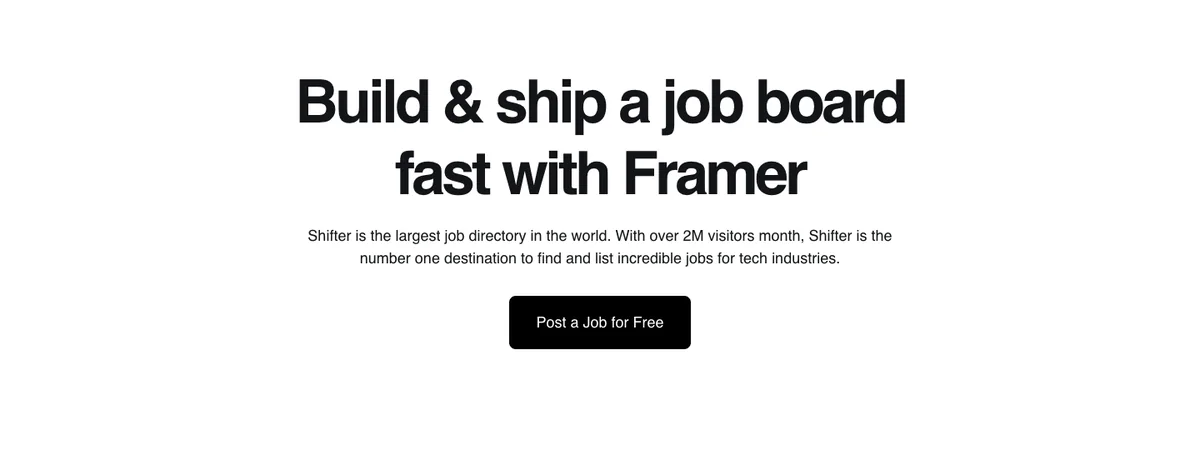
| Shiftflow | Marketplace or job board signup | Post a Job for Free | 5 |
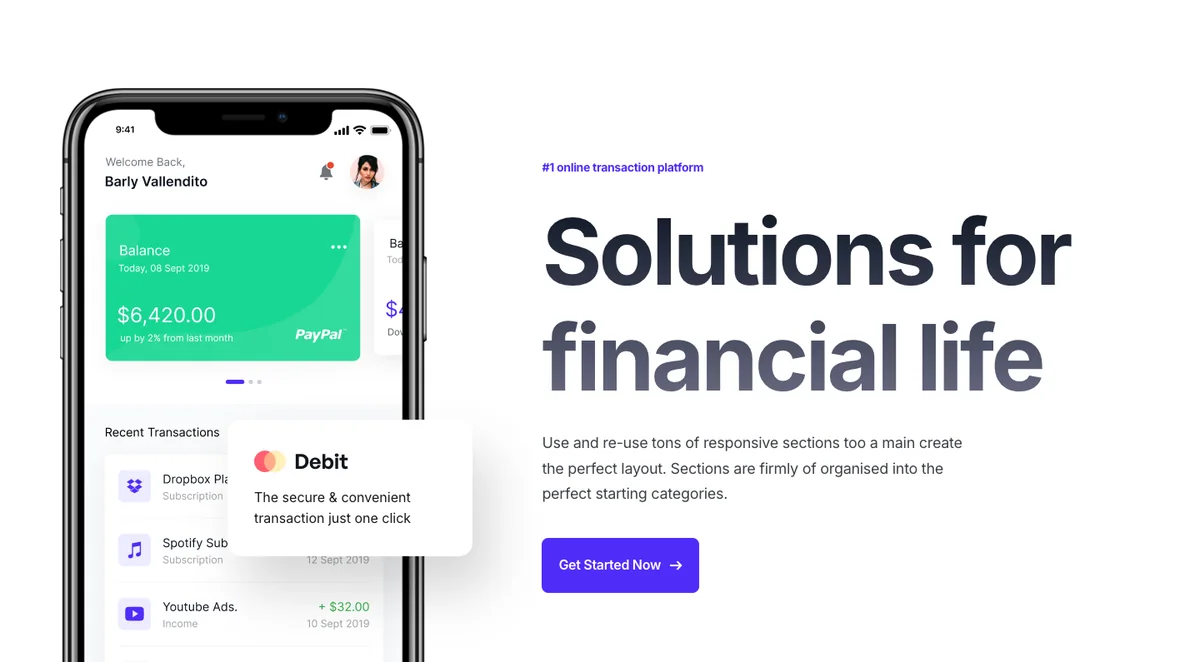
| Zaplyte | Payments app | Get Started Now | 6 |
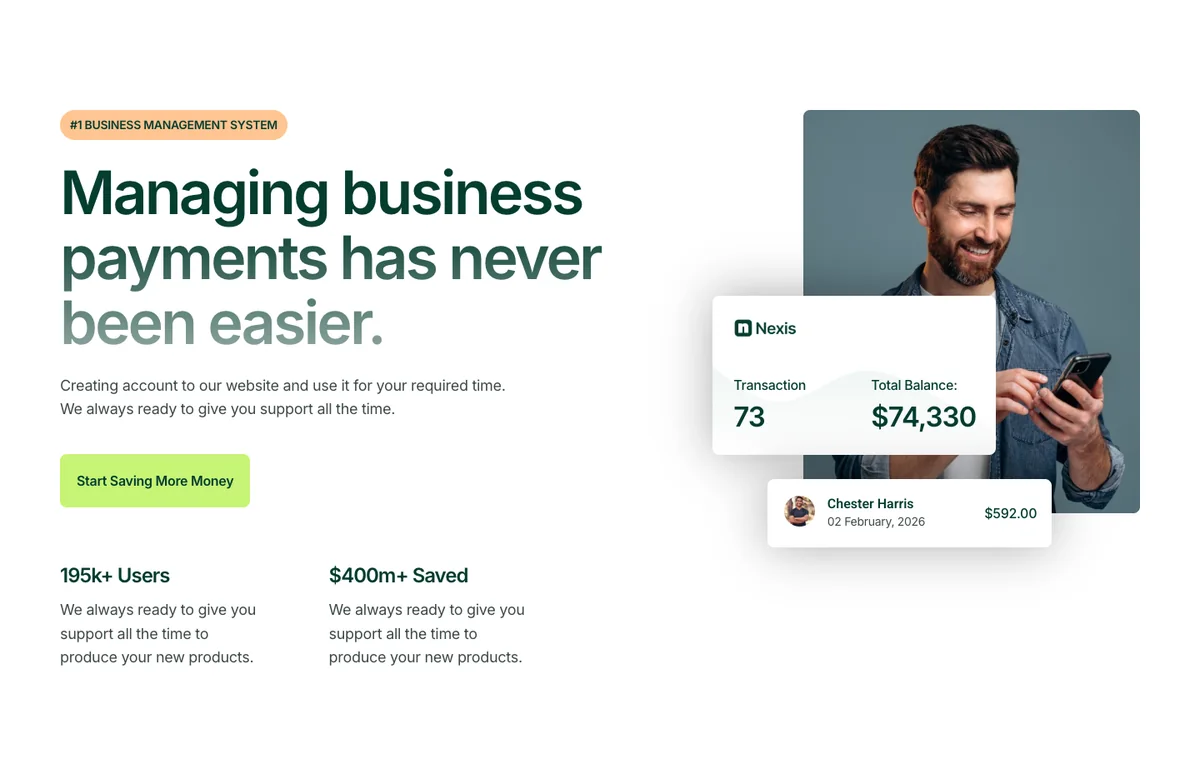
| Nexis | Business payments | Start Saving More Money | 6 |
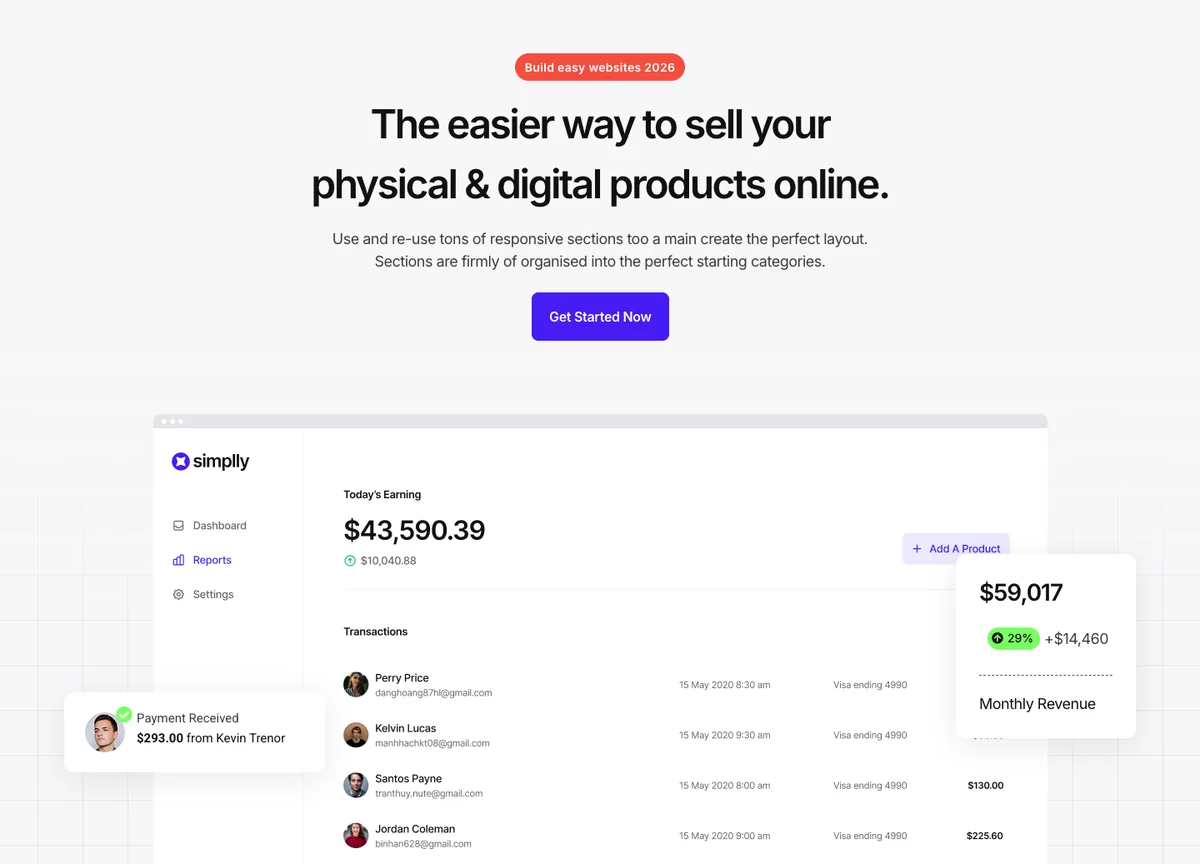
| Sempla | Online selling | Get started | 9 |
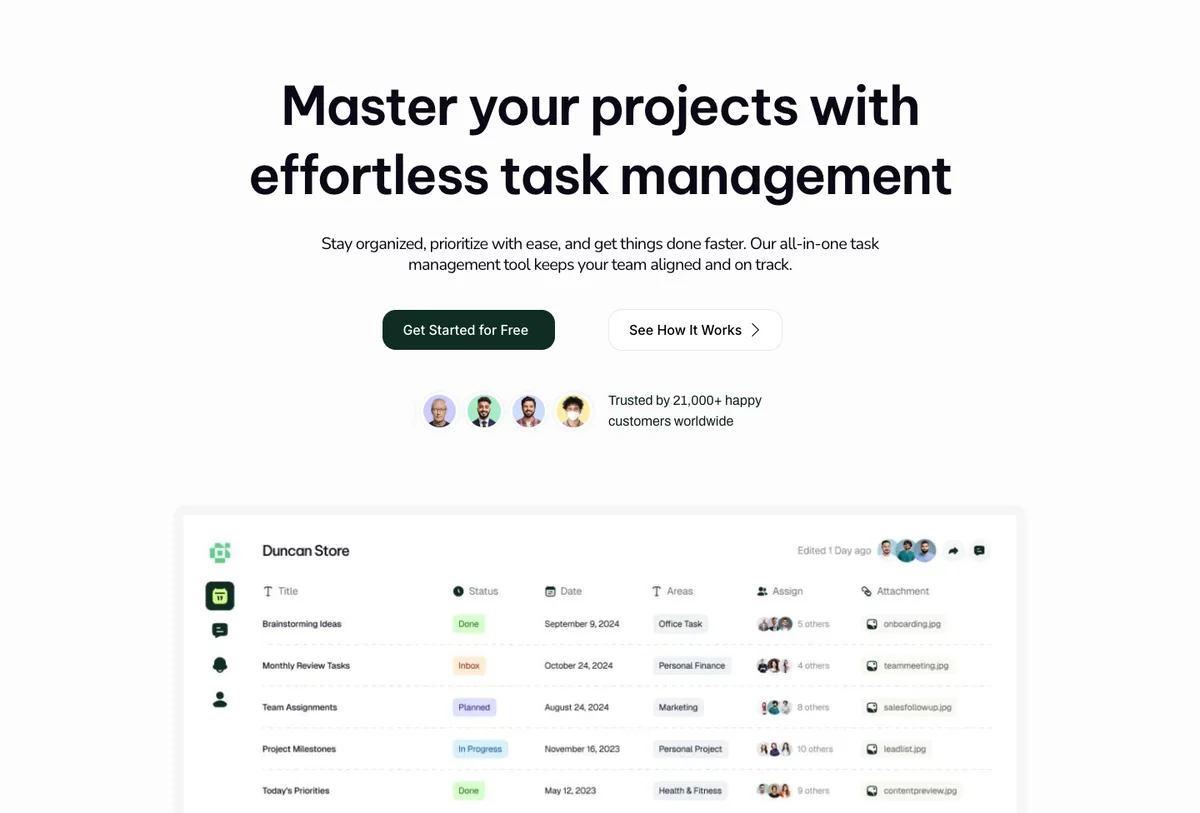
| FlowDesk | Multi-module product | Get Started for Free | 13 |
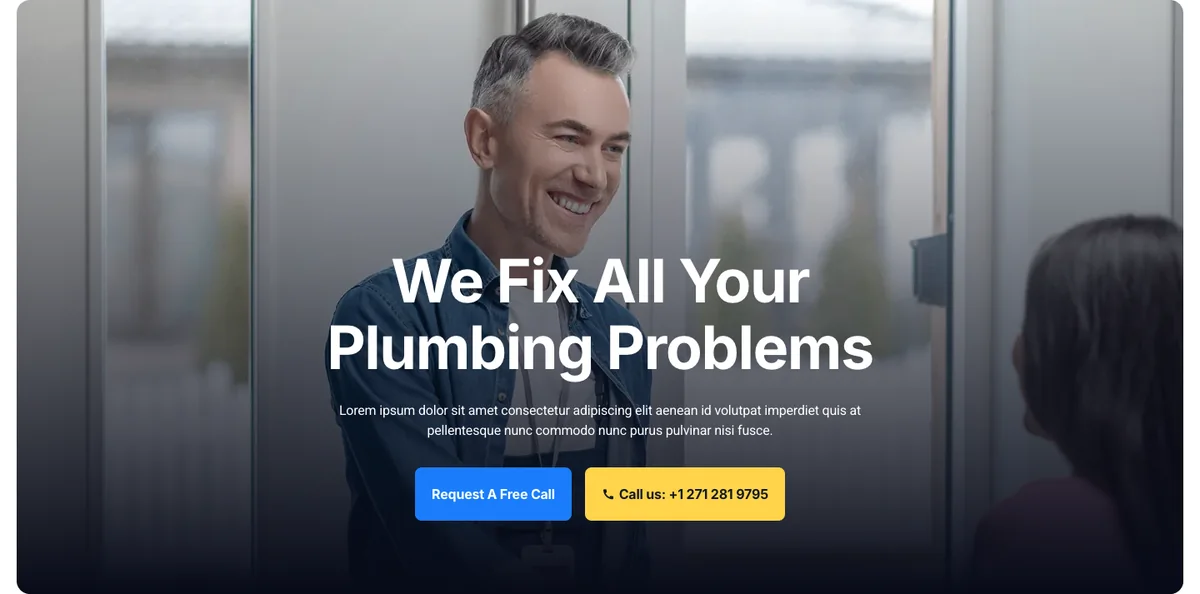
| Plumbiq | Trade and emergency service | Request A Free Call | 8 |
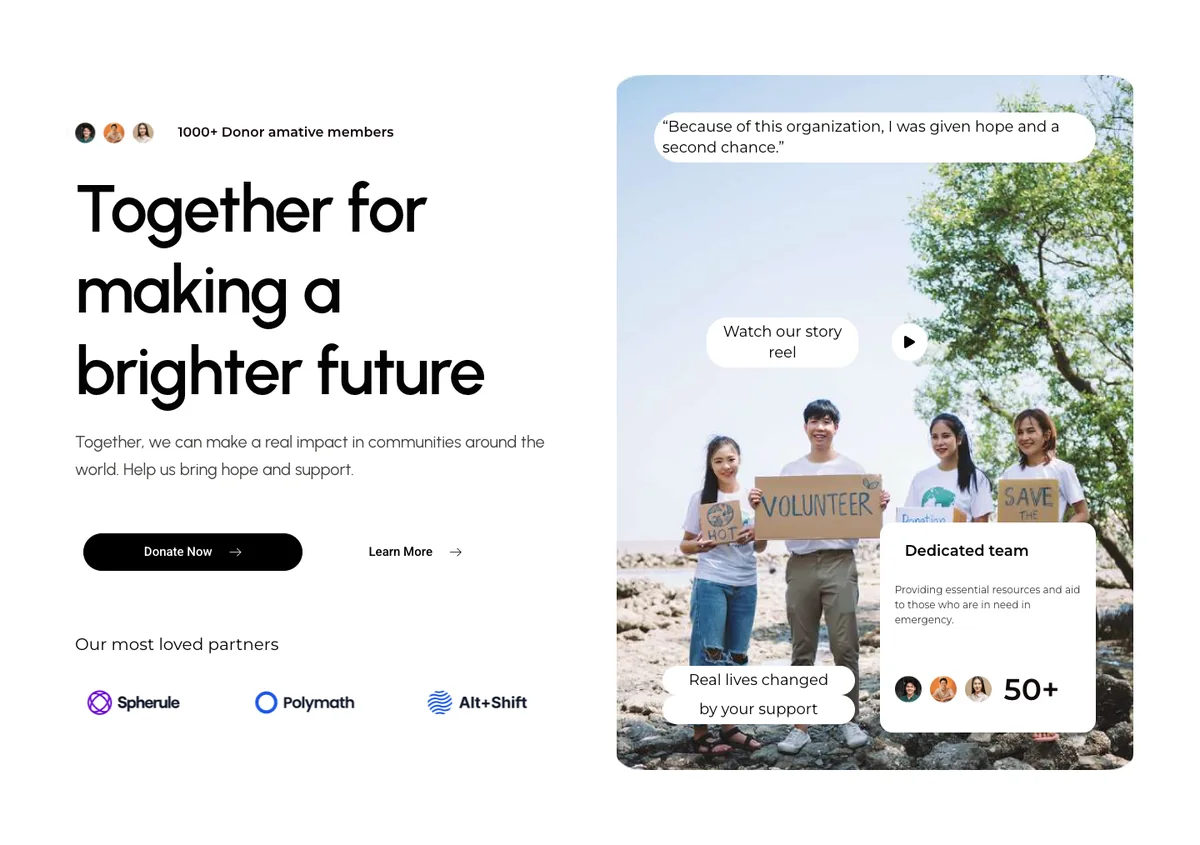
| Fundora | Nonprofit | Donate Now, Become a volunteer | 11 |
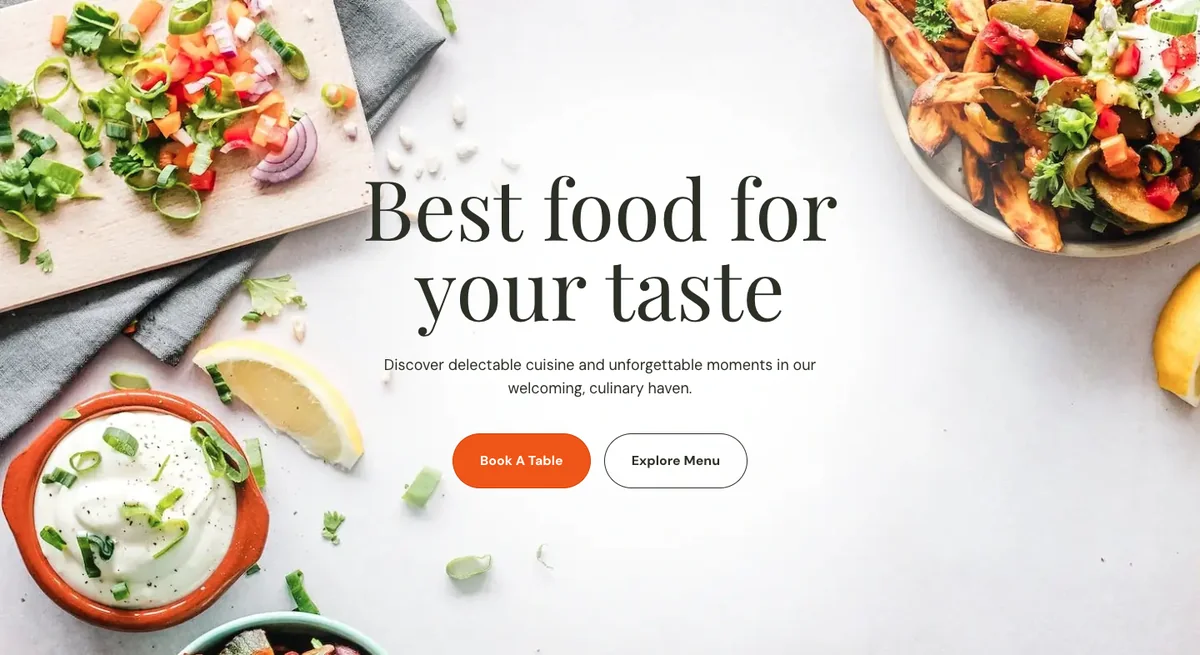
| Culinary | Restaurant booking | Book A Table | 11 |
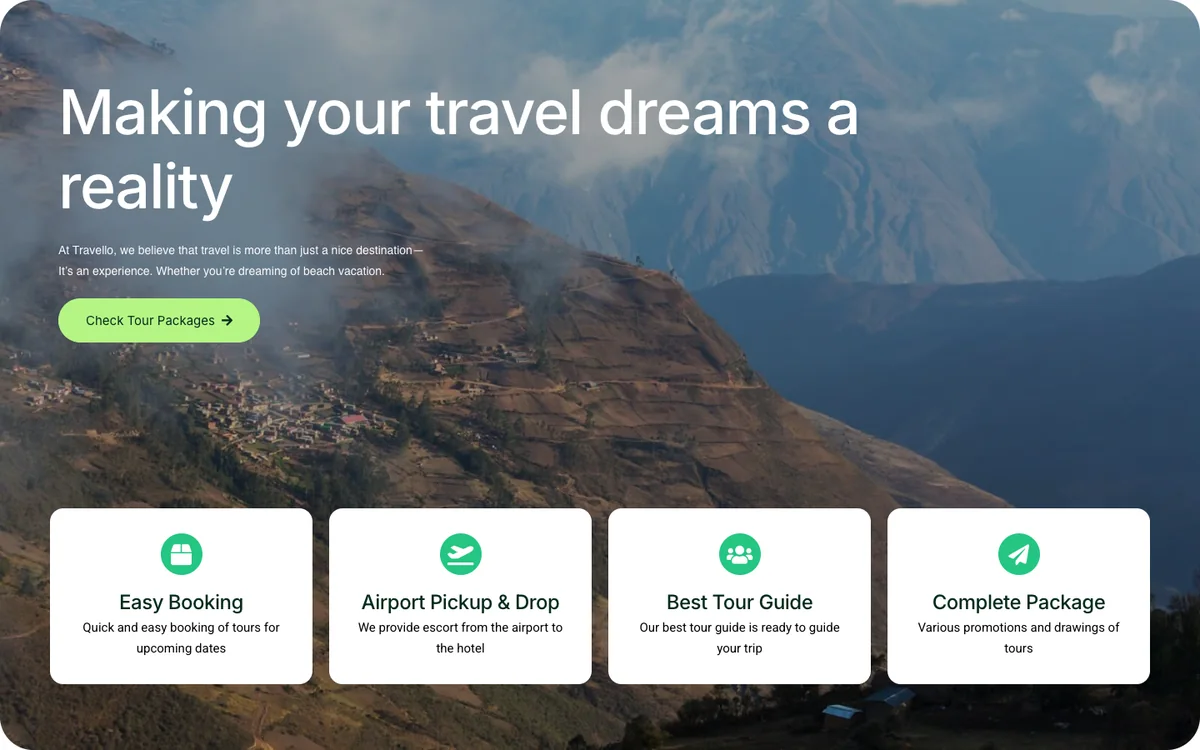
| Travello | Tour booking | Book Now | 5 |
SaaS trial and demo landing pages (7 designs)
These seven are the closest thing in the library to a classic SaaS landing page: one product, one trial offer and a short scroll.
Sabrion: the shortest and most focused
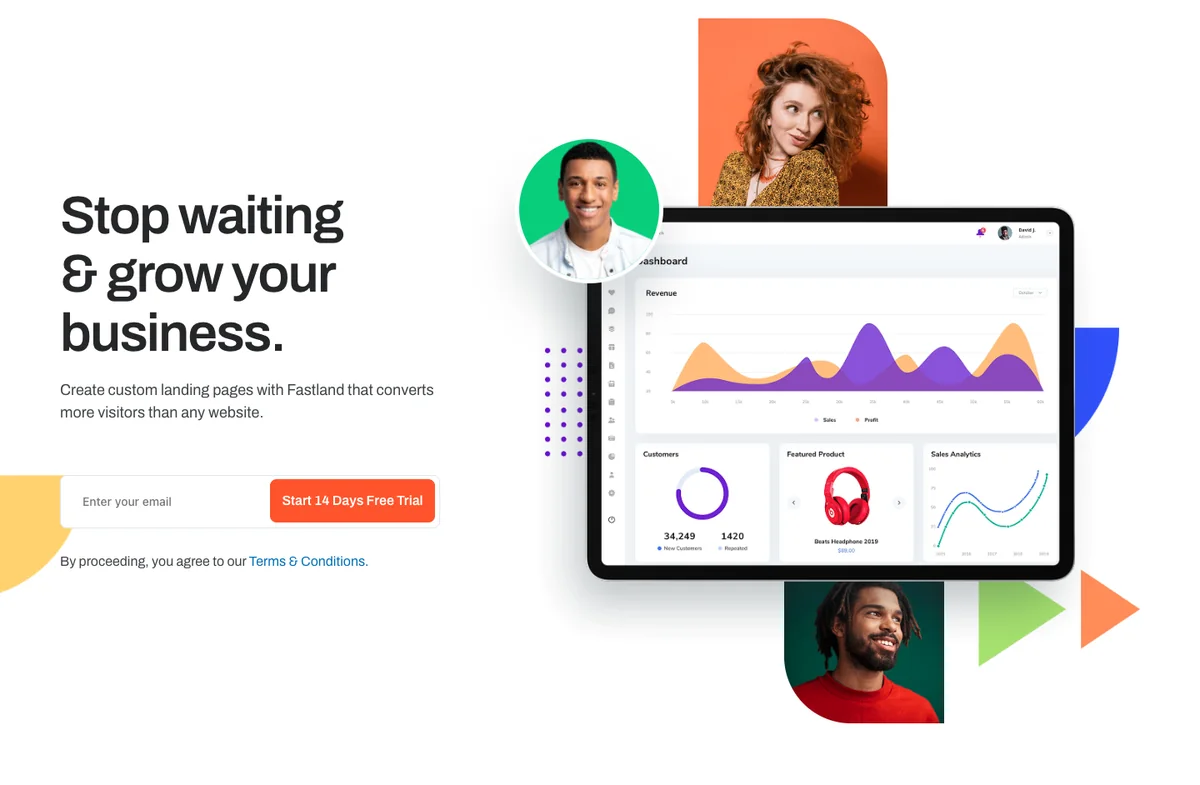
Four sections, one button, and an email field on the page itself. The headline is “Stop waiting & grow your business.” If you want the least distance between arrival and signup, start here.
Lead Lift: built for a signup funnel
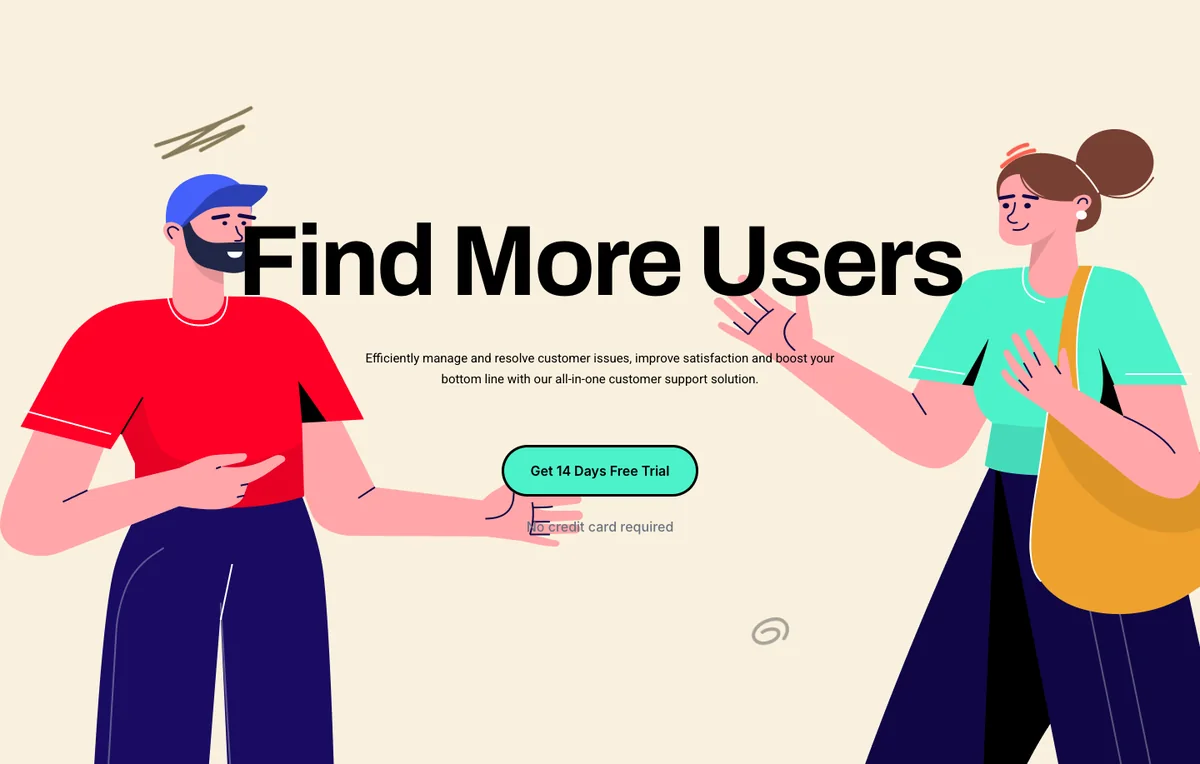
Five sections and the call to action “Get 14 Days Free Trial”. The section headings read like a funnel: Find More Users, Make Better Sales Fast, Get Users On-Demand.
Clowdify: product-led, with a second button that works
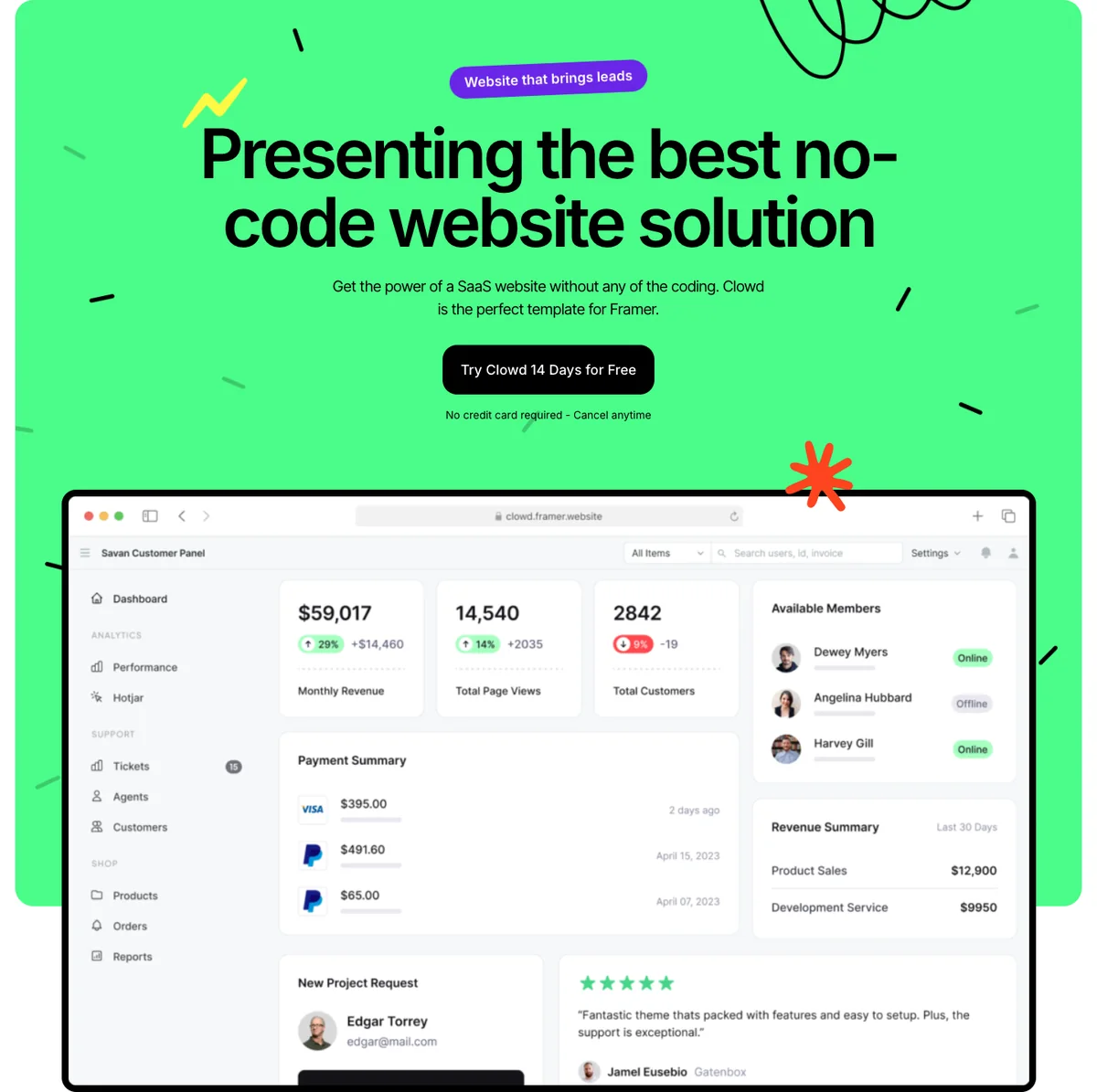
Five sections. “Try Clowd 14 Days for Free” is the primary button and “Website that brings leads” is the value-first secondary. Customer Stories sits directly under the feature blocks, which puts the proof next to the ask.
Optivue, Finix, Craftova and Klyro
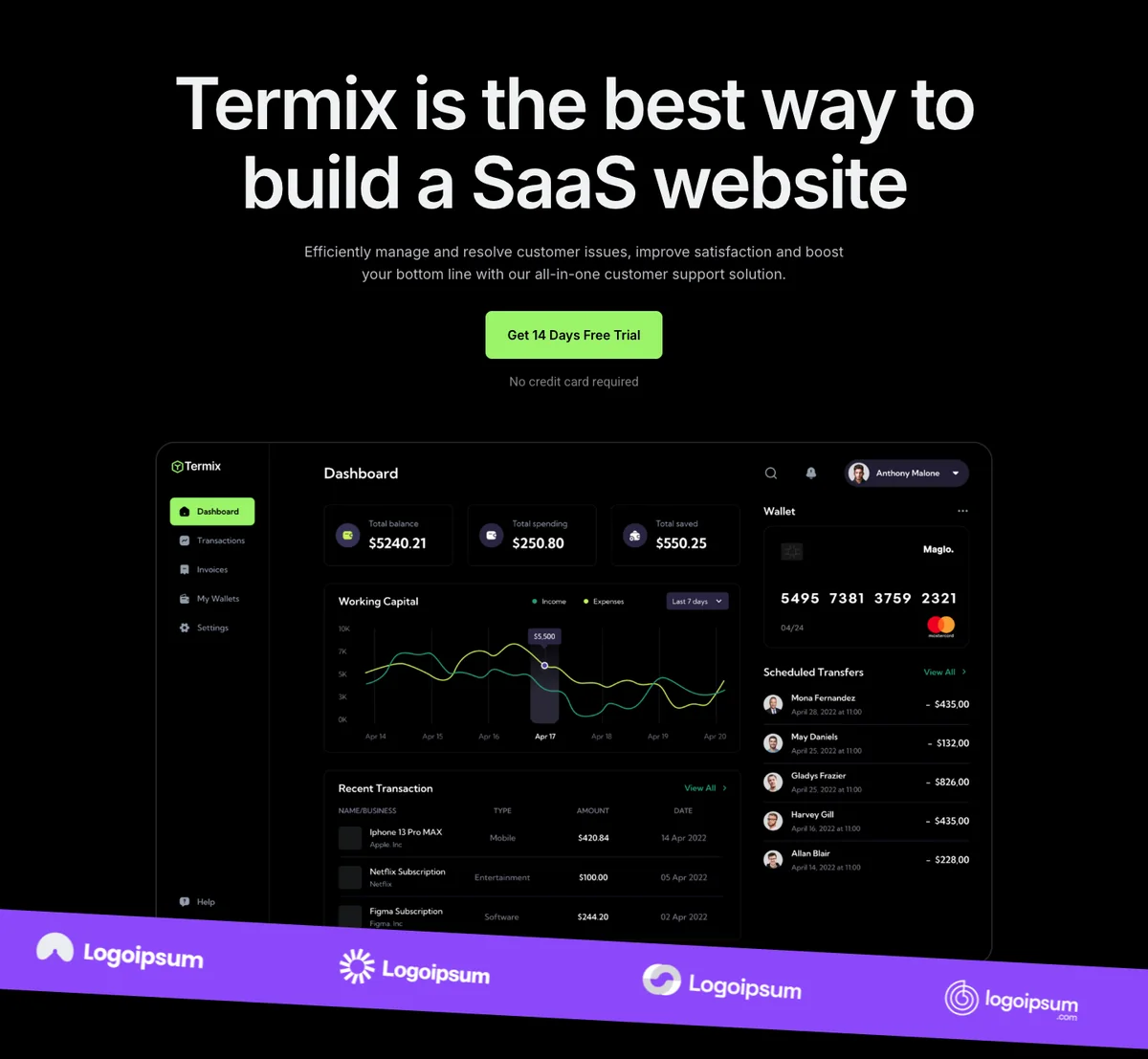
Optivue has seven sections and one call to action, “Get 14 Days Free Trial”. It is a feature overview for a project tool.
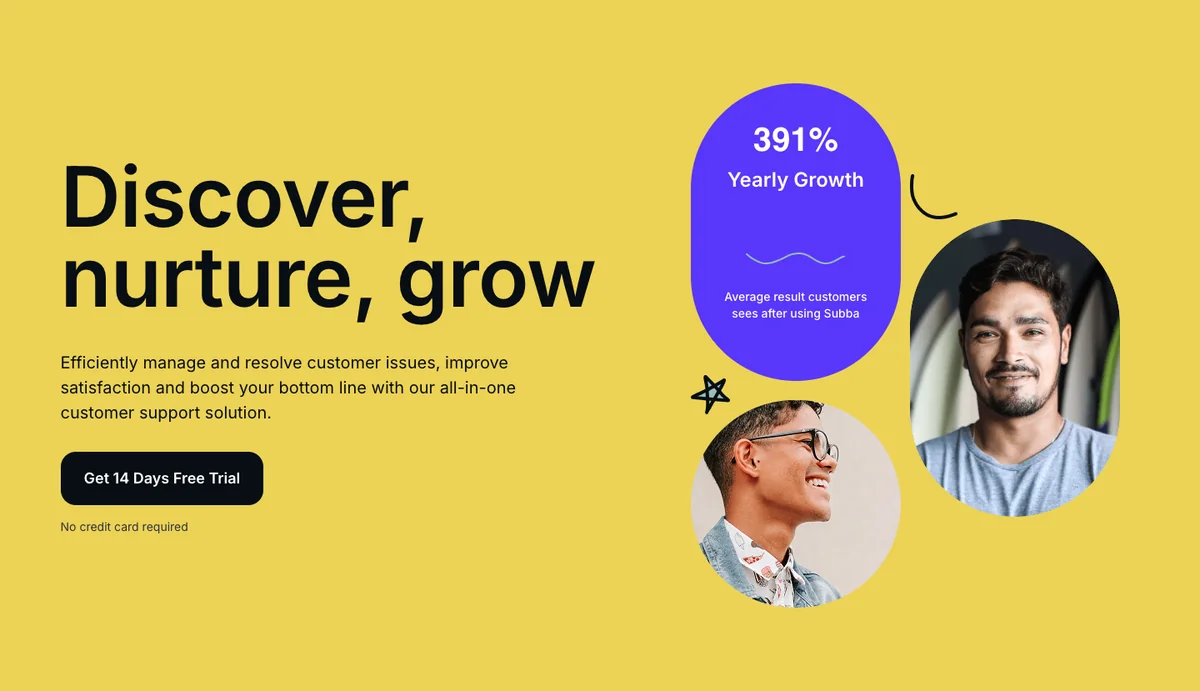
Finix has four sections and the same trial button, built for a fintech or budgeting app.
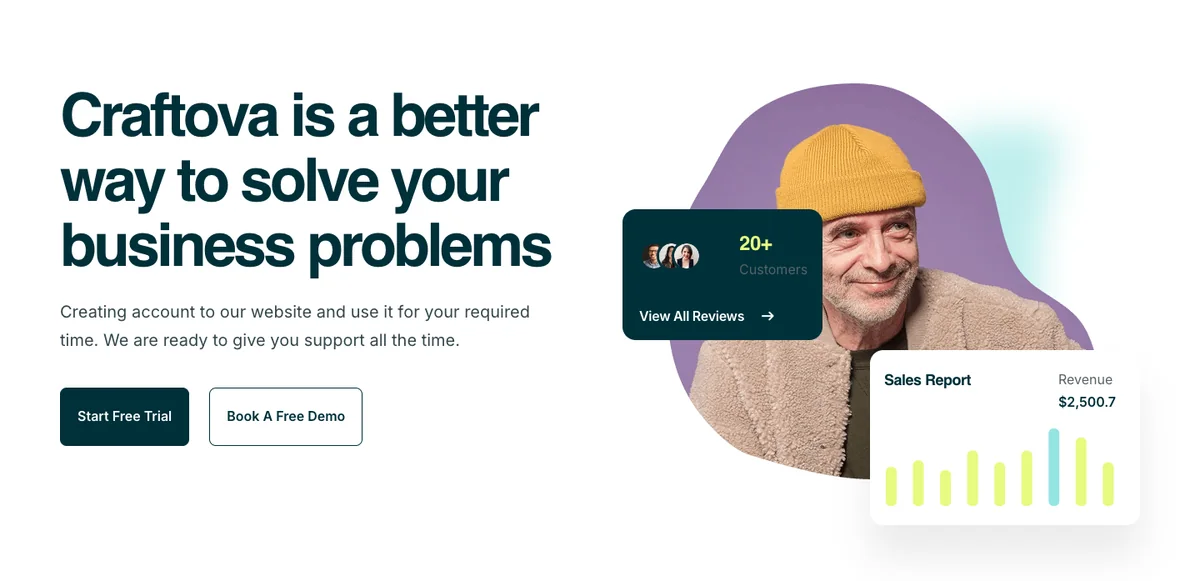
Craftova has nine sections and two offers, “Start Free Trial” and “Book A Free Demo”. Use it when you sell both self-serve and through a sales call.
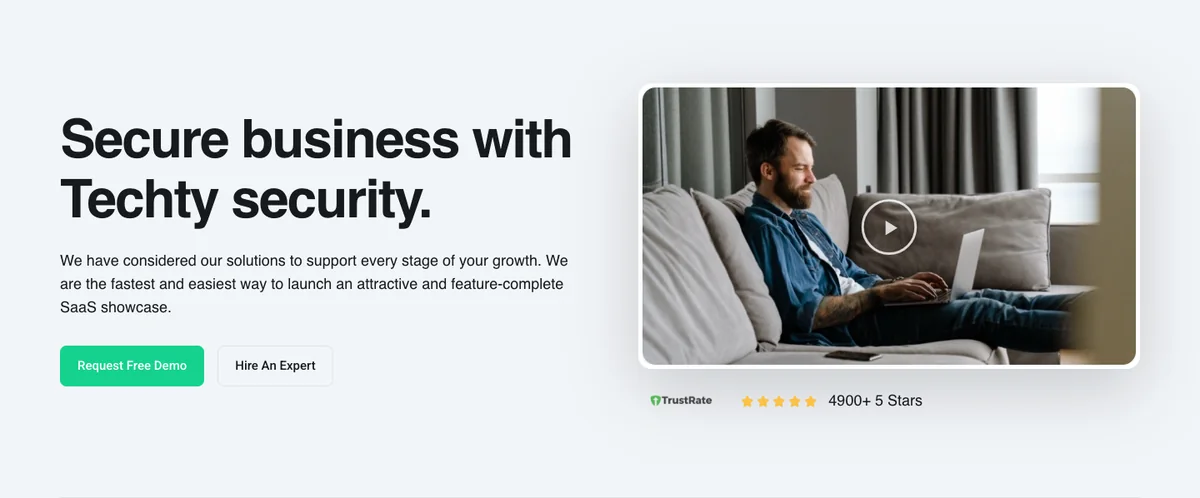
Klyro asks for a demo, with “Request Free Demo” and “Hire An Expert”. It fits a higher-priced or security product where nobody signs up unattended.
Product, app and commerce signup pages (5 designs)
These five keep the single-offer rule, but the ask is “get started” instead of “start a trial”.
Shiftflow: a marketplace signup page
Five sections, a posting form on the page, and two buttons that point the same way: “Post a Job for Free” and “See All Job Posts”. It is built as a job board, but the shape is a marketplace signup page, and it rewrites easily into anything with a submit-something offer. Shiftflow is the one design in this set that carries the FREE badge in the library.
Zaplyte and Sempla: products that move money
Zaplyte runs six sections behind “Get Started Now”, with a pricing block and a “Trusted by 1400+ people” proof line. Sempla is the commerce version: nine sections built around revenue dashboards and transaction screens, for selling physical or digital products.
Nexis and FlowDesk
Nexis has six sections for a business payments product. The button is benefit-led, “Start Saving More Money”, which tends to beat a generic Get Started when the product saves money.
FlowDesk has thirteen sections and “Get Started for Free”. It is the longest page here, and the one to pick when you have several modules to explain. If that is more page than your offer needs, delete sections after importing.
Lead capture and booking pages (4 designs)
Service businesses convert on a call, a visit or a booking. These four are shaped for that.
Plumbiq: the phone-call landing page
“Request A Free Call”, a tappable phone number in the header, and “Book A Visiting” further down. The headline handles the urgent case directly: “Having a Plumbing Problem? We’ll Fixed it Today!” (fix that grammar after importing). For any trade or emergency service running local ads, this is the closest fit.
Fundora: donations and volunteer signup
Two asks, “Donate Now” and “Become a volunteer”, with an impact-numbers section carrying the proof. A nonprofit is one of the few cases where two calls to action on one page is correct, because the two audiences are different people.
Culinary and Travello
Culinary is built around “Book A Table” with the menu as supporting content. Travello uses “Book Now” and “Check Tour Packages” with destination cards and a “Trusted by 7500+ Happy Customers” line. Both are booking pages, and both rewrite into any appointment-based business.
The widgets doing the converting
These designs lean on a handful of widgets, and knowing which ones lets you swap or add them without breaking the page.
- The Pricing Table carries the plan comparison on Zaplyte and Craftova. If your offer has tiers, this section does the deciding.
- A countdown timer is not in these templates by default. It is the first thing worth adding to a sales or launch page with a deadline. Only use a real one.
- Contact Form 7 handles capture on Sabrion and Shiftflow. Keep the field count low, because each extra field costs you signups.
- A call to action block gives you the repeated mid-page ask, so a long page does not have its only button at the bottom.
- An FAQ accordion handles objections. Placed directly above the final button, it answers the reasons someone was about to leave.
The full list is on the widgets and extensions page. If you want a different opening screen, the Elementor hero section templates can replace the top of any of these pages.
Want to see all 16 live? Each design has a full-page preview in the Elementor page templates library, under Home Page.
How to import an Elementor landing page template
Importing takes three steps and about two minutes. You need Elementor and Master Addons active, and designs marked PRO need a Master Addons Pro licence.
- In your dashboard, go to Pages, click MA Import, then Import Pages.
- Find the design on the Pages tab and click View & Insert. Give the page a title, then click Insert Page.
- Click Edit with Elementor and replace the demo copy, images and links with your own.
The importer publishes the new page straight away, so switch it to draft first if the site is live. Then open Page Settings and set Page Layout to Elementor Canvas, which removes your theme header and footer.
Once you have edited a design into something you want to reuse, save the page as a template so the next campaign starts from your version. For every import route, including JSON files, see how to import an Elementor template.
Which template should you start with?
| If you are | Start with |
|---|---|
| Selling software on a trial | Sabrion or Lead Lift |
| Selling software through demos | Klyro or Craftova |
| Launching an app or a payments product | Zaplyte or Nexis |
| Collecting calls for a local service | Plumbiq |
| Taking bookings | Culinary or Travello |
| Running a donation campaign | Fundora |
| Building a long sales page | FlowDesk, then add a pricing table and FAQ |
If you need several matching pages, the Elementor template kits bring a header, footer and several pages in one import.
Frequently asked questions
Are there free Elementor landing page templates?
Some. In the Master Addons library, each template card carries a FREE or PRO badge. Of the 16 landing page designs covered here, Shiftflow has the FREE badge and the other 15 are marked PRO. Elementor’s own library also includes landing pages you can insert without a paid plan.
What is the difference between a landing page and a homepage template?
A landing page template has one offer and one repeated call to action, usually across 4 to 9 sections. A homepage template serves several audiences and runs 11 sections or more with competing buttons. Sending ad traffic to a homepage is a common reason a campaign underperforms.
Do I need Elementor Pro for these landing page templates?
No. The templates import and edit with the free Elementor plugin. Designs marked PRO need a Master Addons Pro licence, which is a separate product from Elementor Pro.
Can I use an Elementor landing page template for a sales page?
Yes. A sales page is a longer landing page. Start from one of the longer designs such as FlowDesk or Craftova, then add a pricing table, an FAQ accordion and a second call to action partway down the page.
How do I remove the header and footer from an Elementor landing page?
Open Page Settings in the Elementor editor and set Page Layout to Elementor Canvas. The page then renders on its own, without the theme’s header, footer or sidebar, which is what you want for paid traffic.
Final thoughts
The library holds 16 Elementor landing page templates: 7 for SaaS trials and demos, 5 for product and app signups, and 4 for lead capture and booking. They run from 4 sections (Sabrion, Finix) to 13 (FlowDesk), and each is built around one repeated call to action.
Pick the one closest to your offer, import it, set it to Canvas, and cut every section that does not help the one thing you want the visitor to do. All 16, plus the other 195 designs, are in the Elementor page templates library.
Related reading
