


Key Takeaways
- Elementor hover effects for images live in the Image widget’s Style tab, under a Hover tab with four controls: Opacity, CSS Filters, Transition Duration and Hover Animation.
- A grayscale to colour hover effect in Elementor needs no code: set Saturation to 0 under CSS Filters on the Normal tab and back to 100 on the Hover tab.
- Elementor’s Hover Animation presets, such as Grow, move the whole image, and the Grow preset scales an image to 110 percent of its size on hover.
- Elementor’s Image widget cannot show a title or description over the image on hover, so text overlays need a container workaround, custom CSS or an addon widget.
- The Master Addons Image Hover Effects widget has 30 named hover effects that animate a title and description over the image, chosen from one Hover Effect dropdown.
You can add Elementor hover effects to an image in three ways. The Image widget has opacity and CSS filter settings for the hover state. It also has Hover Animation presets that move the picture. For a title and description that appear over the image, you need a widget built for it, such as Image Hover Effects.
This guide covers each route with the exact settings, tested on Elementor 4.3. Start with the first two if you only want the picture to react, and skip to the third if you want text on the image.
Table of Contents
Where the hover settings are in Elementor
Select an Image widget, open the Style tab and look under the Image section. Below the size controls there are two tabs, Normal and Hover. Everything on the Hover tab applies only while the pointer is over the image. Elementor explains the idea in its introduction to hover effects.
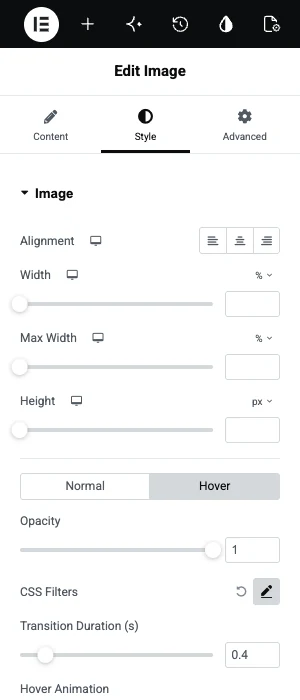
| Control | What it does on hover |
|---|---|
| Opacity | Fades the image in or out, from 0 to 1 |
| CSS Filters | Changes blur, brightness, contrast, saturation and hue |
| Transition Duration | Sets how long the change takes, in seconds |
| Hover Animation | Plays a preset movement such as Grow |
Way 1: Opacity and CSS filters
Use opacity and CSS filters when the image itself should change on hover. The classic example is a photo that sits in black and white and turns to colour when the pointer arrives.
- Select the Image widget and open Style.
- On the Normal tab, click the pencil next to CSS Filters and drag Saturation to 0. The image turns grey.
- Switch to the Hover tab, open CSS Filters again and set Saturation to 100.
- Set Transition Duration to about 0.4 so the colour fades in.
- Optional: set Opacity to 0.85 on Normal and 1 on Hover for a slight brightening.
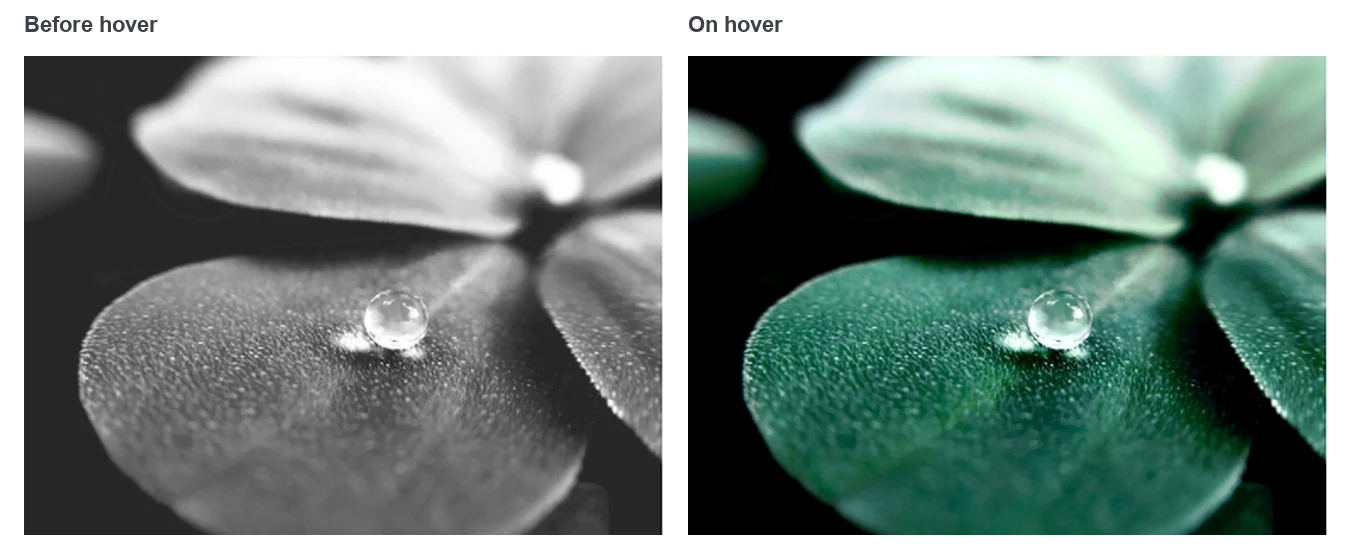
The same two tabs give you a blur that clears, a dim image that brightens, or a hue shift. Keep the transition between 0.3 and 0.5 seconds. Shorter than that looks like a flicker, and longer feels slow.
Way 2: Hover Animation presets
Hover Animation moves the whole image when the pointer is over it. It is one dropdown at the bottom of the Hover tab, and it needs no other setup.
- Select the Image widget and open Style, then the Hover tab.
- Open Hover Animation and pick a preset. Grow is the one most people want.
- Preview the page and move the pointer over the image.
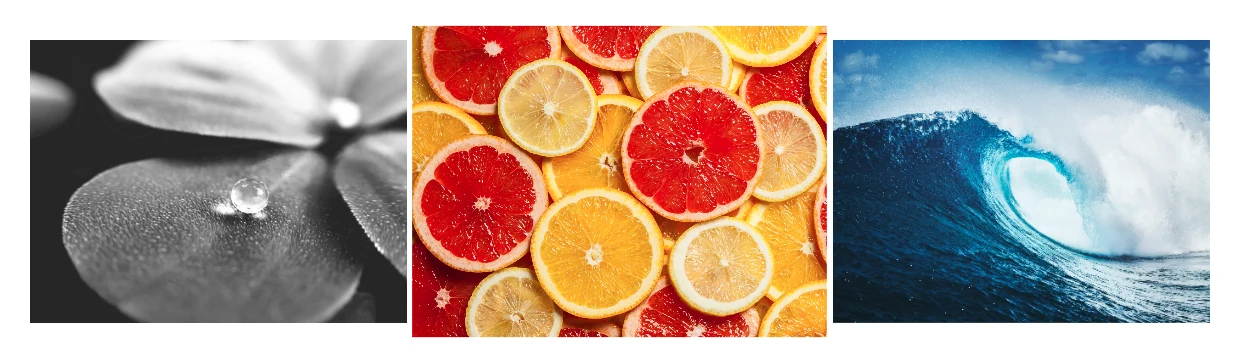
Grow enlarges the image past its original edges, so it can overlap its neighbours in a tight grid. If you want the picture to zoom inside a fixed frame, that takes a few lines of CSS.
Way 3: A widget for text over the image
Use a dedicated widget when a title and description should appear over the image on hover. Elementor’s Image widget shows its caption under the picture and has no setting to put text on top.
These steps use the Image Hover Effects widget from Master Addons.
- Edit the page with Elementor, search the widget panel for Image Hover Effects and drag it onto the page.
- Under Effects & Image, upload the image.
- Open the Hover Effect dropdown and pick one of the 30 effects. They are listed by name, starting with Lily, Sadie, Roxy and Bubba.
- Type the Title and the Description in their own sections.
- Set Links or Popup? if a click should go somewhere.
- In the Style tab, set the overlay colour, the image opacity for normal and hover, and the typography for each text layer.
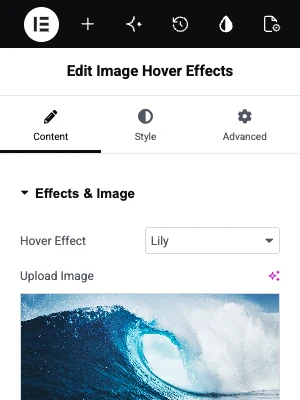

Try the effects before you install anything. The Image Hover Effects widget page has eight live cards you can hover, plus the full list of 30 effects.
Eight of the effects work without a Pro licence and 22 need Master Addons Pro. Each widget holds one image, so a grid of hover cards is several widgets side by side.
Video tutorial
This four-minute video sets up the Image Hover Effects widget from an empty page.
Which way should you use?
Pick by what should change on hover: the picture, its position, or the text on top of it.
| You want | Use | Needs |
|---|---|---|
| Grayscale to colour, blur to sharp, dim to bright | CSS Filters and Opacity on the Hover tab | Elementor |
| The image to grow or pulse | Hover Animation | Elementor |
| A zoom that stays inside its frame | A CSS class and a few lines of CSS | Elementor and somewhere to add CSS |
| A title and description over the image | Image Hover Effects widget | Master Addons |
| A second image that replaces the first | Advanced Image widget, or a container background | Master Addons, or Elementor alone |
For text and pictures combined in other ways, see Elementor text over image.
Do hover effects work on phones?
Not as hover, because a touch screen has no pointer to hover with. Elementor’s Style tab effects do not fire on a phone, which does no harm for a colour change.
With the Image Hover Effects widget, the first tap usually shows the text and the second tap follows the link. If the text is essential, such as a price or a name, put it somewhere visible on small screens as well.
Frequently asked questions
How do I add a hover effect to an image in Elementor?
Select the Image widget, open the Style tab and switch to the Hover tab. Set Opacity or CSS Filters for the hover state, or choose a Hover Animation such as Grow. Add a Transition Duration of 0.3 to 0.5 seconds so the change is smooth.
Does Elementor have image hover effects without a plugin?
Yes. The Image widget in Elementor has hover controls for opacity, CSS filters and a Hover Animation preset. They change or move the image. Text over the image needs an addon widget or custom CSS.
How do I make an image go from black and white to colour on hover in Elementor?
In the Image widget’s Style tab, open CSS Filters on the Normal tab and set Saturation to 0. Then open CSS Filters on the Hover tab and set Saturation to 100. Set Transition Duration to around 0.4 seconds.
How do I show text when hovering over an image in Elementor?
Use a widget made for it. With Master Addons, add the Image Hover Effects widget, upload the image, type a Title and Description and pick a Hover Effect. The text stays hidden until the pointer is over the image.
Why is my Elementor hover effect not working?
Check that the setting is on the Hover tab and not the Normal tab, and that Transition Duration is above 0. On a phone or tablet there is no hover, so test with a mouse. If you use custom CSS, confirm the class name on the widget matches the one in the code.
Final thoughts
Elementor hover effects for images come in three kinds. The Style tab changes how the image looks, Hover Animation moves it, and a text overlay needs a widget. Start with the built-in controls, since they cost nothing to try.
When you want a title and description on the image, the Image Hover Effects widget has 30 effects ready to pick from, and the pricing page shows which plan includes all of them.
Related reading
