


Elementor SEO means setting up the pages you build in Elementor so Google can crawl, understand and rank them. Elementor itself is SEO-friendly, because it outputs plain HTML with proper heading tags and text Google can crawl. Whether a page ranks depends on how you build it: heading structure, Elementor’s own performance settings, Core Web Vitals, images, internal links, schema, and content that answers the search.
This guide covers all of it in the order that moves rankings fastest. Every step works in current versions of WordPress and Elementor, and none of them need code.
In this guide:
- Is Elementor good for SEO?
- Where Elementor’s SEO settings live
- 12 Elementor SEO best practices
- Best SEO plugin for Elementor, compared
- Common Elementor SEO mistakes
- Elementor SEO checklist
- Frequently asked questions
Is Elementor Good for SEO?
Yes. Elementor is SEO-friendly. Google indexes an Elementor page the same way it indexes any other WordPress page, because the text, links and headings are all in the HTML when the page loads. Elementor doesn’t block rankings, and it doesn’t boost them either.
The catch is weight. A page builder loads more CSS and JavaScript than a hand-coded theme, and every section you nest adds more markup. On a cheap host with no caching and 3 MB hero images, that shows up as slow Core Web Vitals. Recent Elementor versions have closed a lot of that gap with settings like Element Cache, Optimized Image Loading and leaner markup, but most of them only help if you switch them on. That’s what practice #3 is for.
In short, Elementor is as good for SEO as your setup, and the rest of this guide walks through that setup.
Do You Need Elementor Pro for SEO?
No. Meta titles, descriptions, sitemaps and schema come from your SEO plugin. Headings, alt text, internal links and speed settings are all in free Elementor. Elementor Pro adds design tools like the Theme Builder and dynamic content, and none of them change how Google ranks a page.
Where Pro does matter indirectly is templates. If your blog posts use your theme’s default single-post layout, you control the H1 and structure through the theme. If you want to design that layout in Elementor, you need a theme builder. Elementor Pro has one, and so does the Master Addons Theme Builder, which covers headers, footers, single posts, archives, search results and 404 pages.
Where Elementor’s SEO Settings Live
A lot of people search for “Elementor SEO settings” and expect one panel. There isn’t one. SEO on an Elementor site is spread across five places, and knowing which one controls what saves a lot of hunting.
| What you want to change | Where it lives |
|---|---|
| SEO title, meta description, focus keyword, schema, noindex | Your SEO plugin’s panel (Rank Math, Yoast, SEOPress or AIOSEO all add a tab inside the Elementor editor) |
| Heading tags (H1 to H6) | Each widget’s HTML Tag option, in the Content tab |
| Page title visibility (your H1) | Elementor page settings (gear icon) → Hide Title |
| Speed settings: caching, image loading, fonts | WordPress admin → Elementor → Settings → Performance and Features tabs |
| URL slug | WordPress page/post editor or Quick Edit (not Elementor) |
| Image alt text | Media Library attachment details (the Image widget pulls it from there) |
12 Elementor SEO Best Practices
1. Install One SEO Plugin and Use It Inside Elementor
Elementor handles design. An SEO plugin handles the signals Google reads before it ever looks at your layout: the title tag, meta description, canonical URL, XML sitemap, robots rules, breadcrumbs and schema.
All four major SEO plugins now add their own panel inside the Elementor editor, so you can edit the SEO title and check your focus keyword without leaving the page you’re building. Rank Math is the one we use on this site. Its setup wizard handles sitemaps, the Organization knowledge graph and default title templates in a few minutes.
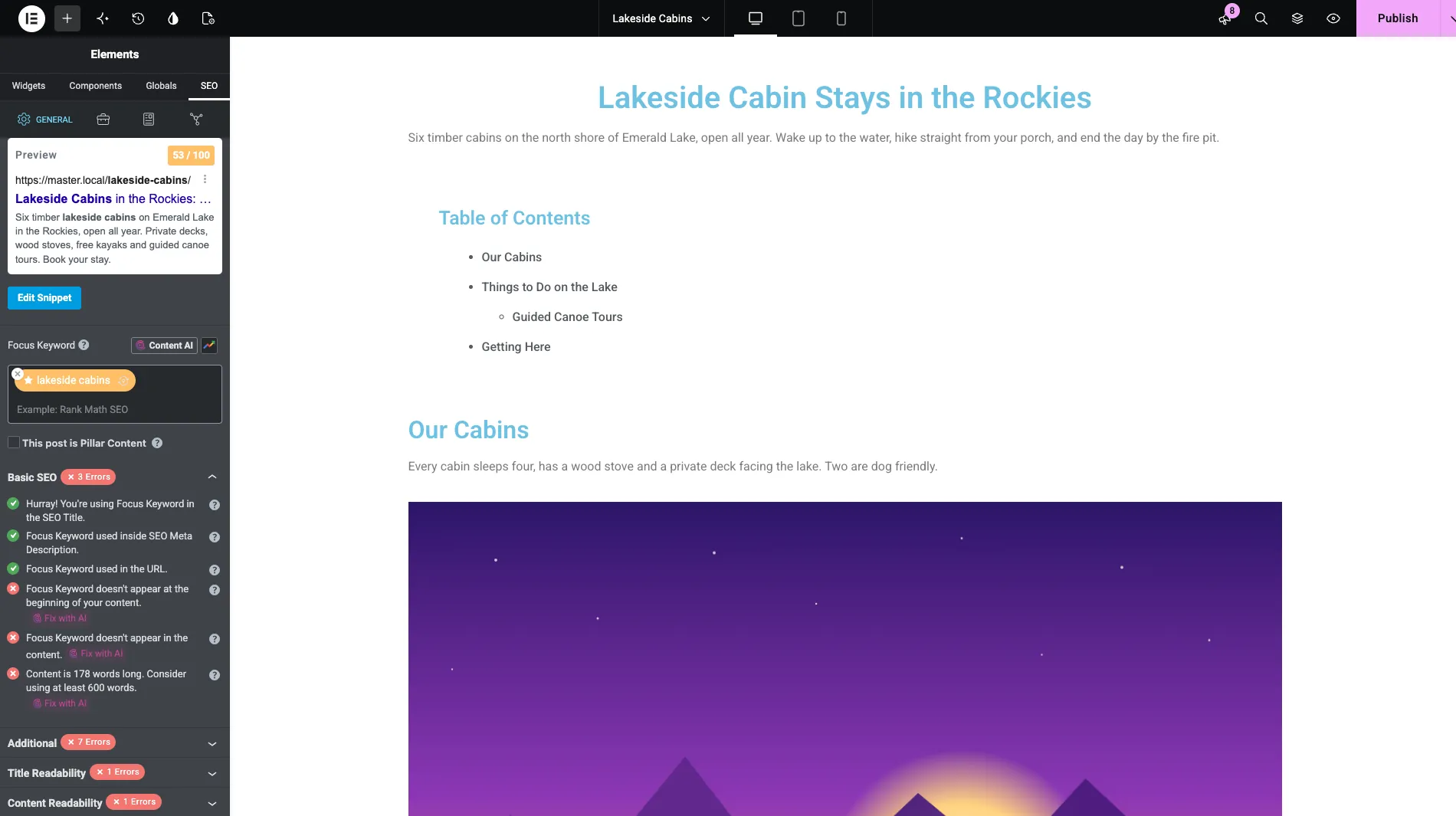
Whichever plugin you pick, run only one. Two active SEO plugins print two sets of meta tags and two schema graphs, and Google has to guess which one you meant.
2. Use One H1 and Real Heading Tags
Google uses headings to understand what each part of a page covers, and readers use them to decide whether to stay. In Elementor, the heading level is a setting, not a font size. Every heading-type widget has an HTML Tag dropdown, and that dropdown is the only thing Google sees.
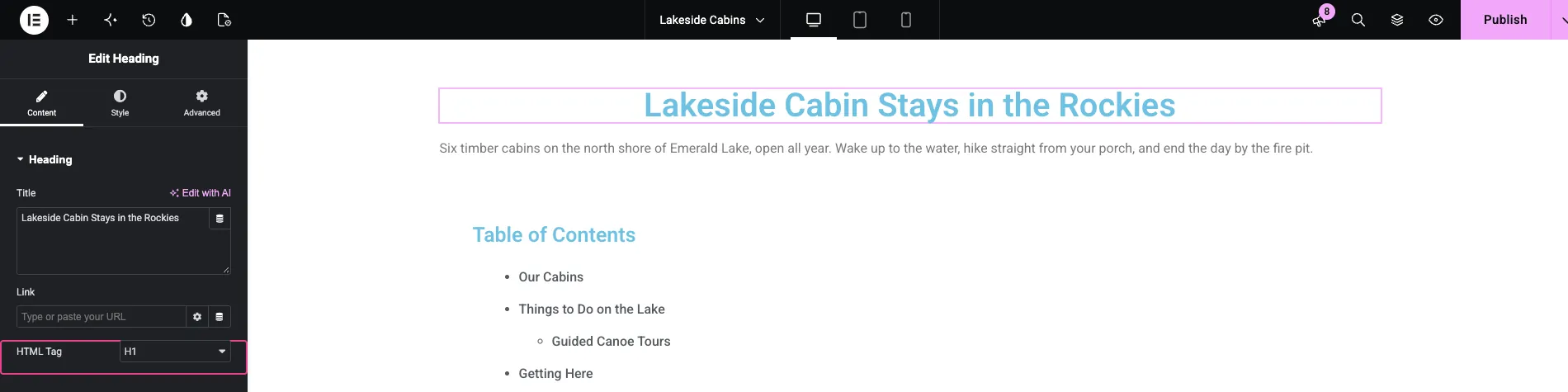
- H1: the page topic, exactly once.
- H2: the main sections.
- H3 to H6: sub-points under their H2, without skipping levels.
Two Elementor habits cause most heading problems:
- The Hide Title trap. Your theme prints the page title as the H1. Turn on Hide Title in page settings to design your own hero, and the H1 disappears. Then the big hero text you added is usually the Heading widget’s default, which is H2. Result: a page with no H1. If you hide the title, set your hero heading to H1 by hand. Our guide to hiding or removing page titles covers the safe ways to do this.
- Headings used as decoration. Small labels like “Our Services” above a section title often get an H2 just because they’re in a Heading widget. Set those to
p,spanordivso your outline stays clean.
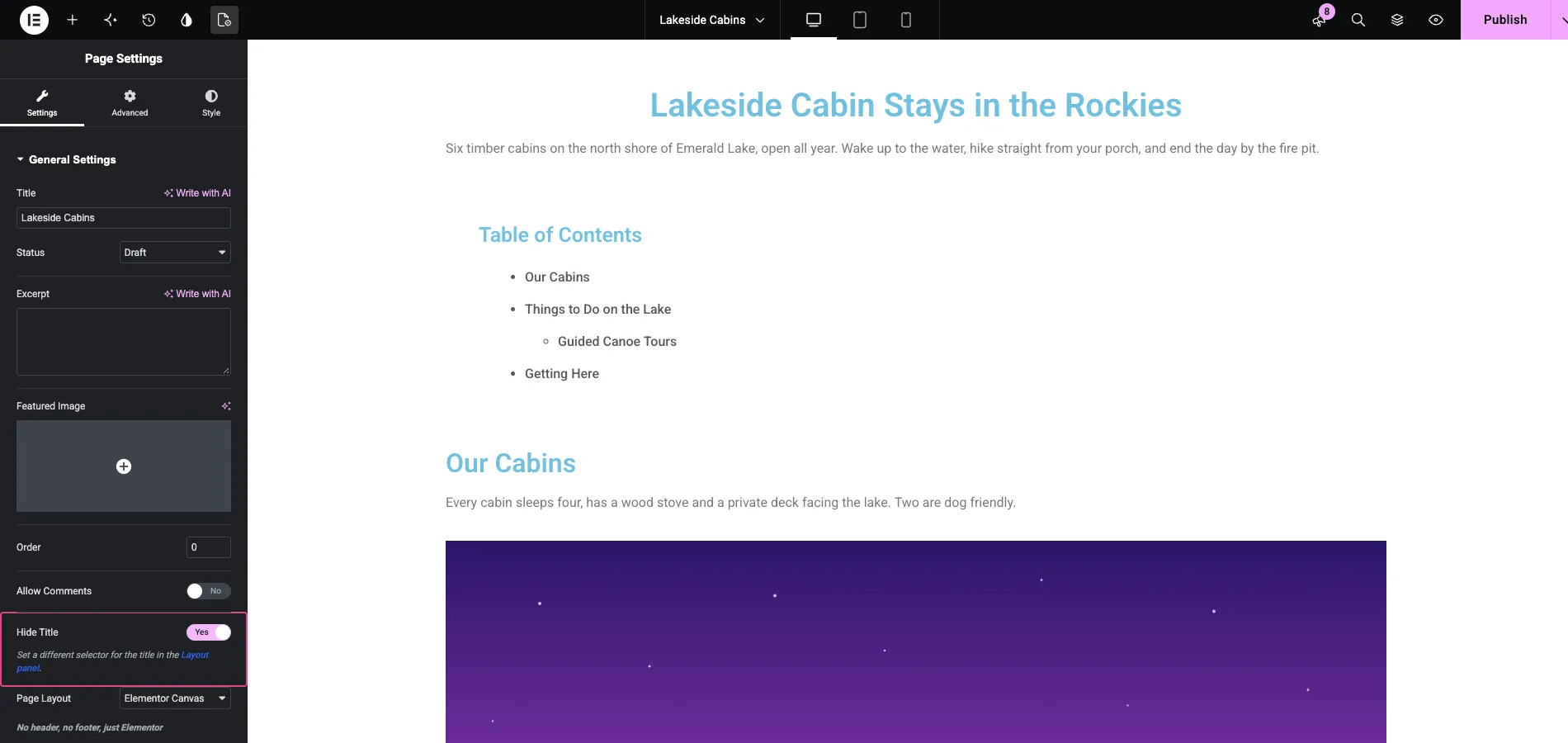
Styled headings from addons follow the same rule. The Master Addons Dual Heading and Gradient Headline widgets both have the tag setting, so you can have a two-color hero and still output a proper H1.
3. Turn On Elementor’s Performance Settings
Plenty of Elementor SEO guides skip this step, even though it’s only a few dropdowns and it affects every page on the site. Go to Elementor → Settings in your WordPress admin. The Performance and Features tabs hold the switches that decide how heavy your pages are.
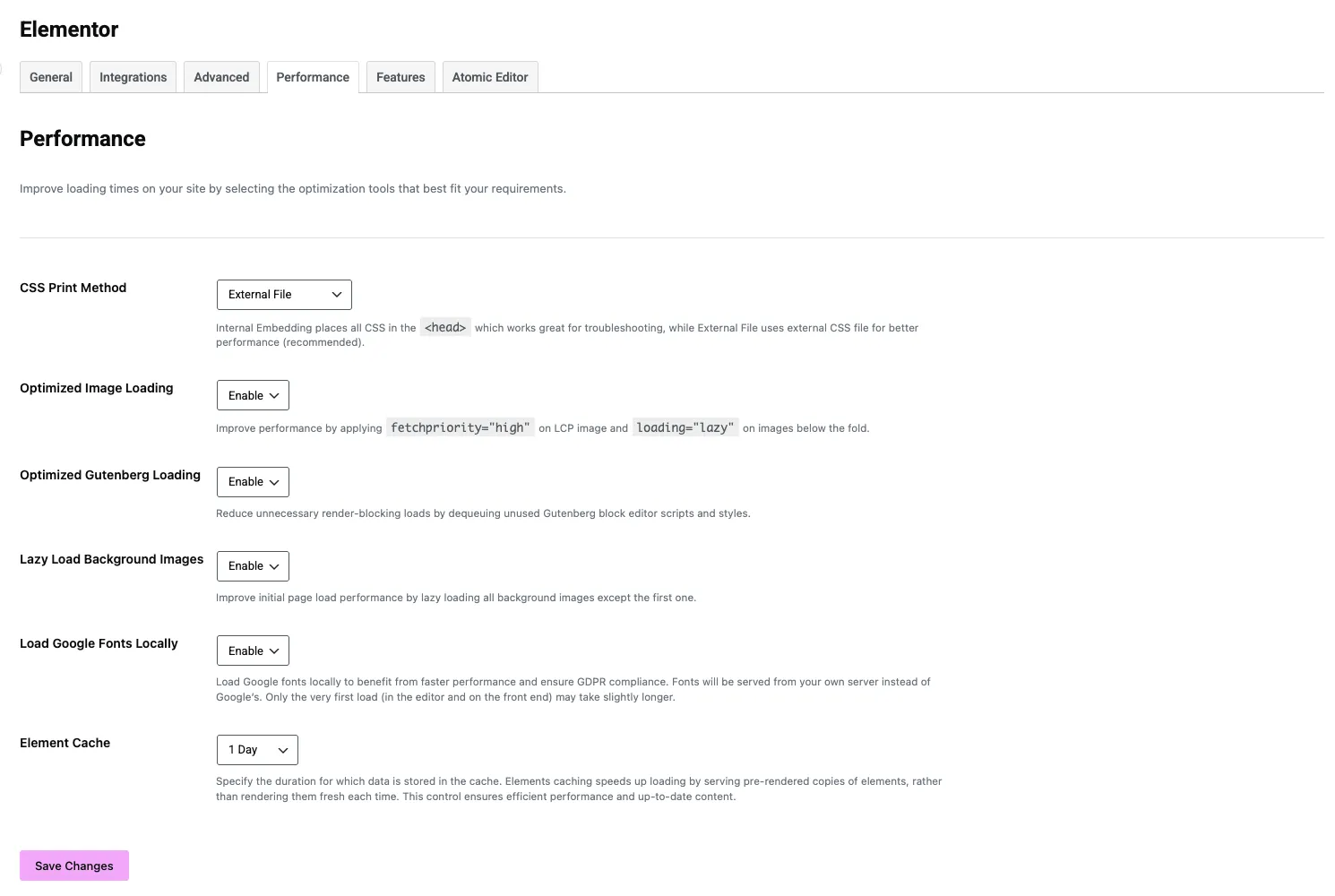
Here’s what each Performance setting does and how we set it:
- CSS Print Method: External File. Elementor writes page CSS to cached files instead of stuffing it into every page’s
<head>. Keep Internal Embedding only while you troubleshoot. - Optimized Image Loading: Enable. Adds
fetchpriority="high"to the LCP image andloading="lazy"to images below the fold. It’s a direct LCP improvement. - Optimized Gutenberg Loading: Enable. Stops block editor styles loading on pages built entirely in Elementor.
- Lazy Load Background Images: Enable. Container and section backgrounds wait until they’re needed, except the first one.
- Load Google Fonts Locally: Enable. Fonts come from your own server instead of Google’s. That’s one less third-party connection, and it helps with GDPR.
- Element Cache: 1 Day or longer. Serves pre-rendered copies of elements instead of building them fresh on every visit.
Then open the Features tab. Two stable features there cut page weight further:
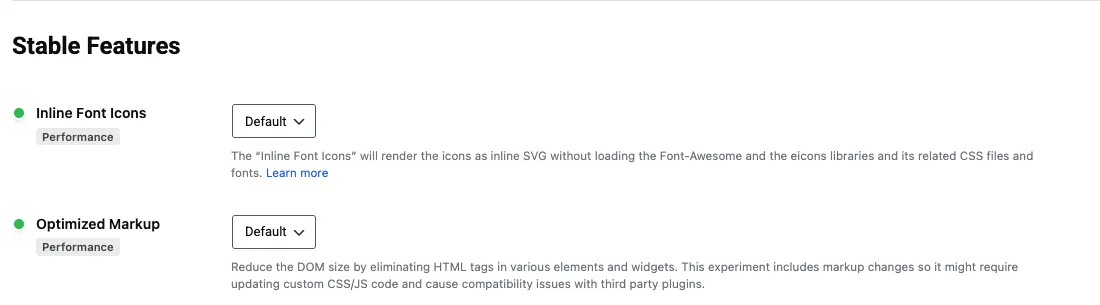
- Inline Font Icons renders icons as inline SVG, so Elementor skips loading the Font Awesome and eicons libraries.
- Optimized Markup removes extra HTML wrappers from elements and widgets, which shrinks the DOM. It changes markup, so check any custom CSS or JavaScript that targets those wrappers after you switch it on.
Test your main pages after each change. On the General tab, Disable Default Colors and Disable Default Fonts are also worth ticking when your theme or kit already sets fonts. That stops Elementor loading a second font stack.
4. Pass Core Web Vitals (LCP, INP, CLS)
Core Web Vitals are Google’s three page-experience metrics. They won’t outrank better content, but on a close call between two good pages, the faster one wins. Here’s what each one means on an Elementor page:
| Metric | Good score | Usual Elementor cause | Fix |
|---|---|---|---|
| LCP (Largest Contentful Paint) | Under 2.5 s | Huge hero image, or hero image lazy-loaded | WebP hero at display size, never lazy-load it, keep Optimized Image Loading on |
| INP (Interaction to Next Paint) | Under 200 ms | Too much JavaScript: sliders, animations, chat widgets, tracking scripts | Cut unused widgets and third-party scripts, delay non-critical JS with your caching plugin |
| CLS (Cumulative Layout Shift) | Under 0.1 | Images without dimensions, late-loading fonts, banners pushing content down | Set image width and height, font-display: swap, reserve space for embeds |
INP replaced First Input Delay in March 2024, so older guides that talk about FID are measuring something Google no longer uses. Test with PageSpeed Insights and look at the field data at the top (real Chrome users) before the lab score below it. For a full step-by-step, see how to speed up Elementor websites.
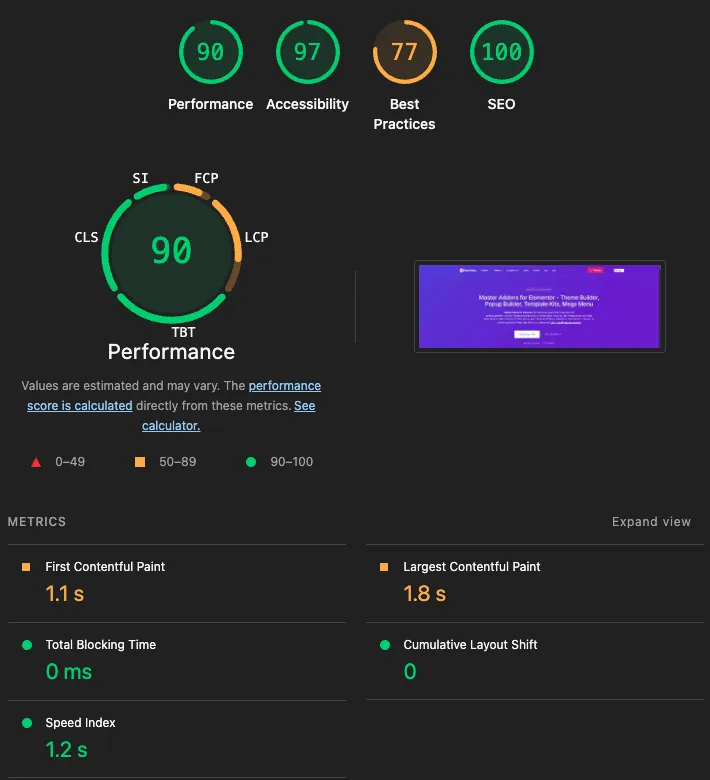
Lighthouse is lab data, so it can’t measure INP. Total Blocking Time is the closest lab signal for it, and 0 ms there is a good sign. Check the field data in PageSpeed Insights or Search Console for the real INP number.
5. Start With a Lightweight Theme and Decent Hosting
Your theme loads on every page, before Elementor does anything. A heavy multipurpose theme with its own sliders and page builder adds weight you’ll never use. When we ran the same Elementor page on 15 themes, Lighthouse mobile scores ranged from 93 (Blocksy) down to 70 (Phlox). That’s a 23-point gap from the theme alone.
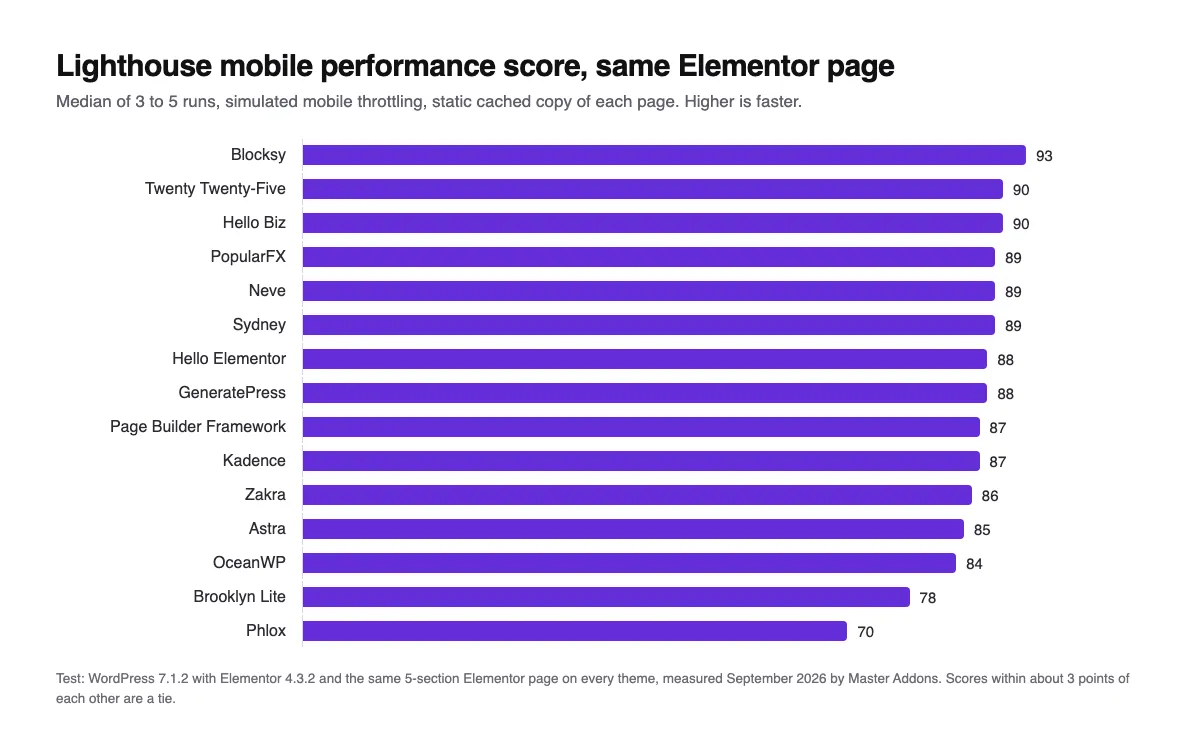
Hello Elementor, Blocksy, GeneratePress and Astra are all safe picks. The full test is in our roundup of lightweight WordPress themes for Elementor.
Hosting sets your floor. If the server takes a second to respond, no setting in Elementor fixes that. Pick a host with server-level caching and PHP 8.2 or newer. LiteSpeed-based hosts such as Hostinger pair well with the free LiteSpeed Cache plugin. On other hosts, WP Rocket is the easy option.
6. Optimize Images: Format, Size and Alt Text
Images are the most common reason an Elementor page is slow, and alt text is one of the most commonly skipped SEO basics.
- Use WebP or AVIF. WordPress supports both natively. An image optimizer plugin can convert your existing library in bulk.
- Upload at display size. A 2400px photo in a 600px column still downloads all 2400px. Use the Image widget’s size setting so WordPress serves the right one.
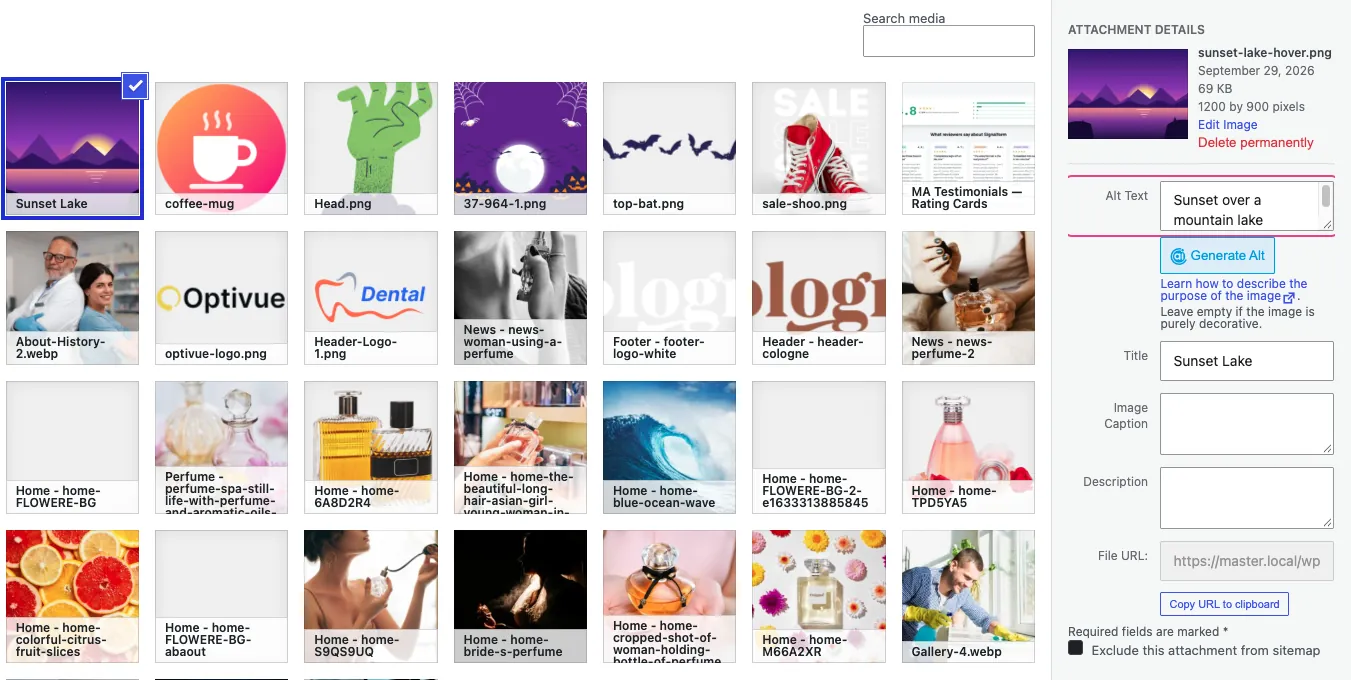
- Write alt text in the Media Library. The Elementor Image widget reads alt text from the attachment, so set it once there and it follows the image everywhere. Describe the image. Include the keyword only when it fits.
- Use real file names.
elementor-pricing-table.webptells Google something.IMG_2843.jpgdoesn’t. - Watch background images. Images set as section or container backgrounds have no alt text and aren’t indexed in Google Images. If an image carries meaning, use an Image widget.
7. Keep URLs Short and Descriptive
Compare example.com/?p=1234 with example.com/elementor-pricing-table/. The second tells Google and the reader what’s on the page before they click. Your slug comes from WordPress, not Elementor, so set it in the post editor or Quick Edit.
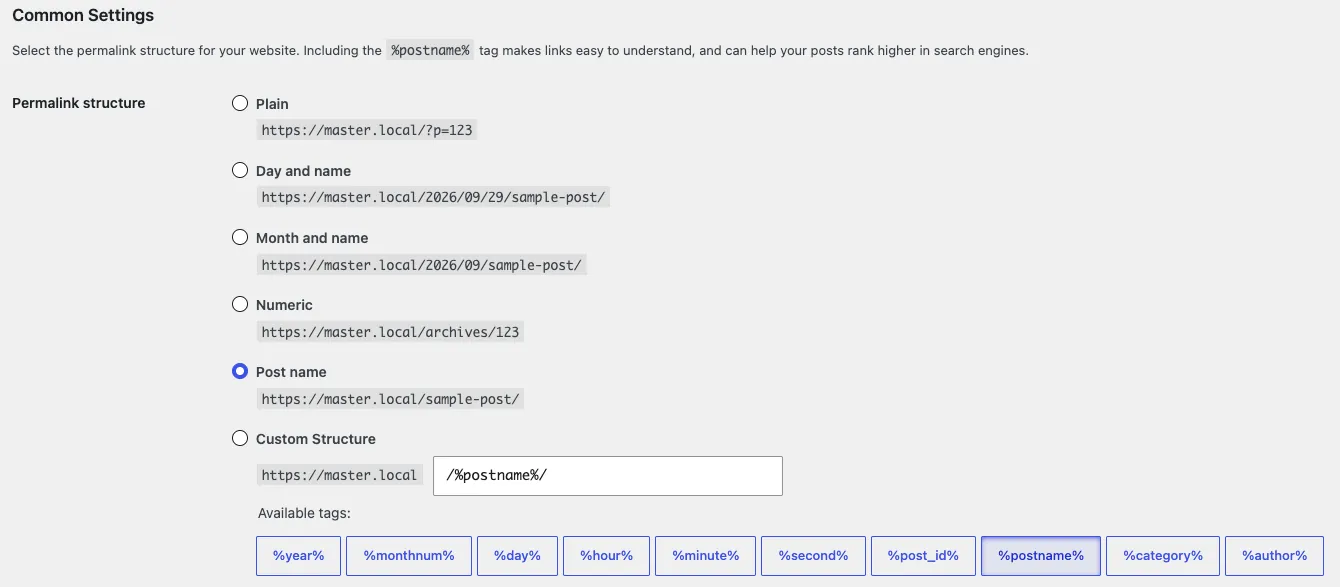
- Use Settings → Permalinks → Post name.
- Keep the main keyword and drop filler words.
- Don’t change the slug of a page that already ranks. If you must, add a 301 redirect from the old URL (Rank Math and most SEO plugins have a redirect manager).
8. Build Internal Links Google Can Follow
Internal links tell Google which pages matter and how they relate. Group related content into clusters: a main guide like this one links out to focused posts, and they link back. Use descriptive anchor text such as “Elementor breakpoints“, not “click here”.
One Elementor-specific catch: Google only follows real <a href> links. Some card and box designs make the whole card clickable with JavaScript, which users can click but Google can’t follow. The Master Addons Wrapper Link extension turns any container, section or widget into a proper link, with options for new window, nofollow and custom attributes.
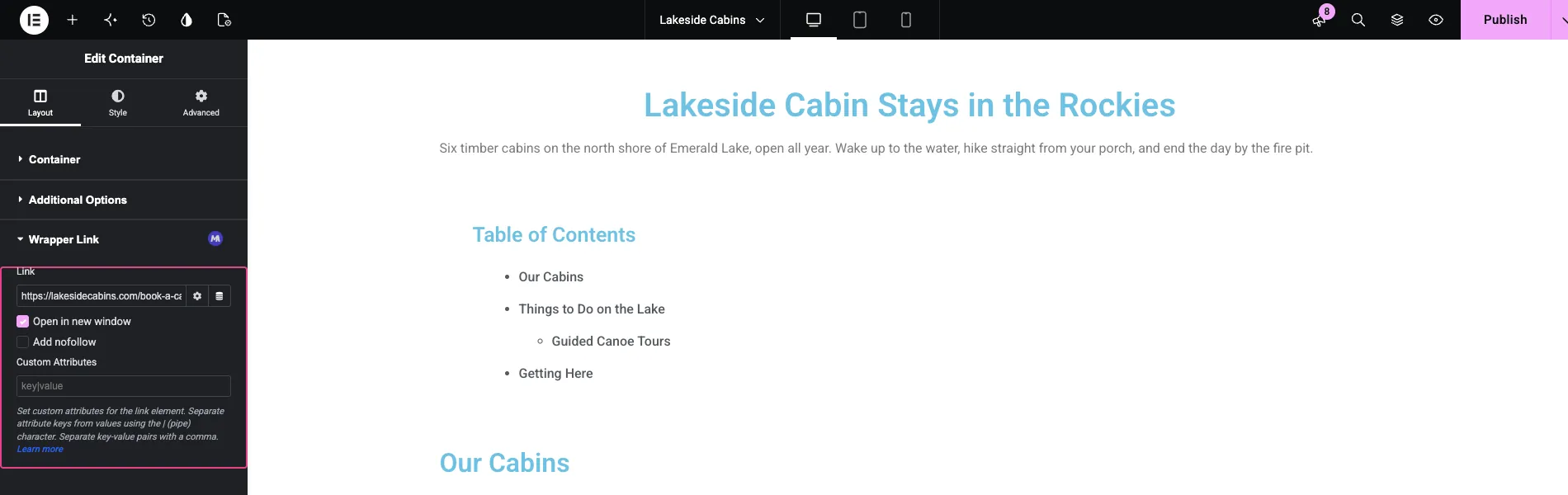
Use nofollow (or sponsored for paid and affiliate links) on outbound links you don’t vouch for. Leave internal links followed.
9. Add a Table of Contents to Long Pages
On guides longer than about 1,500 words, a table of contents helps readers jump to the part they need. It also gives Google clean anchor links, which sometimes show as “Jump to” links under your result. The Master Addons Table of Contents widget builds the list from your page’s H2 to H4 headings automatically, which is one more reason to get practice #2 right.
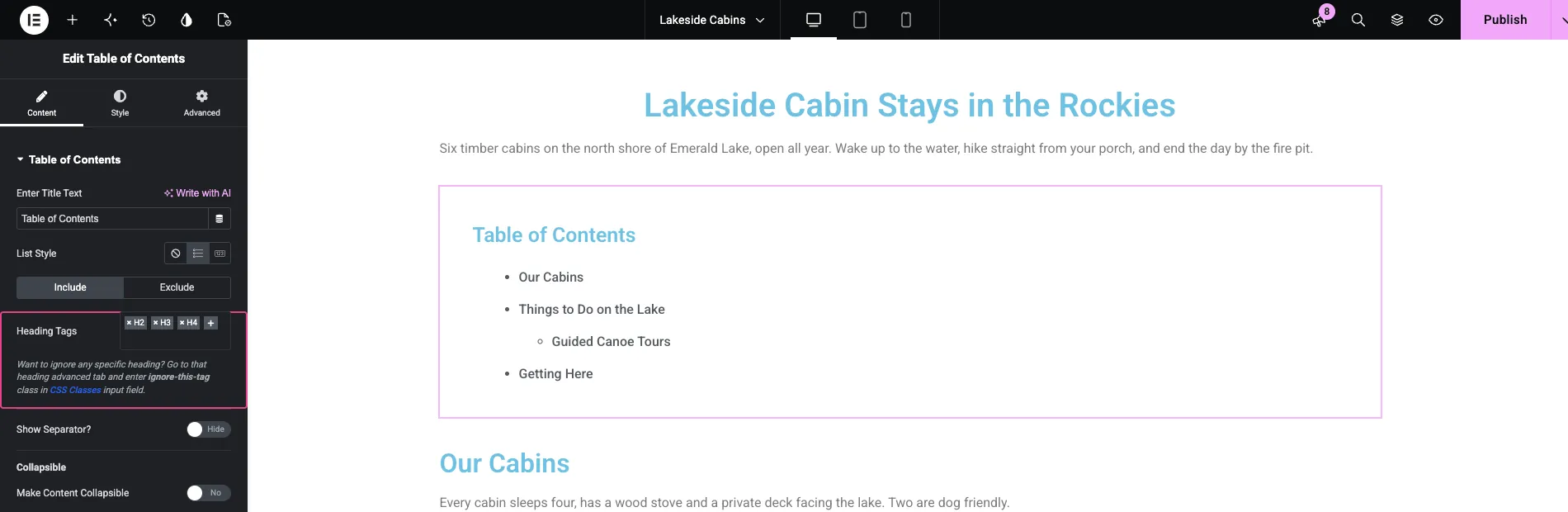
If you’d rather use a plugin that works outside Elementor too, we compared the options in our table of contents plugin roundup.
10. Use Schema for What Google Still Shows
Schema markup tells search engines what a page is: an article, a product, a recipe, a local business. It helps with understanding and makes you eligible for rich results. But the list of rich results has changed a lot, and older Elementor SEO advice hasn’t caught up.
- FAQ rich results have only shown for well-known government and health sites since August 2023. FAQ schema won’t give a normal blog those expandable questions in search anymore.
- HowTo rich results were retired in the same Google update.
- Still worth adding: Article (with author and dates), Organization, BreadcrumbList, Product with reviews for stores, and LocalBusiness for local sites.
Your SEO plugin outputs most of these automatically, so the job is usually to fill in the Organization details, set the right schema type per post type, and check that nothing is marked up that isn’t visible on the page. Google’s structured data gallery lists every type it currently supports.
To check what a page outputs, paste its URL into the Schema Markup Validator. Here’s our homepage:
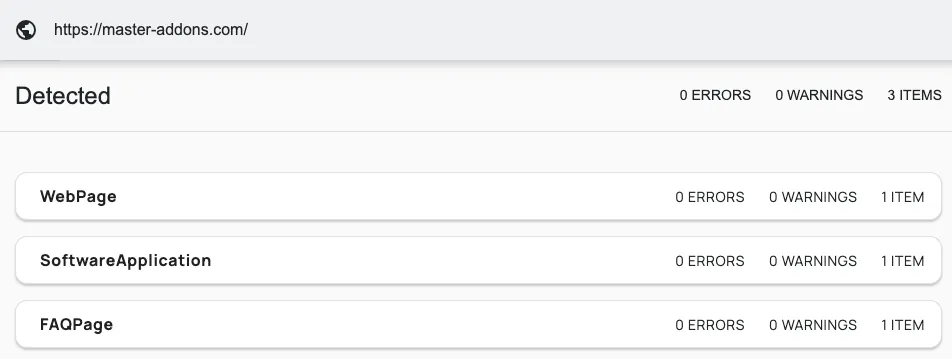
The FAQPage markup there is valid and still tells search engines which text is a question and which is the answer. It won’t show as expandable questions in Google results, for the reason above.
11. Design Mobile-First
Google ranks your site based on its mobile version. A page that looks great on desktop and cramped on a phone gets judged as cramped. In Elementor, switch to the tablet and mobile views in the editor and check each section: font sizes, spacing, tap targets and the hero.
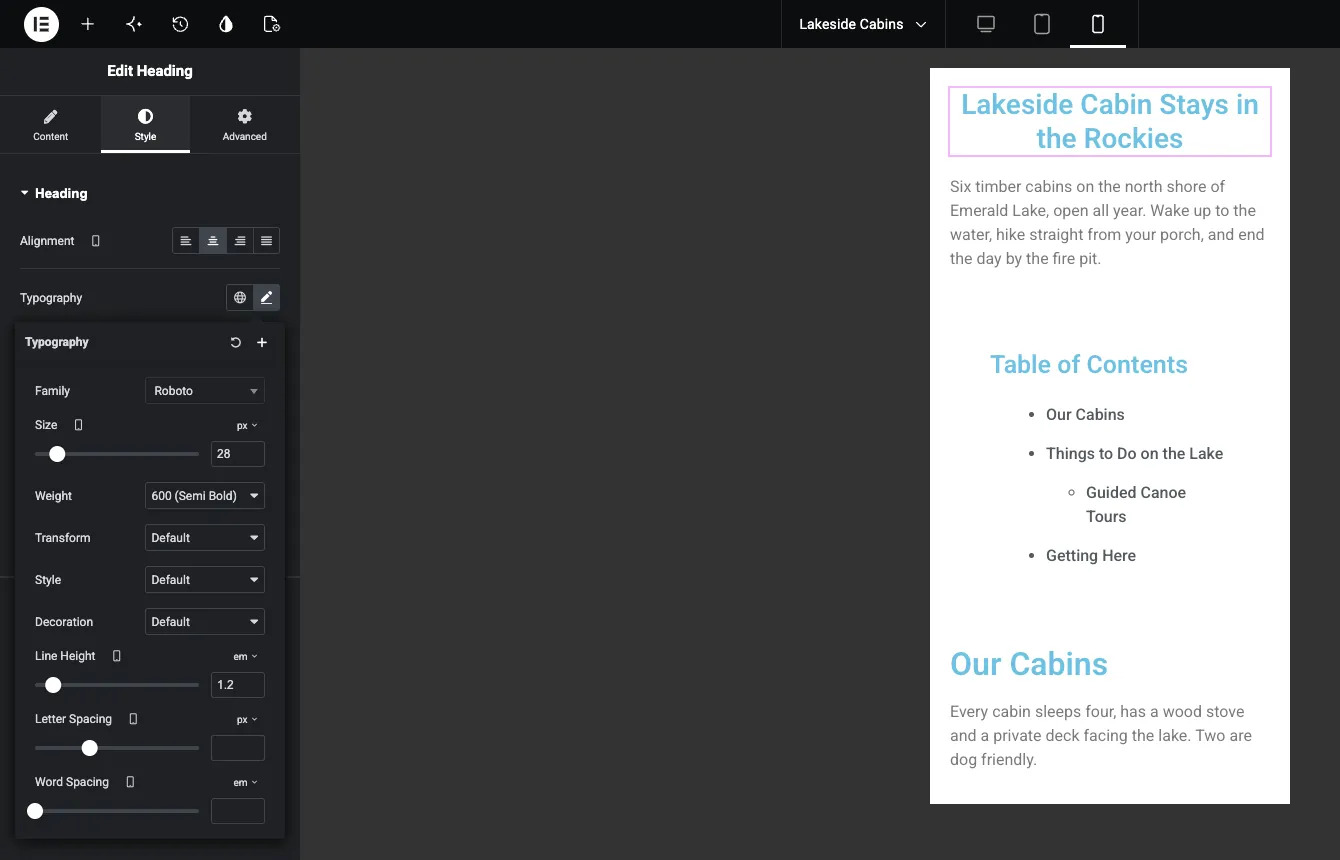
Oversized headline text on small phones is the classic problem. Set responsive font sizes per breakpoint. Elementor’s Additional Custom Breakpoints feature adds mobile extra, tablet extra, laptop and widescreen on top of the defaults. If you need breakpoints beyond those, the Master Addons Custom Breakpoints extension lets you add your own. Also avoid hiding important content on mobile only. If it’s hidden on the version Google indexes, it doesn’t count.
12. Write for People First (and AI Answers Second)
No setting makes up for content that doesn’t answer the search. Google’s systems reward pages that show Experience, Expertise, Authoritativeness and Trust (E-E-A-T). In practice that means:
- Answer first. Put a direct answer to the main question in the first paragraph, then go deeper. AI Overviews and chat assistants pull these short, clear answers too.
- Show real experience. Your own screenshots, test results and numbers beat stock photos and generic claims.
- Add a real author with a short bio, and show a visible “last updated” date.
- Make pages easy for AI tools to read. Clean headings and short answer paragraphs help here too. Elementor 4.3 also has a Generate website markdown experiment (Features tab, still Alpha) that serves Markdown versions of your pages to AI agents. Keep an eye on it, but don’t switch on an Alpha feature on a live site without testing it first.
- Keep it fresh. Revisit important pages a few times a year. Update screenshots, version numbers and steps that have changed.
Best SEO Plugin for Elementor, Compared
All four of these work with Elementor and add a panel inside the editor. The right one depends on how much control you want.
| SEO plugin | Best for | Elementor editor panel | Schema in free version | Redirects in free version |
|---|---|---|---|---|
| Rank Math | Most Elementor users who want a lot of features and a guided setup | Yes | Wide range of types | Yes |
| Yoast SEO | Beginners who want simple, opinionated guidance | Yes | Automatic core graph | No (Premium) |
| SEOPress | Agencies and anyone who wants a clean, ad-free interface | Yes | Core types (more in Pro) | Yes |
| All in One SEO | WooCommerce and local business sites | Yes | Core types (more in Pro) | No (Pro) |
For most people building with Elementor, Rank Math gives the best mix of features for the price. If you already run Yoast or SEOPress and it’s set up, there’s no ranking reason to switch. Moving plugins carries more risk than staying put.
Common Elementor SEO Mistakes
- Hiding the page title and ending up with no H1, or adding a second one.
- Lazy-loading the hero image, which hurts LCP.
- Stacking containers five levels deep when two would do. Every layer is extra markup.
- Loading every Google Font weight and icon library “just in case”.
- Using background images for content images, so they get no alt text.
- Making cards clickable with JavaScript instead of a real link.
- Running two SEO plugins at once.
- Leaving “Discourage search engines from indexing this site” ticked after launch (Settings → Reading).
- Publishing thin pages with no internal links pointing to them.
If the Elementor editor itself is slow or won’t open while you fix these, see our guide to the Elementor editor not loading.
Elementor SEO Checklist
Run through this list on every page before you publish:
- SEO title and meta description set in your SEO plugin
- Exactly one H1, with H2s and H3s in order
- Short, descriptive slug
- Hero image in WebP at display size, not lazy-loaded
- Alt text on every meaningful image
- At least 3 internal links in, and a few out to related pages
- Checked on mobile in the Elementor editor
- PageSpeed Insights: LCP under 2.5 s, INP under 200 ms, CLS under 0.1
- Schema type correct for the page (Article, Product, LocalBusiness)
- Page is indexable (no stray noindex)
Frequently Asked Questions
Is Elementor good or bad for SEO?
Elementor is good for SEO when it’s set up well. It outputs crawlable HTML with real heading tags, so Google indexes it like any WordPress page. Rankings suffer only when pages are slow or poorly structured, which you fix with Elementor’s performance settings, a lightweight theme, optimized images and a clean heading outline.
Does Elementor slow down my website?
Elementor adds some CSS and JavaScript, but a tuned Elementor site loads fast. Turn on Element Cache and Optimized Image Loading, use a lightweight theme and a caching plugin, serve WebP images and remove widgets you don’t use. Addons that load assets only where a widget is used, like Master Addons, help too.
What is the best SEO plugin for Elementor?
Rank Math is the most popular pick for Elementor because of its editor integration, built-in schema and free redirect manager. Yoast SEO, SEOPress and All in One SEO also integrate with the Elementor editor. Choose one and don’t run two at once, since duplicate meta tags and schema confuse search engines.
Does Elementor Pro help with SEO?
Not directly. SEO signals come from your SEO plugin and how you build each page, and all of that works in free Elementor. Pro adds a theme builder and dynamic content, which help you design SEO-friendly templates for posts and archives. A third-party theme builder, like the one in Master Addons, covers the same need.
Can I do SEO in Elementor without code?
Yes. Everything in this guide happens in visual settings: heading tags in each widget, performance switches in Elementor Settings, titles and schema in your SEO plugin, and alt text in the Media Library. You only need code for edge cases, like custom schema types your SEO plugin doesn’t support.
Final Thoughts
Elementor SEO is a short list you work through page by page: a clean heading outline, Elementor’s performance switches, passing Core Web Vitals, sized images with alt text, real internal links, the right schema and content that answers the question. Start with the page that gets the most impressions in Search Console, fix it, then move to the next.
Elementor gives you the layout. Master Addons’ 80+ widgets and extensions, used on 30,000+ sites, fill in the pieces like tables of contents, crawlable card links and custom breakpoints.
Some links below are affiliate links. If you buy through them we may earn a commission, at no extra cost to you.
Related Reading
- How to Speed Up Elementor Websites: pass the Core Web Vitals that affect rankings.
- Elementor Breakpoints: Fix Responsive Design Issues: get mobile-first indexing right.
- Best WordPress Image Optimizer Plugins: serve WebP and cut page weight.
- Best Table of Contents Plugins for WordPress: earn jump-to links in Google.
