
Elementor Creative Link Hover Effects
The Master Addons Creative Links widget turns one text link into an animated link with a hover effect. It is free and has 22 effects: 10 work in the free plugin and 12 need Master Addons Pro. Add the link text, an optional icon and the URL, pick an effect, then color the parts of the animation. Use it for calls to action inside a section, footer links or a short list of links.

How to Add Link Hover Effects in Elementor
You need Elementor and the free Master Addons plugin. Each widget holds one link. Here is a details documentation on creative links element.
- Check that Creative Links is switched on under Master Addons, Widgets.
- In the Elementor editor, search for Creative Links and drag it onto the page.
- Enter the Link Text and Link URL.
- Pick an effect in Effects, and add an icon or Alternative Link Text if the effect uses one.
- In the Style tab, set typography, padding and the Normal and Hover colors.
- Duplicate the widget for each extra link you need.
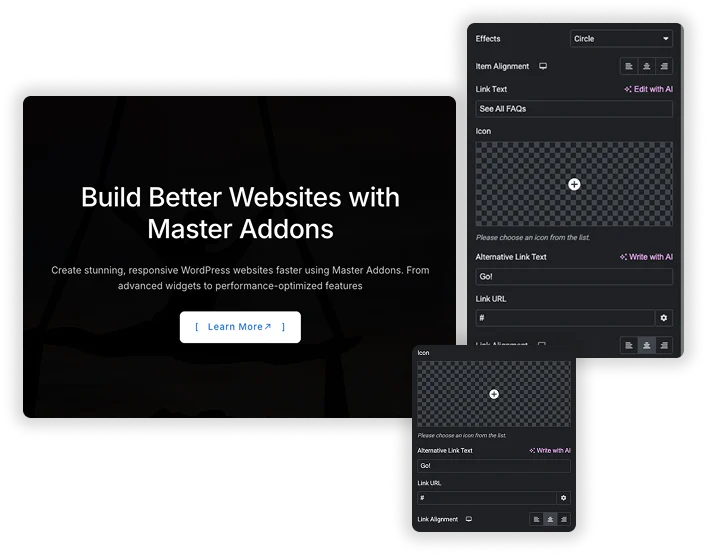
22 Link Hover Effects (10 Free, 12 Pro)
Choose the animation in the Effects dropdown. Free effects: Brackets, Bottom Line Slide, Bottom Border Enlarge, 2nd Border Slide Up, Text Fill, Three Dots, Scale Down, Move Up, Effect 21 and Effect 22. Pro effects: 3D Effect, Slide In, Border Slide Down, Border Translate, 2nd Text and Border, Reveal Push Out, Circle, Border Switch, Fall Down, Cross, 3D Slide and 3D Slide Down.
- Each effect is plain CSS on the link and its ::before and ::after layers.
- Move Up, Reveal Push Out, Cross and the 3D Slide effects show the Alternative Link Text on hover.
- Reveal Push Out, Text Fill, Scale Down, Fall Down and Move Up do not show the icon.
Style the Link and Its Animation Layers
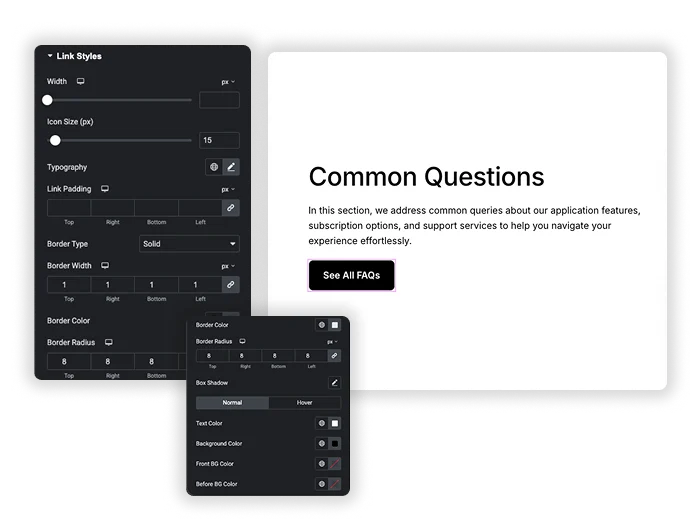
Link Styles covers width, icon size, typography, link padding, border, border radius and box shadow. The Normal and Hover tabs set text color and background color, plus the colors of the layers the effects animate: Front BG Color (Back BG Color on hover), Before BG Color and After BG Color. Text Fill Color appears when you pick the Text Fill effect.
- Normal and Hover colors are set separately.
- Before and After BG Colors control the lines, brackets and fills that move.
- Width, padding and alignment are responsive.
Elementor Hover Options vs Creative Links
Elementor has hover animations on the Button widget, and Elementor Pro has pointer animations in the Nav Menu widget. Here is where each one fits.
| Need | Elementor Button | Elementor Pro Nav Menu | Master Addons Creative Links |
|---|---|---|---|
| What it animates | The whole button (grow, pulse, float, wobble and others) | Menu items with underline, overline, framed, background or text pointers | A single text link with lines, brackets, fills or 3D flips |
| Number of effects | A list of hover animations for the whole button | 6 pointer types with their own animations | 10 free, 22 with Pro |
| Swap text on hover | No | No | Yes, with Alternative Link Text on some effects |
| Works for a full menu | No | Yes, with dropdowns and a mobile toggle | No, one link per widget |
| Cost | Free | Elementor Pro | Free, 12 effects in Pro |
For a whole navigation menu, the Elementor Pro Nav Menu or the Master Addons Navigation Menu is the better fit. For buttons with hover effects, see Creative Button.



Frequently Asked Questions For Creative Links
What’s the difference between "Link Text" and "Alternative Link Text"?
Link Text is the visible label. Alternative Link Text is the label that slides or flips in on hover with Reveal Push Out, Move Up, Cross, 3D Slide and 3D Slide Down. If you leave it empty, those effects reuse the Link Text. Text Fill, Scale Down and Fall Down always use the Link Text.
Is the Creative Links widget free?
Yes. Creative Links is in the free Master Addons plugin with 10 effects and all style controls. Master Addons Pro adds 12 effects, including 3D Effect, Circle, Border Switch and the 3D Slide effects.
What are the "Before BG Color" and "After BG Color" for?
Most effects draw their lines, brackets and fills with the ::before and ::after layers of the link. Before BG Color and After BG Color set the color of those layers, in the Normal and Hover tabs. Which layer draws what depends on the effect, so change one color and watch the preview.
Do the effects work on mobile (touchscreen) devices?
Phones and tablets have no hover. Most mobile browsers apply the hover style for a moment when the link is tapped and then open it, so visitors may see only a brief flash of the effect. The link itself works normally.
How do I choose the right effect?
Match the effect to where the link sits. Bottom Line Slide, Bottom Border Enlarge and Brackets are quiet enough for body text and footers. Text Fill, Move Up and Three Dots draw more attention and suit a single call to action. Try a few in the editor preview before you decide.
Can I apply different effects to different links in the same widget?
Each Creative Links widget holds one link with one effect. For several links, add a widget per link and pick the effect on each. Duplicate a styled widget to keep the colors the same.
Trending Elementor Widgets & Extensions
Build sophisticated websites in less time.

Glassmorphism

Container Extras

Patterns
![Master Addons Post/Page Duplicator extension for Elementor: MA Duplicator row link in the WordPress Pages list creating a Landing Page - [Duplicated #128] draft](https://d1asvmc6qcowgk.cloudfront.net/wp-content/uploads/2026/09/15102930/post-page-duplicator-768x403.webp)
Post/Page Duplicator
