

Key Takeaways
- Vertical tabs put the titles in a column on the left or right, with the panel beside them. They suit long titles and six or more sections, where a horizontal strip would wrap.
- Elementor’s own Tabs widget does this with the Direction control set to Start or End. No CSS needed.
- The Master Addons Tabs widget has a Vertical Tabs style preset, which arrives styled rather than plain.
- Below about 768px there is not enough width for a side column, so both routes stack. Only the core widget turns into an accordion.
- Pick core if widgets go inside the panels, and the addon if the tab column itself needs icons or a finished look.
Horizontal tabs break once the titles get long or numerous. Six titles across a 1,200px column either wrap onto two lines or shrink the text until nobody reads them.
Vertical tabs turn the strip on its side: a narrow column of titles with the active panel beside it. Each title gets a full line, so “Shipping and returns” fits without wrapping. Both ways of building it follow.
Table of Contents
When vertical beats horizontal
Vertical is the better layout when any of these is true:
- More than five sections, where a strip wraps but a column just gets taller.
- Titles longer than two words. “Warranty and repairs” needs a full line.
- Panels of very different heights, since the title column stays put while the panel changes size.
- Content that reads like a menu: documentation sections, service lists, grouped FAQs.
Stay horizontal for three or four short titles. A side column eats roughly a quarter of the width, and with three tabs that trade is not worth it.
Method 1: Elementor’s Direction control
The Tabs widget in Elementor handles this without an addon.
- Drag the Tabs widget onto the page.
- In Layout, set Direction to Start for titles on the left, or End for titles on the right.
- Set Align Title to control whether the title text sits left, centre or right inside the column.
- Build each panel inside its container as usual.
Start puts the column on the left in a left-to-right language and flips automatically for right-to-left, which is why the values are named Start and End instead of Left and Right.
The result is functional and unstyled: text titles in a column, the panel beside them, and every border and colour left for the Style tab.
Method 2: the Vertical Tabs preset
The Master Addons widget treats the layout as a preset instead of a direction, so the styling comes with it.
- Drag the Tabs widget in.
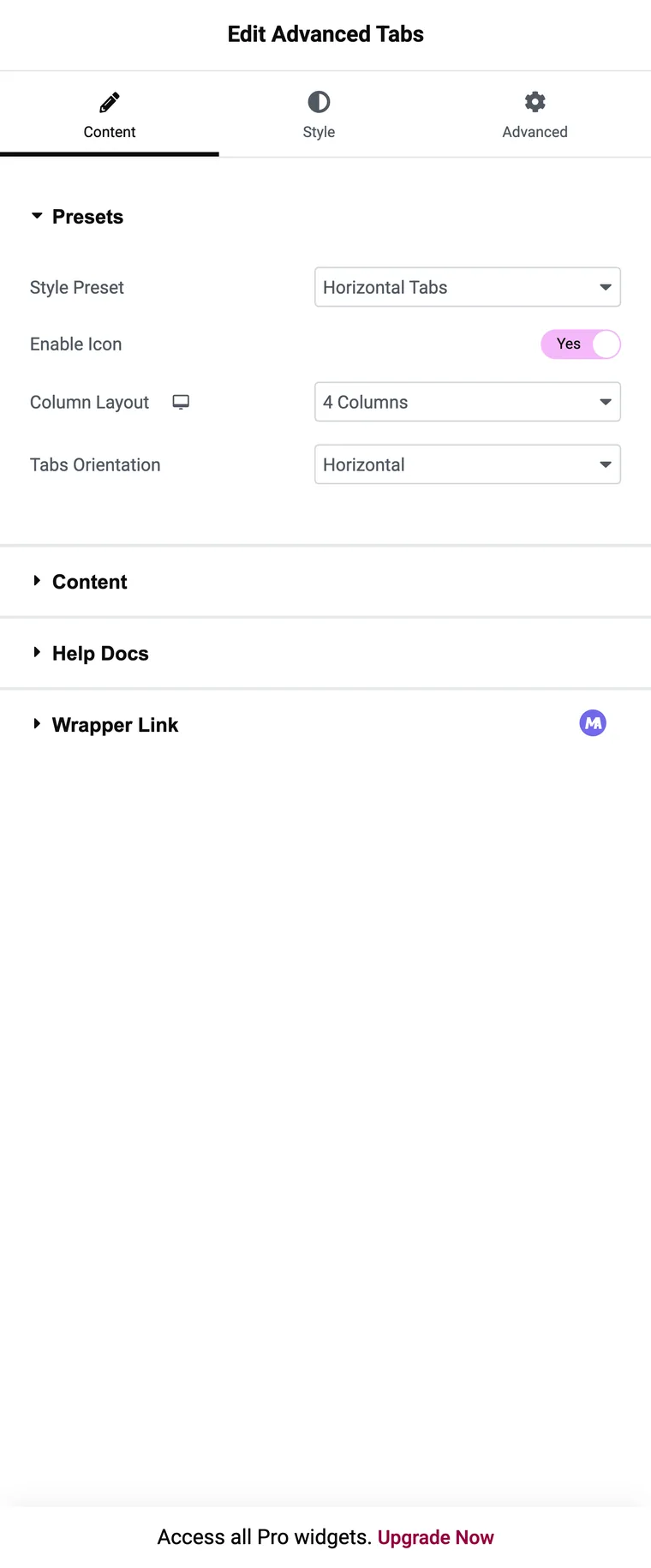
- Set Style Preset to Vertical Tabs.
- Add one repeater item per section, each with a Tab Title.
- Set Icon Type to Icon or Image if the titles need one, then pick the icon.
- Write the panel content, and switch Set as Default on whichever tab should open first.
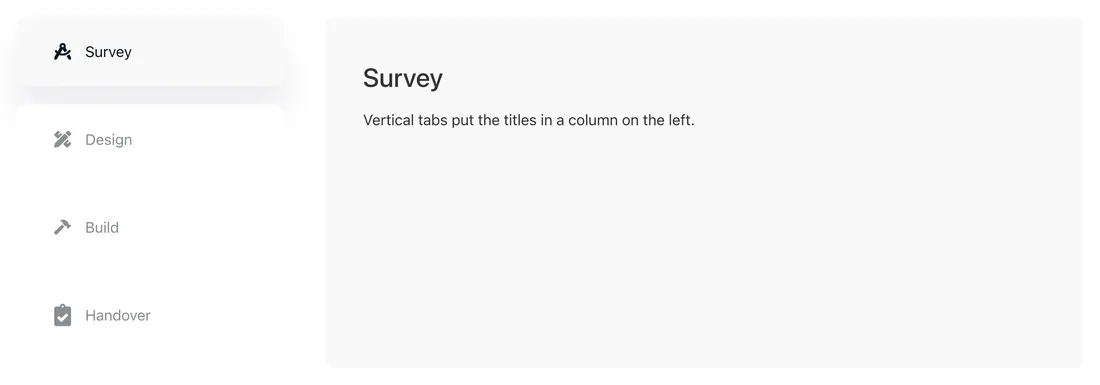
The column arrives with its own background, spacing and active state, so a usable block takes a minute instead of a styling session. The limit is the same one the addon always has: panels hold editor content, so a form or a gallery inside a tab means a saved template on Pro, or the core widget instead.
A quieter variant: left active border
The third preset is worth knowing about. Left Active Border keeps the vertical column but drops the boxed look: titles sit on the page background, and the active one is marked with a coloured bar on its left edge.
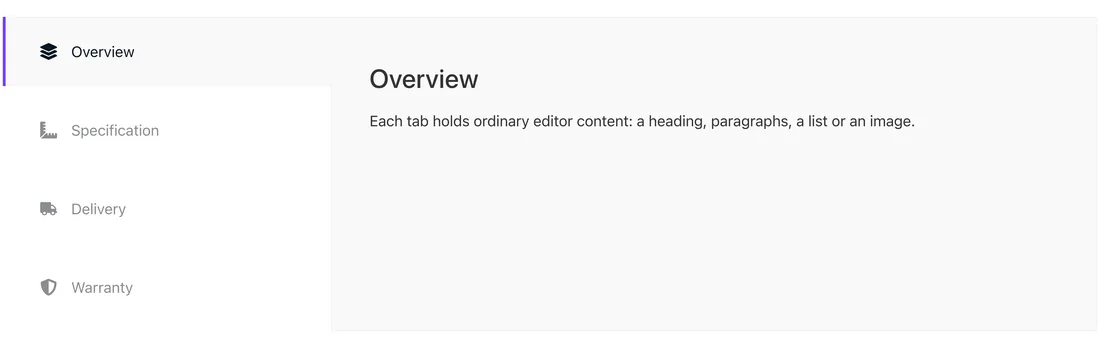
This is the one to reach for on documentation-style pages, where a heavy tab column fights the body text for attention.
What happens on a phone
A 390px screen has no room for a side column plus a panel, so both routes abandon the vertical layout.
The core widget stacks to a vertical accordion below the Breakpoint you choose in Additional Settings, with each title sitting directly above its own panel. The addon widget stacks the titles into a full-width column with the panel underneath, which works, though it is not an accordion: the open panel stays below the whole list of titles.
Either way, check the phone view before publishing. The layout you designed on desktop is not the layout a phone visitor sees.
Which method to use
| Situation | Method |
|---|---|
| Forms, galleries or pricing tables inside the panels | Core Tabs, Direction set to Start |
| Needs to be an accordion on phones | Core Tabs |
| Titles on the right instead of the left | Core Tabs, Direction set to End |
| Icons or images on the titles | Addon, Vertical Tabs preset |
| Styled column with no Style tab work | Addon, Vertical Tabs preset |
| Plain documentation-style side nav | Addon, Left Active Border preset |
| Panels switch on hover | Addon, Tab Effect set to Hover |
Frequently asked questions
Can Elementor make vertical tabs without an addon?
Yes. Set the Tabs widget’s Direction control to Start or End and the titles move into a side column.
Why are Direction values called Start and End, not Left and Right?
So the layout flips correctly in right-to-left languages. Start is the side the text begins on.
How many tabs work in a vertical layout?
Six to ten is comfortable. Past that the column gets taller than the panel beside it, which looks odd.
Do vertical tabs stay vertical on mobile?
No. There is not enough width, so both routes stack. The core widget becomes an accordion; the addon stacks titles above the panel.
Can I put a form inside a vertical tab?
With the core widget, yes, because each panel is a container. With the addon, the equivalent is pointing Content Type at a saved template, which is a Pro option.
Final thoughts
Going vertical is how you solve a width problem without shortening the titles. Elementor’s Direction control does it with no addon and keeps containers in the panels, which matters if anything interactive goes inside. The addon presets matter when the title column has to look finished without you styling it. Both take about the same time to build, so what lives in the panel decides it.
Related reading
