
Key Takeaways
- Masonry means images keep their own proportions instead of being cropped to a uniform card, so a portrait photo stays tall.
- Elementor’s free Image Gallery widget has no masonry option. Its layout controls are columns and gap.
- The Master Addons Filterable Image Gallery has a Masonry switch that stops the cropping, but the front end script lays items out in rows, so tall cards leave a gap under the short ones in the same row.
- If you want tightly packed columns with no gaps, CSS columns on a container is the honest route on a free install.
- For product shots and team photos a uniform grid usually reads better than masonry, so turn Image Aspect Ratio on instead.
Masonry is the layout where images sit at their natural height and the columns stagger, the shape Pinterest made familiar. It suits photography, where cropping a portrait frame into a square throws away half the picture.
Elementor can get close to this in three different ways, and they do not all produce the same thing. One of them has a switch labelled Masonry that does less than the name suggests, which is the part worth reading before you build.
Table of Contents
Masonry, grid and justified: the difference
| Layout | What it does to the images | Reads best for |
|---|---|---|
| Grid | Crops every image to the same card size | Products, team photos, logos, anything you want tidy |
| Masonry | Keeps each image’s height, columns stagger | Mixed photography, portraits next to landscapes |
| Justified | Keeps proportions but stretches each row to the same height | Photo essays and contact sheets |
Masonry and justified both protect the original crop. The difference is which direction the maths runs: masonry fixes the column width and lets the height vary, justified fixes the row height and lets the width vary.
Route 1: Elementor’s Gallery widget (Pro)
Elementor’s free Image Gallery widget has two layout controls, Columns and Spacing, and it crops to a uniform card. The Gallery widget, which is Pro, has a Layout control with three values: Grid, Justified and Masonry. Masonry there is the real thing, columns packed with no gaps, and the Pro Portfolio widget has its own Masonry switch too. If you already own Pro, that is the shortest path and there is nothing to install.
Route 2: the Masonry switch in the filterable gallery
On a free Elementor install, the Filterable Image Gallery has a Masonry switch in its Settings section, next to Image Aspect Ratio and Gutter.
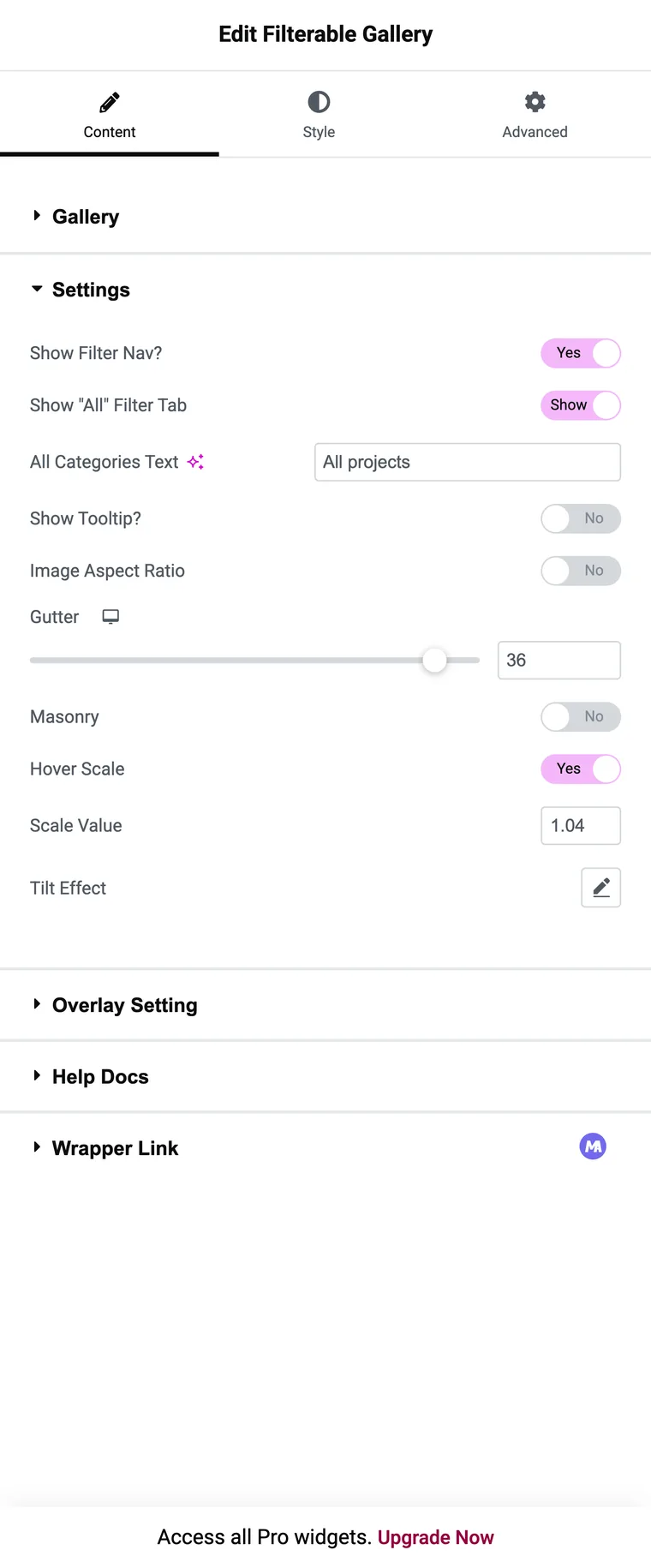
With Masonry on and Image Aspect Ratio off, images keep their own proportions, so a portrait frame stays tall and nothing is cropped. Column packing is the part you do not get. In the current release the script that lays out the grid arranges items in rows, so a short image leaves an empty space below it until the next row starts.
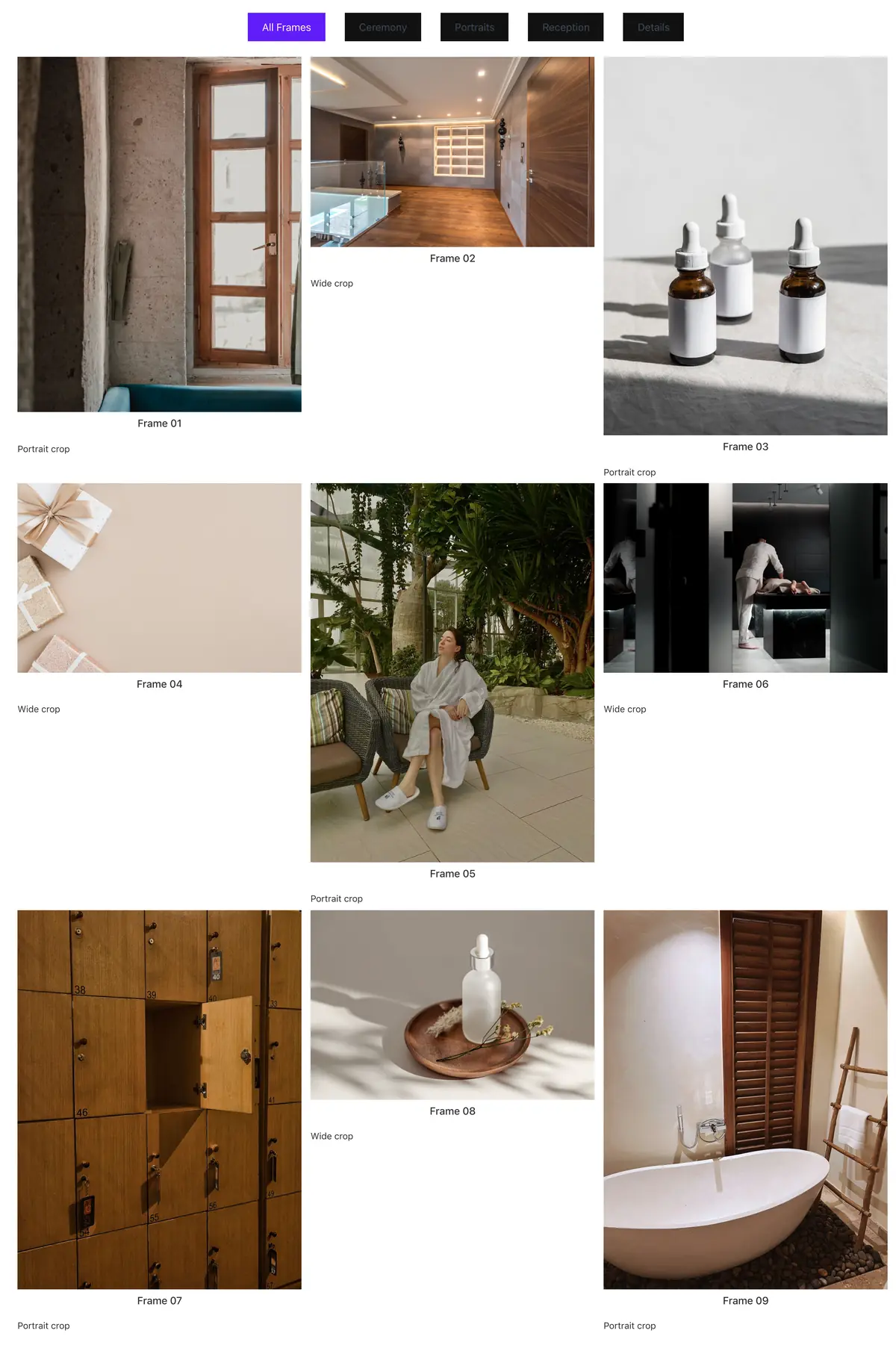
That is useful when your images are roughly similar in shape, since nothing gets cropped and the rows stay neat. For the packed Pinterest look on a free install, route 3 is the answer.
Route 3: CSS columns on a container
CSS has a column layout that packs content the way masonry should. Put your images in a container, add a few lines of CSS to it, and the browser does the work with no script.
selector {
  column-count: 3;
  column-gap: 24px;
}
selector img {
  width: 100%;
  margin-bottom: 24px;
  break-inside: avoid;
}
@media (max-width: 767px) {
  selector { column-count: 2; }
}
The selector keyword targets the element you are editing, so this snippet goes in the Custom CSS box on the container itself. On a free Elementor install that box comes from an addon such as Custom CSS, since Elementor marks its own Custom CSS field as Pro.
The trade-off is ordering. CSS columns fill top to bottom in each column, so reading order runs down column one, then down column two. For a gallery nobody reads in sequence that is fine. For anything chronological it is not.
Image sizes that make masonry look right
- Upload at a consistent width. Around 1,200px is plenty for a three column grid and keeps the page light.
- Let the heights vary and keep the widths the same, since masonry works by fixing the column width.
- Set Image Resolution deliberately. Full size files in a nine image grid is a slow page for no visual gain.
- The Gutter slider is responsive and runs from 0 to 40px, so you can tighten it on phones.
- Avoid one extreme frame. A single very tall panorama among square images pulls the eye off everything else.
When a uniform grid is the better answer
Switch Image Aspect Ratio on and you get a uniform grid, which is what product shots, team photos and logos want, along with anything else that should look like a set.
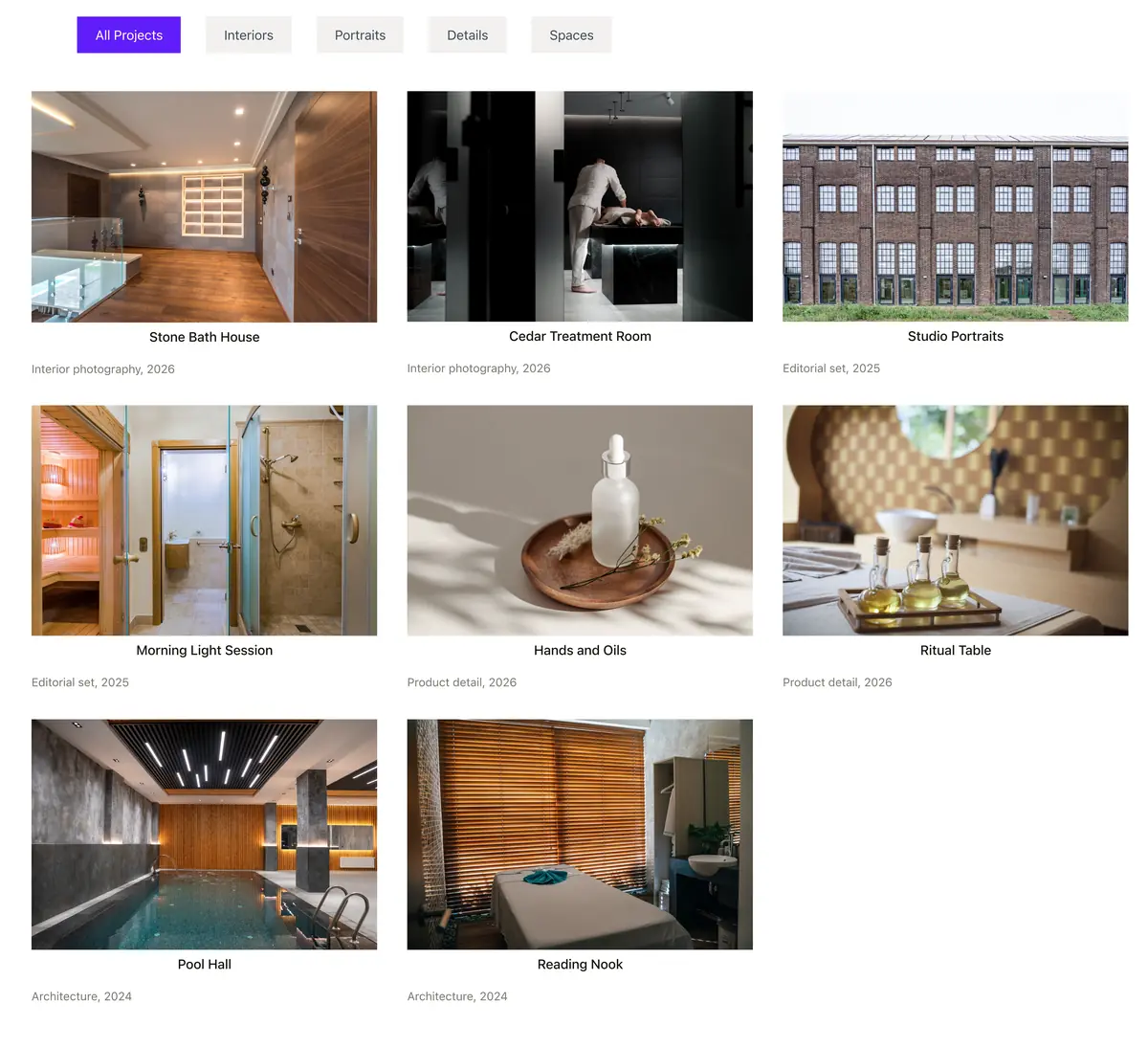
A simple way to choose: if the images were shot in one session with one camera setup, crop them to a grid. If they come from different shoots in different orientations, let them keep their shape.
Frequently asked questions
Does Elementor have a masonry gallery?
Not in the free Image Gallery widget, which only offers columns and gap. Elementor’s Gallery widget with layout options is on its Pro list.
Why does my masonry gallery still have gaps?
Because the grid is laid out in rows rather than packed columns. Images keep their natural height, so a short image sitting in a row with a tall one leaves space underneath. CSS columns is the route to true packing.
Does masonry work with the filter tabs?
Yes. Filtering and the layout are separate, so clicking a category narrows the grid and the remaining items re-lay themselves out.
Can I set masonry on mobile only?
No. The Masonry switch applies to every screen size. The Gutter slider is the control that changes per device.
Is masonry bad for page speed?
The layout itself is cheap. What costs you is the images, so set a sensible Image Resolution rather than full size files, and remember that every item in the gallery loads with the page.
Final thoughts
Three routes, three different results. Elementor Pro’s Gallery widget packs the columns for you. The Masonry switch on the filterable gallery stops the cropping and keeps the rows, which is often enough. CSS columns gives the packed look on a free install, at the cost of reading order.
Protecting the original crop and keeping a tidy grid are two different goals, so pick the route that matches the one you actually have.
Related reading