

Le champ Police ajoute une liste déroulante de famille de polices à un widget personnalisé que vous construisez avec les modules complémentaires principaux Constructeur de widgets. Les éditeurs choisissent une police système ou une police Google dans Elementor, et le widget l'applique à l'élément que vous choisissez. Il modifie uniquement la police. La taille, le poids et la hauteur de ligne restent dans votre CSS.
La police est l'un des champs que vous pouvez utiliser dans le Widget Builder de la version gratuite Le plugin gratuit comprend un Widget Builder limité, et l'ensemble complet des champs est livré avec Maître Addons Pro.
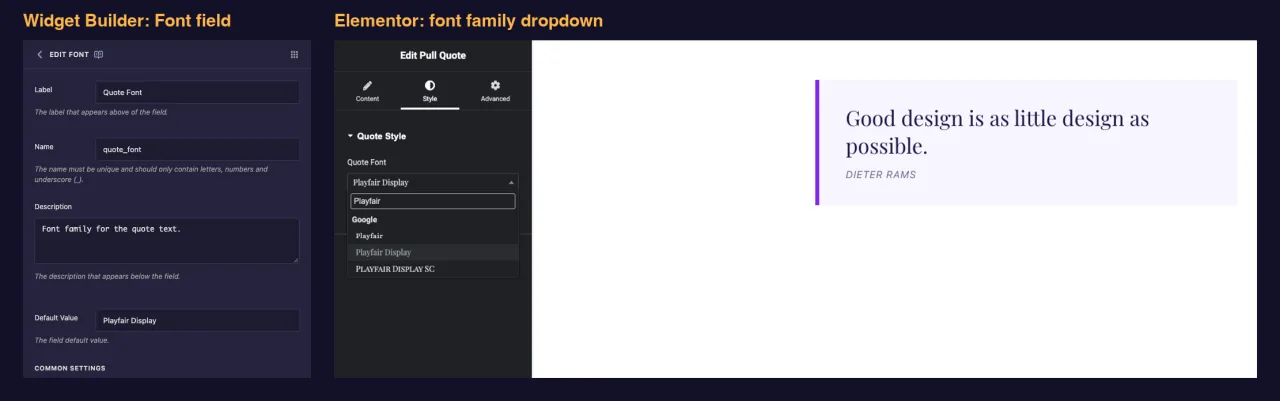
Ce que fait le champ Police #
- Ajoute une liste déroulante consultable au panneau de votre widget dans Elementor La liste a un Défaut option, un Système groupe (Arial, Tahoma et ainsi de suite) et a Google groupe.
- Enregistre le nom de famille sous forme de texte, par exemple
Playfair Display. - Écrit un
font-familyrègle pour les éléments sous lesquels vous listez Sélecteurs CSS. Lorsque le choix est une police Google, Elementor charge cette police sur la page pour vous. - Vous donne également un jeton, comme
{{ quote_font }}', ça imprime le nom de famille.
Nouveau au constructeur ? lire le Aperçu du constructeur de widgets tout d'abord, revenez avec un widget ouvert.
Avant de commencer #
- WordPress avec Elementor installé et actif.
- Modules complémentaires principaux pour Elementor installés et actifs. Le guide d'installation couverture configuration.
- Un widget s'ouvre dans le Widget Builder L'exemple de ce guide est un widget “Pull Quote” : a Textarea named
quote_text, un champ Texte nomméquote_authoret un champ de police nomméquote_fontcela définit la police de caractères du devis.
Comment ajouter un champ Police #
- Aller à Modules complémentaires principaux > Créateur de widgets et ouvrez votre widget.
- Cliquez sur le modeler tab et ajouter une section, par exemple“Quote Style”.
- taper à la
fontdans le champ champ rechercher box à gauche. - Glisser Police dans la section Cliquez sur le crayon sur le champ pour ouvrir ses paramètres.
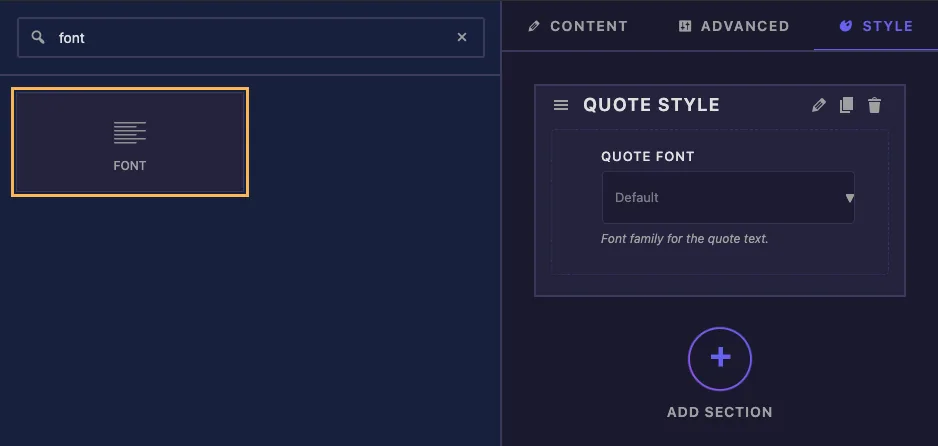
Le style est l'endroit où les éditeurs s'attendent à trouver des options de police, mais le champ fonctionne également dans une section Contenu ou Avancé.
Options du champ de police expliquées #
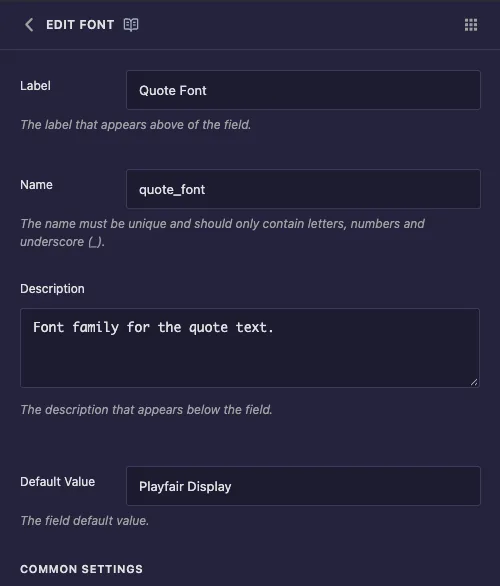
- Étiquette: le texte au-dessus de la liste déroulante dans Elementor, par exemple “Quote Font”.
- Nom: l'identifiant unique du champ et le nom de son jeton Utilisez uniquement des lettres, des chiffres et des traits de soulignement, par exemple
quote_font. - Description : un indice affiché sous la liste déroulante dans Elementor.
- Valeur par défaut : la famille une nouvelle copie du widget commence par Tapez le nom exactement tel qu'il apparaît dans la liste d'Elementor, par exemple
Playfair Display.
Sous Paramètres communs, vous trouverez Afficher l'étiquette, Bloc d'étiquettes, Séparateur et conditions, qui fonctionnent de la même manière que sur d'autres domaines Le cadre qui fait que ce travail de terrain est Sélecteurs CSS.
Appliquer la police avec CSS Selectors #
Faites défiler jusqu'à Sélecteurs CSS et cliquez Ajouter un élément. Chaque ligne comporte deux cases :
- Sélecteur CSS : l'élément qui obtient la police Pour la citation pull c'est
.pq-quote. Vous n'avez pas besoin de taper{{WRAPPER}}(traduction), car le constructeur l'ajoute pour vous et conserve la règle à l'intérieur de ce widget. - Propriétés CSS : la règle pour écrire.
{{VALUE}}est remplacé par la famille choisie.
font-family: "{{VALUE}}", Georgia, serif;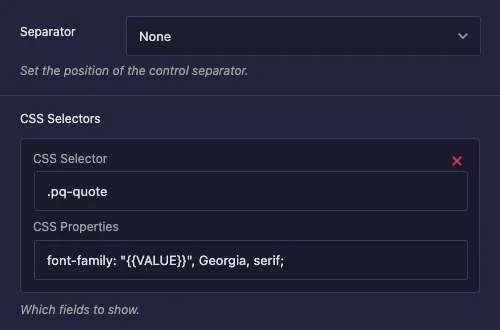
Une nouvelle ligne est remplie d'exemple de texte .text-1, .text-2 et color: {{VALUE}};. Remplacez les deux. Si vous partez color dans la zone des propriétés, le nom de la police finit par une valeur de couleur et la police ne change pas.
Les citations autour {{VALUE}} gardez les noms avec des espaces, comme Playfair Display, qui fonctionnent. Georgia, serif est le repli pendant que la police se charge Pour styliser plus d'éléments, cliquez sur Ajouter à nouveau un élément et ajoutez une autre ligne.
Quitter la plaine Sélecteur boîte en bas vide Dans nos tests, il a écrit color: Lora; pour ce champ, qui ne définit pas de police.
Cliquez Enregistrer Paramètres quand t'auras fini.
Pourquoi ne pas mettre le jeton dans le panneau CSS ? #
Le jeton y fonctionne. font-family: "{{ quote_font }}", Georgia, serif; imprime le bon nom Le problème est le chargement Dans nos tests, une police Google utilisée uniquement via le jeton n'a pas été chargée sur le front-end, donc les visiteurs ont vu la police de secours Une ligne CSS Selectors donne à Elementor les informations dont il a besoin pour charger la police, et le même choix est passé correctement.
Conservez le jeton pour les endroits où vous avez besoin du nom sous forme de texte, comme une classe ou une étiquette dans le HTML.
Utilisez le contrôle de police dans Elementor #
Ajouter le widget à une page, ou recharger l'éditeur si la page était déjà ouverte Sélectionnez le widget et ouvrez le modeler onglet. Cliquez sur la liste déroulante sous votre étiquette et commencez à taper pour filtrer la liste Chaque nom de famille est dessiné dans sa propre police, ce qui facilite le choix.
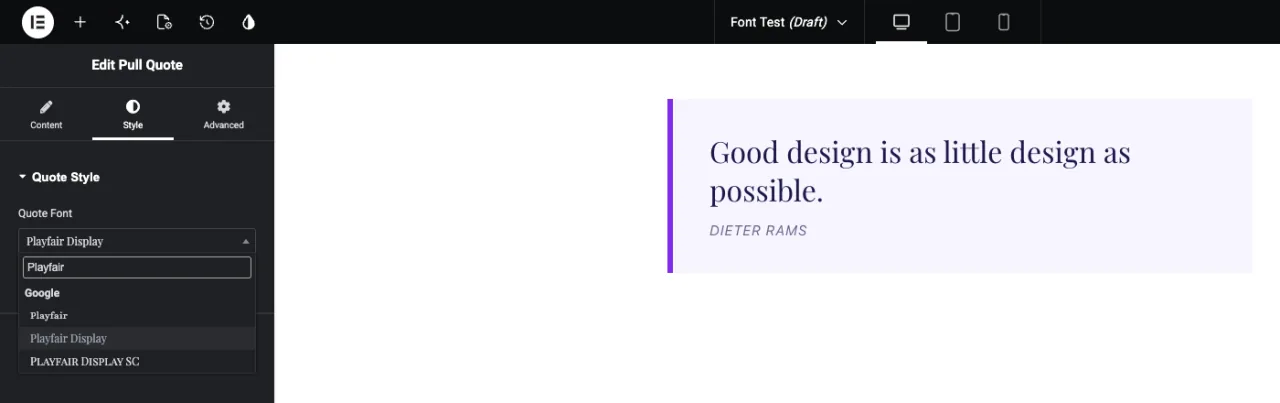
Choisissez une famille et les mises à jour de l'aperçu Sur la page publiée, Elementor charge la police Google avec les styles du widget.
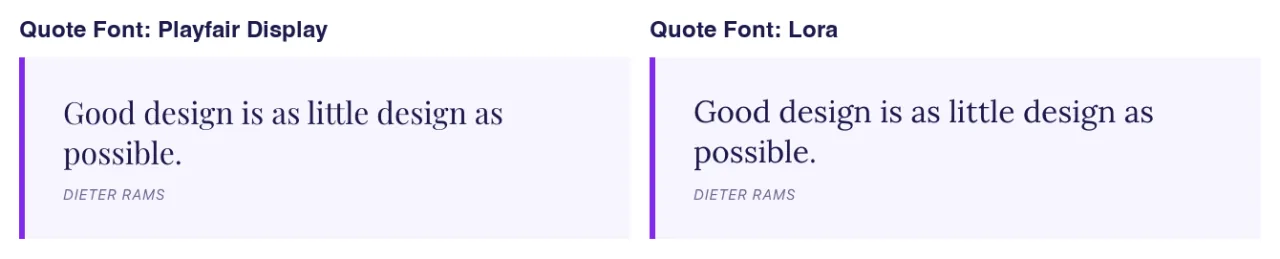
Choisir Défaut efface le choix Le widget revient ensuite à la police de votre panneau CSS ou à vos ensembles de thèmes pour cet élément, alors donnez à l'élément une police judicieuse dans le panneau CSS.
Cas d'utilisation courants #
- Tirez des citations et des témoignages où seul le texte de la citation change de police.
- Affichez les titres dans des widgets de héros ou de bannières, avec le corps du texte laissé seul.
- Numéros de prix, badges ou étiquettes qui utilisent une police d'affichage de marque.
- Sites clients où les éditeurs doivent choisir une police mais pas toucher aux tailles et à l'espacement.
Conseils pour travailler avec le champ Police #
- Utilisez les sélecteurs CSS plutôt que le jeton pour le style. C'est ce qui fait charger Google Fonts.
- Ajoutez toujours une pile de secours après
{{VALUE}}: tels queGeorgia, serifouArial, sans-serif. - Mettez la taille et le poids dans le panneau CSS. Le champ Police ne définit que la famille.
- Besoin de contrôles de taille, de poids et d'espacement aussi ? Le Champ typographie est un champ Pro qui les regroupe tous.
- Chaque police Google ajoute un téléchargement. Deux ou trois familles par page est une limite raisonnable.
Foire aux questions #
Le champ Police est-il disponible dans la version gratuite ?
Oui. La police est l'un des champs que vous pouvez utiliser dans le Widget Builder de la version gratuite L'ensemble complet des champs Widget Builder est livré avec Master Addons Pro.
Pourquoi ma police Google ne s'affiche-t-elle pas sur la page live ?
Vérifiez comment la police est appliquée Si vous n'imprimez que le jeton dans le panneau CSS, le fichier de police n'est pas chargé Ajoutez une ligne CSS Selectors avec font-family: "{{VALUE}}" donc Elementor le charge.
Pourquoi choisir une police n’a-t-il rien changé ?
La ligne CSS Selectors a probablement encore l'exemple color: {{VALUE}}; propriété, ou le sélecteur ne correspond pas à votre HTML. Modifiez la propriété en font-family et vérifiez le nom de la classe.
Dois-je ajouter {{WRAPPER}} au sélecteur ?
Non, ajoute le constructeur {{WRAPPER}} devant votre sélecteur, la police s'applique donc uniquement à l'intérieur de ce widget.
Quelle est la différence entre Font et Typography ?
La police définit uniquement la famille La typographie est un champ Pro qui ajoute la taille, le poids, la hauteur de ligne, l'espacement des lettres et bien plus encore dans un seul contrôle.
Envelopper #
Ajoutez le champ Police à une section Style, définissez une famille par défaut et ajoutez une ligne CSS Selectors qui pointe font-family: "{{VALUE}}" à votre élément Les éditeurs obtiennent une liste de polices consultable dans Elementor, et Google Fonts se charge sur la page sans code supplémentaire Pour le style en texte intégral, voir le Champ typographieet vérifiez tarification pour ce que chaque plan comprend.


