

O campo Galeria permite que os editores escolham um conjunto completo de imagens de uma só vez para um widget personalizado construído com os Master Addons Construtor de widgets. Seu modelo faz um loop sobre o conjunto e imprime um item por imagem, para que o widget cresça ou diminua com o número de fotos Use-o para grades de fotos, paredes de portfólio, linhas de logotipo e controles deslizantes de imagem.
Gallery é um campo Pro. O plugin gratuito inclui um Widget Builder limitado, e o conjunto completo de campos vem com Complementos mestres Pro.

O que o campo Galeria faz #
- Ele adiciona uma caixa de galeria ao painel do seu widget no Elementor Os editores escolhem várias imagens da Biblioteca de Mídia de uma só vez.
- As imagens são armazenadas como uma lista, na ordem em que o editor as organizou Cada imagem tem um
ide aurl. - Seu modelo imprime a lista com a
{% for %}laço. - Layout é até o seu CSS O loop imprime os itens e uma grade ou contêiner flexível os organiza.
Se você ainda não construiu um widget, leia o Visão geral do Widget Builder primeiro.
Antes de começar #
- WordPress com Elementor instalado e ativo.
- Master Addons para Elementor e Master Addons Pro, ambos ativos. O guia instalação coberturas configuração.
- Algumas imagens na sua Mediateca.
- Um widget aberto no Widget Builder O exemplo neste guia é um widget “Photo Grid” com um campo Galeria nomeado
photos.
Como adicionar um campo Galeria #
- Ir para Complementos mestres > Construtor de widgets e abra seu widget.
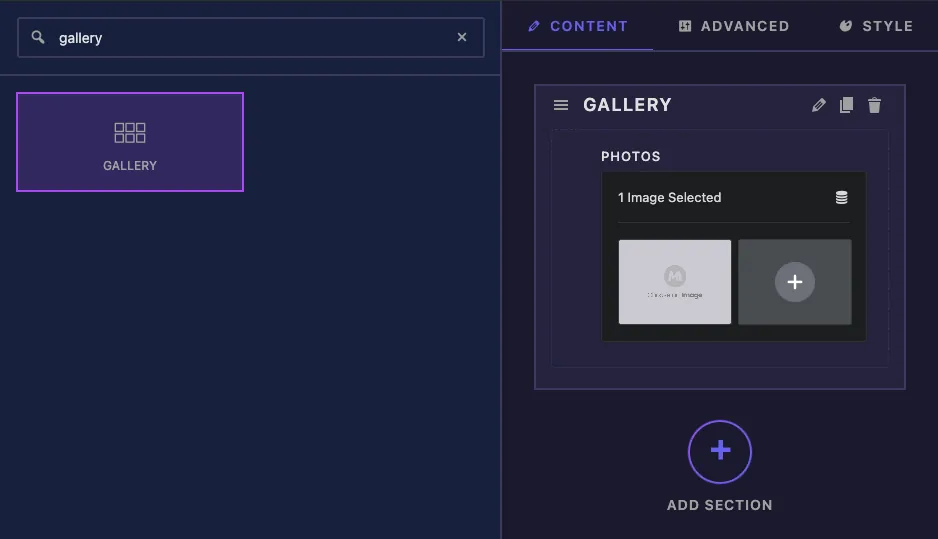
- No Conteúdo tab, adicione uma seção, por exemplo “Gallery”.
- Tipo
galleryna caixa de pesquisa de campo à esquerda. - Arrastar Galeria na seção. Suas configurações abrem na barra lateral esquerda.
Opções de campo da galeria explicadas #
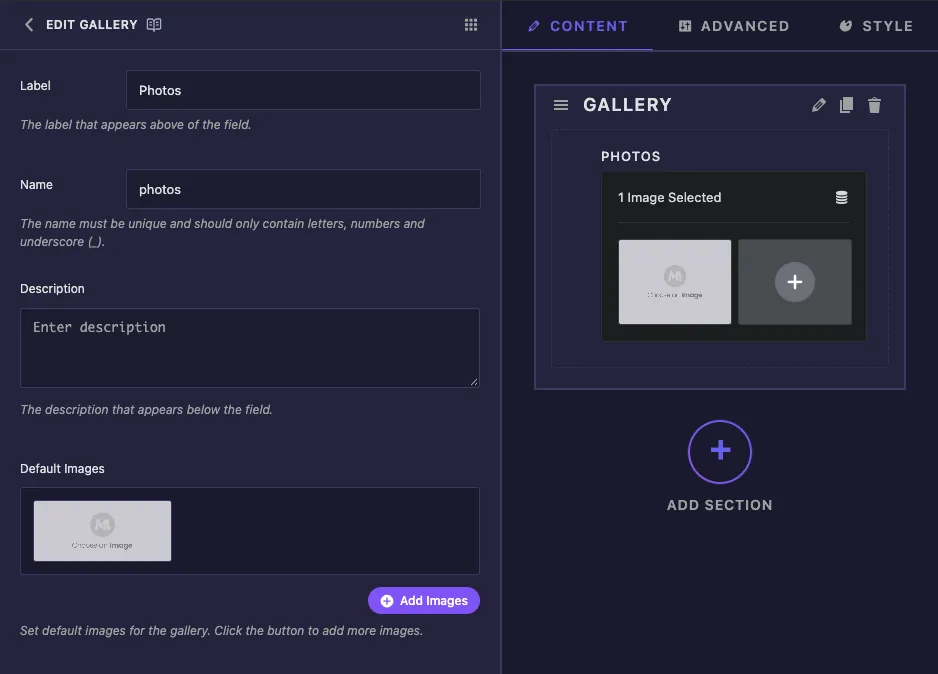
- Etiqueta o texto acima da caixa da galeria em Elementor, por exemplo “Photos”.
- Nome é o ID exclusivo do campo e a lista sobre a qual você faz loop, por exemplo
photos. Apenas letras, números e sublinhados. - Descrição aparece sob o controle em Elementor.
- Imagens Predefinidas tem um Adicionar Imagens botão que adiciona um slot de espaço reservado Passe o mouse sobre um slot para uma cruz removê-lo e um lápis para escolher uma imagem real para esse slot.
Em nossos testes, as imagens definidas em Imagens padrão não foram passadas para o Elementor Uma nova cópia do widget começou com um único espaço reservado, que o loop leu como dois itens vazios O modelo abaixo pula aqueles, então planeje que os editores adicionem suas próprias imagens depois de soltar o widget em uma página.
As configurações comuns mais abaixo funcionam como em outros campos.
Faça um loop sobre as imagens do seu modelo #
Uma galeria é uma lista, então {{ photos }} em suas próprias impressões nada útil Loop sobre ele e imprimir cada imagem dentro do loop:
{% if photos %}
<div class="photo-grid">
  {% for img in photos %}
    {% if img.url %}
      <figure class="photo-cell">
        <img src="{{ img.url }}" alt="">
      </figure>
    {% endif %}
  {% endfor %}
</div>
{% endif %}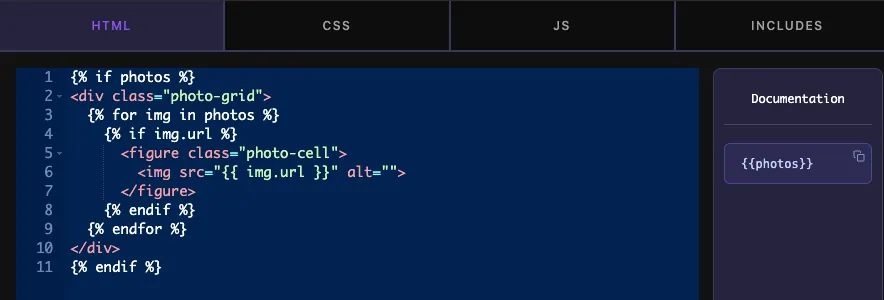
photosé o Nome do campo.imgé um nome que você escolhe para a imagem atual no loop.{{ img.url }}é o URL do arquivo de imagem e{{ img.id }}é o ID da sua biblioteca de mídia.- O exterior
{% if photos %}pula toda a grade quando a galeria está vazia. - O interior
{% if img.url %}ignora qualquer item sem URL, como o espaço reservado com o qual um novo widget começa.
Organize os itens na guia CSS Esta grade faz três colunas iguais e corta cada foto com a mesma forma:
.photo-grid { display: grid; grid-template-columns: repeat(3, 1fr); gap: 12px; }
.photo-cell { margin: 0; overflow: hidden; border-radius: 12px; aspect-ratio: 4 / 3; }
.photo-cell img { width: 100%; height: 100%; object-fit: cover; display: block; }
Clique Salvar configurações quando terminar.
Use o controle Galeria no Elementor #
Adicione o widget a uma página, ou recarregue o editor se a página já estiver aberta A caixa da galeria mostra quantas imagens estão selecionadas e uma miniatura de cada uma O ícone do lixo limpa todo o conjunto.
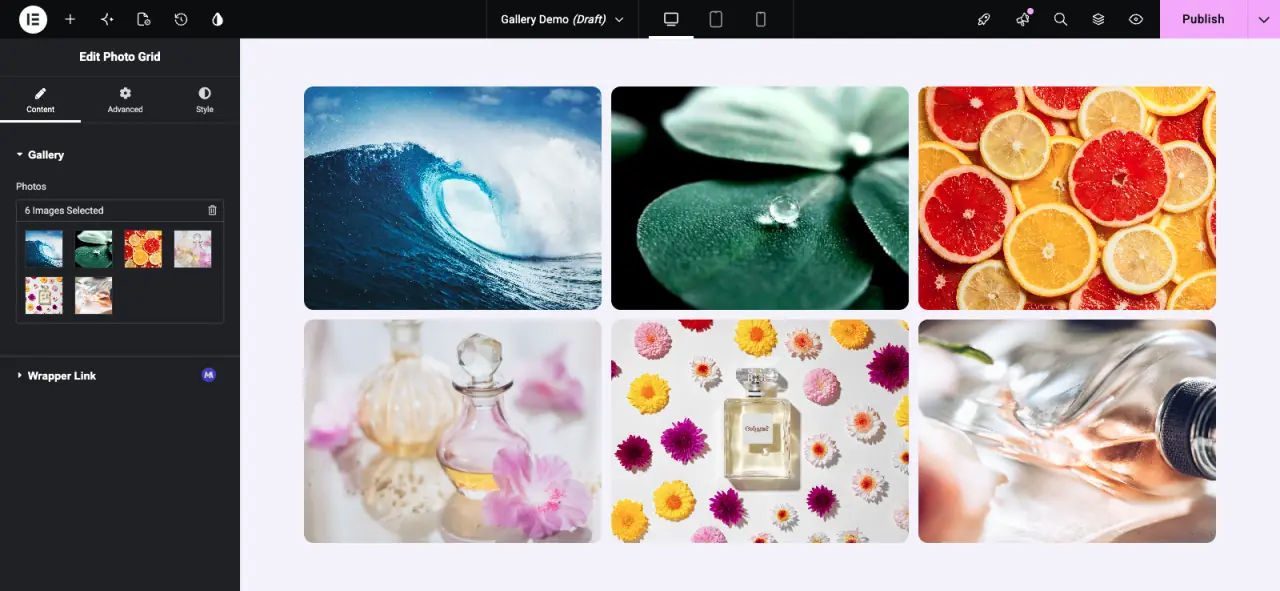
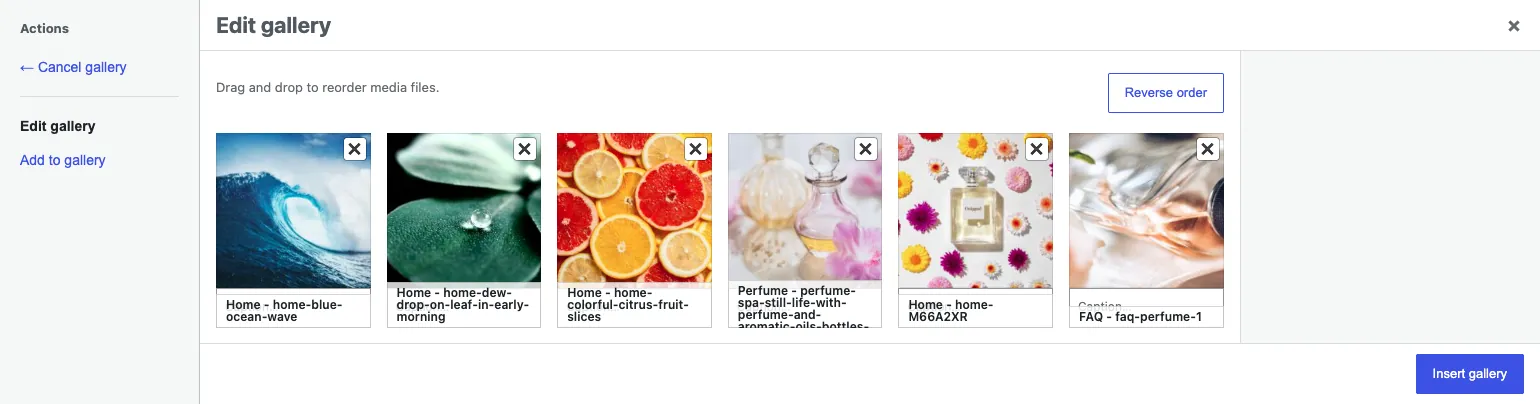
Clique nas miniaturas para abrir a janela da galeria do WordPress Arraste as imagens para alterar a ordem delas, clique em Ordem inversa para virar, use Adicionar à galeria para escolher mais imagens, e clique na cruz em uma imagem para removê-lo Clique Inserir galeria para salvar o conjunto A grade é atualizada na mesma ordem.
Casos de uso comum #
- Grades de fotos e portfólio.
- Paredes de logotipo para clientes ou parceiros.
- Sliders de imagem, com o loop imprimindo um slide por imagem.
- Antes e depois ou conjuntos de imagens de produtos dentro de um cartão.
Dicas para trabalhar com o campo Galeria #
- Sempre envolva a marcação
{% if img.url %}dentro do loop, para que um novo widget não mostre caixas de imagem vazias. - Usar
aspect-ratioeobject-fit: coverentão fotos de tamanhos diferentes se alinham. - Deixe o CSS decidir as colunas Uma grade envolve qualquer número de imagens sem alterações de modelo.
- Adicionar um
altatributo. O loop fornece o ID da imagem se você precisar imprimir uma legenda ou texto alternativo de outro campo. - Para uma imagem, use o Campo mídia. Para imagens que cada uma precisa de seu próprio texto ou link, use o Campo repetidor.
Perguntas frequentes #
O campo Galeria é gratuito?
No. Gallery é um dos campos Pro no Widget Builder, então Master Addons Pro tem que estar ativo antes que você possa adicioná-lo a um widget.
Por que {{fotos}} não imprime nada?
Uma galeria contém uma lista de imagens, então o token por si só não tem nada útil para imprimir. Faça um loop sobre ele {% for img in photos %} e imprimir {{ img.url }} dentro do laço.
Por que um novo widget mostra caixas de imagens vazias?
Em nossos testes um novo widget começou com um item de espaço reservado que o loop leu como duas entradas sem URL. Adicionar {% if img.url %} dentro do loop para que eles sejam ignorados e, em seguida, adicione imagens reais no Elementor.
Minhas imagens padrão aparecem no Elementor?
Não nos nossos testes As imagens definidas em Imagens por Omissão no construtor não foram usadas, pelo que os editores precisam de adicionar imagens no Elementor.
Os editores podem alterar a ordem das imagens?
Sim. clicar nas miniaturas no Elementor abre a janela da galeria do WordPress, onde as imagens podem ser arrastadas para uma nova ordem ou invertidas O loop segue essa ordem.
Embrulhando #
Adicione o campo Galeria, faça um loop sobre ele {% for %}, pule itens vazios com {% if img.url %}& deixar uma grelha CSS lidar com o layout Os editores então adicionam, removem e reordenam imagens do Elementor Veja o Guia de sintaxe Twig para mais informações sobre loops e verificações, e preços para o que cada plano inclui.


