

প্রতিটি পপআপের একটি উপায় প্রয়োজন, এবং ডিফল্টরূপে সেই পথটি কোণে একটি ছোট X। এটি পপআপের একটি অংশ যা আপনি পুনরায় স্টাইল করতে পারবেন না। দ্য পপআপ ট্রিগার উইজেট মধ্যে এলিমেন্টরের জন্য মাস্টার অ্যাডঅন এটিকে একটি বাস্তব উপাদান দিয়ে প্রতিস্থাপন করে: আপনি এটিকে একটি পপআপের ভিতরে ফেলে দিন, আপনার নিজের বোতামের পাঠ্য লিখুন, একটি আইকন চয়ন করুন এবং ক্লিকটি কী করে তা নির্ধারণ করুন৷।
এটি পপআপ বন্ধ করে দেয়, তবে এটি নিয়ন্ত্রণ করে যে পপআপটি কতক্ষণ পরে দূরে থাকবে এবং দর্শক অন্য কোথাও পাঠানো হবে কিনা। এটি পপআপ খোলে না। ক্লিকে একটি পপআপ খোলা পপআপ সেটিংসে অন ক্লিক ট্রিগার, যার জন্য মাস্টার অ্যাডনস প্রো প্রয়োজন৷ এই নির্দেশিকাটি উইজেটের প্রতিটি সেটিং কভার করে।
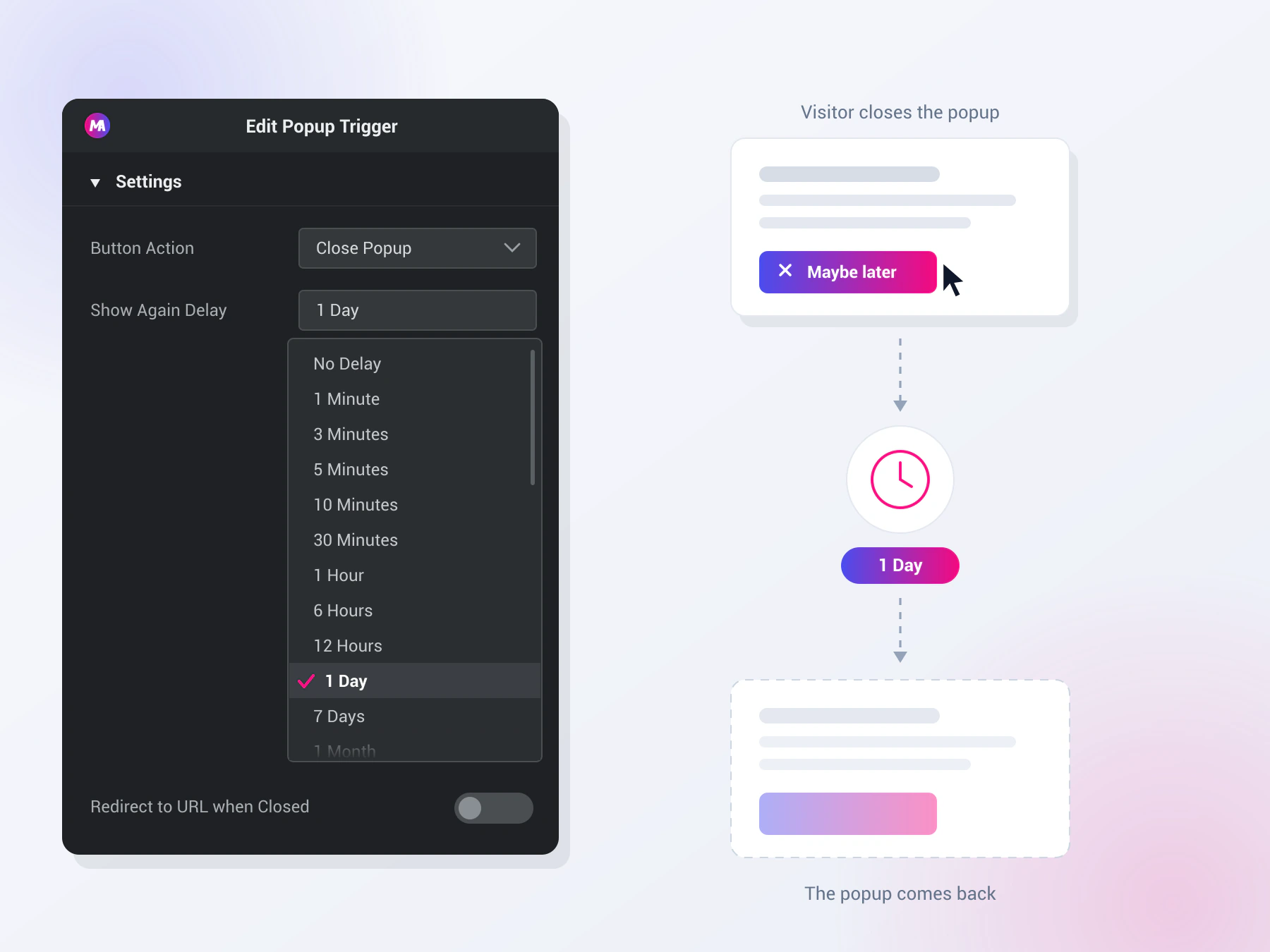
পপআপ ট্রিগার উইজেট কি করে #
উইজেট একটি পপআপের ভিতরে একটি বোতাম রেন্ডার করে। এটিতে ক্লিক করলে সেই পপআপটি বন্ধ হয়ে যায় এবং বোতামে আপনার সেট করা নিয়মগুলি প্রয়োগ করে: কোন ক্লোজ অ্যাকশনটি চালানো হবে, কখন পপআপটি আবার প্রদর্শিত হতে দেওয়া হবে এবং কোন URLটি পরে খুলতে হবে৷।
এতে তিনটি ট্যাব রয়েছে। বিষয়বস্তু বোতাম অ্যাকশন, বিলম্ব, পুনঃনির্দেশ, লেবেল, আইকন এবং প্রান্তিককরণ ধরে রাখে। শৈলী রঙ, টাইপোগ্রাফি, সীমানা, ব্যবধান এবং হোভার অবস্থা নিয়ন্ত্রণ করে। উন্নত সাধারণ এলিমেন্টর বিকল্পগুলি বহন করে।
উইজেট শুধুমাত্র একটি পপআপের ভিতরে কাজ করে। এটি একটি সাধারণ পৃষ্ঠায় ফেলে দিন এবং এটি বন্ধ করার জন্য কিছুই নেই, এই কারণেই সম্পাদক প্যানেল এটি সম্পর্কে একটি নোট দেখায়৷।
আপনি শুরু করার আগে #
- ওয়ার্ডপ্রেস সঙ্গে এলিমেন্টর ইনস্টল এবং সক্রিয়।
- এলিমেন্টরের জন্য মাস্টার অ্যাডঅন ইনস্টল এবং সক্রিয়। প্লাগইনে নতুন? দেখা ইনস্টলেশন গাইড.
- একটি পপআপ তৈরি করা হয়েছে৷ ড্যাশবোর্ড > মাস্টার অ্যাডঅন > পপআপ. দ্য পপআপ সেটিংস গাইড পপআপগুলি কীভাবে সেট আপ করা হয় তা কভার করে৷।
কিভাবে পপআপ ট্রিগার উইজেট যোগ করবেন #
এলিমেন্টর এডিটরে আপনার পপআপ খুলুন। ভিতরে উপাদান প্যানেল, অনুসন্ধান করুন পপআপ ট্রিগার, অথবা মাস্টার অ্যাডঅন বিভাগে স্ক্রোল করুন যেখানে উইজেটগুলি একটি বেগুনি MA ব্যাজ বহন করে। পপআপ লেআউটে টেনে আনুন।
এটি লেবেলযুক্ত একটি কার্যকরী বন্ধ বোতামের সাথে লোড হয় পপআপ বন্ধ করুন, তাই আপনি একটি বোতাম থেকে সম্পাদনা করুন যা ইতিমধ্যে একটি ফাঁকা না হয়ে কাজ করে।
বোতাম ক্রিয়া নির্বাচন করুন #
খোলা বিষয়বস্তু ট্যাব এবং তাকান বোতাম অ্যাকশন। এটি সিদ্ধান্ত নেয় ক্লিকটি কী করে এবং এতে তিনটি বিকল্প রয়েছে৷।
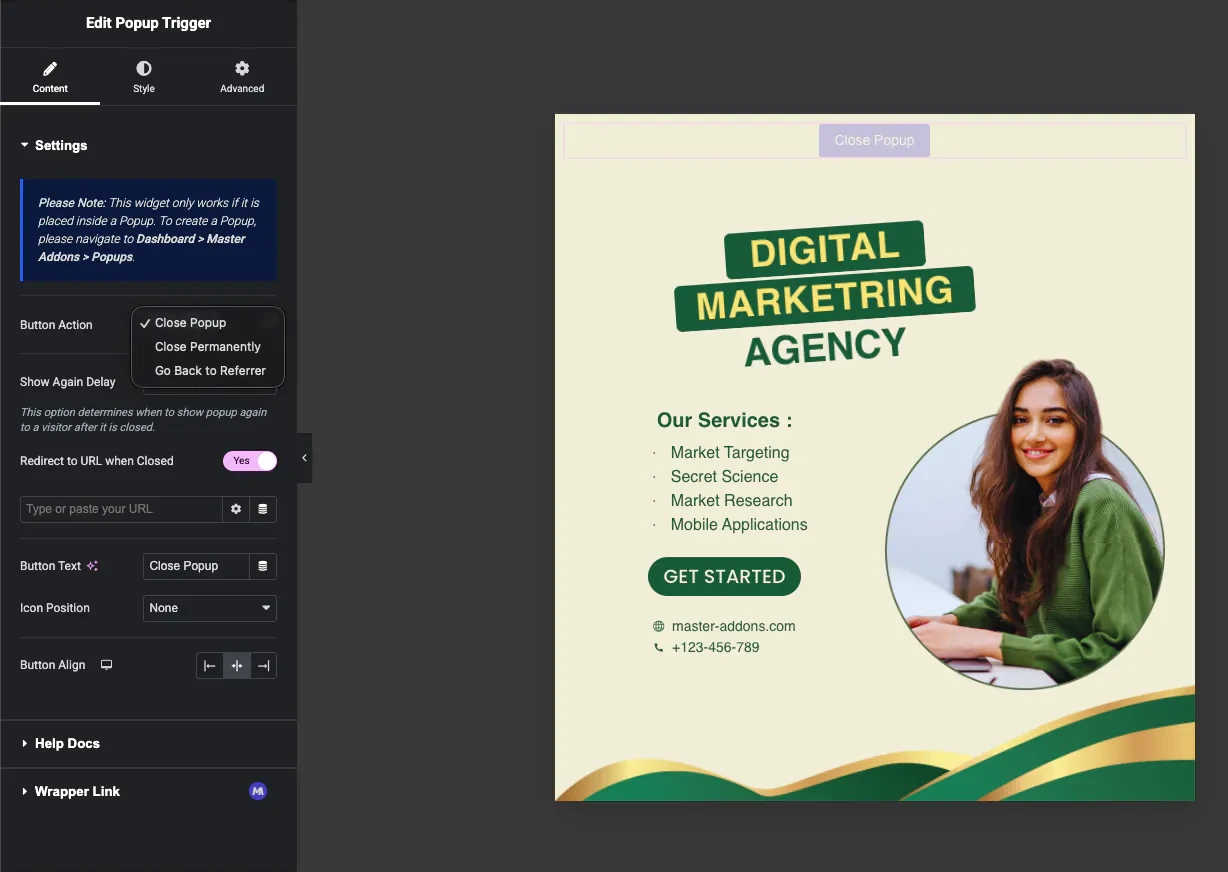
- পপআপ বন্ধ করুন: পপআপ লুকিয়ে রাখে এবং আপনার নীচে সেট করা আবার শো বিলম্ব প্রয়োগ করে। পপআপ পরে ফিরে আসতে পারে।
- স্থায়ীভাবে বন্ধ করুন: পপআপ লুকিয়ে রাখে এবং সেই ভিজিটরের ব্রাউজারে আবার প্রদর্শিত হওয়া বন্ধ করে দেয়। আপনি যখন এটি বাছাই করেন তখন আবার দেখান বিলম্ব সেটিং অদৃশ্য হয়ে যায়, কারণ বিলম্ব আর প্রযোজ্য নয়।
- রেফারারে ফিরে যান: পপআপ বন্ধ করে এবং ব্রাউজারটিকে তার ইতিহাসের এক ধাপ পিছনে পাঠায়, তাই দর্শক যে পৃষ্ঠা থেকে এসেছে সেখানে ফিরে আসে।
শো আবার বিলম্ব সেট করুন #
সঙ্গে পপআপ বন্ধ করুন নির্বাচিত, দ আবার বিলম্ব দেখান ড্রপডাউন সিদ্ধান্ত নেয় যে পপআপটি সেই দর্শকের জন্য আবার উপস্থিত হওয়ার আগে কতক্ষণ অপেক্ষা করবে।
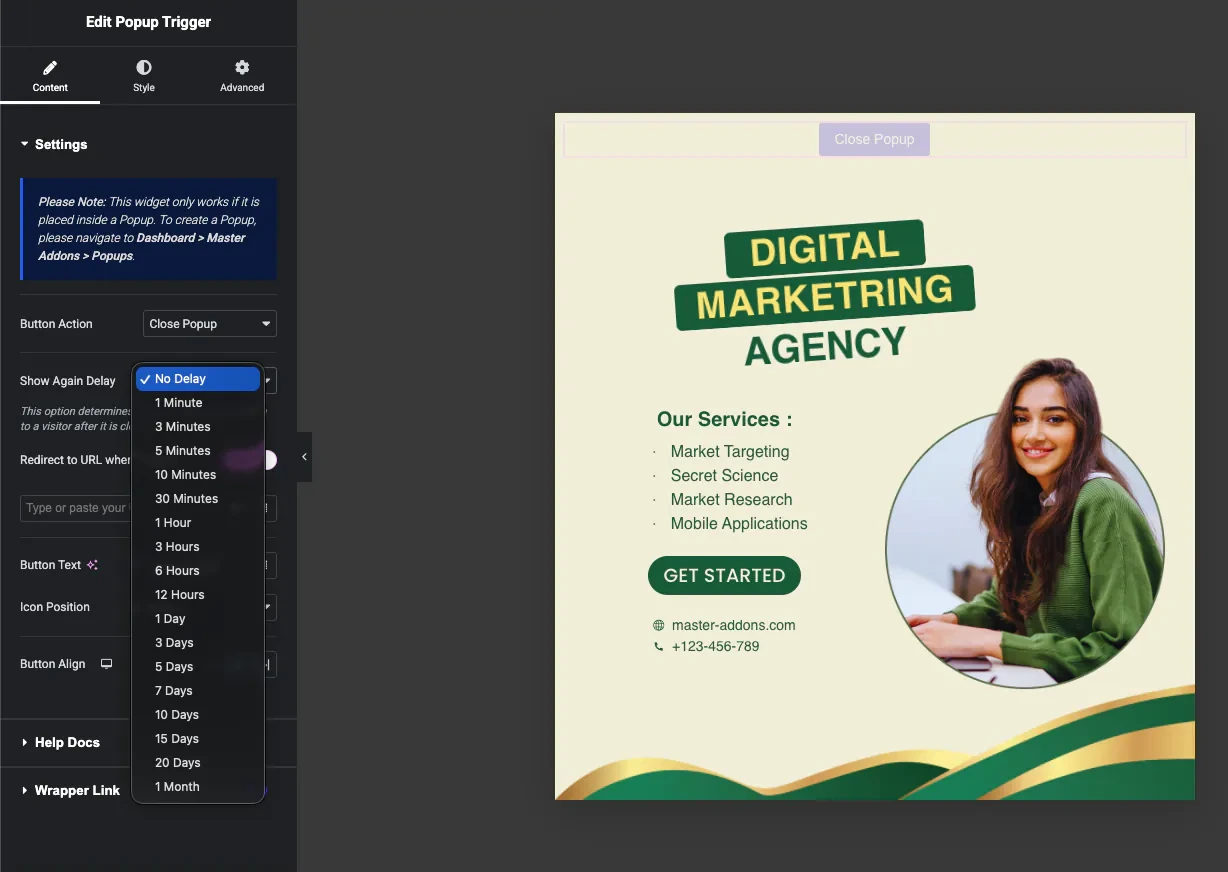
তালিকাটি এক মিনিট থেকে এক মাস পর্যন্ত চলে: 1, 3, 5, 10 এবং 30 মিনিট, তারপর 1, 3, 6 এবং 12 ঘন্টা, তারপর 1, 3, 5, 7, 10, 15 এবং 20 দিন এবং অবশেষে 1 মাস। বিলম্ব নেই পরবর্তী পৃষ্ঠা লোডে আবার প্রদর্শিত হতে পপআপ বিনামূল্যে ছেড়ে দেয়।
সেই পপআপের আইডির বিপরীতে ভিজিটরের নিজস্ব ব্রাউজার স্টোরেজে ক্লোজ টাইম সংরক্ষণ করা হয়, তাই সাইটের প্রতিটি পপআপ তার নিজস্ব আলাদা সময় রাখে। এটি পৃষ্ঠা লোড এবং ব্রাউজার পুনরায় চালু হওয়া থেকে বেঁচে থাকে, কিন্তু এটি অন্য ডিভাইসে ভিজিটরকে অনুসরণ করে না এবং ব্রাউজার ডেটা সাফ করে এটি পুনরায় সেট করে।
পপআপ বন্ধ হয়ে গেলে দর্শকদের পুনঃনির্দেশ করুন #
চালু করা বন্ধ হয়ে গেলে URL-এ পুনঃনির্দেশ করুন এবং একটি URL ক্ষেত্র প্রদর্শিত হবে। পপআপটি প্রথমে বন্ধ হয়ে যায়, তারপর ব্রাউজারটি আপনার লিঙ্কে চলে যায়।
- URL ক্ষেত্র যেকোনো লিঙ্ক নেয়, এবং এটি Elementor ডায়নামিক ট্যাগ গ্রহণ করে, তাই গন্তব্যটি হার্ড কোডেড হওয়ার পরিবর্তে পোস্ট বা একটি কাস্টম ক্ষেত্র থেকে আসতে পারে।
- শুধুমাত্র একই ট্যাব। পপআপ বন্ধ হওয়ার ঠিক পরেই বর্তমান ট্যাবে পুনঃনির্দেশ চলে, তাই লিঙ্ক ক্ষেত্রের নতুন ট্যাব এবং nofollow বিকল্পগুলির কোনও প্রভাব নেই৷।
- এটি ক্লোজ পপআপ এবং ক্লোজ পারমানেন্টলির সাথে কাজ করে। রেফারারে ফিরে যান এটি ব্যবহার করে না, যেহেতু সেই ক্রিয়াটি ইতিমধ্যেই দর্শককে কোথাও পাঠায়৷।
বোতাম পাঠ্য এবং আইকন সেট করুন #
বোতাম পাঠ্য গতিশীল ট্যাগ সমর্থন সহ একটি প্লেইন টেক্সট ক্ষেত্র। ডিফল্ট হয় পপআপ বন্ধ করুন, কিন্তু “হয়তো later” বা “continue to the site" এর মত শব্দগুলি একজন দর্শককে বলে যে ক্লিকটি কী করবে৷।
আইকন অবস্থান লেবেলের সাপেক্ষে একটি আইকন রাখে। এটা সেট করুন উপাদান আগে বা উপাদান পরে এবং ক আইকন নির্বাচন করুন নিয়ন্ত্রণ প্রদর্শিত হবে, X আইকনে প্রিসেট করুন। সেখান থেকে একটি ভিন্ন ফন্ট অসাধারণ আইকন বেছে নিন বা আপনার নিজের SVG আপলোড করুন। আইকন অবস্থান সেট করুন কোনোটিই নয় শুধুমাত্র পাঠ্য বোতামের জন্য।
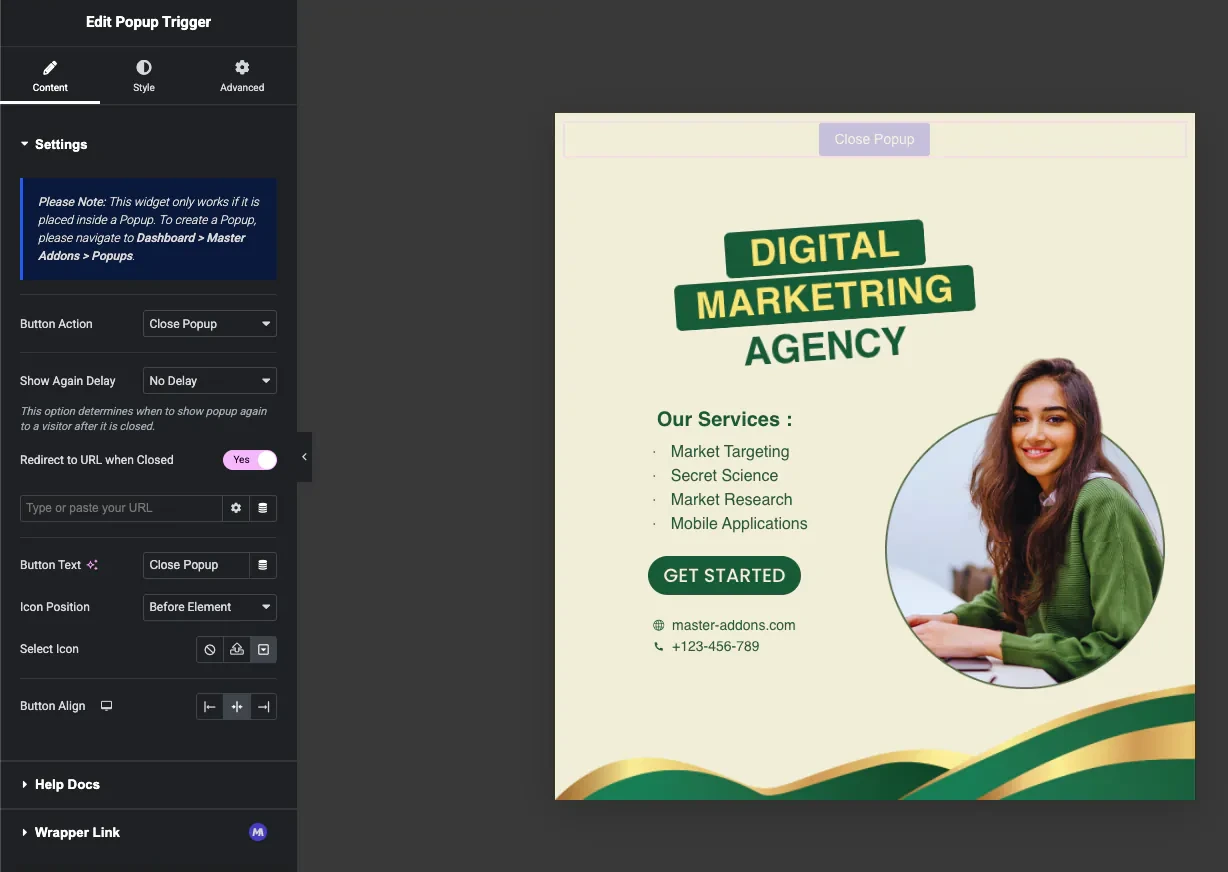
বোতাম সারিবদ্ধ বোতামটি বাম, কেন্দ্র বা ডানদিকে সেট করে। এটি একটি প্রতিক্রিয়াশীল নিয়ন্ত্রণ, তাই আপনি এটিকে ডেস্কটপ, ট্যাবলেট এবং মোবাইলে ভিন্নভাবে সারিবদ্ধ করতে পারেন।
বোতাম স্টাইল করুন #
খোলা শৈলী জন্য ট্যাব সাধারণ বিভাগ, যা বিভক্ত স্বাভাবিক এবং ঘোরাঘুরি করা ট্যাব।
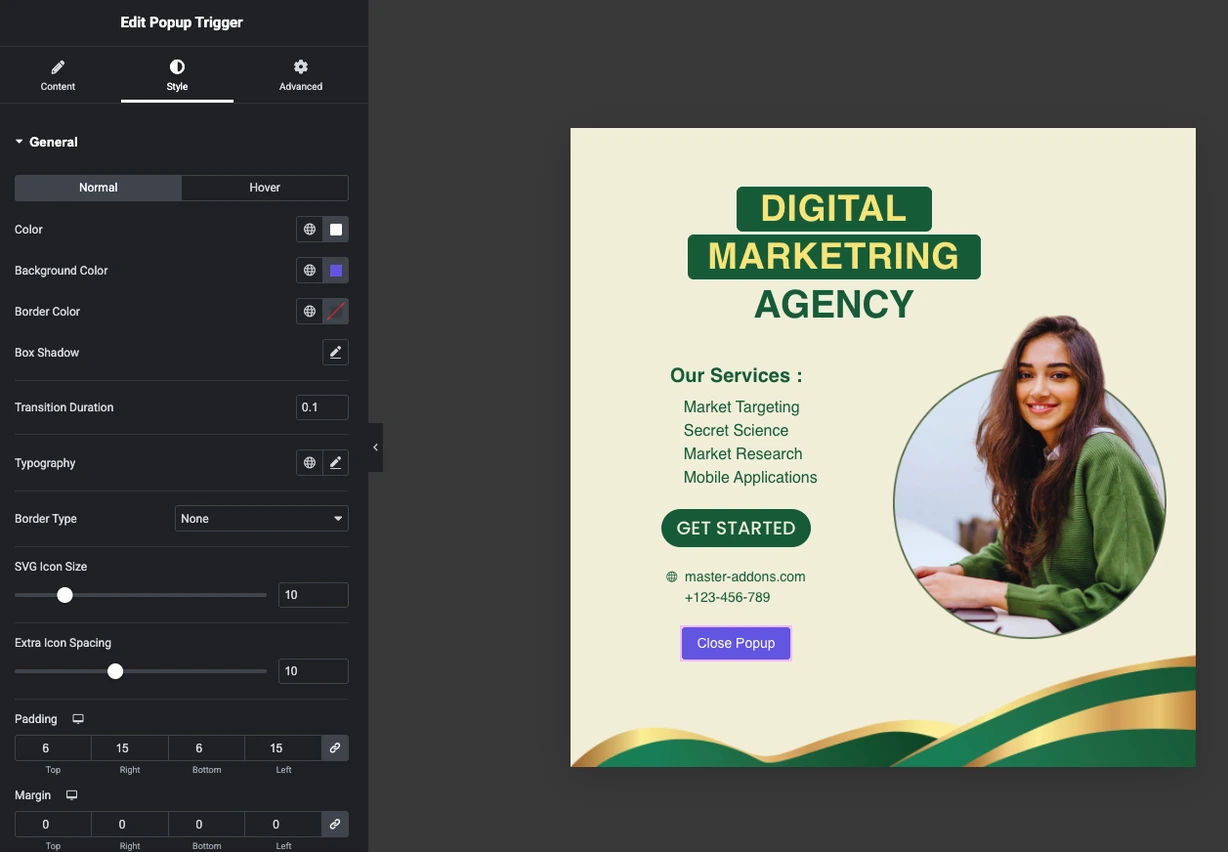
- রঙ, পটভূমির রঙ এবং সীমান্তের রঙ: প্রতি রাজ্যে সেট করুন, তাই হোভারে বোতামটি পরিবর্তিত হয়।
- বক্স ছায়া: এছাড়াও রাজ্য প্রতি, হোভারে লিফটের জন্য।
- স্থানান্তরের সময়কাল: হোভার পরিবর্তন কত দ্রুত চলে, সেকেন্ডে।
- টাইপোগ্রাফি: স্ট্যান্ডার্ড গ্রুপ নিয়ন্ত্রণ, তাই আপনার বিশ্বব্যাপী ফন্ট প্রযোজ্য।
- সীমান্তের ধরন এবং সীমান্তের প্রস্থ: সলিড, ডবল, ডটেড, ড্যাশড বা খাঁজ, প্রতি পাশে প্রস্থ সেট সহ।
- SVG আইকন আকার এবং অতিরিক্ত আইকন ব্যবধান: আইকনের আকার এবং আইকন এবং লেবেলের মধ্যে ফাঁক।
- প্যাডিং, মার্জিন এবং বর্ডার ব্যাসার্ধ: বোতাম আকার এবং কোণার বৃত্তাকার। প্যাডিং এবং মার্জিন প্রতিক্রিয়াশীল।
ডিফল্ট বন্ধ বোতাম লুকান #
একটি পপআপ ট্রিগার যোগ করলে কোণে X মুছে যায় না। আপনার বোতামটিকে একমাত্র প্রস্থান করতে, পপআপ সেটিংস খুলুন এবং বন্ধ করুন বন্ধ বোতাম দেখান, তারপর পপআপ লেআউটের ভিতরে আপনার ট্রিগার রাখুন। দ্য পপআপ সেটিংস গাইড সেই বিকল্পটি কোথায় থাকে তা কভার করে।
একটি পপআপে একাধিক ট্রিগার ব্যবহার করুন #
প্রতিটি পপআপ ট্রিগার তার নিজস্ব ক্রিয়া, বিলম্ব এবং পুনঃনির্দেশ রাখে, তাই একটি একক পপআপ দুটি ভিন্ন প্রস্থান অফার করতে পারে। একটি সাধারণ পেয়ারিং হল একটি "আমাকে পরে মনে করিয়ে দিন" বোতামটি এক দিনের বিলম্বের সাথে পপআপ বন্ধ করতে সেট করা হয়েছে, একটি "এটি আর কখনও দেখাবেন না" বোতামটি স্থায়ীভাবে বন্ধ করতে সেট করা হয়েছে৷।
সাধারণ ব্যবহারের ক্ষেত্রে #
- নিউজলেটার পপআপ একটি স্টাইল করা ক্লোজ বোতাম সহ যা একটি ধূসর X এর পরিবর্তে অফারের সাথে মেলে৷।
- বয়সের গেট এবং প্রবেশের পর্দা যেখানে একটি “No” বোতাম রেফারারে ফিরে যান।
- প্রস্থান অভিপ্রায় অফার (এক্সিট ইনটেন্ট ট্রিগারের প্রো প্রয়োজন) একটি "আগামীকাল আমাকে মনে করিয়ে দিন" বোতামটি একদিনের বিলম্বে সেট করা আছে।
- ঘোষণা পপআপ একটি “'don't show this again" দিয়ে স্থায়ীভাবে বন্ধ করতে সেট করা বোতাম।
- আপসেল পপআপ যেখানে ক্লোজিং একটি সস্তা প্ল্যান বা মূল্য পৃষ্ঠায় পুনঃনির্দেশ করে।
পপআপ ট্রিগার উইজেটের সাথে কাজ করার জন্য টিপস #
- বোতাম কি করে বলুন। "হয়তো পরে" দর্শককে বলে যে পরবর্তী কি হবে। একটি X করে না।
- অফারের সাথে বিলম্ব মেলে। একটি এক ঘন্টা বিরতি একটি ডিসকাউন্ট উপযুক্ত। একটি এক মাসের বিরতি একটি জরিপ উপযুক্ত।
- লোকেদের একটি স্থায়ী অপ্ট আউট দিন। স্থায়ীভাবে বন্ধ করার জন্য একটি দ্বিতীয় ট্রিগার সেট করা একটি পপআপের চেয়ে বন্ধুত্বপূর্ণ যা ফিরে আসতে থাকে।
- একটি ব্যক্তিগত উইন্ডোতে পরীক্ষা করুন। বিলম্ব ব্রাউজারে সংরক্ষণ করা হয়, তাই একটি নতুন উইন্ডো আবার পপআপ দেখার দ্রুততম উপায়।
- একটি হোভার স্টেট সেট করুন। হোভারে একটি রঙের পরিবর্তন দর্শকদের বলে যে বোতামটি ক্লিকযোগ্য।
প্রায়শই জিজ্ঞাসিত প্রশ্নাবলী #
মাস্টার অ্যাডঅনগুলিতে পপআপ ট্রিগার উইজেট কী?
এটি একটি এলিমেন্টর উইজেট যা একটি মাস্টার অ্যাডঅন পপআপ বন্ধ করে। আপনি এটি তৈরি করার সময় এটিকে পপআপের ভিতরে রাখুন এবং এটি একটি ক্লোজ বোতামে পরিণত হয় যা আপনি অন্য যেকোনো বোতামের মতো ডিজাইন করতে পারেন, ক্লোজ অ্যাকশন, রিটার্ন বিলম্ব এবং একটি ঐচ্ছিক পুনঃনির্দেশের উপর নিয়ন্ত্রণ সহ।
কেন উইজেট সম্পাদক প্যানেলে একটি নোট দেখায়?
কারণ এটি শুধুমাত্র মাস্টার অ্যাডঅন পপআপ বিল্ডারের সাথে নির্মিত একটি পপআপের ভিতরে কাজ করে। একটি সাধারণ পৃষ্ঠায় এটি বন্ধ করার জন্য কিছুই নেই। আপনি ড্যাশবোর্ড > মাস্টার অ্যাডঅন > পপআপ থেকে পপআপ তৈরি করেন।
ক্লোজ পপআপ এবং স্থায়ীভাবে বন্ধ করার মধ্যে পার্থক্য কী?
ক্লোজ পপআপ আপনার বাছাই করা শো এগেইন বিলম্বকে সম্মান করে, তাই পপআপ এক মিনিট বা এক মাস পরে ফিরে আসতে পারে। বন্ধ স্থায়ীভাবে সেই সেটিং উপেক্ষা করে এবং সেই ব্রাউজারে সেই ভিজিটরকে দেখানো পপআপ বন্ধ করে দেয়, যে কারণে আপনি এটি নির্বাচন করলে বিলম্ব ড্রপডাউন অদৃশ্য হয়ে যায়।
শো এগেইন বিলম্ব কোথায় সংরক্ষণ করা হয়?
ভিজিটরের ব্রাউজার স্থানীয় স্টোরেজে, সেই পপআপের আইডির বিপরীতে। এটি পৃষ্ঠা লোড এবং ব্রাউজার পুনরায় চালু হওয়া থেকে বেঁচে থাকে, তবে এটি ডিভাইসগুলির মধ্যে ভ্রমণ করে না এবং একজন দর্শক যে তাদের ব্রাউজার ডেটা সাফ করে সে আবার পপআপ দেখতে পাবে।
পপআপ বন্ধ করে কি কাউকে অন্য পৃষ্ঠায় পাঠাতে পারে?
হ্যাঁ। বন্ধ হয়ে গেলে URL-এ পুনঃনির্দেশ চালু করুন এবং লিঙ্ক যোগ করুন। পপআপ প্রথমে বন্ধ হয়, তারপর ব্রাউজারটি আপনার URL-এ চলে যায়। এটি ক্লোজ পপআপ এবং স্থায়ীভাবে বন্ধ করার সাথে কাজ করে এবং প্রতি পৃষ্ঠায় গন্তব্য পরিবর্তন হলে ক্ষেত্রটি গতিশীল ট্যাগ গ্রহণ করে।
আমি কি একই পপআপে একাধিক ক্লোজ বোতাম ব্যবহার করতে পারি?
হ্যাঁ। প্রতিটি ট্রিগার তার নিজস্ব ক্রিয়া, বিলম্ব এবং পুনঃনির্দেশ রাখে, তাই একটি পপআপ "আগামীকাল আমাকে মনে করিয়ে দিন" এবং "এটি আর কখনও দেখাবেন না" পাশাপাশি অফার করতে পারে।
পপআপ ট্রিগার উইজেট কি বিনামূল্যে?
হ্যাঁ। উইজেটটি বিনামূল্যের মাস্টার অ্যাডঅন প্লাগইনের অংশ, এবং পপআপ বিল্ডারও এটির সাথে কাজ করে। Pro উন্নত ওপেনিং ট্রিগার এবং পপআপের জন্য ডিসপ্লে শর্ত যোগ করে।
মোড়ানো #
পপআপ ট্রিগার উইজেট ক্লোজ অ্যাকশনটিকে আপনার নিয়ন্ত্রণ করা কিছুতে পরিণত করে: আপনার শব্দ, আপনার আইকন, আপনার রঙ এবং পপআপ ফিরে আসার জন্য আপনার নিয়ম। বোতাম অ্যাকশনটি বেছে নিন, বিলম্ব সেট করুন, একটি পুনঃনির্দেশ যোগ করুন যদি ক্লিকটি কোথাও নিয়ে যায়, তারপর পপআপের সাথে মেলে এটিকে স্টাইল করুন। দ্য পপআপ ট্রিগার উইজেট পৃষ্ঠা একটি লাইভ ডেমো আছে।
সম্পর্কিত পপআপ গাইডের জন্য, দেখুন পপআপ সেটিংস বিকল্প, দ প্রস্থান অভিপ্রায় পপআপ গাইড, এবং ক্লিকে পপআপ খুলুন গাইড। আপনি সম্পূর্ণ ব্রাউজ করতে পারেন মাস্টার অ্যাডঅন উইজেট এবং এক্সটেনশন, বা চেক করুন মূল্য পৃষ্ঠা প্রতিটি পরিকল্পনা অন্তর্ভুক্ত কি জন্য।


