

কোড ক্ষেত্রটি একটি ছোট কোড এডিটরকে একটি কাস্টম উইজেটে রাখে যা আপনি মাস্টার অ্যাডঅন দিয়ে তৈরি করেন উইজেট নির্মাতা। সম্পাদকরা একটি স্নিপেট পেস্ট করেন, যেমন ব্যাজ HTML একটি পেমেন্ট প্রদানকারী হ্যান্ড আউট করে, এবং ক্ষেত্রটি লাইন নম্বর এবং সিনট্যাক্স হাইলাইট করে এটিকে পাঠযোগ্য রাখে। এটি মার্কআপের ক্ষেত্র যা গদ্য হিসাবে টাইপ করার পরিবর্তে পেস্ট করতে হবে।
কোড একটি প্রো ক্ষেত্র। বিনামূল্যের প্লাগইনটিতে একটি সীমিত উইজেট বিল্ডার রয়েছে এবং ক্ষেত্রগুলির সম্পূর্ণ সেট সহ আসে৷ মাস্টার অ্যাডনস প্রো.
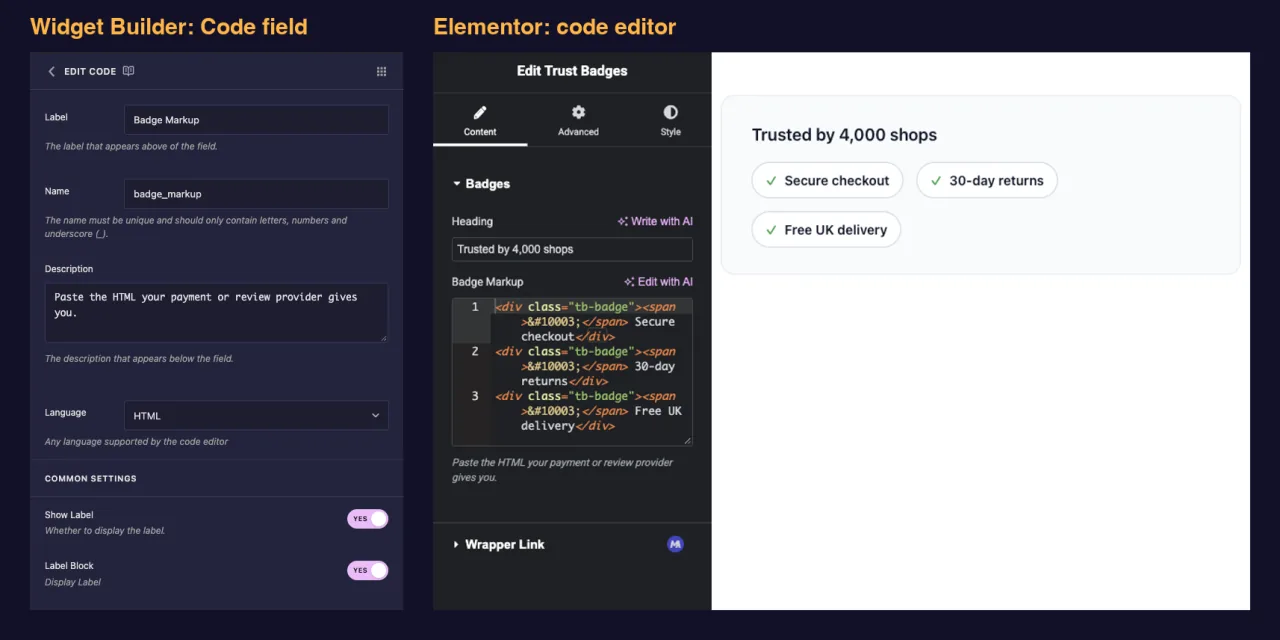
কোড ক্ষেত্র কি করে #
- এলিমেন্টরে আপনার উইজেটের প্যানেলে লাইন নম্বর এবং হাইলাইটিং সহ একটি কোড এডিটর যোগ করে।
- HTML এবং CSS থেকে JSON, SVG এবং PHP পর্যন্ত আপনার বেছে নেওয়া ভাষায় হাইলাইট।
- টেক্সট হিসাবে আটকানো যা কিছু সংরক্ষণ করে।
- যেমন একটি টোকেন মাধ্যমে এটি মুদ্রণ
{{ badge_markup }}, ওয়ার্ডপ্রেসের নিজস্ব পোস্ট কন্টেন্ট ফিল্টার দিয়ে পরিষ্কার করা হয়েছে যাতে অনুমোদিত HTML রেন্ডার এবং স্ক্রিপ্ট ট্যাগ বাদ দেওয়া হয়। - একটি আছে
rawবিরল ক্ষেত্রে ফিল্টার করুন যেখানে একটি স্নিপেট অস্পর্শিত হতে হবে।
নির্মাতার কাছে নতুন? পড়ুন উইজেট নির্মাতা ওভারভিউ প্রথমে, তারপর একটি উইজেট খোলা নিয়ে ফিরে আসুন।
আপনি শুরু করার আগে #
- এলিমেন্টর ইনস্টল এবং সক্রিয় সহ ওয়ার্ডপ্রেস।
- Elementor এবং Master Addons Pro এর জন্য মাস্টার অ্যাডঅন, উভয়ই সক্রিয়। দ্য ইনস্টলেশন গাইড সেটআপ কভার করে।
- উইজেট বিল্ডারে একটি উইজেট খোলা। এই গাইডের উদাহরণ হল একটি “Trust Badges” উইজেট: শিরোনামের জন্য একটি পাঠ্য ক্ষেত্র এবং একটি কোড ক্ষেত্র নামে
badge_markupএটি প্রদানকারীর ব্যাজ HTML নেয়।
কিভাবে একটি কোড ক্ষেত্র যোগ করতে হয় #
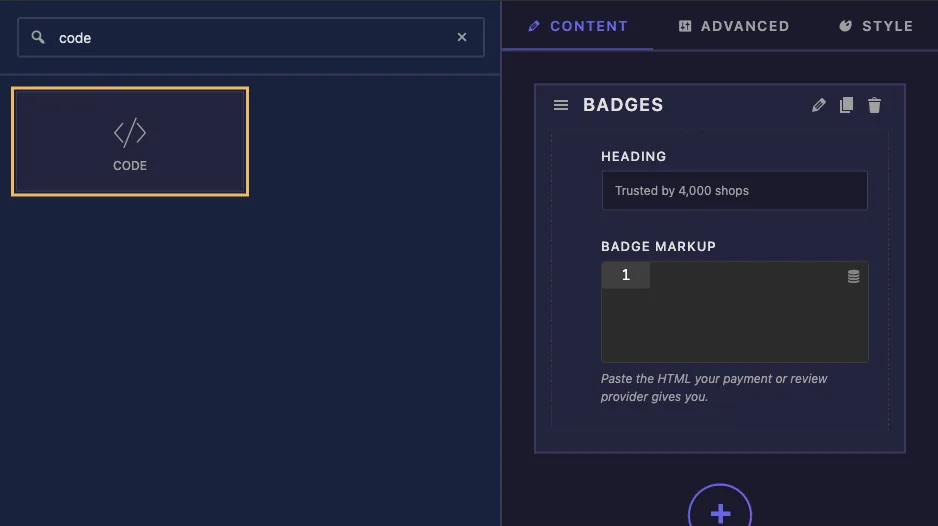
- যাও মাস্টার অ্যাডঅন > উইজেট নির্মাতা এবং আপনার উইজেট খুলুন।
- একটি বিভাগ যোগ করুন বিষয়বস্তু ট্যাব, উদাহরণস্বরূপ “Badges”।
- টাইপ করা
codeবাম দিকে ফিল্ড সার্চ বক্সে। - টেনে আনুন কোড বিভাগে। সেটিংস খুলতে মাঠের পেন্সিলটিতে ক্লিক করুন।
কোড ক্ষেত্রের বিকল্পগুলি ব্যাখ্যা করা হয়েছে #
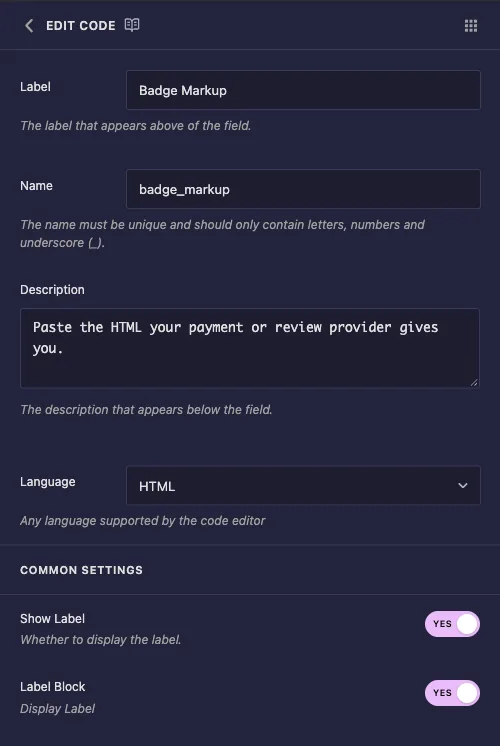
- লেবেল: এলিমেন্টরে সম্পাদকের উপরের পাঠ্য, উদাহরণস্বরূপ “Badge Markup”।
- নাম: ক্ষেত্রের অনন্য আইডি এবং এর টোকেনের নাম। উদাহরণস্বরূপ, শুধুমাত্র অক্ষর, সংখ্যা এবং আন্ডারস্কোর ব্যবহার করুন
badge_markup. - বর্ণনা: এলিমেন্টরে সম্পাদকের অধীনে দেখানো একটি ইঙ্গিত। ক্ষেত্রটি কী প্রত্যাশা করে তা বলতে এটি ব্যবহার করুন, যেমন "আপনার অর্থপ্রদান বা পর্যালোচনা প্রদানকারী আপনাকে যে HTML দেয় তা পেস্ট করুন৷”৷
- ভাষা: হাইলাইটিং মোড। তালিকায় HTML, CSS, SASS, SCSS, JavaScript, JSON, LESS, Markdown, PHP, Python, MySQL, SQL, SVG, Text, Twig এবং Typescript আছে। HTML হল ডিফল্ট।
ভাষা পরিবর্তন শুধুমাত্র হাইলাইট। এটি একটি সম্পাদক কি পেস্ট করতে পারে তা সীমাবদ্ধ করে না এবং এটি কীভাবে মানটি মুদ্রিত হয় তা পরিবর্তন করে না।
প্যানেলের কোন ডিফল্ট মান নেই এবং এই ক্ষেত্রের জন্য কোন উচ্চতা সেটিং নেই, তাই সম্পাদক সর্বদা তার আদর্শ উচ্চতায় খালি খোলে। চালু কর লেবেল ব্লক তাই লেবেলটি সম্পাদকের পাশে চেপে না দিয়ে উপরে বসে।
সাধারণ সেটিংসের অধীনে আপনিও পাবেন লেবেল দেখান, বিভাজক এবং শর্তাবলী, যা অন্যান্য ক্ষেত্রের মতো একই কাজ করে। ছেড়ে নির্বাচক খালি: একটি পেস্ট করা স্নিপেট একটি CSS মান নয়।
আপনার টেমপ্লেটে কোডটি প্রিন্ট করুন #
টোকেনটি যেখানে স্নিপেটটি অবতরণ করা উচিত সেখানে রাখুন এবং এটিকে পাহারা দিন যাতে একটি খালি ক্ষেত্র পিছনে কোনও মোড়ক না রাখে:
<div class="tb">
  <p class="tb-heading">{{ tb_heading }}</p>
  {% if badge_markup %}
  <div class="tb-badges">{{ badge_markup }}</div>
  {% endif %}
</div>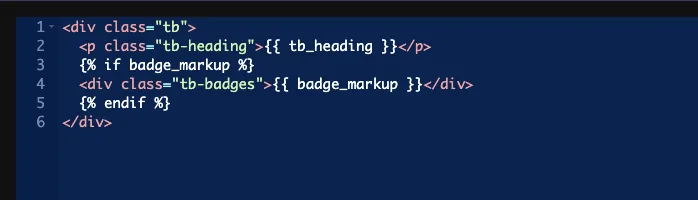
যথারীতি সিএসএস প্যানেলে মোড়ক স্টাইল করুন। স্নিপেট নিজেই প্রদানকারীর দেওয়া যাই হোক না কেন ক্লাস নিয়ে আসে, তাই ব্যবধান এবং প্রান্তিককরণ নিয়ন্ত্রণ করতে আপনার নিজস্ব র্যাপার ক্লাস যোগ করা মূল্যবান।
টোকেন স্ট্রিপ কি #
মান পোস্ট বিষয়বস্তুর জন্য ওয়ার্ডপ্রেস ব্যবহার করে একই ফিল্টার মাধ্যমে যায়। পোস্টে অনুমোদিত ট্যাগগুলি পেস্ট করা হিসাবে বেরিয়ে আসে: div, span, a, img এবং বাকি। স্ক্রিপ্ট ট্যাগ এবং iframes সরানো হয়।
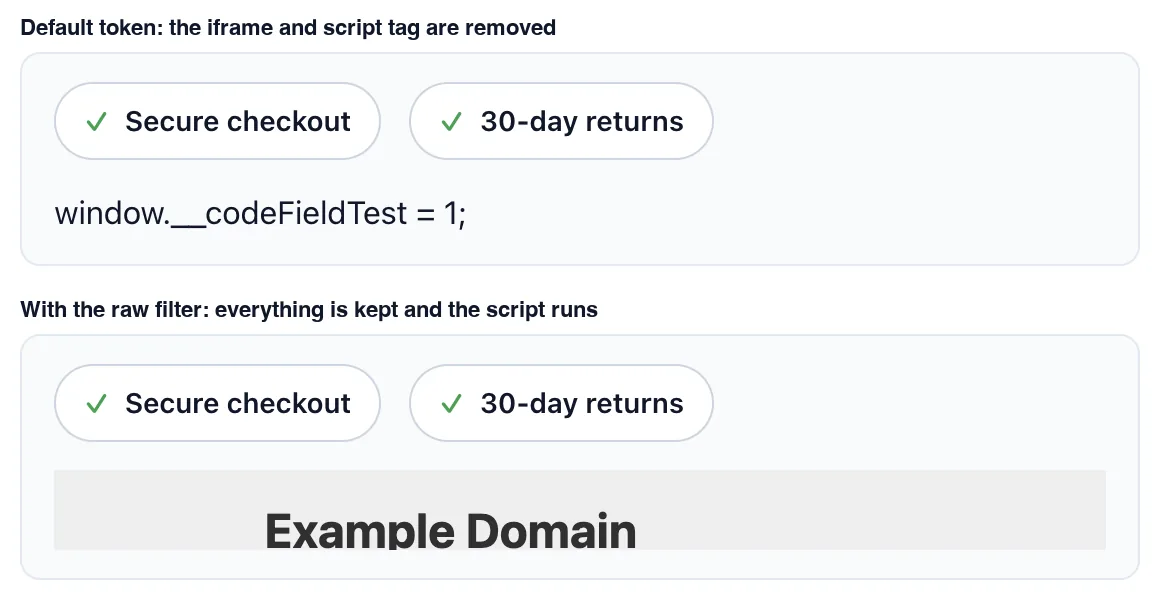
আপনি একটি ক্লায়েন্ট উইজেট হস্তান্তর করার আগে একটি বিস্তারিত জানার মূল্য। আমাদের পরীক্ষায়, একটি পেস্ট করা স্ক্রিপ্ট ট্যাগ সরানো হয়েছিল কিন্তু এর ভিতরের জাভাস্ক্রিপ্টটি প্লেইন টেক্সট হিসাবে পৃষ্ঠায় থেকে যায়, তাই দর্শক উইজেটের মাঝখানে কোডের একটি লাইন দেখতে পান। এটি সম্পর্কে কিছুই আপনাকে সতর্ক করে না। একটি খসড়া পৃষ্ঠায় একটি প্রদানকারীর স্নিপেট একবার পরীক্ষা করুন এবং সম্পাদকদের শুধুমাত্র মার্কআপ পেস্ট করতে বলুন৷।
কাঁচা ফিল্টার #
যোগ করা raw টোকেন প্রিন্টে ঠিক কী আটকানো হয়েছিল, স্ক্রিপ্ট এবং আইফ্রেম অন্তর্ভুক্ত:
{{ badge_markup|raw }}আমাদের পরীক্ষায় সেই সংস্করণটি আইফ্রেম রেখেছিল এবং স্ক্রিপ্টটি চালায়। এটি আপনার নিয়ন্ত্রণ করা একটি এম্বেডের জন্য দরকারী, এবং অন্য সব জায়গায় ঝুঁকিপূর্ণ, কারণ যে কেউ উইজেট সম্পাদনা করতে পারে সে পৃষ্ঠায় জাভাস্ক্রিপ্ট চালাতে পারে। এটি শুধুমাত্র তখনই ব্যবহার করুন যখন সেই পৃষ্ঠার প্রতিটি সম্পাদক ইতিমধ্যেই আনফিল্টার করা HTML এর সাথে বিশ্বস্ত থাকে এবং উইজেট ক্লায়েন্টদের স্পর্শের জন্য প্লেইন টোকেন রাখুন।
টেমপ্লেট ইঞ্জিনও গ্রহণ করে trim, upper এবং lower একটি টোকেনে, যা মাঝে মাঝে প্লেইন টেক্সটের একটি ছোট স্নিপেটের জন্য সুবিধাজনক।
Elementor এ কোড নিয়ন্ত্রণ ব্যবহার করুন #
একটি পৃষ্ঠায় উইজেট যোগ করুন, অথবা পৃষ্ঠাটি ইতিমধ্যে খোলা থাকলে সম্পাদকটি পুনরায় লোড করুন। ক্ষেত্রটি আপনার লেবেলের নীচে একটি অন্ধকার সম্পাদক ব্লক হিসাবে দেখায়, পাশের লাইন নম্বর সহ। আপনি দূরে ক্লিক করার সাথে সাথে স্নিপেট এবং পূর্বরূপ আপডেটগুলি আটকান।
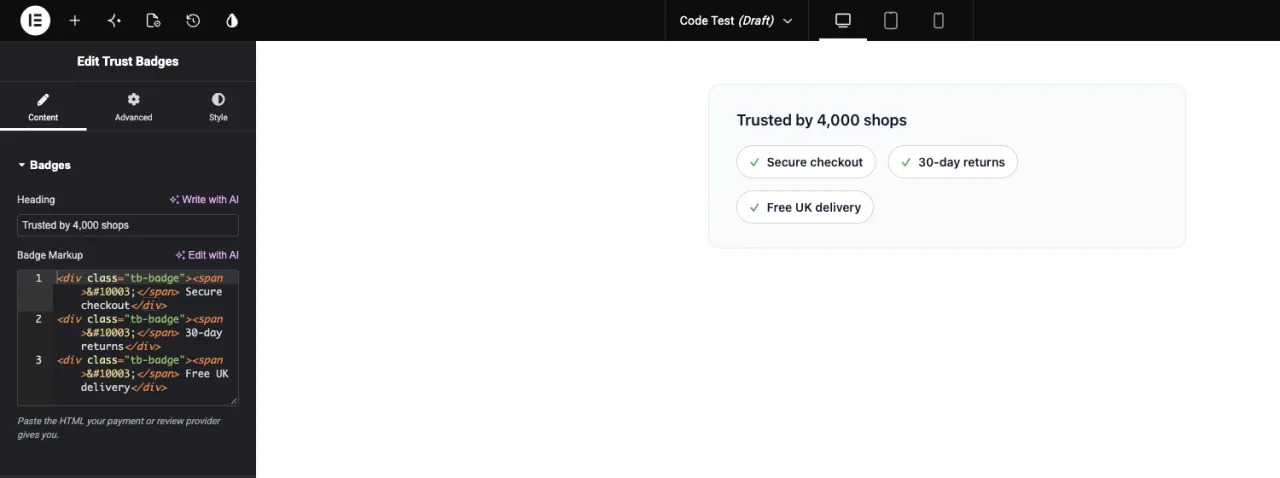
সম্পাদক একটি ছোট উইন্ডো, তাই এটির ভিতরে একটি দীর্ঘ স্নিপেট স্ক্রোল করে। এটি পেস্ট করার জন্য ঠিক আছে, পড়ার জন্য কম; আপনি যদি এটি হাতে সম্পাদনা করার পরিকল্পনা করেন তবে স্নিপেটটি আরও প্রশস্ত কোথাও লিখুন।
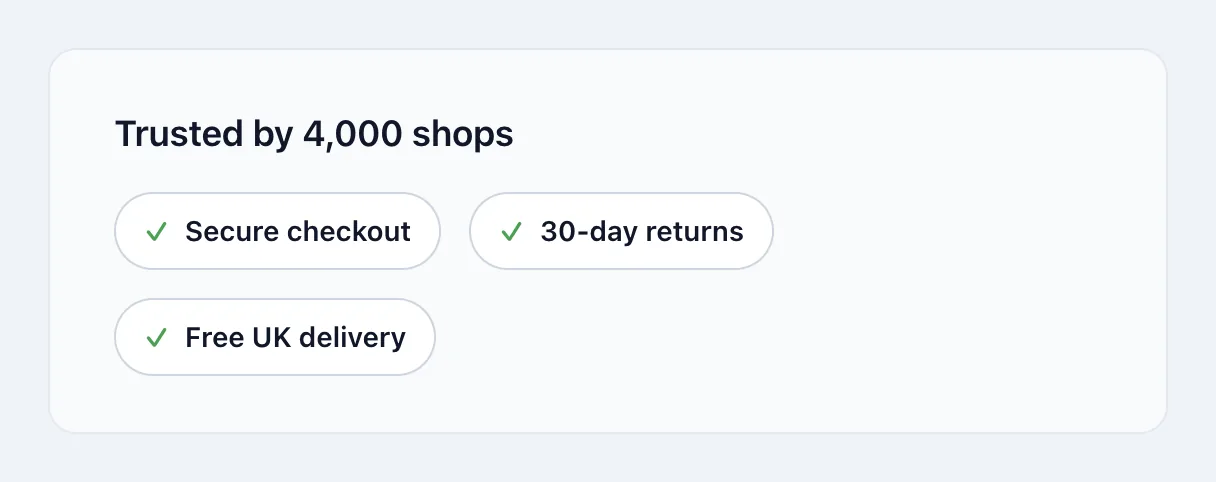
এখানে সামনের প্রান্তে সমাপ্ত উইজেট, তিনটি পেস্ট করা ব্যাজ ব্লক থেকে নির্মিত:
সাধারণ ব্যবহারের ক্ষেত্রে #
- অর্থপ্রদান, পর্যালোচনা এবং বিশ্বাস ব্যাজ যা প্রদানকারীরা HTML হিসাবে হস্তান্তর করে।
- স্কিমা বা স্ট্রাকচার্ড ডেটা ব্লক একজন সম্পাদককে প্রতি পৃষ্ঠায় পেস্ট করতে হবে।
- ছোট SVG আইকন বা লোগো মার্কআপ হিসাবে আটকানো।
- একটি সংক্ষিপ্ত CSS বা JSON স্নিপেট আপনার উইজেটের স্ক্রিপ্ট পড়ে।
কোড ক্ষেত্রের সাথে কাজ করার জন্য টিপস #
- বর্ণনায় কি পেস্ট করতে হবে বলুন। ক্ষেত্রটি কী প্রত্যাশা করে তা সম্পাদকরা খালি সম্পাদকের কাছ থেকে বলতে পারবেন না।
- সঙ্গে টোকেন গার্ড
{% if %}. একটি অব্যবহৃত ক্ষেত্র অন্যথায় পৃষ্ঠায় একটি খালি মোড়ক ছেড়ে যাবে। - একবার একটি বাস্তব প্রদানকারী স্নিপেট পরীক্ষা করুন। এইভাবে আপনি খুঁজে বের করেন কোন অংশগুলি ফিল্টার থেকে বেঁচে থাকে।
- রাখা
rawশুধুমাত্র বিশ্বস্ত সম্পাদকদের জন্য। প্লেইন টোকেন হল ক্লায়েন্ট সাইটের জন্য নিরাপদ ডিফল্ট। - মার্কআপের পরিবর্তে পাঠ্য বিন্যাস? ব্যবহার করুন WYSIWYG ক্ষেত্র তাই সম্পাদকরা কোডের পরিবর্তে একটি ভিজ্যুয়াল এডিটর পান।
প্রায়শই জিজ্ঞাসিত প্রশ্নাবলী #
কোড ক্ষেত্র বিনামূল্যে?
নং কোড হল উইজেট বিল্ডারের প্রো ক্ষেত্রগুলির মধ্যে একটি, তাই উইজেটে যোগ করার আগে মাস্টার অ্যাডনস প্রোকে সক্রিয় থাকতে হবে।
আমি কি একটি ডিফল্ট স্নিপেট সেট করতে পারি বা সম্পাদককে লম্বা করতে পারি?
ফিল্ড সেটিংস থেকে নয়। প্যানেলের একটি লেবেল, নাম, বর্ণনা এবং ভাষা রয়েছে, তাই সম্পাদক সর্বদা তার আদর্শ উচ্চতায় খালি খোলে।
কেন আমার পেস্ট করা স্নিপেটের কিছু অংশ অদৃশ্য হয়ে গেল?
টোকেনটি ওয়ার্ডপ্রেসের পোস্ট কন্টেন্ট ফিল্টারের মাধ্যমে মান চালায়, যা স্ক্রিপ্ট ট্যাগ এবং আইফ্রেমগুলি সরিয়ে দেয়। ফিল্টার অনুমতি দেয় মার্কআপ ব্যবহার করুন, অথবা কাঁচা ফিল্টার ব্যবহার করুন যদি সেই পৃষ্ঠার প্রতিটি সম্পাদককে ফিল্টার না করা HTML এর সাথে বিশ্বাস করা হয়।
কেন জাভাস্ক্রিপ্ট আমার উইজেটে পাঠ্য হিসাবে প্রদর্শিত হচ্ছে?
একটি পেস্ট করা স্ক্রিপ্ট ট্যাগ সরানো হয়েছে কিন্তু এর বিষয়বস্তু পাঠ্য হিসাবে পিছনে থেকে গেছে। স্নিপেট থেকে স্ক্রিপ্টটি বের করুন, অথবা স্ক্রিপ্টটি চালানোর জন্য কাঁচা ফিল্টার দিয়ে ক্ষেত্রটি মুদ্রণ করুন।
ভাষা সেটিং কি সীমাবদ্ধ করে যে সম্পাদকরা পেস্ট করতে পারেন?
না। এটি শুধুমাত্র সম্পাদকে সিনট্যাক্স হাইলাইটিং পরিবর্তন করে।
মোড়ানো #
একটি বিষয়বস্তু বিভাগে একটি কোড ক্ষেত্র ড্রপ করুন, ভাষা বাছাই করুন, একটি বিবরণ লিখুন যা বলে যে কী পেস্ট করতে হবে এবং একটি ভিতরে টোকেনটি মুদ্রণ করুন৷ {% if %} পাহারা। ক্লায়েন্ট সাইটগুলির জন্য প্লেইন টোকেন রাখুন এবং পৌঁছান raw শুধুমাত্র বিশ্বস্ত সম্পাদকদের সাথে। মার্কআপের পরিবর্তে সমৃদ্ধ পাঠ্যের জন্য, দেখুন WYSIWYG ক্ষেত্র, এবং চেক মূল্য প্রতিটি পরিকল্পনা অন্তর্ভুক্ত কি জন্য।


