Master Addons
  • Widgets
    • Changelogs
      Source Code NEW PRO
      Caldera Forms
      Logo Slider
      Table of Contents
      Gravity Forms
      Transforms PRO
      Restrict Content PRO
      Pricing Table
      Ninja Form
      Mailchimp
      Tooltip
      Popup Trigger NEW PRO
      Which Element NEW
      Creative Button
      Creative Links NEW
      Domain Search HOT PRO
      Dual Heading HOT
      Flipbox
      Animated Gradient BG HOT PRO
      Image Hotspot PRO
      Infobox
      News Ticker PRO
      Particles
      Progress Bar
      Off-Canvas Content NEW PRO
      Reading Progress Bar HOT
      Custom JS
      Blockquote
      Counter Up
      Image Hover Effects
      Reveal NEW PRO
      Rellax PRO
      Positioning
      Image Comparison
      Tabs
      Toggle Content HOT PRO
      Post/Page Duplicator FREE
      Icons Extended
      Floating Effects PRO
      Mega Menu HOT
      Custom CSS HOT
      Gradient Headline
      Advanced Image
      Nav Menu
      Tooltips
      Comparison Table PRO
      Glassmorphism
      Featured Product PRO
      Image Carouse
      Gallery Slider NEW PRO
      Dynamic Tags NEW
      Countdown Timer
      Current Time
      Patterns
      Wrapper Link
      Timeline
      Team Member
      Contact Form 7
      Advanced Accordion
      Animated Headlines
      Blog
      Business Hours
      Call To Action
      Progress Bars
      Background Slider
      Team Slider
      Dynamic Table
      Grid Line PRO
      WP Forms
      Search
      We Form
      Entrance Animation NEW PRO
      Display Conditions PRO
      Filterable Image Gallery
      WP Forms
      Custom Breakpoints NEW
  • Features
    • Theme Builder

      Design site-wide templates for a consistent look across every page of your website.

      Popup Builder

      Create engaging popups, modals, and announcement bars - to capture leads.

      Widget Builder

      Expand Elementor with advanced custom widgets to build more dynamic layouts.

      Mega Menu Builder

      Create multi-column menus with icons and images for superior navigation.

      Custom Css

      Apply your own CSS for pixel-perfect styling beyond default design options.

      Dynamic Tags

      Insert dynamic content like post titles and custom fields directly into designs.

      Display Conditions

      Control element visibility based on user role, device, time, and other rules.

      Icons Library

      Choose from thousands of built-in icons to enhance visuals and consistency.

      Animation

      Add scroll, hover, entrance, and much more animations to bring designs to life.
  • Template Kits
    • Template Kits

      Professionally designed full-page template Kit. Import and customize in seconds.

      Ready Sections

      Pre-built content sections and rows. Drag, drop, and customize instantly.

      Ready Popups

      Different types of High-converting popup designs. Import and launch quickly.

      Ready Pages

      Complete page layouts for any purpose. Start editing immediately.

      Ready Header

      Multiple modern header designs. Import and adapt to your brand.

      Ready Footer

      Fully designed footers for different websites. Add functionality and style in clicks.
  • Brands
    • WP Adminify

      Take control of your WordPress dashboard. Customize the admin experience.

      Admin Bar Editor

      Customize the WordPress admin bar for a cleaner, more personalized workspace.

      Loginfy

      Customize your WordPress login page with branding, styles, and security enhancements.

      Rolemaster Suite

      Manage user roles and permissions with precision for better security and workflow.

      Master Blocks

      Expand the Gutenberg editor with advanced custom blocks for more creative layouts.

      WP Spotlight

      Instantly search and access admin features, posts, and settings from anywhere.
  • Themes
  • Help
    • Get Support
    • Documentation
    • Facebook Community
    • Changelogs
  • Blog
  • Widgets
    • Changelogs
      Source Code NEW PRO
      Caldera Forms
      Logo Slider
      Table of Contents
      Gravity Forms
      Transforms PRO
      Restrict Content PRO
      Pricing Table
      Ninja Form
      Mailchimp
      Tooltip
      Popup Trigger NEW PRO
      Which Element NEW
      Creative Button
      Creative Links NEW
      Domain Search HOT PRO
      Dual Heading HOT
      Flipbox
      Animated Gradient BG HOT PRO
      Image Hotspot PRO
      Infobox
      News Ticker PRO
      Particles
      Progress Bar
      Off-Canvas Content NEW PRO
      Reading Progress Bar HOT
      Custom JS
      Blockquote
      Counter Up
      Image Hover Effects
      Reveal NEW PRO
      Rellax PRO
      Positioning
      Image Comparison
      Tabs
      Toggle Content HOT PRO
      Post/Page Duplicator FREE
      Icons Extended
      Floating Effects PRO
      Mega Menu HOT
      Custom CSS HOT
      Gradient Headline
      Advanced Image
      Nav Menu
      Tooltips
      Comparison Table PRO
      Glassmorphism
      Featured Product PRO
      Image Carouse
      Gallery Slider NEW PRO
      Dynamic Tags NEW
      Countdown Timer
      Current Time
      Patterns
      Wrapper Link
      Timeline
      Team Member
      Contact Form 7
      Advanced Accordion
      Animated Headlines
      Blog
      Business Hours
      Call To Action
      Progress Bars
      Background Slider
      Team Slider
      Dynamic Table
      Grid Line PRO
      WP Forms
      Search
      We Form
      Entrance Animation NEW PRO
      Display Conditions PRO
      Filterable Image Gallery
      WP Forms
      Custom Breakpoints NEW
  • Features
    • Theme Builder

      Design site-wide templates for a consistent look across every page of your website.

      Popup Builder

      Create engaging popups, modals, and announcement bars - to capture leads.

      Widget Builder

      Expand Elementor with advanced custom widgets to build more dynamic layouts.

      Mega Menu Builder

      Create multi-column menus with icons and images for superior navigation.

      Custom Css

      Apply your own CSS for pixel-perfect styling beyond default design options.

      Dynamic Tags

      Insert dynamic content like post titles and custom fields directly into designs.

      Display Conditions

      Control element visibility based on user role, device, time, and other rules.

      Icons Library

      Choose from thousands of built-in icons to enhance visuals and consistency.

      Animation

      Add scroll, hover, entrance, and much more animations to bring designs to life.
  • Template Kits
    • Template Kits

      Professionally designed full-page template Kit. Import and customize in seconds.

      Ready Sections

      Pre-built content sections and rows. Drag, drop, and customize instantly.

      Ready Popups

      Different types of High-converting popup designs. Import and launch quickly.

      Ready Pages

      Complete page layouts for any purpose. Start editing immediately.

      Ready Header

      Multiple modern header designs. Import and adapt to your brand.

      Ready Footer

      Fully designed footers for different websites. Add functionality and style in clicks.
  • Brands
    • WP Adminify

      Take control of your WordPress dashboard. Customize the admin experience.

      Admin Bar Editor

      Customize the WordPress admin bar for a cleaner, more personalized workspace.

      Loginfy

      Customize your WordPress login page with branding, styles, and security enhancements.

      Rolemaster Suite

      Manage user roles and permissions with precision for better security and workflow.

      Master Blocks

      Expand the Gutenberg editor with advanced custom blocks for more creative layouts.

      WP Spotlight

      Instantly search and access admin features, posts, and settings from anywhere.
  • Themes
  • Help
    • Get Support
    • Documentation
    • Facebook Community
    • Changelogs
  • Blog
Purchase Now

Getting Started

  • Can’t see the Master Addon Element inside Elementor Page editor?
  • How To Apply For an Affiliate Account?
  • Active Pro version
  • Installing Plugin

Addons

  • Progress Bars
  • Image Carousel
  • Featured Product Element
  • Elementor Comparison table For Products & Services
  • Source Code Element
  • Advanced Image Element
  • How to Add Gradient Text in Elementor
  • Gallery Slider
  • Toggle Content
  • Infobox Element
  • Timeline Element
  • Dynamic Table Element
  • Instagram Feed
  • Mailchimp Element
  • BlockQuote Element
  • Changelog Element
  • Countdown timer
  • Current Time
  • Search Element
  • Filterable Image Gallery
  • Team Members Carousel
  • Counter Up For Elementor
  • Restrict Content For Elementor
  • MA Table of Contents
  • Image Hotspot
  • Image Comparison Element
  • News Ticker Element
  • Image Hover Effects Element
  • Advanced Tabs Element
  • Pricing Table Elementor Free Widget or Element Customization
  • Navigation Menu + Mega Menu
  • Navigation Menu Element
  • How Domain Search Works
  • How to configure FlipBox Element
  • Adding Tooltip in Elementor Editor
  • How to add Creative Links?
  • How to Add Business Hours Elementor Page Builder?
  • How To Edit Contact Form 7
  • How to add Creative Buttons
  • Animated Headline Elementor Page Builder
  • Elementor Accordion Widget
  • Elementor Call To Action Widget Tutorial
  • How To Create and Customize Progressbar In Elementor
  • Blog Element Customization
  • Adding Team Members in Elementor Page Builder
  • How to Use the Dual Heading Widget in Elementor

Extensions

  • Which Element
  • Post & Page Duplicator
  • Grid Line
  • Elementor Glassmorphism Effects Extension
  • Tooltip Extension for Elementor by Master Addons
  • Wrapper Link
  • Floating Effects
  • Dynamic Tags
  • Elementor Display Conditions For Browser, User, Time, Many More
  • Entrance Animation
  • Header, Footer, & Comment Builder
  • Custom Elementor Breakpoints Setup & Configuration
  • Animated Gradient Background Extension
  • Reveal Extension
  • Particles Extension
  • Background Slider Extension
  • Transforms Extension
  • Rellax Extension
  • Positioning Extension
  • How to set Rellax Extension in any Element?
  • Custom CSS Extension

Widget Builder

  • Widget Builder Settings Panel Introduction
  • Divider
  • Text Shadow
  • Select2
  • Border
  • Heading
  • Tabs
  • Repeater
  • Visual Choice
  • Background
  • Dimensions
  • Box Shadow
  • Slider
  • Icons
  • Gallery
  • Media
  • Popover Toggle
  • Widget Builder URL Field
  • Date Time
  • Typography
  • Font
  • Widget Builder Color Field
  • Choose
  • Select
  • Switcher
  • Hidden
  • Code
  • WYSIWYG
  • Widget Builder Textarea Field
  • Number
  • Widget Builder Text Field

Theme Builder

  • Comment Form
  • 404
  • Search
  • Archive
  • Single
  • Footer
  • Header

Popup Builder

  • How to Open a Popup After Inactivity in Elementor
  • How to Show an Exit Intent Popup in Elementor
  • How to Open a Popup on Scroll to a Specific Element in Elementor
  • How to Open a Popup on Scroll in Elementor
  • How to Open a Popup on Click in Elementor
  • How to open a popup on page load?
  • Popup Settings & Options

Template Kit

  • How to Import Template Kits in Master Addons
  • How to Disable Elementor Default Fonts and Colors
  • Import Elementor Template Kits
View Categories
  • Home
  • Docs
  • Addons
  • How to add Creative Buttons

How to add Creative Buttons

Roy
Updated on June 13, 2026

6 min read

A plain button gets clicked. A button that moves a little on hover gets noticed first. The Elementor Creative Buttons widget from Master Addons gives you the second kind: 20+ named hover effects, icon support, and full styling, and you never open a CSS file to get there.

Below, we’ll add the widget, walk through every Content control, then style the button so it looks like your brand instead of the Elementor default. By the end you’ll have a call-to-action button like this one.

Elementor Creative Buttons widget styled as a Get Started CTA button with an arrow icon

What the Creative Buttons widget does #

Think of it as Elementor’s default button with a lot more room to play. The part people actually come for is the Button Effects dropdown: a set of 20+ hover animations (Winona, Ujarak, Wayra, and a dozen more) that reveal text, slide an icon in, or wash color across the button when someone hovers over it.

Past that, you get an icon picker with position and spacing controls, an alternative label that shows up during certain effects, a wrapper link toggle, and a Style tab covering color, border, padding, and shadow. It ships in the free Master Addons collection, so it works on any Elementor site. The full widgets and extensions list shows what else comes with the plugin.

Prefer to watch it built first? Here’s the widget in action before we break down each setting.

Before you start #

  • WordPress with the Elementor page builder installed and active.
  • Master Addons for Elementor installed and active. New to the plugin? Run through the installation guide first.
  • A page or template open in the Elementor editor.

How to add the Creative Buttons widget in Elementor #

This part is quick:

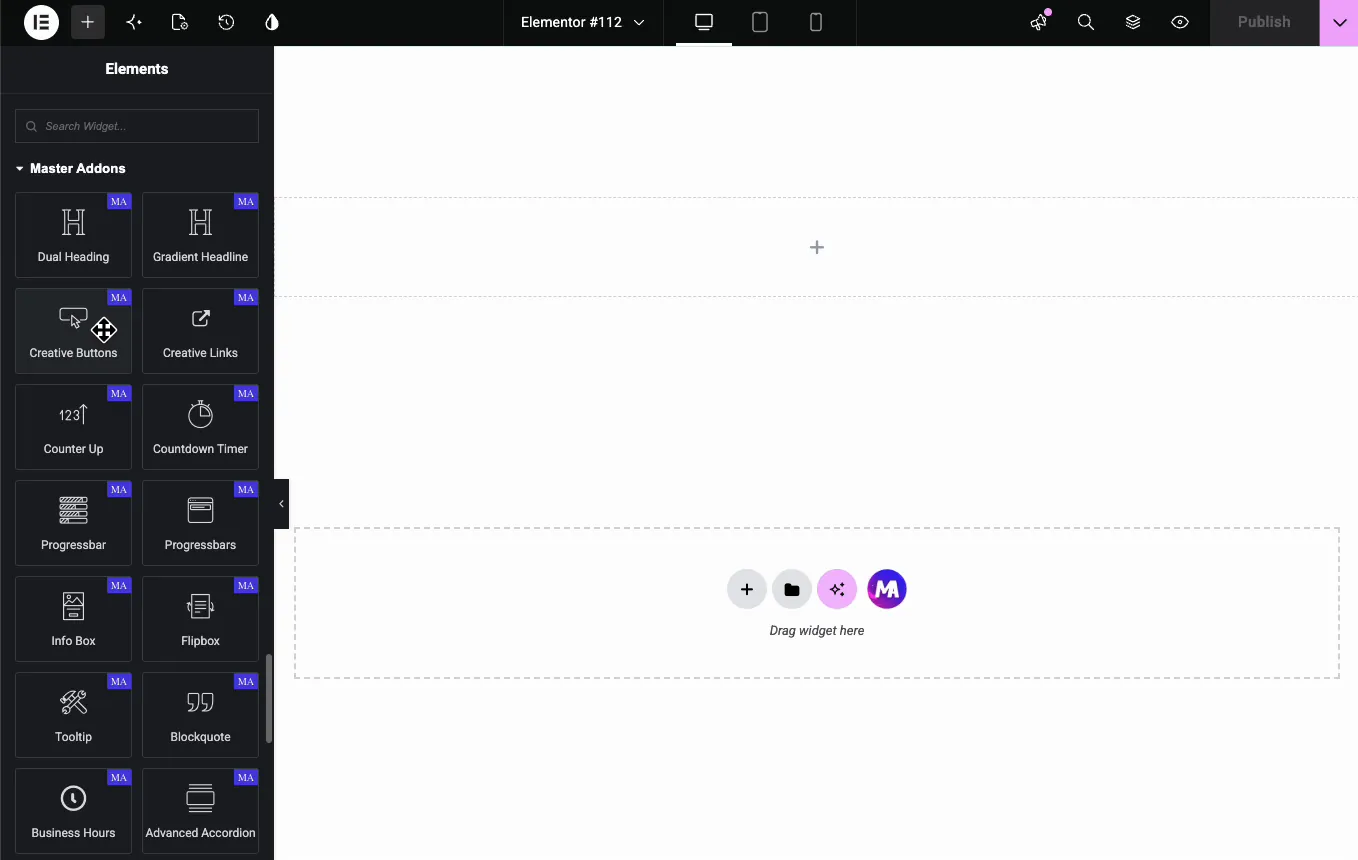
  1. Open a page with Elementor and click the widget panel icon (the grid) in the top-left.
  2. Type Creative Buttons in the search box, or scroll down to the Master Addons category.
  3. Drag the Creative Buttons widget onto your canvas.

It drops in with placeholder “Click Here” text, ready for you to change.

Creative Buttons widget in the Master Addons category of the Elementor widget panel

Content settings explained #

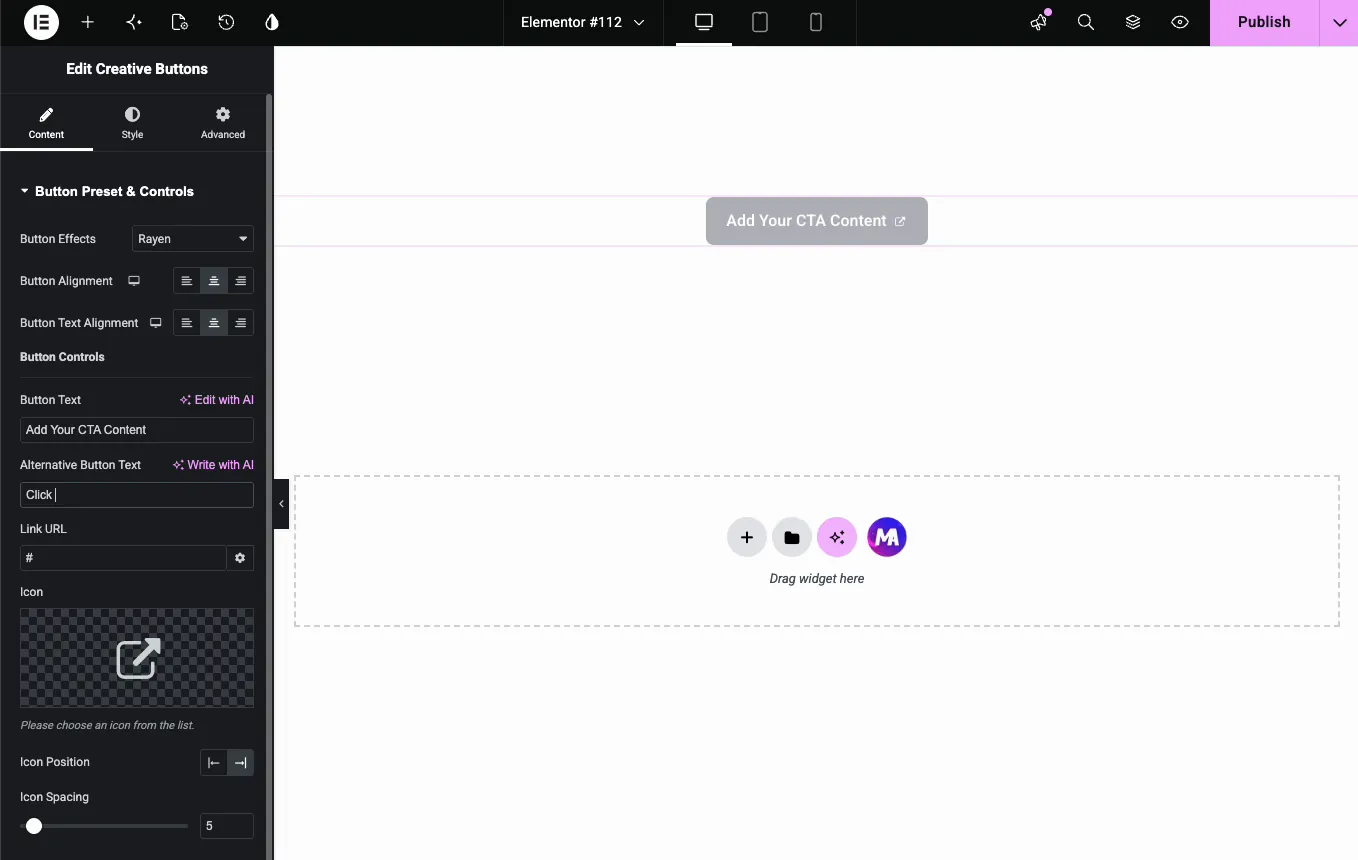
Select the button and open the Content tab. Everything here controls what the button says and where it points.

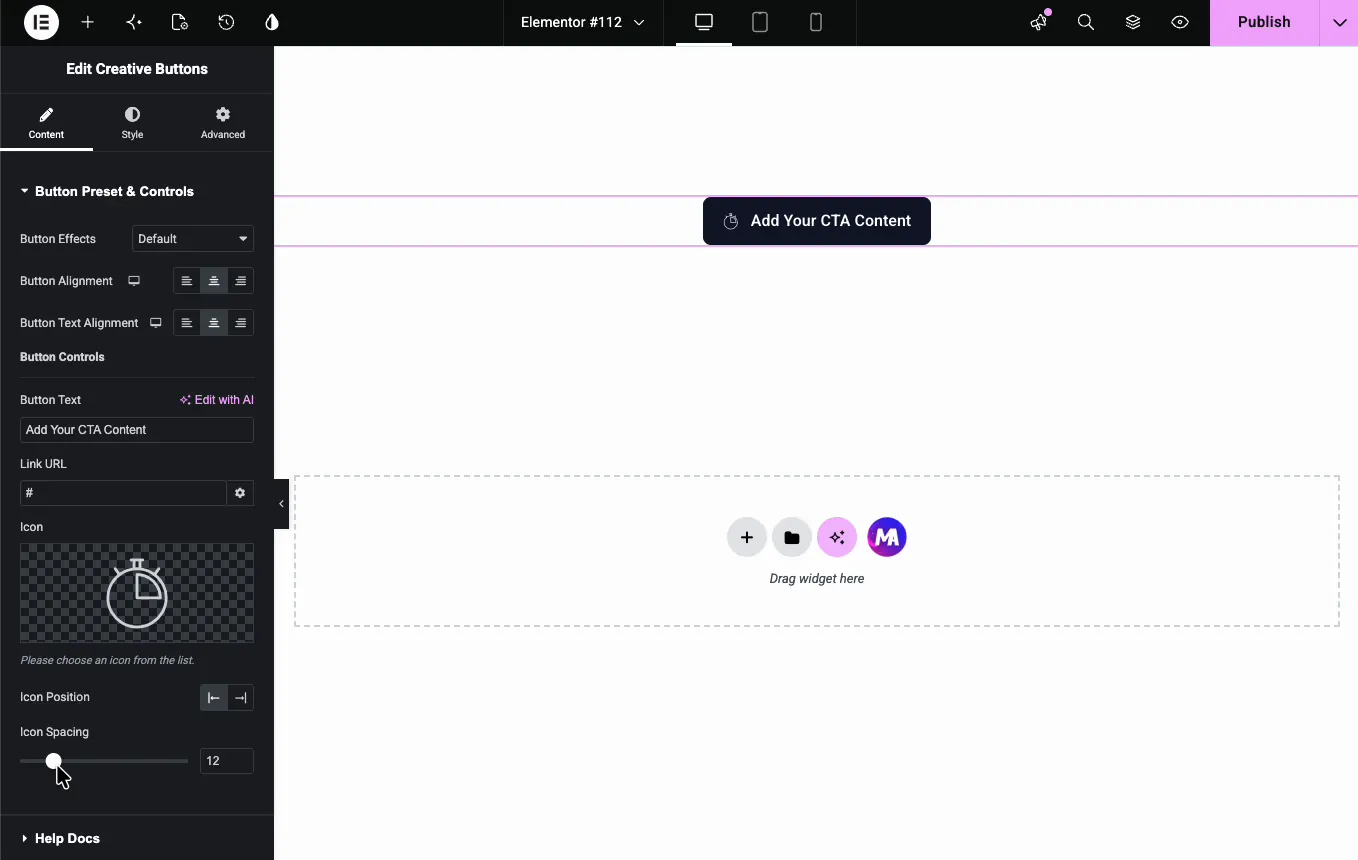
Content controls for the Elementor Creative Buttons widget including button effects, text, link, and icon

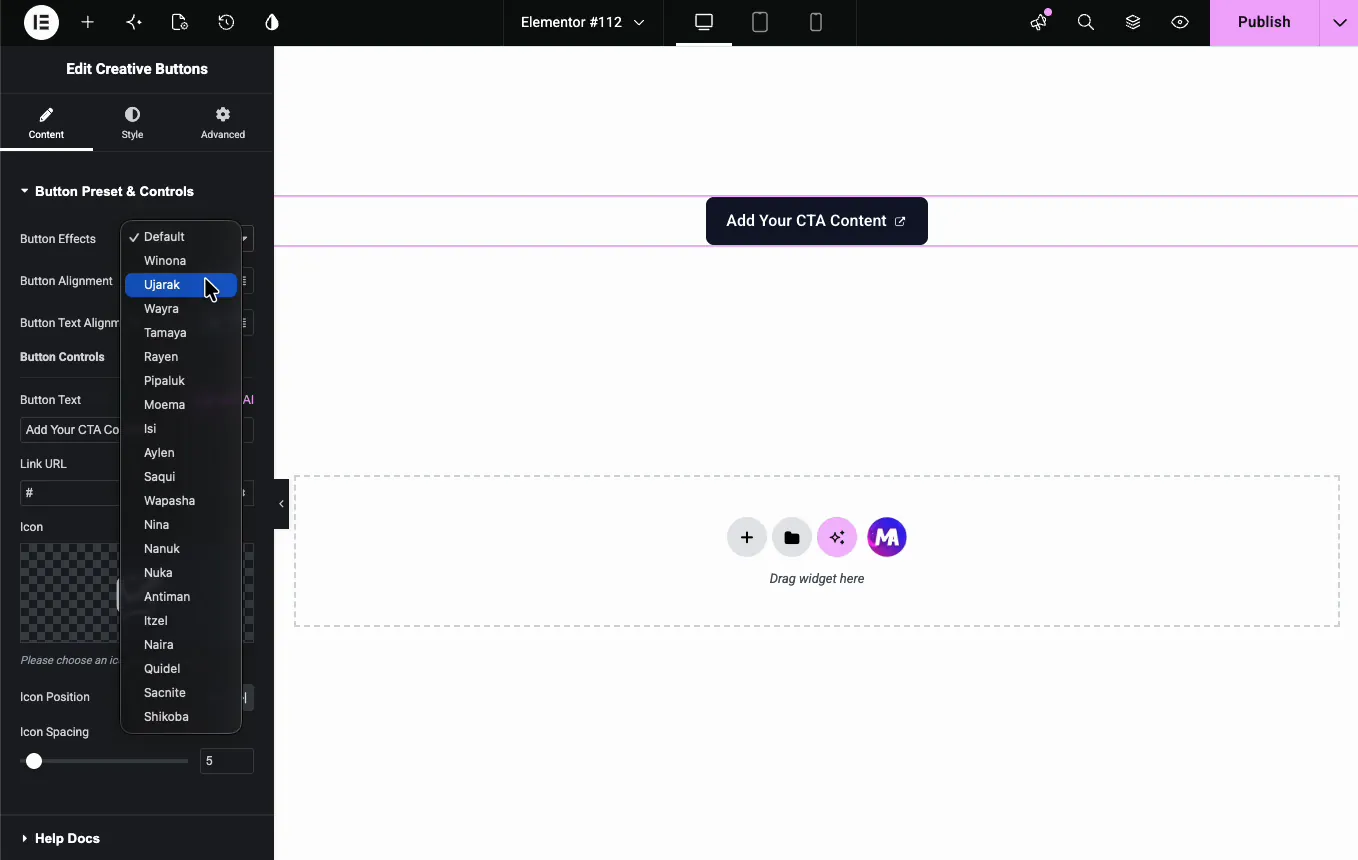
Button Effects (20+ hover animations) #

This is the setting you’ll spend the most time on. Pick a preset from the dropdown and the button animates on hover, no code involved. Your choices:

Default, Winona, Ujarak, Wayra, Tamaya, Rayen, Pipaluk, Moema, Isi, Aylen, Saqui, Wapasha, Nina, Nanuk, Nuka, Antiman, Itzel, Naira, Quidel, Sacnite, and Shikoba.

They don’t all behave the same way. Some slide an icon in, some swap the label for your alternative text, some wash a fill across the button. Click through a few in the live preview before you settle, since the names won’t tell you much on their own. If you want something safe and modern, start with Winona or Ujarak.

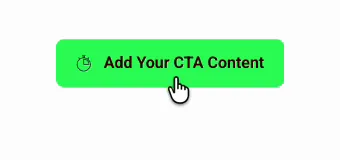
Here’s that same button caught mid-hover on the Winona effect, swapping in the alternative text as the color shifts:

Elementor Creative Buttons widget hover state showing the Winona effect with alternative text Go!

Button Alignment and Text Alignment #

Button Alignment sets where the button sits in its container (Left, Center, Right). Button Text Alignment sets where the label sits inside the button. Both are responsive, so you can center the button on mobile while keeping it left-aligned on desktop using the device toggle.

Button Text and Alternative Button Text #

The Button Text is your main label, say “Get Started”. The Alternative Button Text (“Go!” in the screenshot) is the second label that flips in during the effects that reveal one. Keep it short. It gets less room than the main text, and a long alternative will look cramped or get cut off.

Link URL #

Drop the button’s destination in Link URL. The gear icon next to it holds the link options: open in a new tab, add nofollow, and so on. For an internal link, just paste any page on your own site.

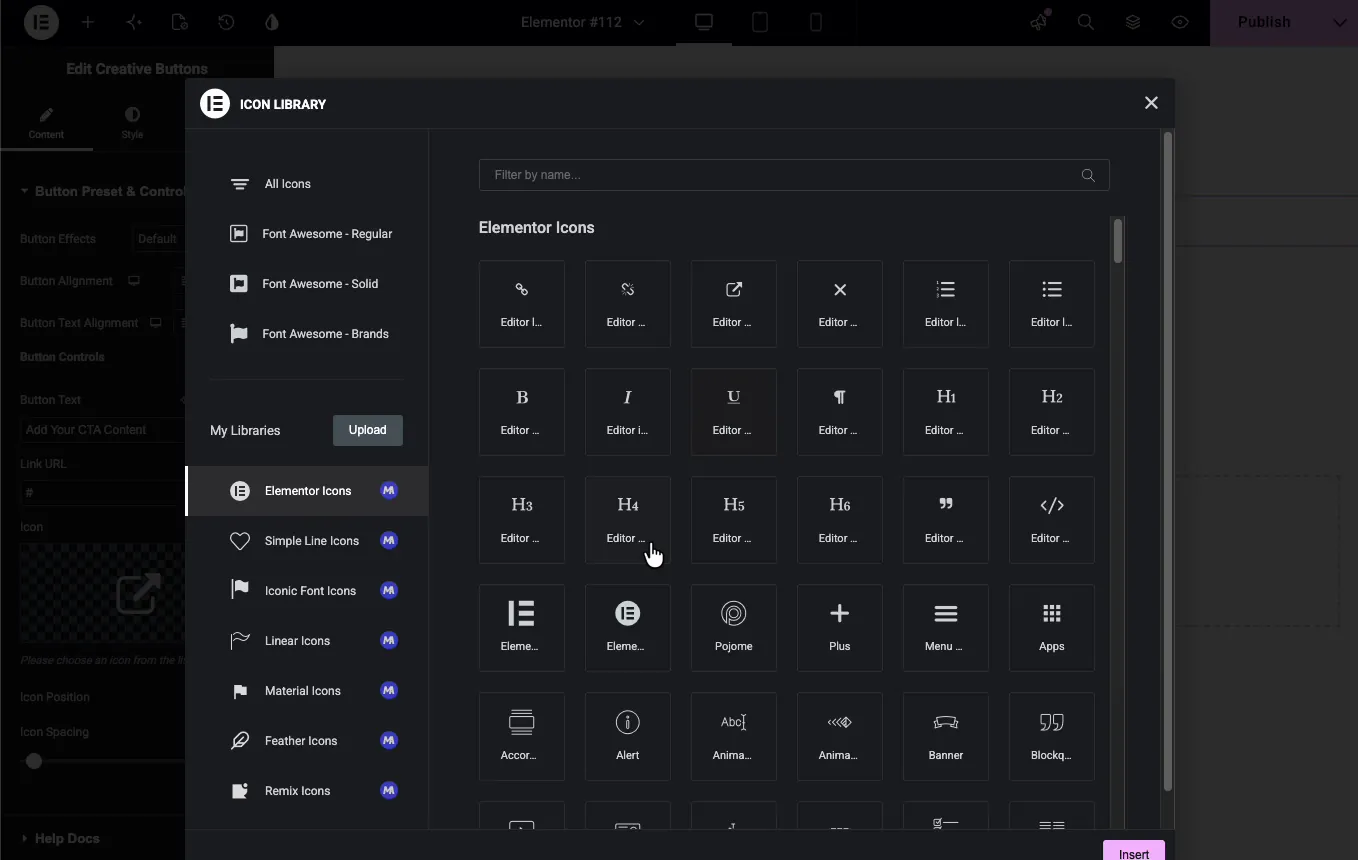
Icon, Icon Position, and Icon Spacing #

An icon gives the action a visual cue, an arrow for “Get Started”, a cart for “Buy Now”. Open the Icon control and pick one. Master Addons bundles eight premium icon libraries, so there are thousands to choose from right inside Elementor.

  • Icon Position: put the icon Before or After the text. An arrow trailing the label (“Get Started →”) reads as forward motion, which is why it’s the common choice for CTAs.
  • Icon Spacing: the gap between icon and text, in pixels.

Wrapper Link #

Turn on Wrapper Link when you want a bigger area to be clickable, not just the button. It’s useful inside a card or banner where the whole block should respond to a click. It works the same way as the Master Addons Wrapper Link extension.

Style settings explained #

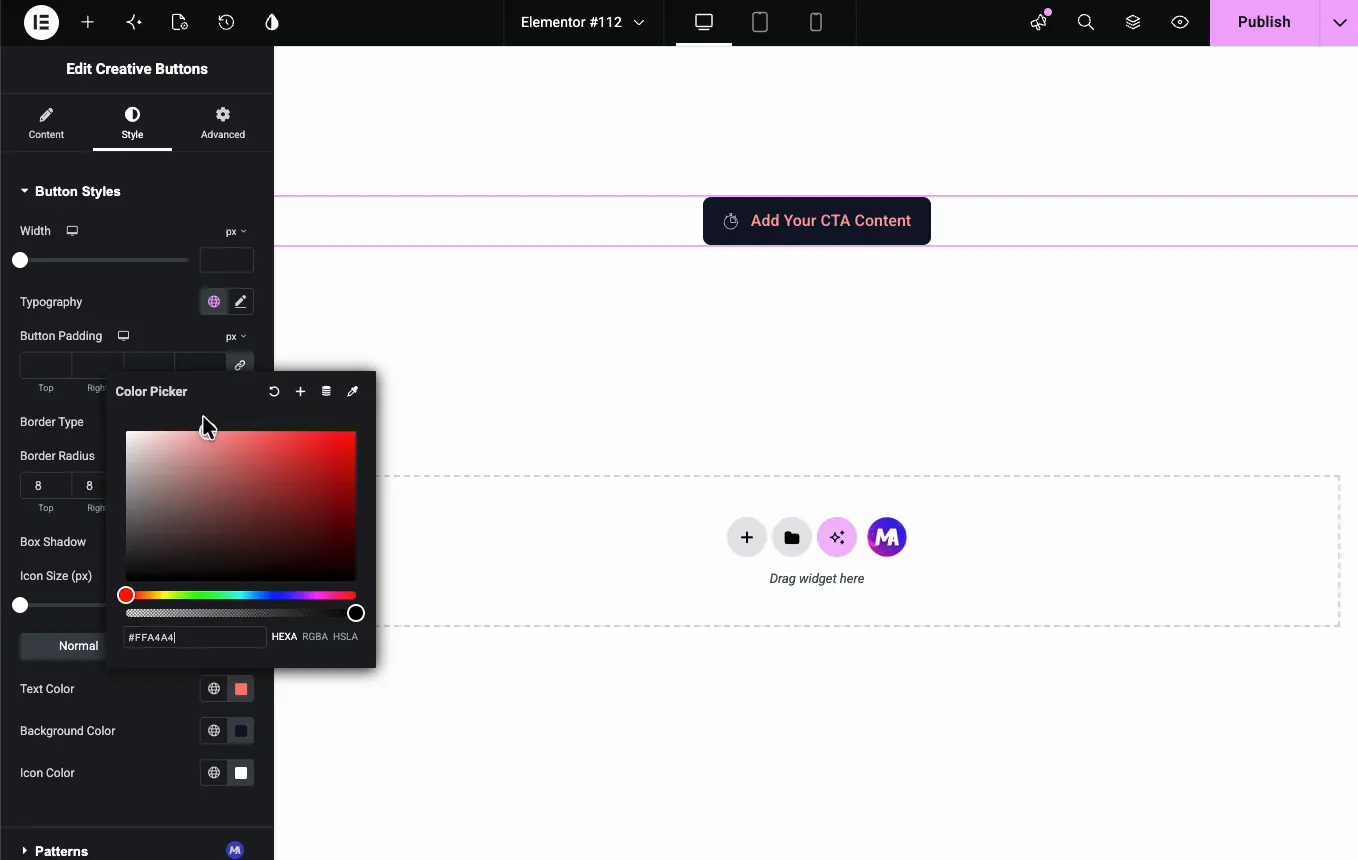
Switch to the Style tab and open the Button Styles section. Everything below lives there.

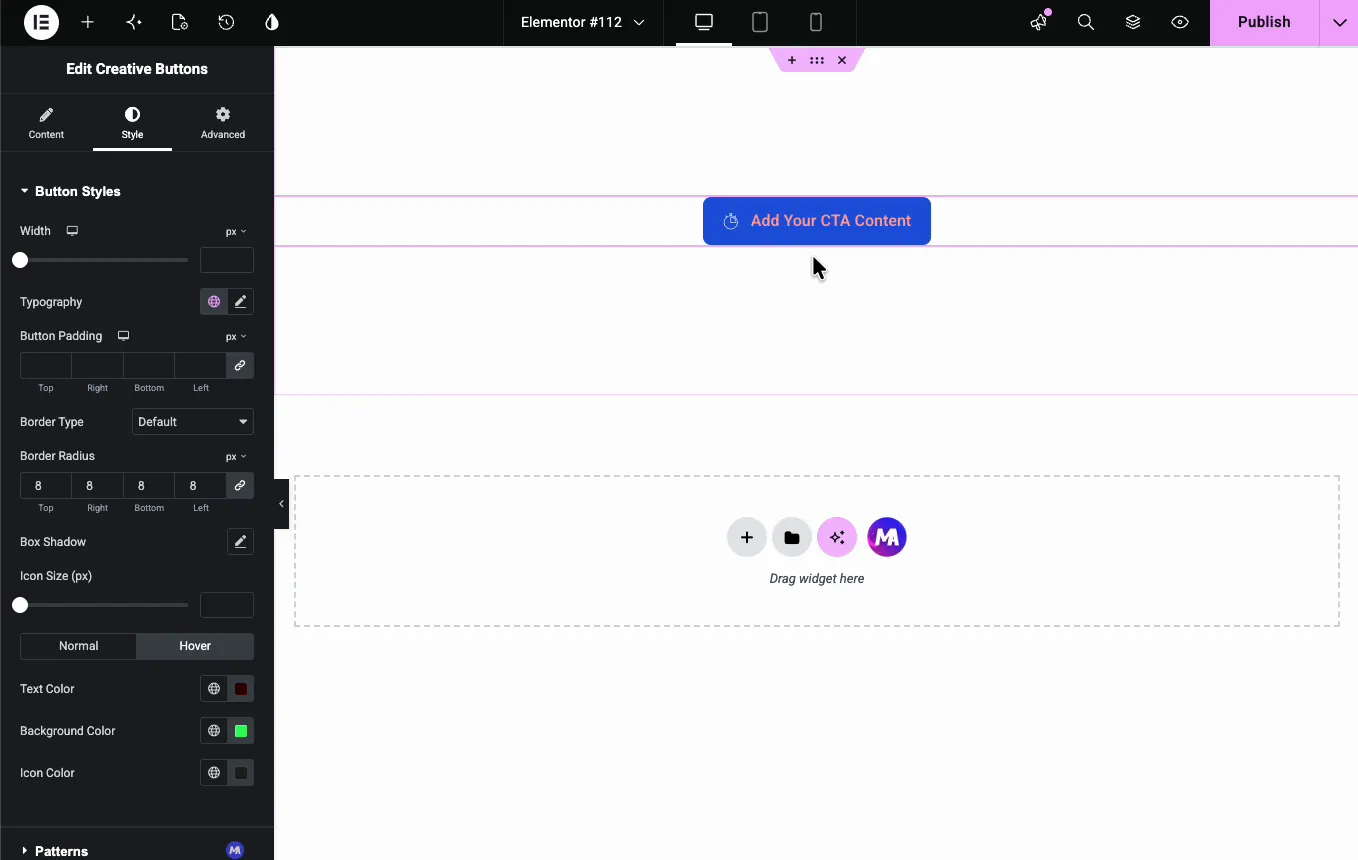
Style controls for the Elementor Creative Buttons widget including border radius, colors, and box shadow
  • Width: set a fixed width, or leave it blank and the button sizes to its text.
  • Typography: font family, size, weight, letter spacing, and transform for the label.
  • Button Padding: the breathing room around the text. Bump it up a little on mobile, since a bigger tap target is easier to hit with a thumb.
  • Border Type and Border Radius: pick a border style and round the corners. Around 8px reads as soft and modern without looking like a pill.
  • Box Shadow: adds depth so the button lifts off the page.
  • Icon Size: scales the icon on its own, separate from the text size.

Normal and Hover colors #

The color controls split into Normal and Hover states, and you set Text Color, Background Color, and Icon Color for each. A different hover background is the easiest way to add feedback on top of whatever Button Effect you picked. One thing to check: read the label in both states. A color that looks great on Normal sometimes disappears against the Hover background.

Tips for high-converting buttons #

  • Use action language. “Get Started”, “Claim Your Offer”, and “Download Free” all beat “Submit” or “Click Here”.
  • One primary button per section. Two CTAs fighting for the same click usually means neither wins. Let the main action stand out with color and effect.
  • Match the effect to the brand. Subtle effects like Winona suit corporate sites. Save the bolder ones for landing pages and promos.
  • Keep contrast high. If the label is hard to read, the animation doesn’t matter.
  • Check it on mobile. Hover doesn’t fire on a touchscreen, so the resting state has to look finished on its own.

Need a heading and description sitting with the button? The Call to Action widget packs all three into one block. For styled inline text links instead of buttons, look at Creative Links. And if you just want design ideas, our roundup of Elementor animated buttons has more.

Frequently Asked Questions #

How many hover effects does the Creative Buttons widget have?

The widget includes 20+ named hover effects plus a Default option, including Winona, Ujarak, Wayra, Tamaya, and Shikoba. Each animates the button differently on hover, and you can preview them live in the Elementor editor before publishing.

Is the Creative Buttons widget free?

Yes. Creative Buttons is part of the free Master Addons for Elementor plugin, so you can add animated buttons at no cost. Pro plans unlock additional widgets and extensions. See the pricing page for the full breakdown.

Can I add an icon to the button?

Yes. Open the Icon control, pick any icon from the included libraries, then set its position (Before or After the text) and adjust Icon Spacing. Master Addons bundles eight icon libraries with thousands of icons.

Do the hover effects work on mobile?

Hover animations rely on a mouse, so they do not trigger on touchscreens. Design the resting (Normal) state to look complete on its own, and the button will still work and look polished on mobile devices.

Will animated buttons slow down my site?

No. The effects use lightweight CSS rather than heavy scripts, and Master Addons v3 is built for performance. You can animate buttons across a page without a meaningful impact on load time.

Wrapping up #

The Elementor Creative Buttons widget turns a basic link into an animated, on-brand call to action in a few minutes. Pick your effect, add an icon, set the colors, and you’ve got a button that pulls clicks without a line of custom code. From here, the rest of the Master Addons widget library is worth a look.

What are your Feelings

Share This Article :

  • Facebook
  • X
  • LinkedIn
  • Pinterest
Still stuck? How can we help?

How can we help?

Updated on June 13, 2026
How To Edit Contact Form 7Animated Headline Elementor Page Builder
Table of Contents
  • What the Creative Buttons widget does
  • Before you start
  • How to add the Creative Buttons widget in Elementor
  • Content settings explained
    • Button Effects (20+ hover animations)
    • Button Alignment and Text Alignment
    • Button Text and Alternative Button Text
    • Link URL
    • Icon, Icon Position, and Icon Spacing
    • Wrapper Link
  • Style settings explained
    • Normal and Hover colors
  • Tips for high-converting buttons
  • Frequently Asked Questions
    • How many hover effects does the Creative Buttons widget have?
    • Is the Creative Buttons widget free?
    • Can I add an icon to the button?
    • Do the hover effects work on mobile?
    • Will animated buttons slow down my site?
  • Wrapping up

Join 40,000+ Web Creators Who Trust Master Addons

Get all the premium widgets and templates you desire, built with clean code that keeps your site fast. Ditch the bloat, not the features.

Try Live Demo
Join The Community
Master Addons for Elementor
Master Addons Logo

110+ Premium Widgets & Lifetime Updates – Build Beyond Limits. An Exclusive Creation by Pixar Labs

Facebook-f Twitter Youtube Wordpress
Features
  • Template kits
  • Template Library
  • Widget Builder
  • Theme Builder
  • Mega Menu Builder
  • Template kits
  • Template Library
  • Widget Builder
  • Theme Builder
  • Mega Menu Builder
Support
  • Support Forum
  • Contact US
  • Join Community
  • Blog
  • Support Forum
  • Contact US
  • Join Community
  • Blog
Resources
  • Apply For Affiliate
  • Documentation
  • Video Tutorials
  • My Account
  • Change Log
  • Apply For Affiliate
  • Documentation
  • Video Tutorials
  • My Account
  • Change Log
Navigate
  • Terms of Use
  • Refund Policy
  • Privacy Policy
  • Terms of Use
  • Refund Policy
  • Privacy Policy