

وظيفتان مرتبطتان. ينزلق دائري الفيديو عبر مقاطع الفيديو على مسار أفقي. أ معرض المنزلق يعرض معاينة كبيرة واحدة مع شريط مصغر أسفلها، وهو التخطيط الذي يريده الأشخاص بالفعل عندما يقولون “video carousel،” لأن صفًا من الصور المصغرة للفيديو متساوية الحجم يعد طريقة أسوأ لمشاهدة أي شيء.
إذا كانت المجموعة عبارة عن جميع الصور ويحتاج الزوار إلى تضييق نطاقها حسب الفئة أولاً، فإن معرض الصور القابلة للتصفية هو أقرب ملاءمة. فهو يضع الصور كشبكة مع علامات تبويب التصفية فوقها بدلاً من صف منزلق.
كلاهما أدناه، بالإضافة إلى مشكلة التضمين التي تجعل دوارات الفيديو أبطأ عنصر واجهة مستخدم يمكنك وضعه على الصفحة وإصلاحه من سطر واحد. كلا الحاجتين جزء من مجموعة عناصر واجهة المستخدم الدائرية الكاملة.
ابدأ بمشكلة سرعة الصفحة
ستة برامج تضمين على YouTube في صفحة واحدة تبلغ مساحتها 3 ميجابايت تقريبًا من JavaScript لجهة خارجية قبل تشغيل مقطع فيديو واحد. يقوم كل إطار iframe بتحميل مشغل YouTube وتحليلاته والبنية التحتية لملفات تعريف الارتباط الخاصة به سواء نقر أي شخص أم لا.
ضع هؤلاء الستة في دائري وسيزداد الأمر سوءًا، لأن يعرض الكاروسيل جميع شرائحه، بما في ذلك تلك التي تظهر خارج الشاشة، لذلك تتم تهيئة جميع إطارات iframe الستة مرة واحدة.
الإصلاح هو أ واجهة: إظهار صورة ملصق الفيديو باستخدام زر التشغيل، ولا يتم تحميل التضمين الحقيقي إلا عند نقر شخص ما. صورة واحدة بدلاً من ستة لاعبين. تحتوي معظم عناصر واجهة مستخدم الفيديو على خيار “lazy Load” أو “click to play” الذي يقوم بذلك؛ قم بتشغيله وستصبح الصفحة أسرع بعدة ثوانٍ على الهاتف المحمول.
إذا كانت الأداة الخاصة بك لا تقدمها، فاستخدم صور الملصقات مع صندوق ضوئي بدلاً من التضمينات المضمنة. نفس النتيجة المرئية، جزء صغير من الوزن.
الطريقة الأولى: عرض شريط التمرير، المعاينة بالإضافة إلى الصور المصغرة
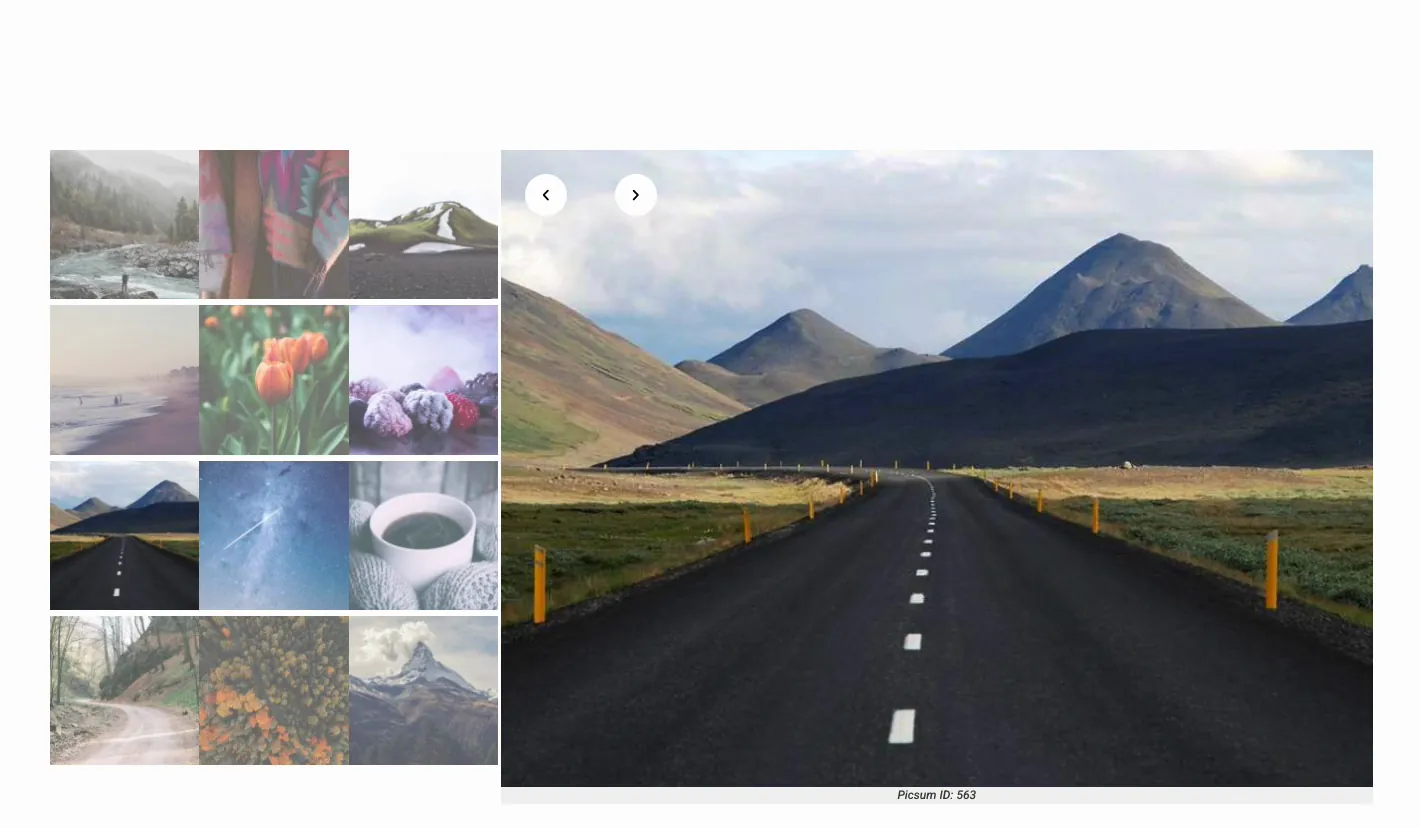
ال معرض القطعة المنزلق يمنحك التخطيط الذي تريده معظم معارض الفيديو والصور: جزء معاينة كبير مع شريط صور مصغرة قابل للتمرير. إنها أداة احترافية، وهي أداة صورة، لذا فهي تقوم بإنشاء التخطيط بدلاً من التشغيل. إذا كان معرض الصور الخاص بك عبارة عن صور فقط، بدون فيديو، فإن معرض لوحة فيترين هو تصميم مجاني قابل للاستيراد بنفس تخطيط اللوحة بالإضافة إلى الصورة المصغرة، لكنه لا يتعامل مع الفيديو.
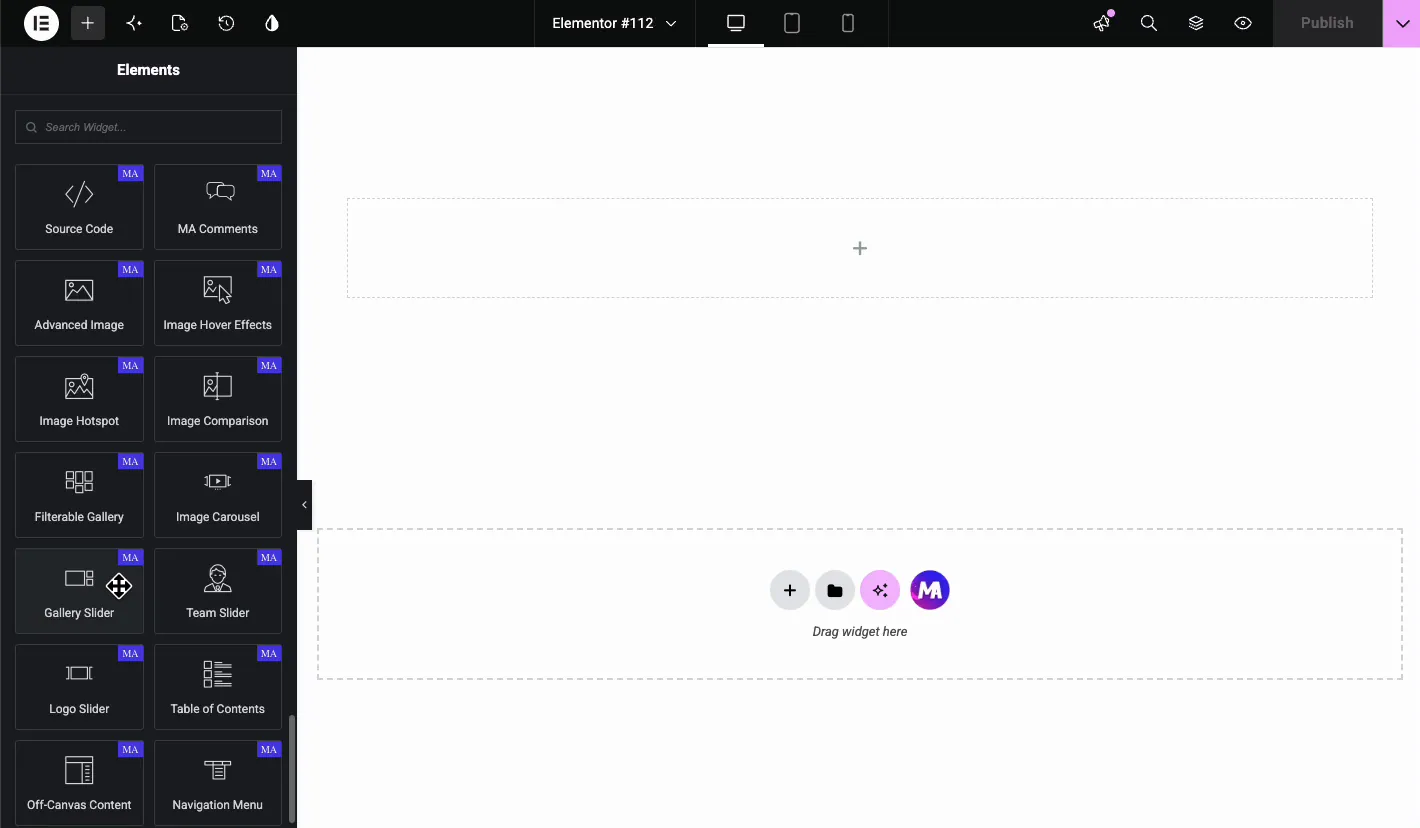
- اسحب في شريط تمرير المعرض وافتح علامة تبويب المحتوى.
- إنشاء معرض الصور الخاص بك من مكتبة الوسائط. بالنسبة لمجموعة الفيديو، فهذا يعني إطارات الملصقات هنا، مع معالجة التشغيل بالطريقة 2 أو 3.
- تشغيل الصور المصغرة وقم بتعيين شريط الصور المصغرة على الوضع الدائري بحيث يتم تمريره بشكل مستقل عن المعاينة الرئيسية.
- اضبط موضع المعاينة: الصور المصغرة أدناه أو أعلاه أو اليسار أو اليمين. يوجد أدناه الإعداد الافتراضي الآمن؛ يناسب اليسار أو اليمين محتوى الصورة.
- اضبط عرض المعاينة لذا فإن الجزء الرئيسي لا يدفع الصور المصغرة خارج الشاشة على الجهاز اللوحي.
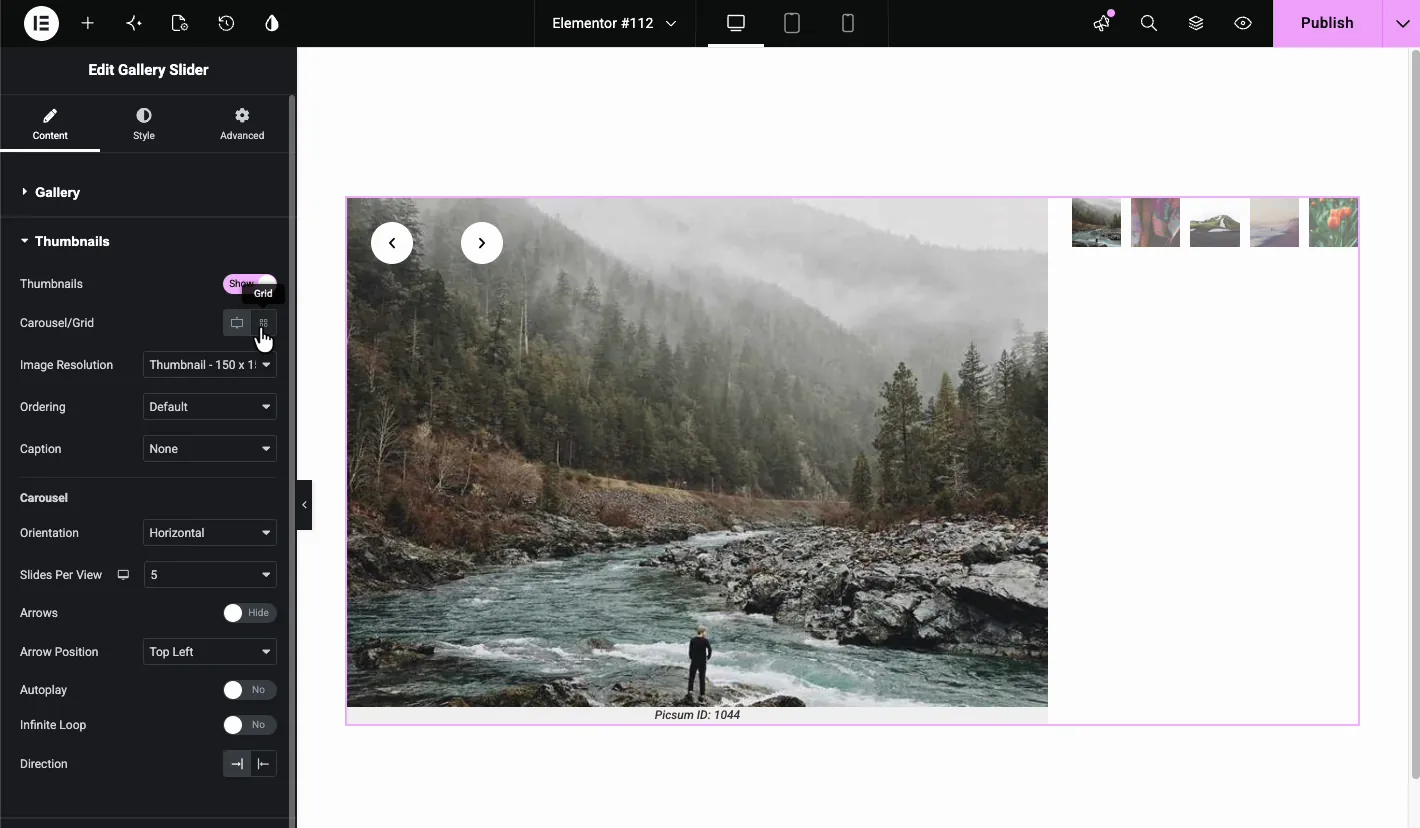
يتم إدراج كل حقل في الأداة في معرض وثائق المنزلق إذا كنت تريد المرجع الكامل بدلاً من المسار القصير.
وضع دائري الصور المصغرة هو الإعداد الذي يصنع هذا المقياس. بدونها، تلتف عشرون صورة مصغرة في أربعة صفوف وتأكل إطار العرض بأكمله. ومعها، يبقون على سطر واحد قابل للتمرير.
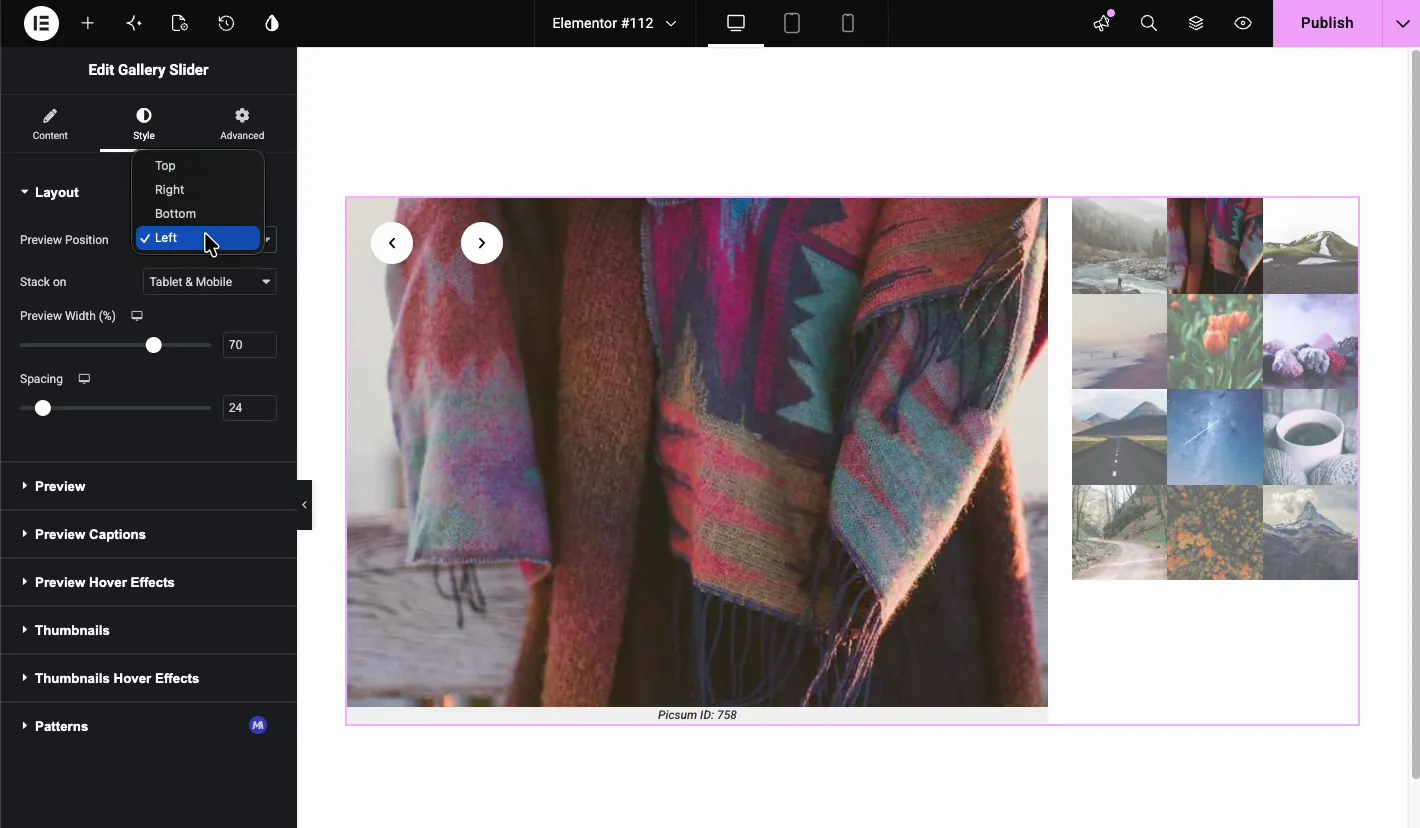
على الهاتف المحمول، تظهر الصور المصغرة أسفل المعاينة بثلاثة أو أربعة. ينهار الموضعان الأيسر والأيمن إلى الأسفل تلقائيًا، وهو اليمين، لأن الشريط الجانبي على شاشة 390 بكسل لا يترك شيئًا للمعاينة.
الطريقة الثانية: Media Carousel، الفيديو الذي يتم تشغيله في المسار
إذا كان يجب تشغيل مقاطع الفيديو داخل الرف الدائري بدلاً من خلف نقرة واحدة، فإن Media Carousel الخاص بـ Elementor Pro هو الأداة التي تقوم بذلك. يتم تعيين كل شريحة على صورة أو فيديو، وتأخذ شريحة الفيديو عنوان URL خاصًا بها على YouTube أو Vimeo أو عنوان URL مستضاف ذاتيًا، لذا تعمل المجموعات المختلطة في مسار واحد.
إذا كانت المجموعة في الواقع مكتبة وليست شريطًا، مثل دورة تدريبية أو سلسلة تعليمية أو أرشيف قناة، فإن قائمة تشغيل الفيديو الخاصة بـ Elementor Pro هي الشكل الأفضل. مقاطع الفيديو المدرجة بجانب المشغل، ولكل منها عنوان ومدة، ويقوم اللاعب بالتبديل دون تحميل الصفحة. إنها قائمة وليست دوارة، وهذه هي الحجة المؤيدة لها: العناوين هي الطريقة التي يقرر بها الأشخاص ما يجب مشاهدته، وصف من الصور المصغرة يجعلهم يخمنون.
العودة إلى الكاروسيل. Media Carousel هي الأداة الوحيدة هنا التي تقوم بتشغيل الفيديو بشكل مضمن، وهذه أيضًا تكلفتها، وهو الغرض من الإعدادات أدناه.
- قم بتشغيل وضع Lightbox. التشغيل المضمن يعني أن كل شريحة تحمل لاعبًا. يعرض وضع Lightbox الملصق ويقوم بتحميل اللاعب عند النقر، وهو نمط الواجهة من أعلى هذا المنشور المدمج في الأداة.
- لا تقم بتشغيل الفيديو الأول تلقائيًا. يعد إطلاق الصوت دون سابق إنذار أسرع طريقة لفقدان شخص ما. إذا كان يجب عليك التشغيل التلقائي، فقم بكتم الصوت.
- ضع وقت التشغيل في التسمية التوضيحية. “كم من الوقت هذا؟” هو السؤال الأول الذي يطرحه أي شخص حول مقطع فيديو، والإجابة عليه قبل النقر يرفع معدلات الإكمال.
الطريقة الثالثة: ملصق دائري مجاني مع فيديو خلف النقرة
لا يوجد ترخيص ومازلت تريد فيديو دائري؟ طريقان مجانيان، وكلاهما يحافظ على الصفحة سريعة لأنه لا يتم تحميل أي شيء حتى يطلبه شخص ما.
- قم بتصدير إطار ملصق لكل فيديو وقم بتحميله كصور.
- أضفهم إلى المجانية صورة دائري معرض.
- قم بتشغيل lightbox بحيث تفتح النقرة الإطار فوق الصفحة بدلاً من التنقل بعيدًا.
- أضف تراكب زر التشغيل في علامة التبويب "النمط" بحيث تُقرأ الشرائح كمقاطع فيديو بدلاً من الصور الفوتوغرافية. بدونه، لا أحد ينقر.
هذا يمنحك المظهر. ما لا يحصل عليه هو وجهة مختلفة لكل شريحة، لأن الرف الدائري القائم على المعرض يمنح كل شريحة نفس الرابط. إذا كان كل فيديو يحتاج إلى صفحته الخاصة، فامنح كل مقطع منشورًا واستخدمه مجانًا القطعة المدونة في الوضع الدائري بدلاً من ذلك: يقوم بسحب الصورة المصغرة والعنوان ورابط المنشور الذي يوجد عليه الفيديو. على برو، ال حلقة دائري يفعل نفس الشيء من الاستعلام، لذلك تظهر مقاطع فيديو جديدة دون تحرير الصفحة.
هذا هو نمط الواجهة من أعلى العمود، الذي تم بناؤه يدويًا. إنها أسرع نسخة موجودة من دائري الفيديو، لأنه لا يتم تحميل أي شيء حتى يطلبه شخص ما. الصورة الدائرية يغطي القطعة بالكامل.
نسبة العرض إلى الارتفاع، والشيء الذي يكسرها
اضبط 16:9 واضبطه على كل شريحة. تنتج النسب المختلطة في دائري الفيديو بطاقات ذات ارتفاعات مختلفة، وعلى عكس الشبكة، حيث يمكن التسامح مع الحافة السفلية الممزقة، فإن الشريط الأفقي يضع كل عدم تطابق بجوار جاره مباشرة.
تواجه بطاقات المنتج نفس الشيء لنفس السبب، و دليل دائري لمنتج WooCommerce يغطي كيفية تسويتها.
الجاني المعتاد هو مقطع رأسي واحد في مجموعة ذات مناظر طبيعية. إما أن تعطيه دائريه الخاص أو صندوق البريد الخاص به في 16:9 مع خلفية مطابقة. لا تدع مقطع فيديو واحد بنسبة 9:16 يحدد الارتفاع لأحد عشر مقطع فيديو للمناظر الطبيعية.
مخطط الفيديو
إذا كانت مقاطع الفيديو هي المحتوى الخاص بك وهي مهمة للبحث، أضف VideoObject المخطط: الاسم والوصف وعنوان URL المصغر وتاريخ التحميل ومدته. وهذا ما يجعل نتائج الفيديو الغنية ممكنة.
هناك شرطان يفوتهما الأشخاص: يجب أن يكون الفيديو هو المحتوى الرئيسي للصفحة، وليس الزخرفة، ويجب أن يكون عنوان URL المصغر قابلاً للزحف إليه بشكل عام. معرض مكون من ستة مقاطع فيديو مضمنة على صفحة حول الصفحة غير مؤهل للحصول على نتائج غنية بالفيديو مهما قمت بوضع علامة عليه، لأن المحتوى الرئيسي للصفحة ليس الفيديو.
الأسئلة المتداولة
هل يحتوي Elementor على عنصر واجهة مستخدم دائري للفيديو؟
يتعامل Media Carousel الخاص بـ Elementor Pro مع الصور ومقاطع الفيديو في دائري واحد. Elementor مجاني لا يتضمنه. يضيف Master Addons شريط تمرير المعرض في الطبقة الاحترافية الخاصة به لتخطيط المعاينة بالإضافة إلى الصورة المصغرة، وهو عبارة عن أداة صورة بدلاً من مشغل فيديو. يمكن أن يحل Image Carousel المجاني محل دائري الفيديو باستخدام صور الملصقات باستخدام صندوق ضوئي.
كيف يمكنني إضافة دائري YouTube في Elementor؟
استخدم صور الملصقات بدلاً من التضمين المباشر. أضف الصورة المصغرة لكل فيديو إلى دائري، واربط الشريحة بعنوان URL للفيديو، وقم بتمكين الصندوق الضوئي بحيث يفتح فوق الصفحة. ستة إطارات iframe مباشرة على YouTube في صفحة واحدة تبلغ حوالي 3 ميجابايت من JavaScript لجهة خارجية؛ ست صور للملصقات هي جزء صغير من ذلك.
لماذا صفحتي بطيئة بعد إضافة دائري فيديو؟
يقوم كل تضمين في الرف الدائري بتحميل مشغله على الفور، بما في ذلك الشرائح التي تظهر خارج الشاشة، لأن الرف الدائري يعرض جميع شرائحه. قم بتشغيل خيار التحميل البطيء أو النقر للتشغيل الخاص بعنصر واجهة المستخدم، بحيث يتم تحميل صورة الملصق فقط حتى ينقر شخص ما، أو قم بالتبديل إلى صور الملصق باستخدام صندوق ضوئي.
ما الفرق بين شريط تمرير المعرض ودوامة الصورة؟
يحتوي شريط تمرير المعرض على جزأين مرتبطين: جزء معاينة كبير بالإضافة إلى شريط مصغر يتنقل فيه. دائري الصورة عبارة عن صف واحد من الشرائح متساوية الحجم. استخدم شريط تمرير المعرض عندما تستحق العناصر نظرة مناسبة واحدة تلو الأخرى؛ استخدم الرف الدائري عندما تعرض مجموعة.
كيف يمكنني إضافة صور مصغرة إلى شريط تمرير Elementor؟
استخدم عنصر واجهة المستخدم Gallery Slider، وقم بتمكين الصور المصغرة في علامة تبويب المحتوى، وقم بتبديل شريط الصور المصغرة إلى الوضع الدائري بحيث تظل المجموعة الطويلة على سطر واحد قابل للتمرير بدلاً من الالتفاف في صفوف. اضبط موضع المعاينة، أسفل التخطيط أو فوقه أو يسارًا أو يمينًا.
هل يمكنني مزج الصور ومقاطع الفيديو في دائري Elementor واحد؟
نعم. يدعم Media Carousel الخاص بـ Elementor Pro الأنواع المختلطة محليًا. باستخدام Image Carousel المجاني، استخدم صور الملصقات لمقاطع الفيديو واربط تلك الشرائح بعناوين URL للفيديو، بحيث تعمل الصور ومقاطع الفيديو كشرائح ويتم تحميل الفيديو فقط عند النقر.
أي واحد للبناء
سلسلة الدورات التدريبية أو البرامج التعليمية: قائمة تشغيل الفيديو الخاصة بـ Elementor Pro، لأن العناوين والمدد هي التي تقوم بالعمل. مقاطع الفيديو التي يجب تشغيلها في مسار دائري: Media Carousel، مع وضع Lightbox قيد التشغيل. بكرة المحفظة أو العروض التوضيحية للمنتج: شريط تمرير المعرض مع الصور المصغرة. عدد قليل من مقاطع الفيديو على صفحة تسويقية وبدون ترخيص: صورة دائرية مجانية مع صور الملصقات وصندوق ضوئي، وهو أيضًا الأسرع بين الثلاثة. وإذا كان الفيديو عبارة عن نسيج خلفية لقسم البطل فقط، فهو مجاني امتداد شريط التمرير الخلفية يقوم بتدوير الصور الثابتة بدلاً من ذلك، بجزء صغير من وزن الفيديو المتكرر.
لا شيء من العشرين منشئ القطعة تتعامل التصميمات مع الفيديو، لذا فهذه إحدى المهام التي تكون فيها عناصر واجهة المستخدم هي الحل. لكل شيء آخر في المجموعة، صفحة التسعير يوضح الطبقة التي تنطبق، و دائري مقابل المنزلق يقوم بتسوية سؤال التنسيق أولاً.
كلهم على الحاجيات الدائرية العنصر صفحة، و الانهيار المجاني مقابل الاحترافي يغطي الطبقة التي يجلس فيها كل منها.
