

Ziehen Sie in die Logo Slider WidgetFügen Sie jedes Logo als Repeater-Zeile hinzu, stellen Sie Dias-per-View für Desktop, Tablet und Mobilgeräte ein und schalten Sie die automatische Wiedergabe mit Schleife ein. Es handelt sich um ein kostenloses Widget, eines davon Eine ganze Familie von Karussell-Widgets, und das Ganze dauert etwa fünf Minuten.
Die Einrichtung ist einfach Was nicht einfach ist, ist zwölf Logos von zwölf verschiedenen Firmen so aussehen zu lassen, als gehörten sie in eine ReiheDas ist das eigentliche Problem bei jedem Logo-Streifen, und die zweite Hälfte davon deckt ihn ab.
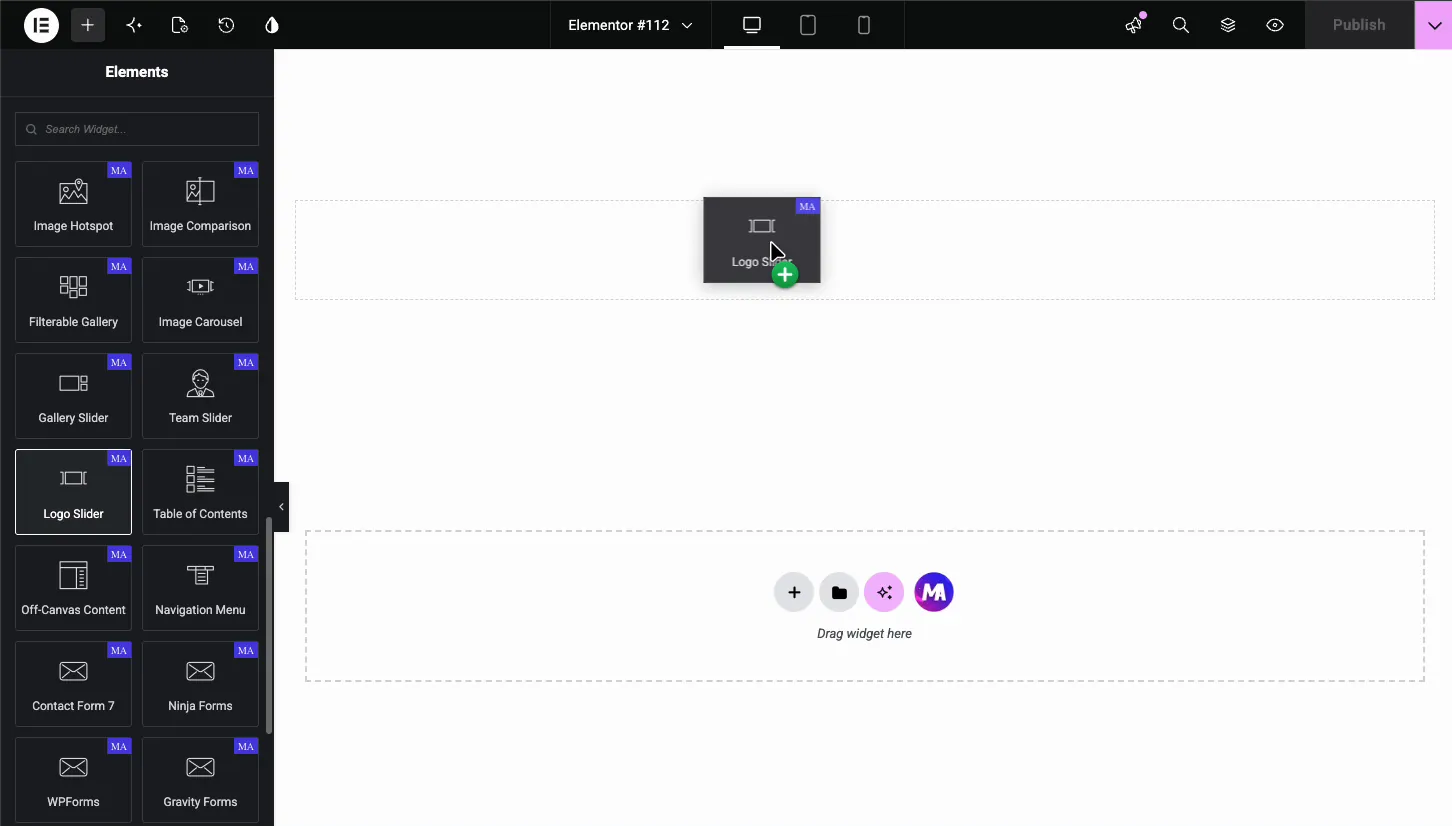
Schritt 1: Fügen Sie das Logo Slider Widget hinzu
Durchsuchen Sie das Elementor-Panel nach “Logo-Slider” und ziehen Sie es hinein Es ist Teil des kostenlosen Master Addons Plugins, und Die Free-versus-Pro-Aufschlüsselung Vollständige Liste dessen hat, was sich sonst noch in dieser Stufe befindet Die Logo Slider Dokumentation Deckt jedes Steuerelement ab, wenn Sie die Referenzversion wünschen. Die meisten Addon-Plugins senden ein Logo-Widget irgendeiner Art und die Karussell Plugin Vergleich Gibt an, welche es hinter einer Lizenz stecken.
Schritt 2: Fügen Sie Ihre Logos hinzu
Jedes Logo ist eine Repeater-Zeile: das Logo-Bild, ein optionaler Link, und ein optionales Hover-Text oder Hover-Bild Der Alt-Text stammt aus dem Alt-Text-Feld des Bildes in der Mediathek.
Zwei Dinge, die man hier machen muss, die die meisten überspringen:
Schreiben Sie echten Alt-Text. “Acme Corp logo,” nicht “logo-1.png” Ein Logo-Strip ist einer der wenigen Orte, an denen Alt-Text echte Informationen trägt, denn die Firmennamen sind der Inhalt Screenreader-Nutzer bekommen von zwölf Bildern, die “Bild” genannt werden, nichts
Verknüpfen Sie jedes Logo Nur wenn das Ziel nützlich ist Durch das Verknüpfen von Client-Logos mit Client-Websites wird Ihr Traffic von einer Seite weggeschickt, auf der es konvertiert wurde Verknüpfen Sie sie stattdessen mit Ihren Fallstudien oder verknüpfen Sie sie überhaupt nicht. Ein Logo-Streifen funktioniert gut als statisches Vertrauenssignal.
Schritt 3: Layout und Verhalten
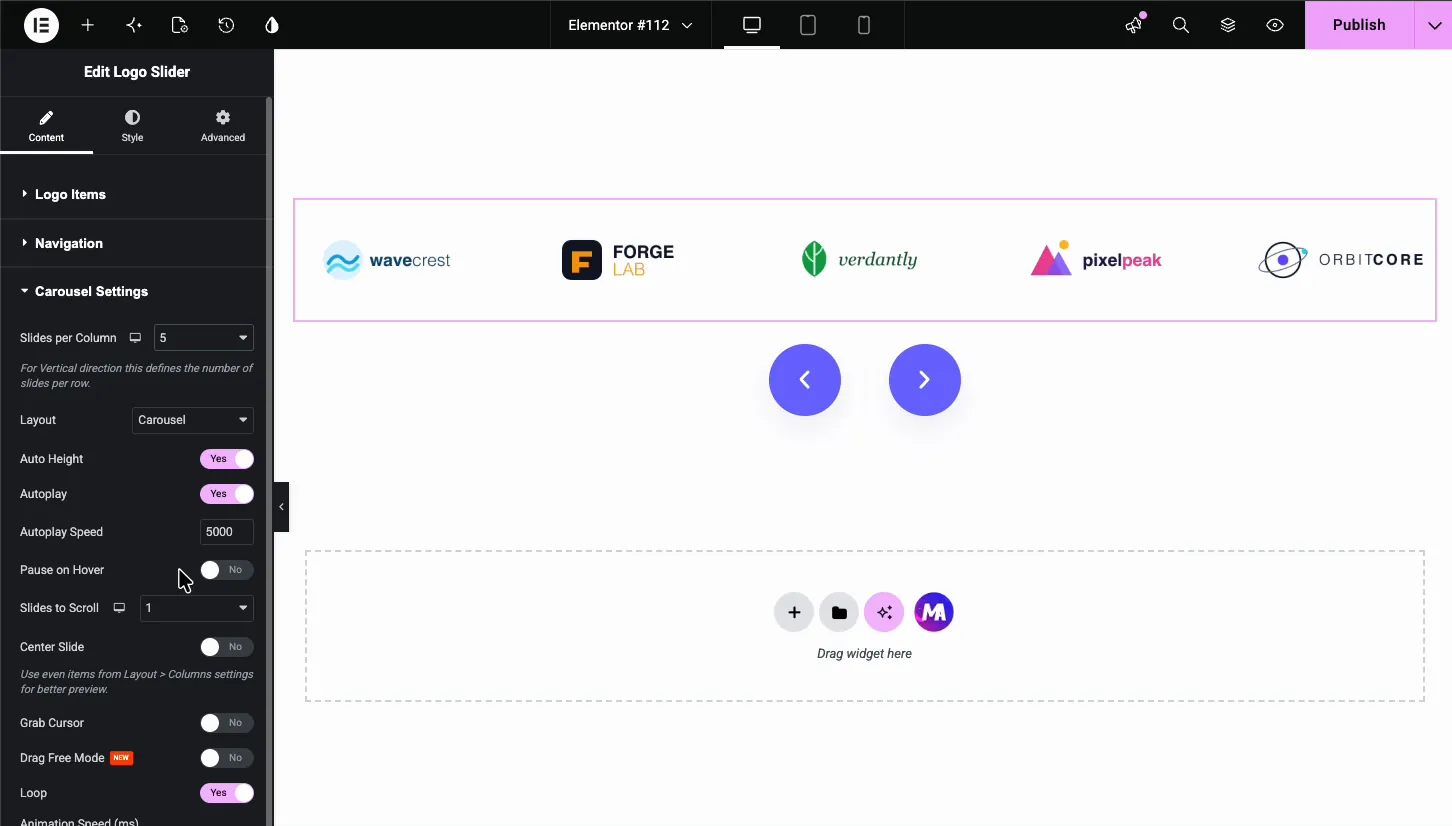
Logostreifen haben unterschiedliche Standardeinstellungen als Bild Karussells, weil der Job anders ist. Niemand studiert ein Logo. Sie registrieren es in einer halben Sekunde.
- Folien pro Ansicht: Sechs auf dem Desktop, vier auf dem Tablet, zwei oder drei auf dem Handy Höhere Dichte als ein Fotokarussell, denn Logos sind klein und der Punkt ist Quantität.
- Autoplay: Auf. Das ist das Gegenteil der Zeugnisregel Es gibt nichts zu lesen, so dass eine kontinuierliche Bewegung nichts kostet und mehr Logos zeigt als eine statische Reihe.
- Geschwindigkeit: Langsamer als sich richtig anfühlt 4000 bis 6000 ms. Ein schneller Logostreifen liest sich als aufgewühlt.
- Schleife: An, und stellen Sie sicher, dass Sie mindestens das Doppelte Ihrer Folien-pro-Ansicht haben Six-per-View benötigt mindestens zwölf Logos, sonst springt der Wrap sichtbar.
- Pfeile und Punkte: Aus. Ein Logo-Streifen ist nichts, womit sich die Leute auseinandersetzen.
Stellen Sie die Verzögerung für die automatische Wiedergabe ein 0 Und das Karussell wird zu einem durchgehenden Festzelt, anstatt Schiebe für Schiebe zu treten. Das ist der Look, den die meisten modernen Websites für Logostreifen verwenden, und Der Festzeltführer Die Einstellungen im Detail behandelt.
Schritt 4: Lassen Sie nicht übereinstimmende Logos konsistent aussehen
Hier ist das eigentliche Problem Du hast zwölf Logos Vier sind breite Wortmarken, drei sind quadratische Icons, zwei haben riesige Innenpolster im PNG eingebacken, und eines ist ein hohes gestapeltes Lockup, Lass sie in einer Reihe auf gleicher Breite fallen und es sieht aus wie eine Lösegeldnote.
Die Größenbestimmung nach Breite ist der Fehler Eine breite Wortmarke, die auf 160 px breit eingestellt ist, ist optisch winzig; ein quadratisches Symbol mit 160 px Breite ist enorm Sie sind die gleiche Zahl und sie sehen sich nicht ähnlich.
Größe stattdessen nach optischem Bereich. Exportieren Sie jedes Logo auf derselben Leinwand, geben Sie jeder Markierung eine ähnliche visuelle Höhe von etwa 40 bis 50 px im finalen Streifen, und passen Sie einzelne Dateien nach oben oder unten an, bis sie ausgewogen aussehen Das Widget zeigt jedes Logo mit der gleichen Bildauflösung an, so dass dieses Balancing in den Bilddateien erfolgt Schielen Sie in die Reihe: jedes Logo, das herausspringt, ist zu groß, jedes, das verschwindet, ist zu klein Vertrauen Sie Ihrem Auge über die Zahlen, denn Ihr Auge ist das, was Besucher verwenden werden.
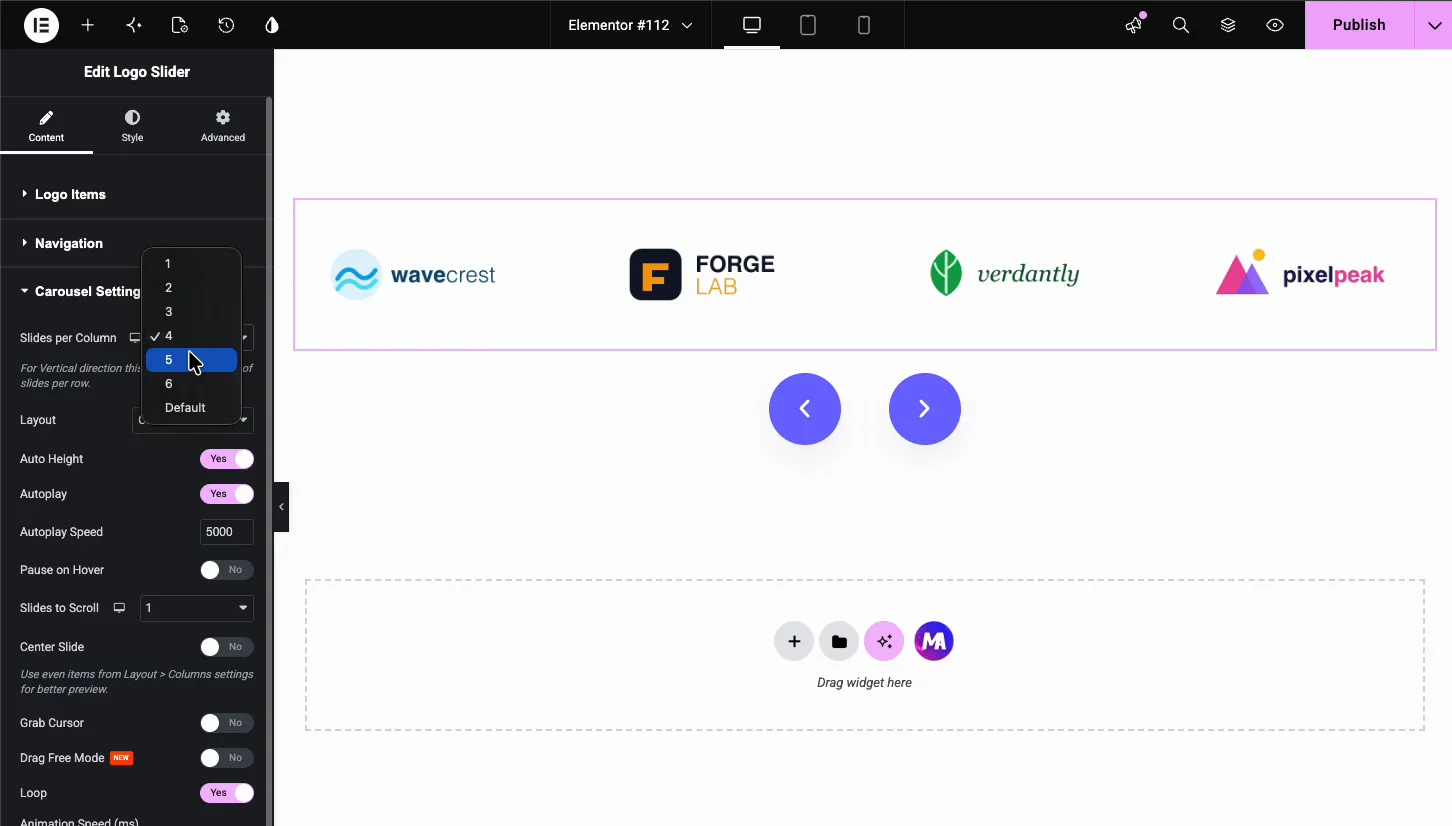
Produktkarten treffen die gleiche Diskrepanz aus der anderen Richtung, wo Porträt- und quadratische Fotos in einem Streifen das ausmachen Produktkarussell Billig aussehen Der Fix dort ist eher ein festes Seitenverhältnis als eine feste Höhe.
Zwei weitere Korrekturen für dasselbe Problem:
Die eingebackene Polsterung zuschneiden. Aus Markenkits exportierte Logos verfügen oft über großzügigen Freiraum in der Bilddatei. Diese Polsterung ist unsichtbar und macht das Logo kleiner als seine Nachbarn auf gleicher Höhe. Vor dem Hochladen in die sichtbare Begrenzungsbox schneiden.
SVG nutzen, wo Sie können. Logos sind Vektorgrafiken Ein SVG bleibt in jeder Größe scharf, wiegt den Bruchteil eines PNGs und kann, das ist der nützliche Teil, mit CSS neu gefärbt werden, was die Graustufenbehandlung unten trivial macht.
Schritt 5: Der Graustufen-Schweber
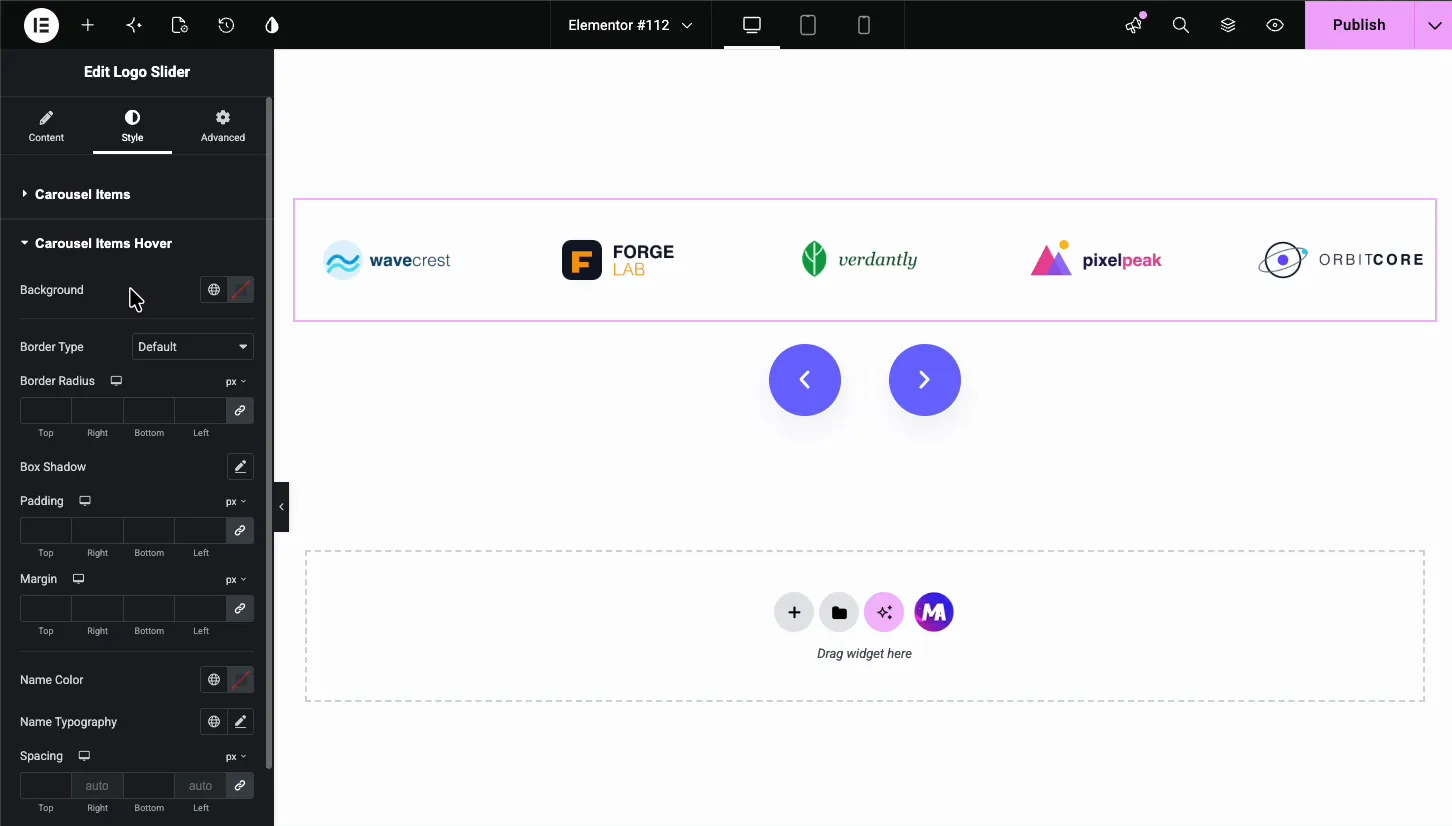
Im Ruhezustand entsättigte Logos, im Schwebeflug volle Farbe. Das ist aus einem bestimmten Grund die Standardbehandlung: Zwölf Logos in zwölf Markenpaletten sind optisches Chaos und Graustufen verwandeln sie in eine zusammenhängende Textur.
Der Logo-Slider hat keinen Graustufenschalter, daher gibt es zwei Möglichkeiten. Laden Sie Graustufendateien als Client-Logo und die Farbversionen als das Hover-Logo-Bild hoch oder fügen Sie den Logos mit benutzerdefiniertem CSS einen CSS-Graustufenfilter hinzu und entfernen Sie ihn auf Hover. Die Opazitätseinstellung in Karussell-Artikeln kann die Logos in Ruhe auf etwa 0,6 und 1 auf Schwebeschwebe dimmen. Wenn Sie CSS verwenden, halten Sie den Übergang bei 200 bis 300ms. Schneller als das und es flackert; langsamer und es fühlt sich klebrig an. Verwenden Sie für eine Bildunterschrift oder Überlagerung, die über ein einzelnes Bild animiert wird Widget für Bild-Hover-Effekte.
Ein Fall, in dem Sie das nicht tun sollten: Wenn es sich bei den Logos um Presseerwähnungen und nicht um Kunden handelt, lassen Sie die Forbes- und TechCrunch-Streifen in Farbe. Diese Logos werden an ihrer Farbe erkannt und ihre Entsättigung kostet Sie die Anerkennung, die Sie gekauft haben.
Der fertige Streifen

Wo soll man es ausdrücken: direkt unter dem Helden, oder direkt unter dem primären Call to Action Beide Positionen funktionieren, weil beide Momente sind, in denen ein Besucher entscheidet, ob er dir vertraut.
Wo man es nicht hinstellt: die Fußzeile Ein Logostreifen in der Fußzeile ist Deko Niemand scrollt zur Fußzeile, um überzeugt zu werden.
Logostreifen sind einer der wenigen Abschnitte, in denen ein Stock-Widget ein entworfenes übertrifft, weshalb keiner der zwanzig Widget-builder Designs versucht es zu ersetzen Wenn Sie die Pro-Designs für andere Abschnitte wünschen, wird die Preisseite Stufen hat.
Wie viele Logos?
Acht bis sechzehn. unter acht und ein scrollender Streifen macht darauf aufmerksam, wie wenige es sind, denn eine statische Sechserreihe sieht sicherer aus als sechs Logos, die radeln Über sechzehn sieht niemand die hintere Hälfte, also führen Sie mit den Namen, die die Leute erkennen werden.
Und wenn man nur vier Klienten hat: vier anzeigen, in einer statischen Reihe, in ordentlicher Größe Ein Karussell ist eine Art, mit Fülle umzugehen, mit einem Knappheit zu verbergen, macht das Gegenteil von dem, was man will.
Häufig gestellte Fragen
Hat Elementor ein Logo-Karussell-Widget?
Nicht im Kern. Weder Elementor free noch Pro enthalten ein spezielles Logo-Karussell, obwohl das Kernbild-Karussell eine einfache Reihe von Logos anzeigen kann. Der kostenlose Master Addons Logo Slider fügt Links pro Logo, Hover-Text- oder Hover-Bilder, Tooltips und einen Streifen im Festzeltstil hinzu, wenn die Autoplay-Geschwindigkeit auf 0 eingestellt ist.
Wie mache ich eine Logo-Karussell-Rolle kontinuierlich in Elementor?
Autoplay und Endlosschleife einschalten, dann die Verzögerung der Autoplay auf 0 einstellen Eine Verzögerung von Null entfernt die Pause auf jeder Folie, so bewegt sich die Spur kontinuierlich statt zu treten Geschwindigkeit auf 4000 bis 6000 ms einstellen, so dass es als ruhig und nicht hektisch liest.
Wie mache ich Logos in einem Karussell gleich groß?
Legen Sie eine feste Behälterhöhe fest, 40 bis 50 px, und lassen Sie die Breite automatisch laufen, anstatt die Breite zu fixieren Passen Sie dann einzelne Logos nach Augenmaß an, denn eine breite Wortmarke und ein quadratisches Symbol bei gleichem Maß sehen völlig unterschiedlich groß aus Schneiden Sie zuerst ein eingebranntes Polster aus den Bilddateien.
Sollten Logos Graustufen oder Vollfarbe sein?
Graustufen im Ruhezustand mit Farbe im Schwebeflug für Kunden- und Partnerlogos, weil sie ein Dutzend aufeinanderprallende Paletten in einen zusammenhängenden Streifen verwandeln. Halten Sie Presse- und Medienlogos in Farbe, da diese an ihrer Farbe erkannt werden und ihre Entsättigung die Erkennung verliert.
Wie viele Logos sollten in einem Logo-Karussell sein?
Acht bis sechzehn. weniger als acht sieht als statische Reihe besser aus als ein beweglicher Streifen, denn das Scrollen macht darauf aufmerksam, wie wenige es sind Mehr als sechzehn bedeutet, dass die hintere Hälfte nie gesehen wird, also setzen Sie die erkennbaren Namen an die erste Stelle.
Kann ich jedes Logo mit einer anderen Seite verknüpfen?
Ja, jede Repeater-Zeile hat ihr eigenes Linkfeld Überlegen Sie jedoch, ob Sie möchten: Durch die Verknüpfung von Client-Logos mit Client-Sites wird der Converting-Verkehr weggeschickt. Durch die Verknüpfung mit Ihren eigenen Fallstudien bleibt der Besucher erhalten und es wird mehr Arbeit geleistet.
Weiter
Fotos statt Logos? anderes Widget, andere Voreinstellungen: So erstellen Sie ein Bildkarussell in Elementor. Es gibt auch eine Sammlung von Zwanzig benannte Slider-Designs, acht davon kostenlos importfähigObwohl es sich bei keinem um einen Logo-Streifen handelt, bleibt der Logo-Slider für Logos das Werkzeug.
Wenn sich der Streifen nach einem Caching-Plugin-Update nicht mehr bewegt, ist das ein Problem mit der Swiper-Initialisierung und Der Fix ist da. Alles Karussellförmige lebt auf der Elementorkarussell-Widgets Seite.
