

সেরা এলিমেন্টর পপআপ উদাহরণগুলি তিনটি বৈশিষ্ট্য ভাগ করে: একটি স্পষ্ট অফার, একটি ট্রিগার যা দর্শক যা করছে তার সাথে মেলে এবং লক্ষ্য করে যা পপআপটি শুধুমাত্র যেখানে এটির অন্তর্গত তা দেখায়৷ এই তিনটি সঠিক পান এবং একটি পপআপ প্রায় 4.5% দর্শককে রূপান্তরিত করে; প্লেসমেন্ট পান এবং ডানদিকে ট্রিগার করুন এবং Wisepops ডেটা দেখায় যে কিছু ফর্ম্যাট 12% এবং তার উপরে পৌঁছেছে।
নীচের প্রতিটি উদাহরণ বিনামূল্যে Elementor এ চলে। Elementor এর নিজস্ব পপআপ টুল প্রো এর পিছনে লক করা আছে, কিন্তু বিনামূল্যে মাস্টার অ্যাডনস পপআপ বিল্ডার আপনাকে একই ড্র্যাগ-এন্ড-ড্রপ এডিটিং, পাঁচটি ট্রিগার, পেজ-লেভেল টার্গেটিং এবং 100+ এর একটি লাইব্রেরি দেয় এলিমেন্টর পপআপ টেমপ্লেট যে এক ক্লিকে আমদানি। আপনি যদি আগে কখনও একটি তৈরি না করে থাকেন তবে আমাদের ওয়াকথ্রু চালু আছে কিভাবে বিনামূল্যে Elementor এ একটি পপআপ যোগ করবেন প্রায় দশ মিনিটের মধ্যে সেটআপ কভার করে।
25টি উদাহরণ লক্ষ্য দ্বারা গোষ্ঠীবদ্ধ। প্রত্যেকে একটি বাস্তব বিল্ড দেখায়, এটির জন্য উপযুক্ত ট্রিগারের নাম দেয় এবং এটি রূপান্তরিত হওয়ার নির্দিষ্ট কারণ ব্যাখ্যা করে। "পপআপগুলি ব্যস্ততা বাড়ায় না," কিন্তু প্রত্যেকে কোন মনস্তাত্ত্বিক লিভার টানে।
বিষয়বস্তুর সারণী
কি একটি Elementor পপআপ রূপান্তর করে তোলে
একজন রূপান্তরকারী পপআপ দর্শক সচেতনভাবে তাদের জিজ্ঞাসা করার আগে তিনটি প্রশ্নের উত্তর দেয়। আমি কি পেতে পারি? এখন কেন? কেন এটা আমাকে বাধা দিচ্ছে?
- একটি অফার, একটি কর্ম। একটি ইমেল ক্ষেত্র এবং একটি বোতাম সহ একটি পপআপ এমন একটিকে ছাড়িয়ে যায় যা আপনার সামাজিক, আপনার বিক্রয় এবং আপনার সম্পর্কে পৃষ্ঠাকে লিঙ্ক করে। প্রতিটি অতিরিক্ত পছন্দ রূপান্তর রক্তপাত।
- ট্রিগার আচরণের সাথে মিলেছে। একটি ডিসকাউন্ট পৃষ্ঠা লোড উপর আগুন হতে পারে। একটি বিষয়বস্তু আপগ্রেড করা যাবে না, কারণ পাঠক এখনও কিছু পড়েননি। বেশিরভাগ "পপআপ কাজ করে না" অভিযোগগুলি ভুল ট্রিগারে সঠিক অফারে ফিরে আসে।
- প্রসঙ্গকে সম্মান করে এমন টার্গেট করা। ব্লগে একটি কার্ট-পুনরুদ্ধার পপআপ হল গোলমাল৷ শুধুমাত্র কার্ট পৃষ্ঠায় দেখানো হয়েছে, একই পপআপ প্রকৃত আয় উদ্ধার করে। পৃষ্ঠা-স্তরের ডিসপ্লে শর্তগুলি একটি রূপান্তর সরঞ্জামকে বিরক্তি থেকে আলাদা করে।
সংখ্যা এই ব্যাক আপ। গড় পপআপ রূপান্তর প্রায় 4.65% বসে, কিন্তু নীচের-সেন্টার প্লেসমেন্টগুলি Wisepops-এর পরীক্ষায় 12.88% রূপান্তরিত করে, প্রস্থান-উদ্দেশ্য পপআপগুলি সাধারণত 10,15% দর্শকদের পুনরুদ্ধার করে যারা চলে যেতে চলেছে, এবং দ্বি-পদক্ষেপ পপআপগুলি একক-পদক্ষেপকে ছাড়িয়ে যায় কারণ একটি শুরু করা অ্যাকশন মানুষকে এটি শেষ করতে চায় (জেইগারনিক প্রভাব)। নীচের প্রতিটি উদাহরণ এই লিভারগুলির মধ্যে অন্তত একটি প্রযোজ্য।
লিড প্রজন্মের পপআপ উদাহরণ
লিড ক্যাপচার হল ক্লাসিক পপআপ কাজ। এই সাতটি পাঠকদের তারা যে বিষয়বস্তুর জন্য এসেছে তা ব্লক না করেই গ্রাহকে পরিণত করে।
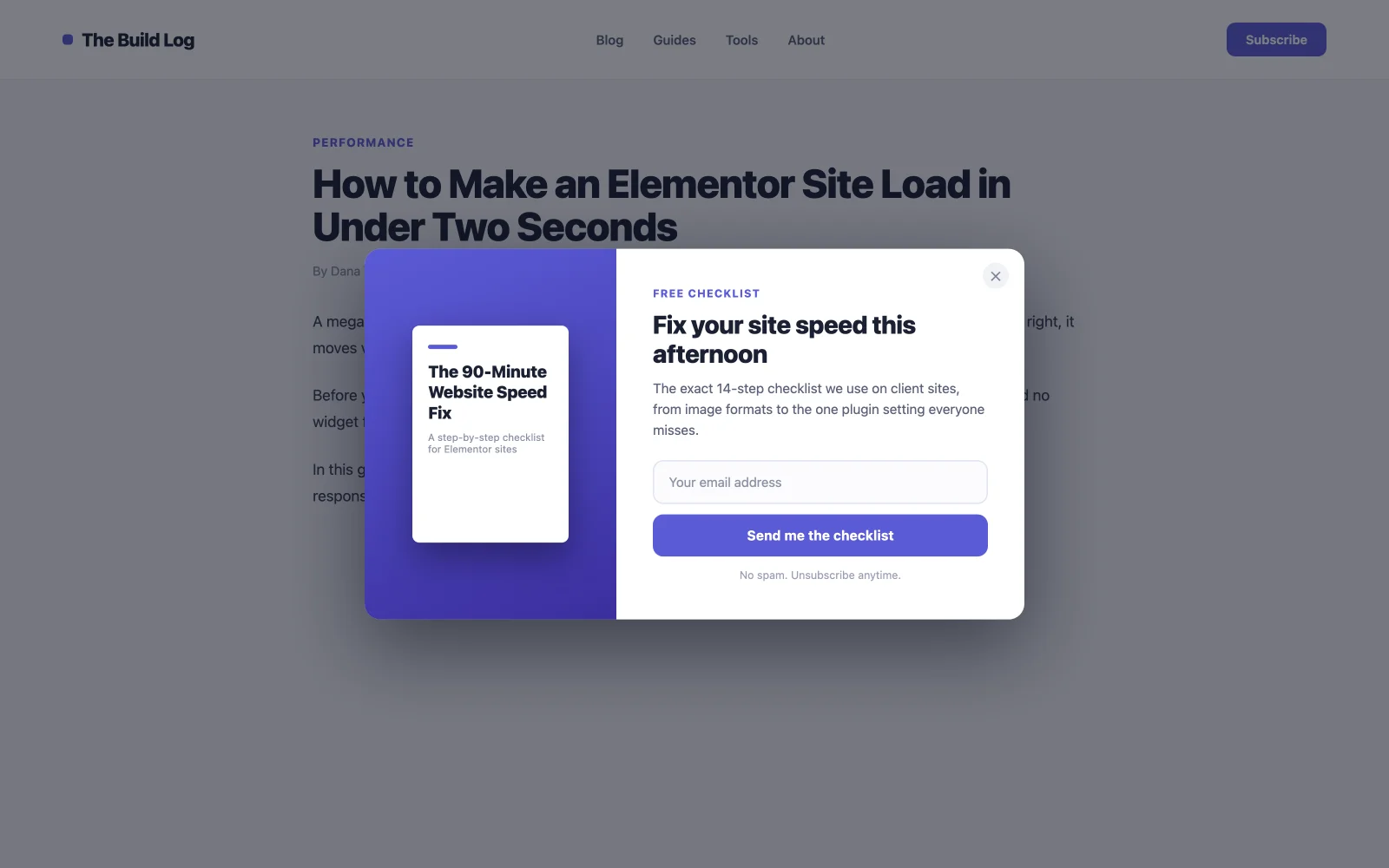
1। ইবুক বা চেকলিস্ট ডাউনলোড পপআপ
একটি ইমেলের বিনিময়ে একটি বিনামূল্যের সম্পদ। এটি একটি সাধারণ “subscribe” জিজ্ঞাসার চেয়ে ভাল রূপান্তরিত করে কারণ দর্শক কংক্রিট কিছু নিয়ে চলে যায় এবং এটি আপনার তালিকার যোগ্যতা অর্জন করে। যে কেউ আপনার গতি-অপ্টিমাইজেশন চেকলিস্ট ডাউনলোড করে সে গতি অপ্টিমাইজেশানের বিষয়ে যত্নশীল। এটা আগুন স্ক্রলে 50% এ তাই পাঠক বিনিয়োগ করার পরে এটি অবতরণ করে এবং শুধুমাত্র ব্লগ পোস্টে লক্ষ্য করে। মাস্টার অ্যাডনস টেমপ্লেট লাইব্রেরিতে বেশ কয়েকটি ডাউনলোড-স্টাইল অপ্ট-ইন রয়েছে যা আপনি এক ক্লিকে এবং পুনরায় শব্দে আমদানি করতে পারেন।
2। একক-ক্ষেত্র নিউজলেটার অপ্ট-ইন
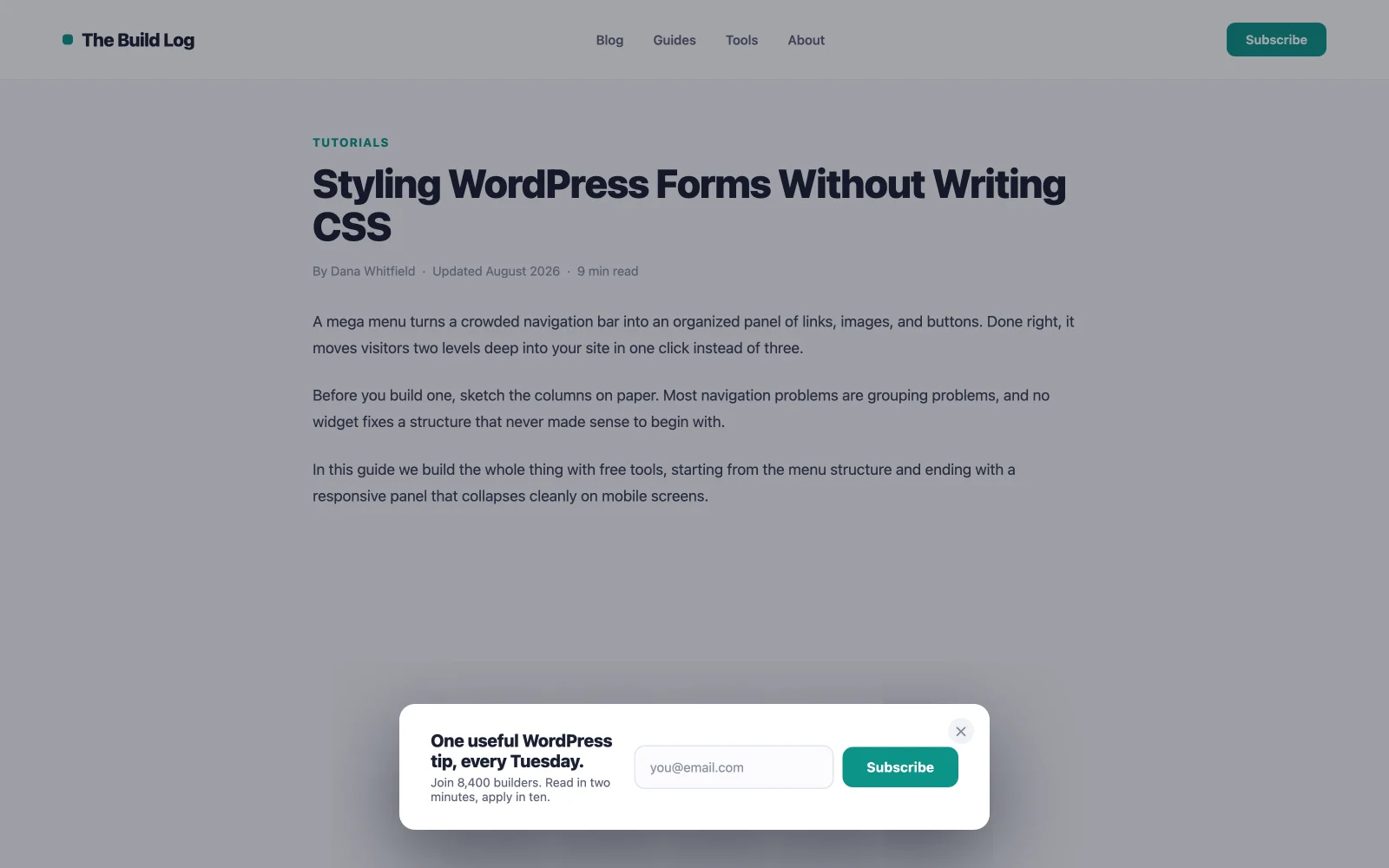
একটি ইমেল ক্ষেত্র, একটি বোতাম, গ্রাহকরা কী পান সে সম্পর্কে একটি বাক্য৷ প্রতিটি ক্ষেত্রে আপনি কাট সমাপ্তি যোগ করেন, তাই স্বাগত ইমেলের ভিতরে পরে নাম জিজ্ঞাসা করুন। 40 aft60% এ ট্রিগার স্ক্রোল করুন, শুধুমাত্র ব্লগ পৃষ্ঠাগুলি, এবং কেউ এটি খারিজ করার পরে কয়েক দিনের জন্য এটি দমন করুন৷ পপআপটিকে একটির সাথে যুক্ত করুন সেরা ওয়ার্ডপ্রেস নিউজলেটার প্লাগইন আসলে ইমেল বিতরণ করতে। পপআপ ক্যাপচার করে, ইএসপি পাঠায়।
3। পোস্ট-নির্দিষ্ট বিষয়বস্তু আপগ্রেড
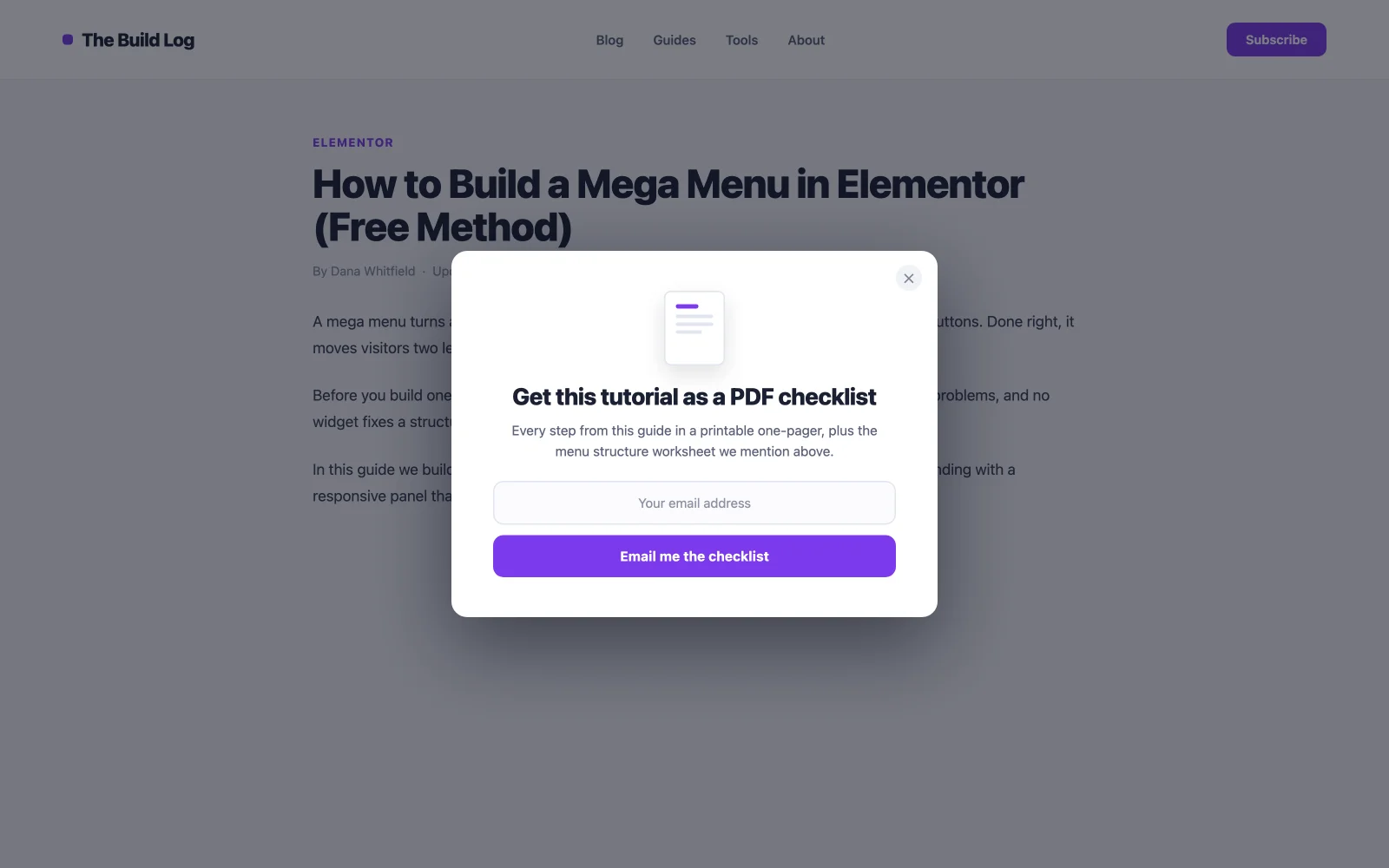
বেশিরভাগ ব্লগে সর্বোচ্চ-রূপান্তরকারী লিড পপআপ, কারণ অফারটি সঠিক নিবন্ধের সাথে মেলে: কপিরাইটিং পোস্টে একটি সোয়াইপ ফাইল, কীভাবে পোস্ট করবেন তার একটি টেমপ্লেট৷ প্রাসঙ্গিকতা প্ররোচিত করে। ডিসপ্লে শর্ত সহ একটি একক পোস্ট লক্ষ্য করুন এবং 80% স্ক্রলে এটি ট্রিগার করুন, যখন পাঠক প্রায় শেষ হয়ে গেছে এবং আপনাকে সবচেয়ে বেশি বিশ্বাস করে। হ্যাঁ, এর অর্থ হল প্রতি কী পোস্টে একটি সম্পদ তৈরি করা। এই কারণেই এটি কাজ করে: অন্য কেউ বিরক্ত করে না।
4। ওয়েবিনার বা ইভেন্ট রেজিস্ট্রেশন পপআপ
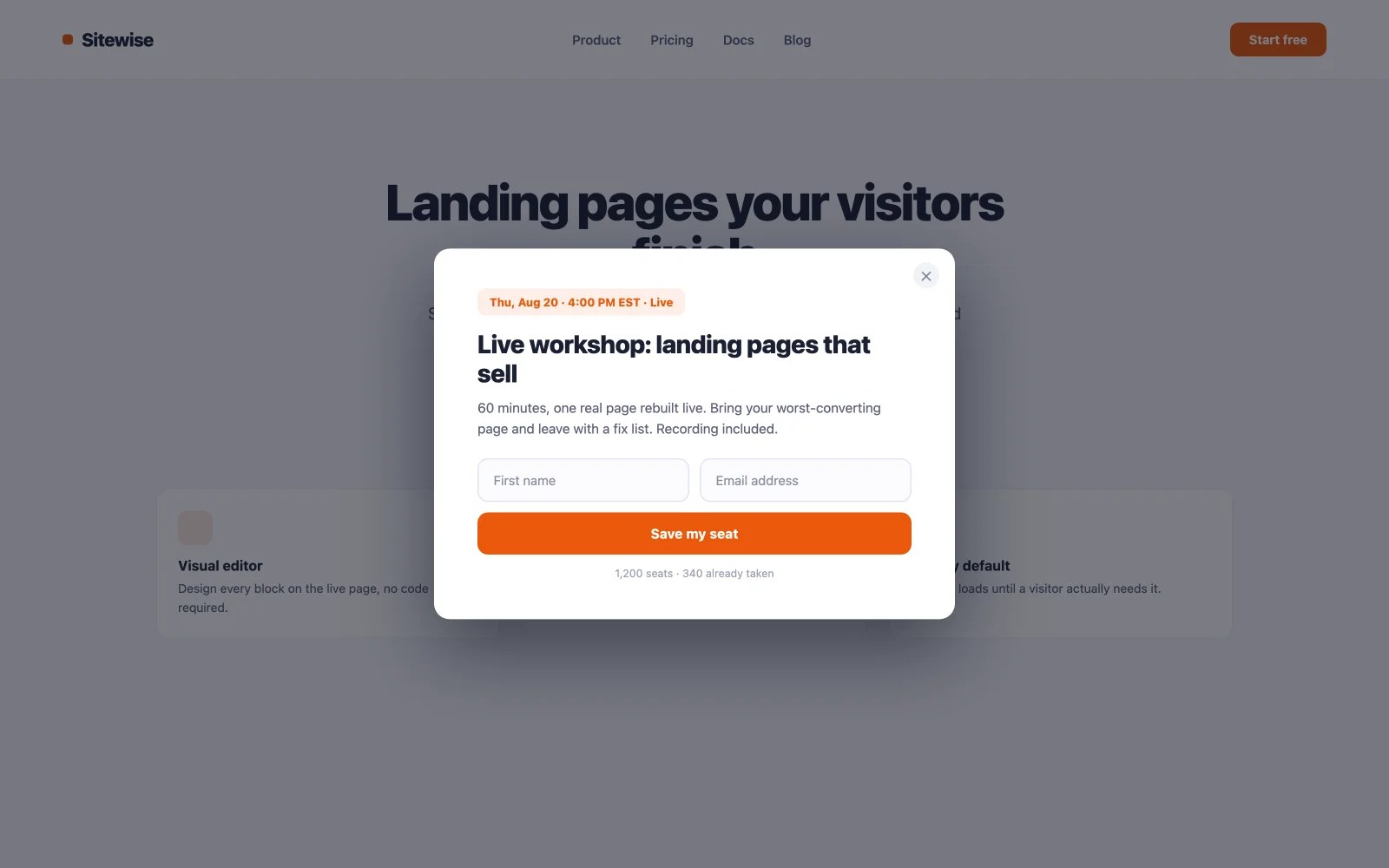
ইভেন্টগুলি একটি অন্তর্নির্মিত সময়সীমা বহন করে এবং সময়সীমা রূপান্তরিত হয়। ফর্মটিকে নাম এবং ইমেলে রাখুন, তারিখ এবং সময়কে বিশিষ্টভাবে দেখান এবং বোতামটিকে বলুন "আমার আসন সংরক্ষণ করুন" এর পরিবর্তে "জমা দিন।" পৃষ্ঠা লোড দুই থেকে তিন সেকেন্ড বিলম্বের সাথে এখানে কাজ করে কারণ ইভেন্টটি সাইটের প্রধান কল সেই সপ্তাহে অ্যাকশন, যা এটিকে এমন একটি ক্ষেত্রে করে যেখানে তাড়াতাড়ি বাধা দেওয়া ন্যায়সঙ্গত।
5। বিনামূল্যে ট্রায়াল বা ডেমো অনুরোধ পপআপ
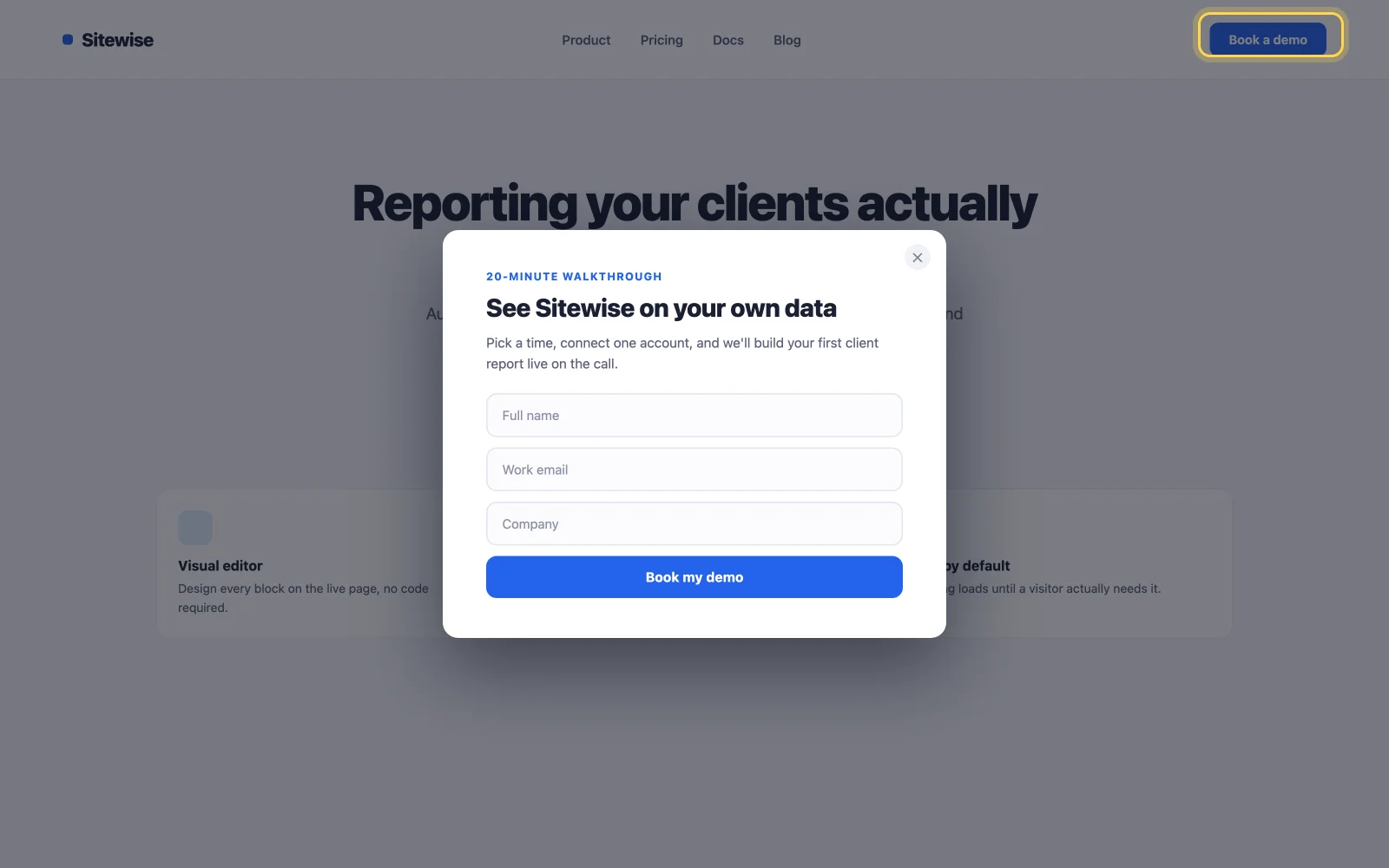
সবার কাছে ডেমো ফর্ম পুশ করবেন না। হেডারে একটি "বুক একটি ডেমো" বোতাম রাখুন এবং ফর্মটি খুলুন ক্লিক এ। ক্লিক-ট্রিগার করা পপআপগুলি যেকোনো ট্রিগারের সর্বোচ্চ হারে রূপান্তরিত হয় কারণ দর্শক তাদের জন্য জিজ্ঞাসা করেছিল। ফর্মটি দেখে প্রত্যেক ব্যক্তি এটি দেখতে চেয়েছিল, তাই কেউ বিরক্ত হয় না এবং লিডগুলি উষ্ণ হয়।
6। রিসোর্স লাইব্রেরি আনলক
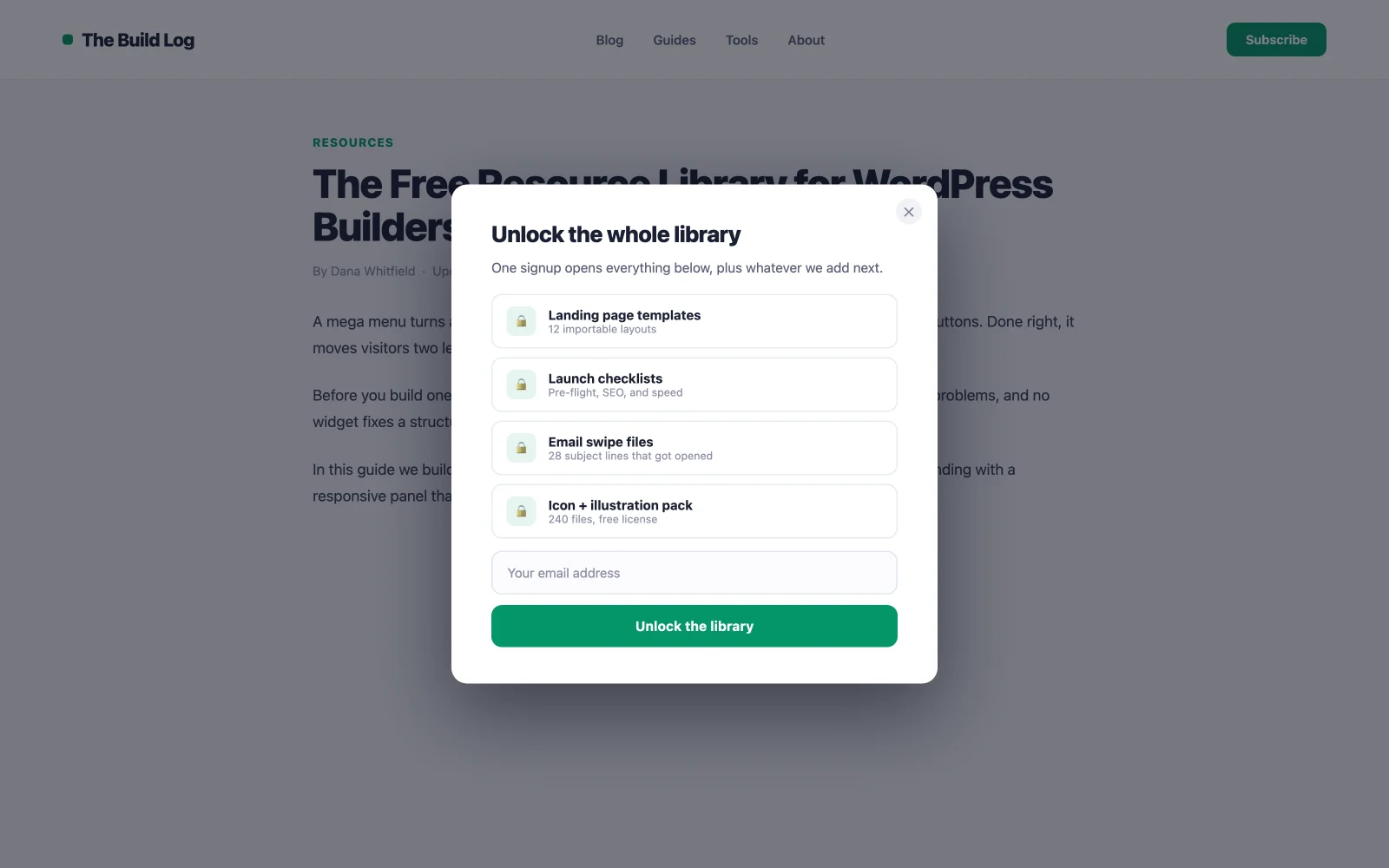
একটি সাইনআপের পিছনে গাইড, টেমপ্লেট বা চেকলিস্টের একটি সংগ্রহ পান৷ "পুরো লাইব্রেরি" এর অনুভূত মান যেকোন একক ডাউনলোডকে হারায়, তাই এটি ইমেলগুলি একটি প্লেইন অপ্ট-ইন করে যা কখনই হবে না৷ লাইব্রেরি পৃষ্ঠার "অ্যাক্সেস পান" বোতামে একটি ক্লিক ট্রিগার ব্যবহার করুন যাতে প্রবাহটি ইচ্ছাকৃত থাকে এবং ঠিকানাগুলিকে সৎ রাখতে ইমেলের মাধ্যমে আনলক লিঙ্কটি সরবরাহ করুন৷।
7। প্রস্থান-উদ্দেশ্য সীসা চুম্বক
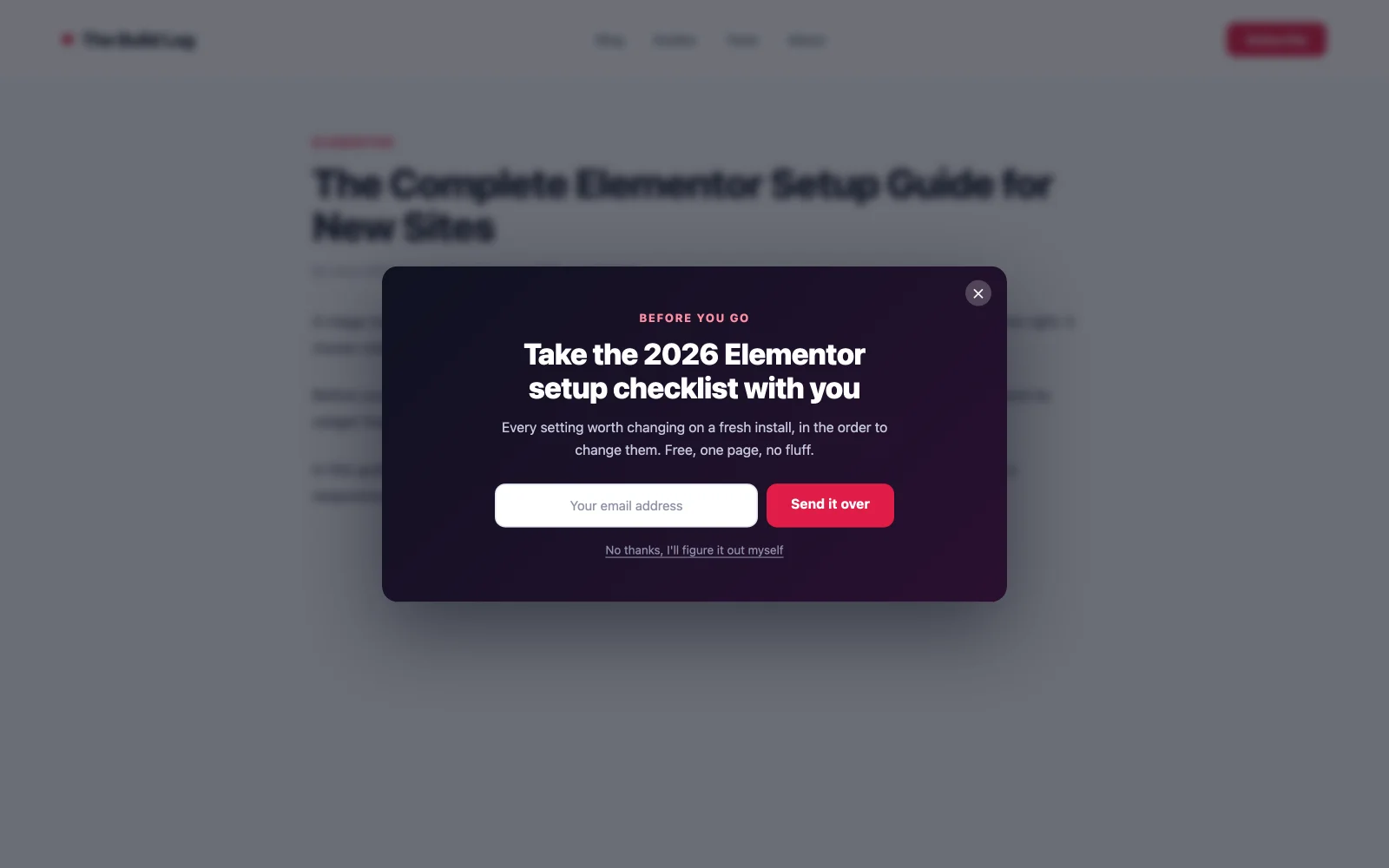
নিরাপত্তা জাল। যখন কার্সার ট্যাব বারের দিকে চলে যায়, প্রস্থান-উদ্দেশ্য ট্রিগার একটি শেষ অফার ফায়ার করে, এবং যেহেতু ভিজিটর যাইহোক চলে যাচ্ছিল, এটি বাধা দেয় এমন সেশনকে আঘাত করতে পারে না। প্রস্থান পপআপগুলি সাধারণত পরিত্যাগ করা দর্শকদের 10,15% পুনরুদ্ধার করে এবং পূর্ণ-স্ক্রীন প্রস্থান ডিজাইনের পরীক্ষাগুলি ছোট মডেলের তুলনায় 50% বেশি সাইনআপ তৈরি করেছে। এখানে আপনার শক্তিশালী চুম্বক দিয়ে নেতৃত্ব দিন, আপনার নিউজলেটার নয়।
ইকমার্স এবং WooCommerce পপআপ উদাহরণ
স্টোর পপআপগুলি তাদের জায়গা অর্জন করে যখন তারা গড় অর্ডার মান তুলে নেয় বা বিক্রয় উদ্ধার করে। এই সাতটি যেকোন WooCommerce বিল্ডের সাথে মানানসই। আপনি যদি দোকান নিজেই একত্রিত করছেন, আমাদের রাউন্ডআপ woocommerce-এর জন্য সেরা এলিমেন্টর অ্যাডঅন তাদের চারপাশের উইজেটগুলি কভার করে।
8। প্রথম অর্ডার ডিসকাউন্ট পপআপ
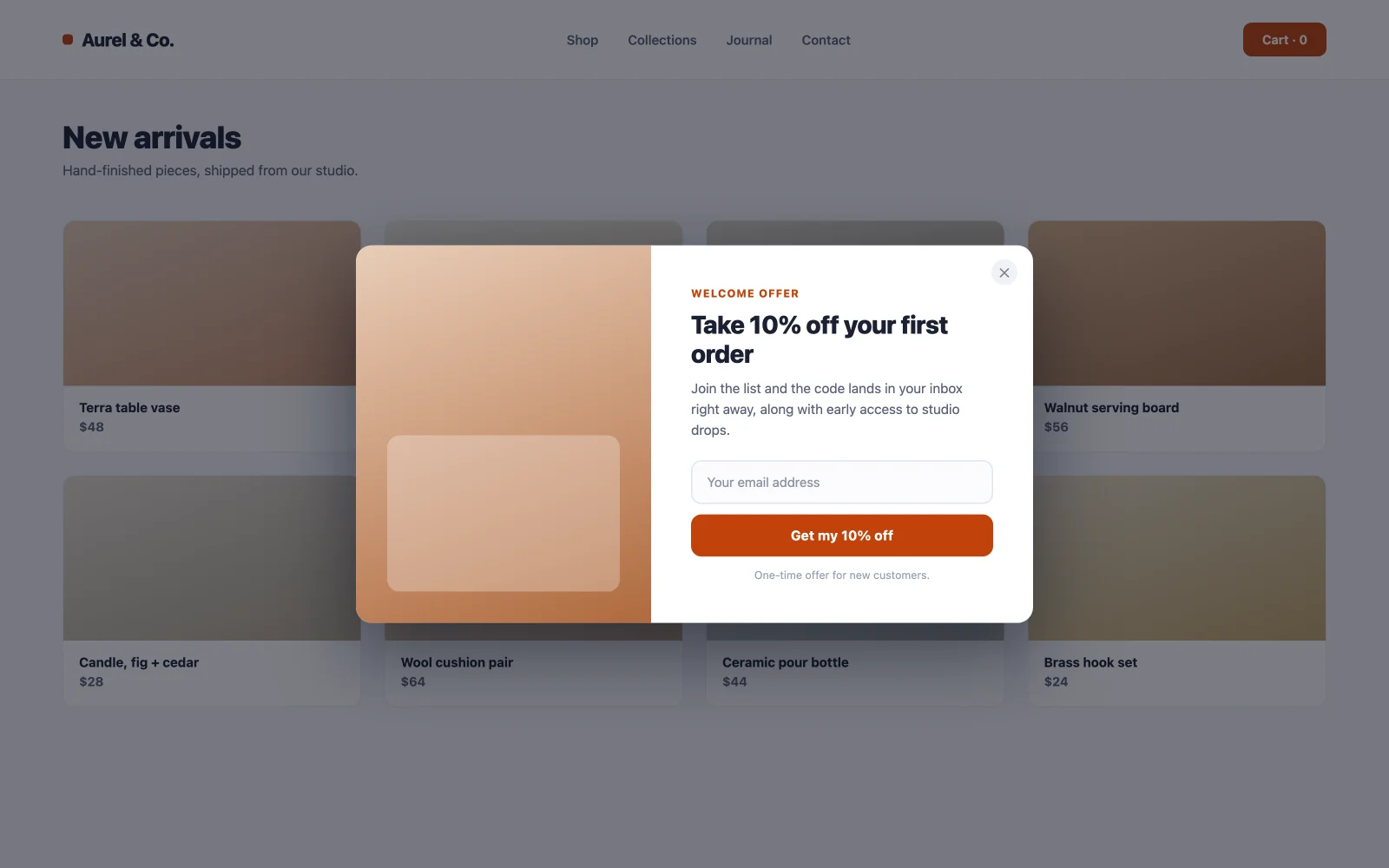
ইকমার্স তালিকা তৈরির ওয়ার্কহরস: একটি ইমেলের বিনিময়ে প্রথম অর্ডার থেকে একটি শতাংশ বন্ধ। এটি রূপান্তরিত হয় কারণ উভয় পক্ষই অবিলম্বে জয়ী হয়: ক্রেতা তাদের বিবেচনা করা একটি ক্রয়ের জন্য অর্থ সঞ্চয় করে, আপনি ডিসকাউন্টের চেয়ে অনেক বেশি মূল্যের গ্রাহক পাবেন। হোম এবং ক্যাটাগরির পৃষ্ঠাগুলিতে পৃষ্ঠা লোড, সর্বদা কার্ট এবং চেকআউট থেকে বাদ দেওয়া হয় যাতে আপনি কখনই এমন কাউকে ছাড় না দেন যিনি সম্পূর্ণ মূল্য পরিশোধ করছেন। এমএ পপআপ লাইব্রেরি রেডিমেড ডিসকাউন্ট টেমপ্লেট পাঠায়; একটি আমদানি করুন, শতাংশ পরিবর্তন করুন, প্রকাশ করুন।
9। ফ্রি-শিপিং থ্রেশহোল্ড নাজ
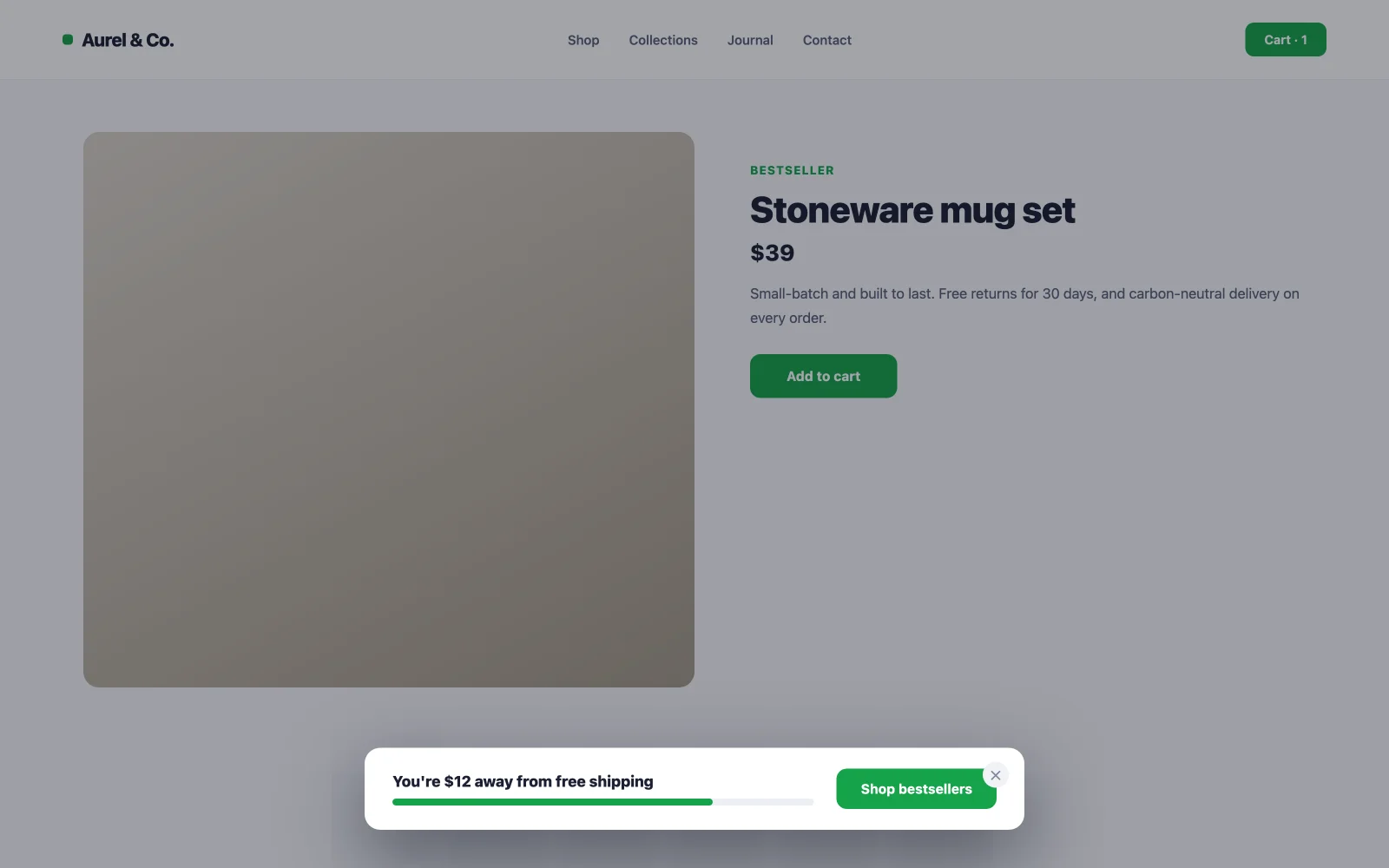
"আপনি বিনামূল্যে শিপিং থেকে $12 দূরে আছেন" একটি গড়-অর্ডার-মূল্যের মেশিন: এটি অর্থ সঞ্চয় হিসাবে অন্য আইটেম যোগ করে রিফ্রেম করে। এটিকে একটি স্ক্রোল ট্রিগার সহ পণ্যের পৃষ্ঠাগুলিতে একটি পাতলা পপআপ বা বার হিসাবে দেখান এবং ফাঁকের কাছাকাছি মূল্যের বেস্টসেলার সংগ্রহের সাথে বোতামটি সরাসরি লিঙ্ক করুন৷ কোন ইমেল জিজ্ঞাসা করবেন না যে এটির কাজটি একটি বড় কার্ট, একটি বড় তালিকা নয়।
10। কার্ট-পরিত্যাগ প্রস্থান অফার
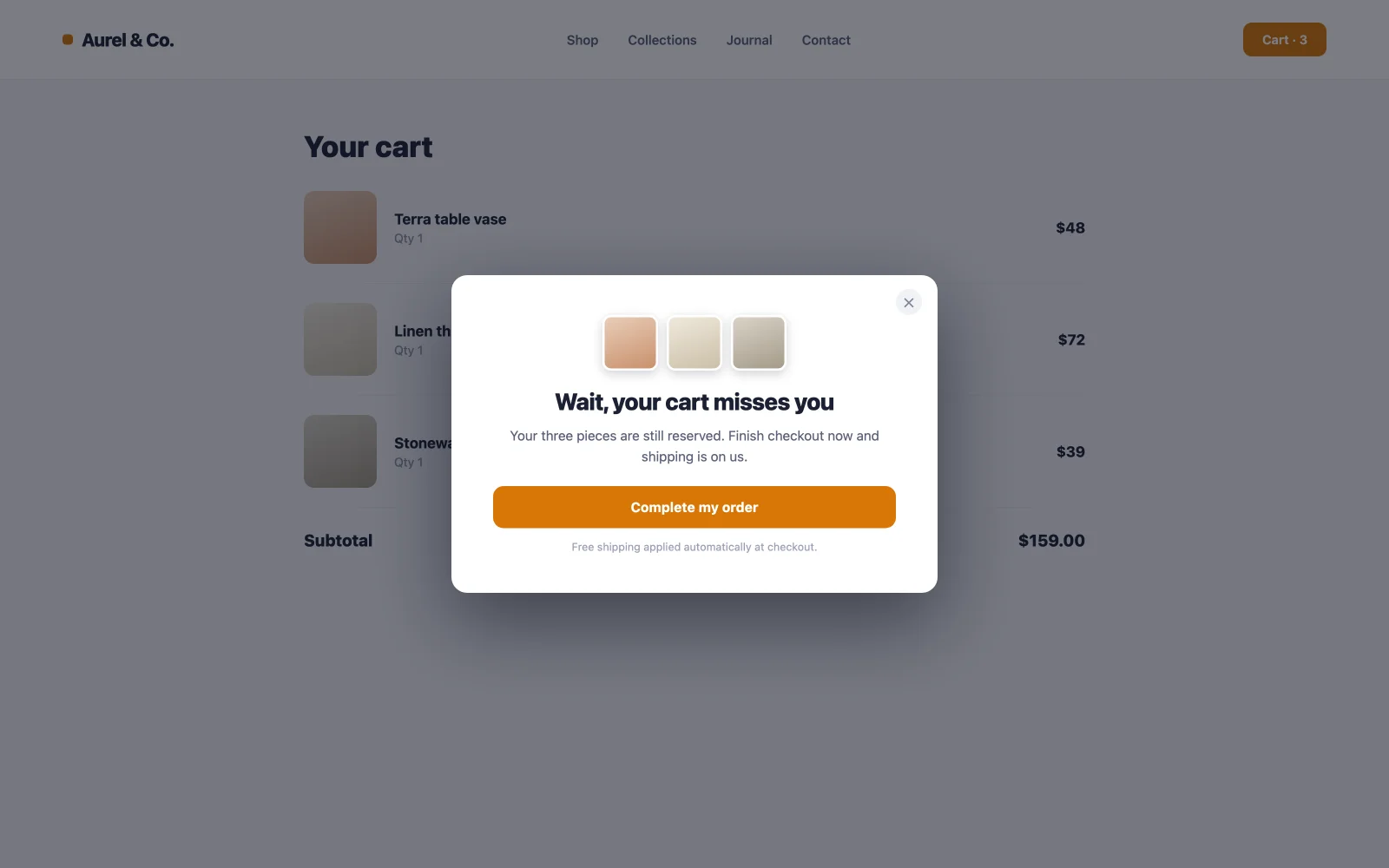
দশটির মধ্যে সাতটি কার্ট পরিত্যক্ত হয়ে যায়, যা কার্ট পৃষ্ঠাটিকে আপনার দোকানের সর্বোচ্চ-স্টেকের রিয়েল এস্টেট করে তোলে। সেখানে একটি প্রস্থান-উদ্দেশ্য পপআপ (বিনামূল্যে শিপিং, 5% ছাড়, বা শুধুমাত্র "আপনার কার্ট সংরক্ষিত হয়" আশ্বাস) দ্বিধা-দ্বন্দ্বের সঠিক মুহূর্তটিকে বাধা দেয়। শুধুমাত্র কার্ট পৃষ্ঠা লক্ষ্য করুন। সাইট জুড়ে ফায়ার করা, একই পপআপ নিয়মিতদের উদ্দেশ্যমূলকভাবে পরিত্যাগ করতে এবং ছাড়ের জন্য অপেক্ষা করতে প্রশিক্ষণ দেয়।
11। ফ্ল্যাশ বিক্রয় কাউন্টডাউন পপআপ
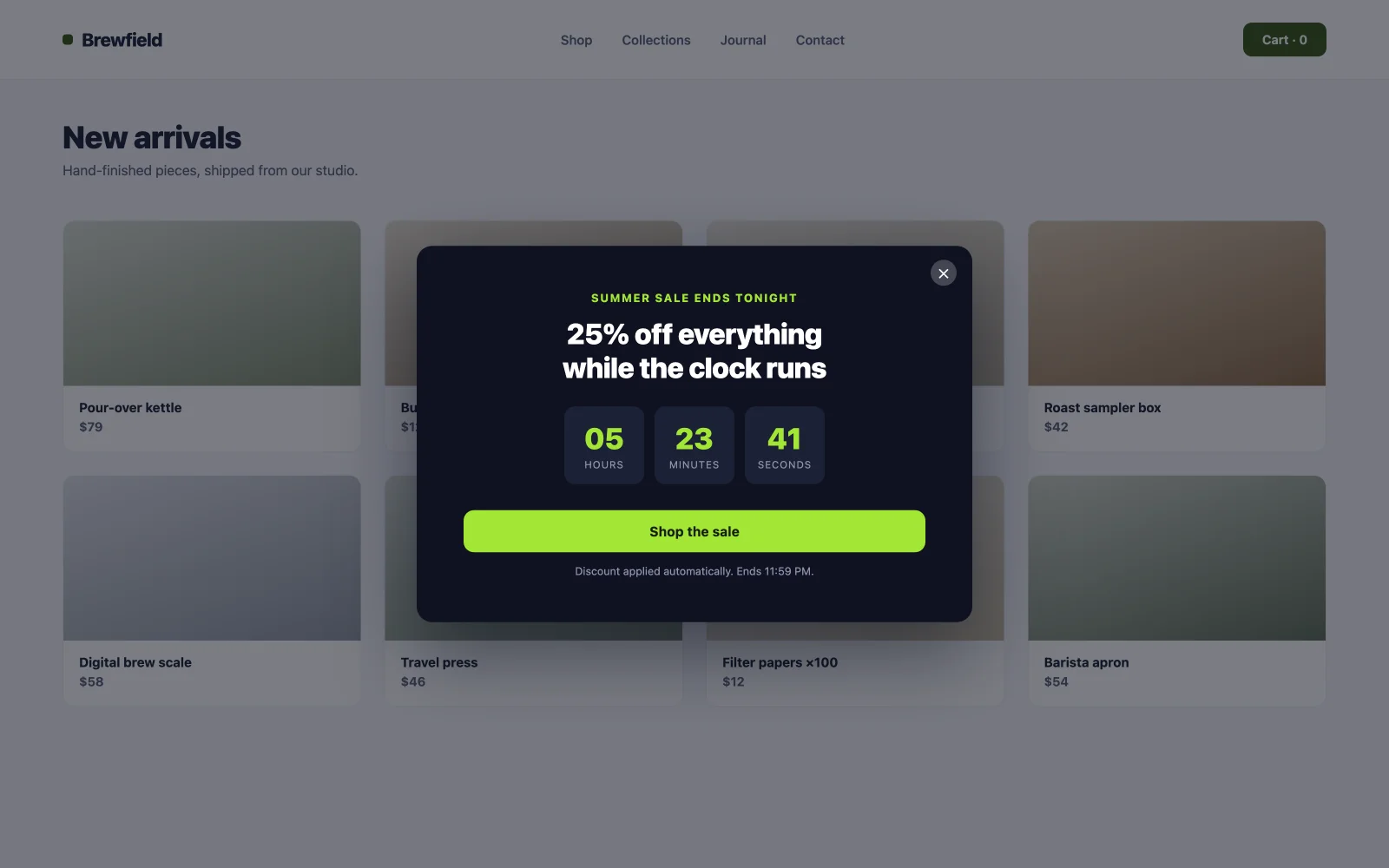
জরুরী কাজ করে যখন এটি বাস্তব হয়। একটি লাইভ সহ একটি পৃষ্ঠা-লোড পপআপ৷ কাউন্টডাউন টাইমার এবং বিক্রয়ের শেষ তারিখটি সংকুচিত করে "আমি এটি সম্পর্কে চিন্তা করব" "এখনই সিদ্ধান্ত নিন।" যে নিয়মটি এটিকে দীর্ঘমেয়াদী রূপান্তরিত করে রাখে: টাইমারকে অবশ্যই সত্য বলতে হবে। বিক্রয় শেষ হওয়ার সাথে সাথে পপআপটি অবসর নিন। একটি চিরসবুজ "শীঘ্রই শেষ হবে" যা কখনই শেষ হয় না দর্শকদের আপনার সেট করা প্রতিটি ভবিষ্যতের সময়সীমা উপেক্ষা করতে শেখায়।
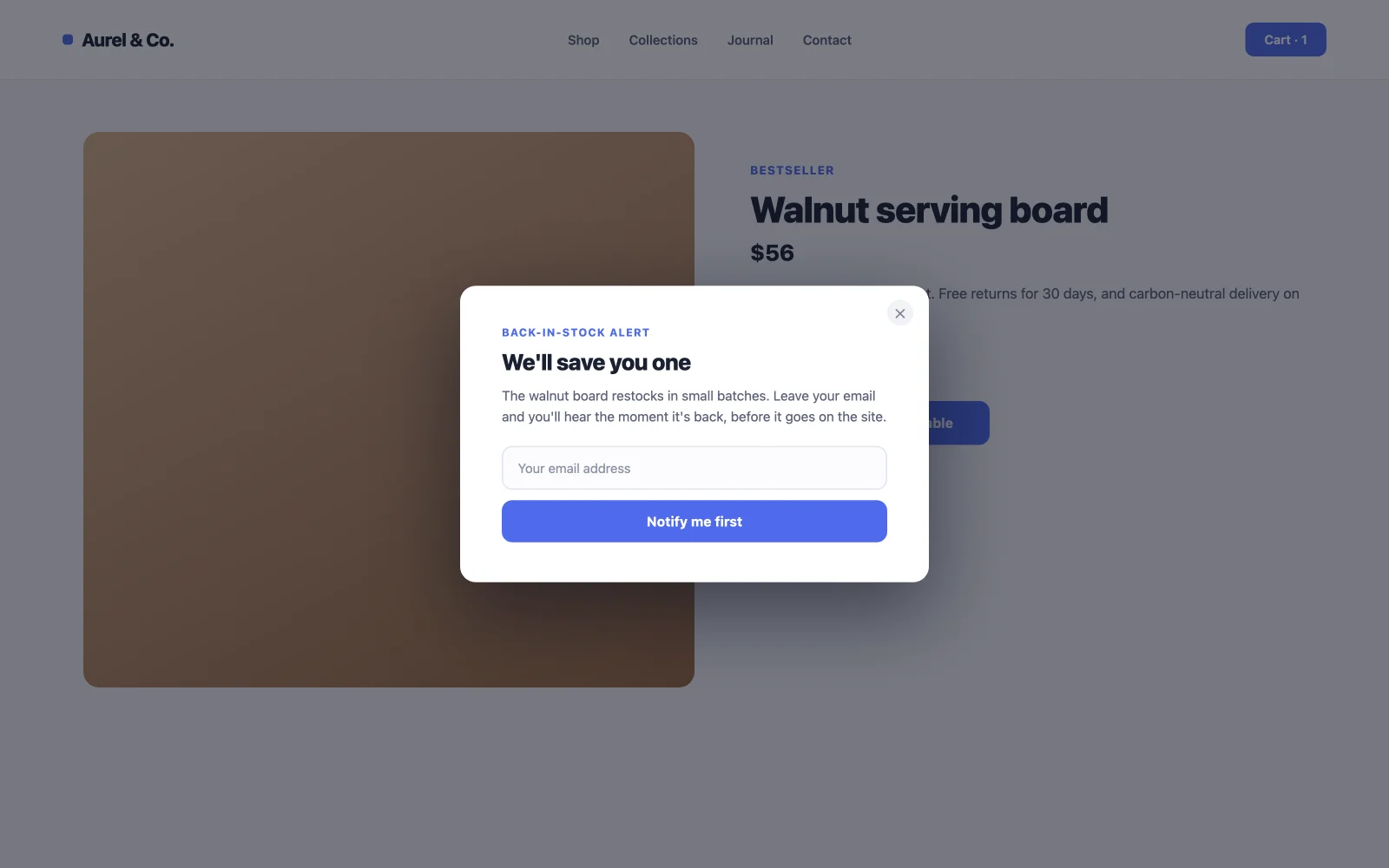
12। ব্যাক-ইন-স্টক সাইনআপ
একটি স্টক-এর বাইরের পৃষ্ঠা সাধারণত একটি হারিয়ে যাওয়া বিক্রয় বোঝায়। একটি ক্লিক-ট্রিগার করা “Notify me” পপআপ সেই শেষ প্রান্তটিকে চাহিদায় রূপান্তরিত করে যা আপনি পরিমাপ করতে পারেন এবং একটি গ্যারান্টিযুক্ত-আগ্রহী ইমেল তালিকা৷ এই গ্রাহকরা অস্বাভাবিকভাবে উচ্চ হারে রূপান্তর করে যখন রিস্টক ইমেল ল্যান্ড করে, কারণ তারা ঠিক এই পণ্যটির জন্য বলেছিল। ট্রিগার ক্লাসটি একটি বোতামে যোগ করুন যেখানে সাধারণত কার্টে যোগ করুন বসে।
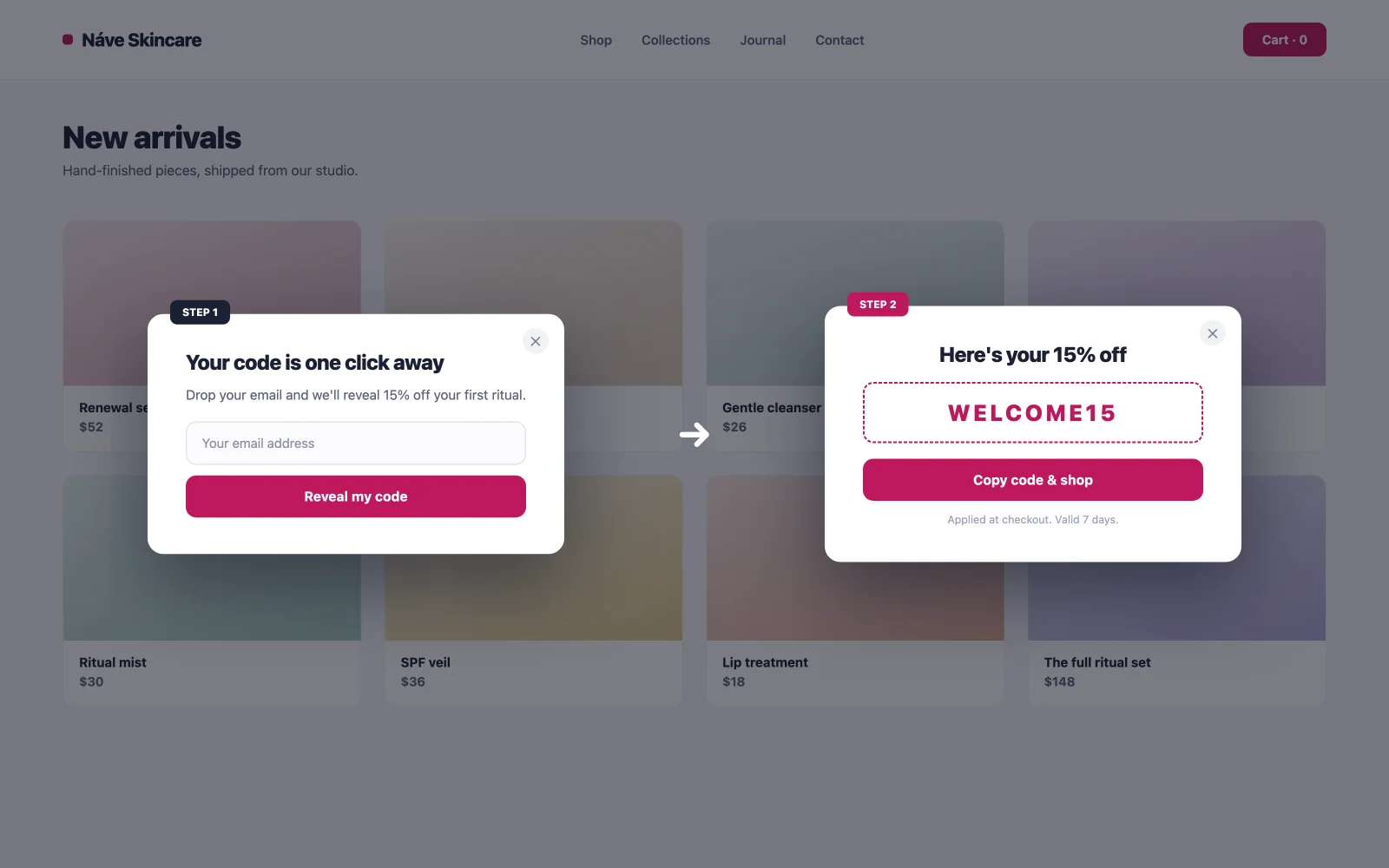
13। কুপন পপআপ প্রকাশ করে
দুটি ধাপ: ভিজিটর অপ্ট ইন করে, তারপর কোডটি উপস্থিত হয়। কৌতূহল প্লাস প্রতিশ্রুতি: একবার কেউ ক্লিক করলে "আমার কোড প্রকাশ করুন," Zeigarnik প্রভাব তাদের সাইনআপ শেষ করতে এবং তারপর কোড ব্যবহার করে এটিকে ন্যায্যতা দেয়। একটি সৎ নোট: একটি স্পিন-টু-উইন হুইল একটি পৃথক গ্যামিফিকেশন টুল প্রয়োজন; প্লেইন প্রকাশ হল বিনামূল্যের রুট, এবং এটি ক্যাসিনো নান্দনিকতা ছাড়াই সম্মানজনকভাবে রূপান্তরিত হয়।
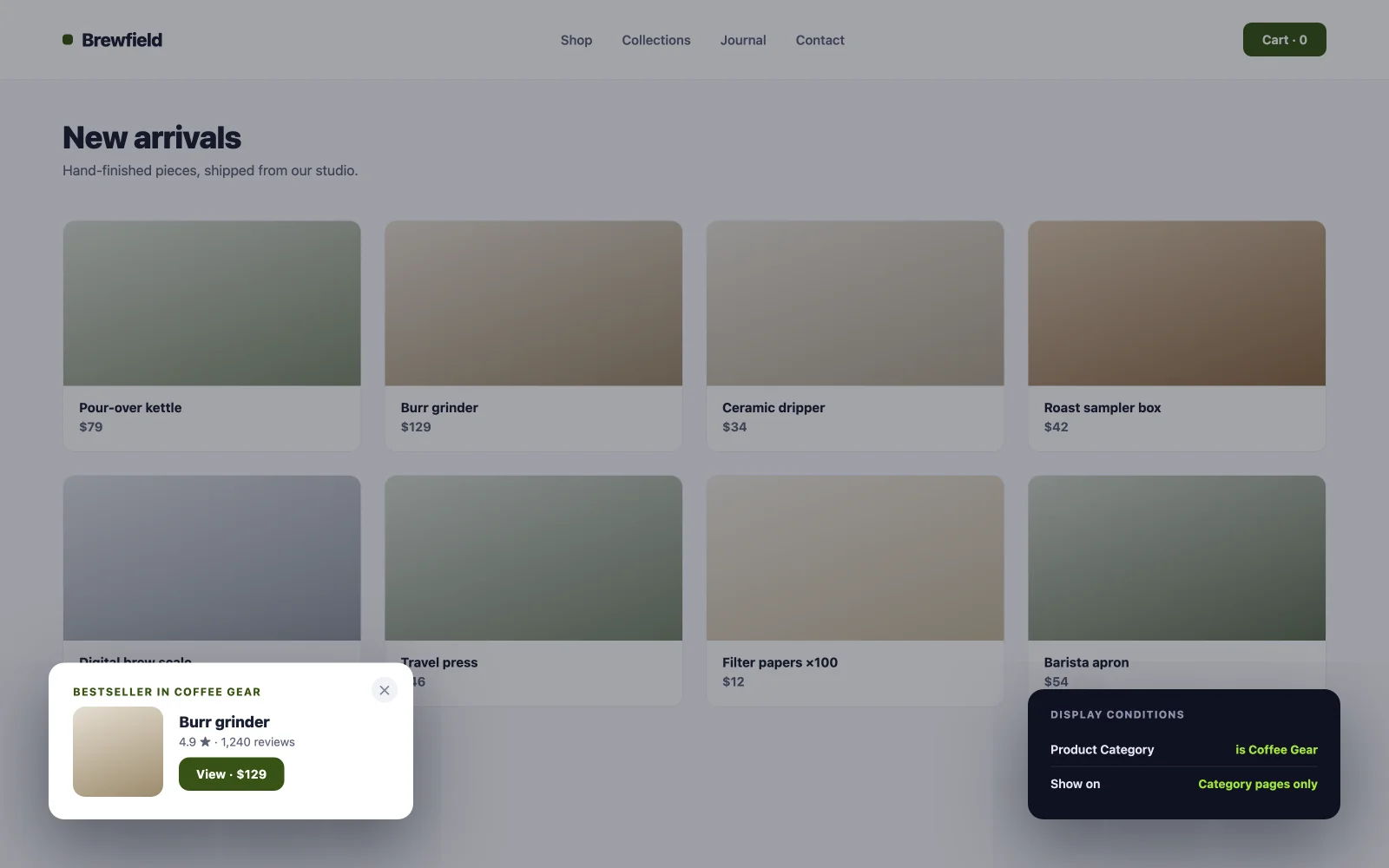
14। বিভাগ-নির্দিষ্ট সুপারিশ পপআপ
শুধুমাত্র কফি বিভাগে আপনার কফি-গিয়ার বেস্টসেলার সাজেস্ট করুন। প্রাসঙ্গিকতা হল পুরো কৌশল: একটি জেনেরিক “আমাদের বেস্টসেলার চেক আউট করুন" পপআপ হল একটি বিজ্ঞাপন, যখন একটি বিভাগ-মিলিত একটি দোকান সহকারীর সাহায্যের মতো মনে হয়৷ পপআপ বিল্ডারের ডিসপ্লে শর্তগুলি প্রতি-শ্রেণি টার্গেটিং পরিচালনা করে এবং একই ডিসপ্লে কন্ডিশন এক্সটেনশন সাইটের অন্য কোনো উপাদানে অভিন্ন পৃষ্ঠা এবং ভূমিকার নিয়ম নিয়ে আসে।
ব্যস্ততা এবং অন-পৃষ্ঠা পপআপ উদাহরণ
প্রতিটি পপআপ একটি ইমেল জিজ্ঞাসা করে না। এই ছয়টি দর্শকদের পৃষ্ঠায় কিছু করতে সাহায্য করে, বা এটি না রেখে আরও শিখতে পারে। এখানে রূপান্তর মানে ব্যস্ততা, একটি ভিডিও চালানো বা একটি প্রশ্নের উত্তর।
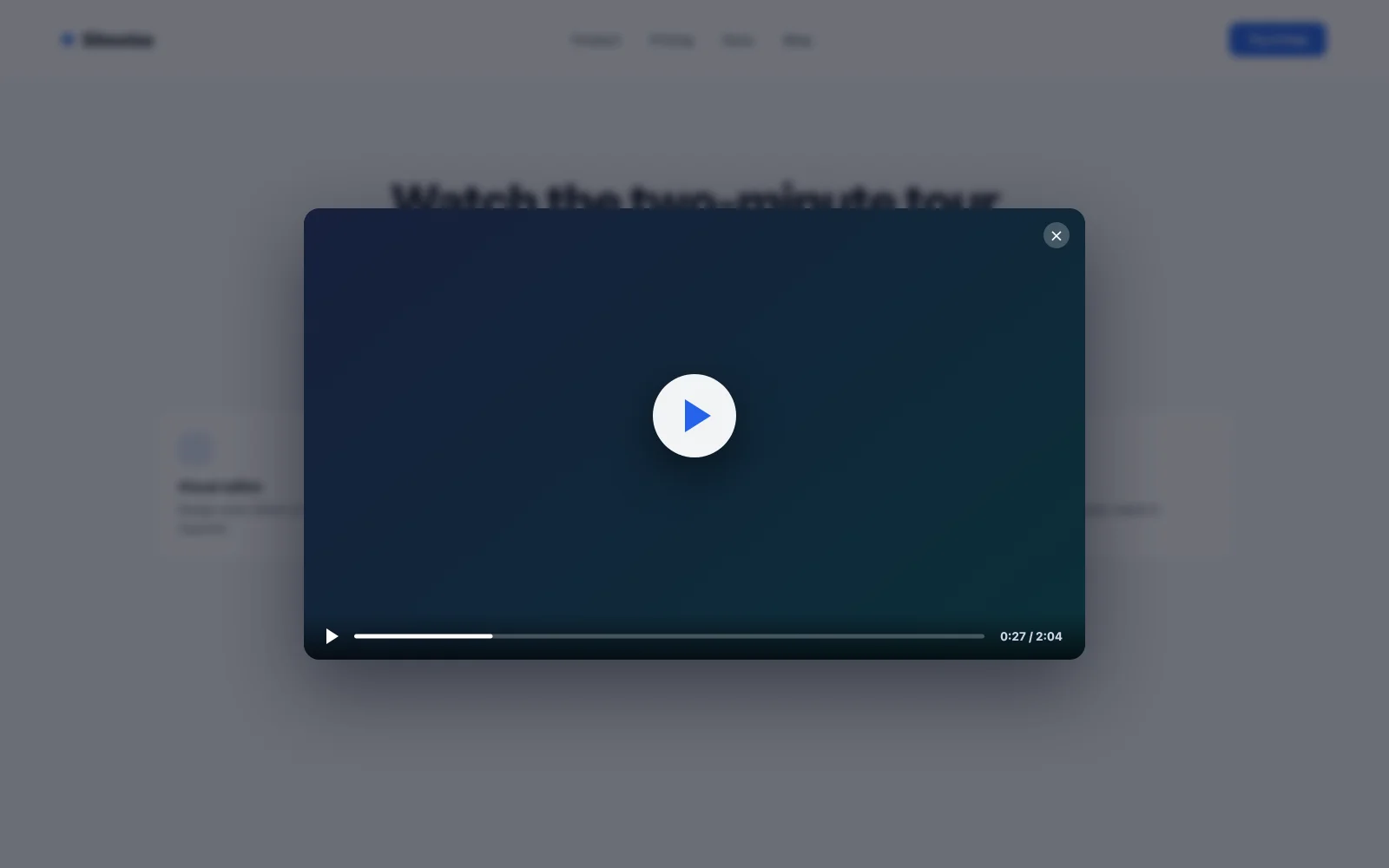
15। ভিডিও লাইটবক্স পপআপ
পৃষ্ঠায় সরাসরি একটি ডেমো ভিডিও এম্বেড করুন এবং কেউ দেখুক বা না দেখুক এটি আপনার লোডের সময়কে টেনে আনে। একটি ক্লিক-ট্রিগার করা লাইটবক্স ফ্লিপ করে যে: পৃষ্ঠাটি দ্রুত থাকে এবং ভিডিওটি দর্শকদের জন্য একটি পরিষ্কার ওভারলেতে খোলে যারা এটি বেছে নেয়। একটি প্লে-বোতাম থাম্বনেইল একটি টেক্সট লিঙ্কের চেয়ে ভালো ক্লিককে রূপান্তর করে কারণ এটি পরবর্তীতে ঠিক কী ঘটবে তার প্রত্যাশা সেট করে। এমএ লাইব্রেরিতে ভিডিও লাইটবক্স টেমপ্লেট রয়েছে যা আমদানি করার জন্য প্রস্তুত; ভিডিও URL অদলবদল করুন এবং আপনি সম্পন্ন করেছেন।
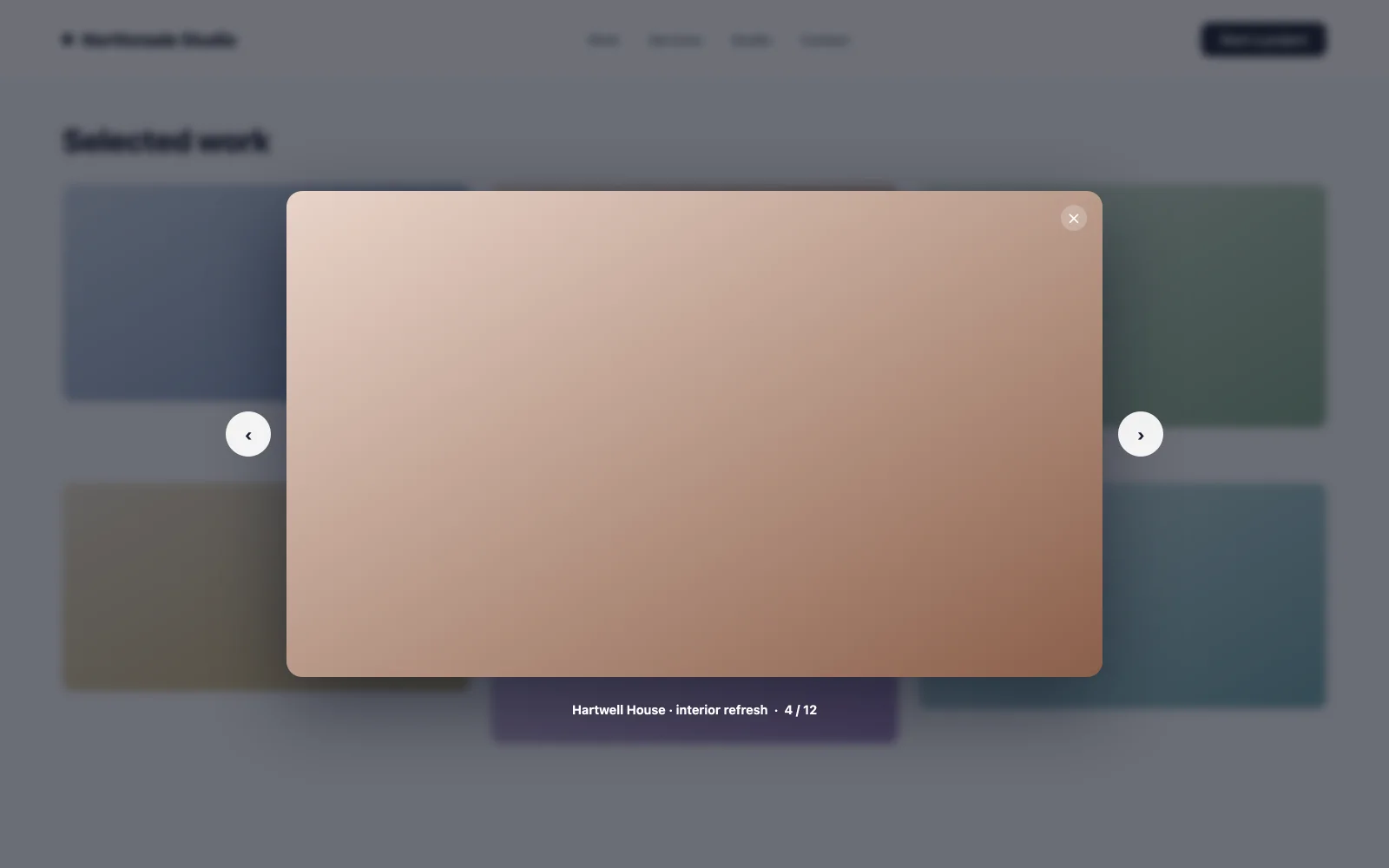
16। ইমেজ গ্যালারি লাইটবক্স
থাম্বনেইল একটি মডেলে পূর্ণ আকারের ছবি খোলে। পোর্টফোলিও এবং পণ্য ক্লোজ-আপের জন্য এটি একটি গ্রিডে স্কুইন্টিং এবং আসলে কাজ পরিদর্শনের মধ্যে পার্থক্য। পরিদর্শন করার সময় ব্যয় করা অনুসন্ধানের সাথে সম্পর্কযুক্ত। প্রতিটি থাম্বনেইলে ট্রিগারে ক্লিক করুন এবং মডেল ক্রোমটি ন্যূনতম রাখুন যাতে ছবিটি বিক্রি হয়।
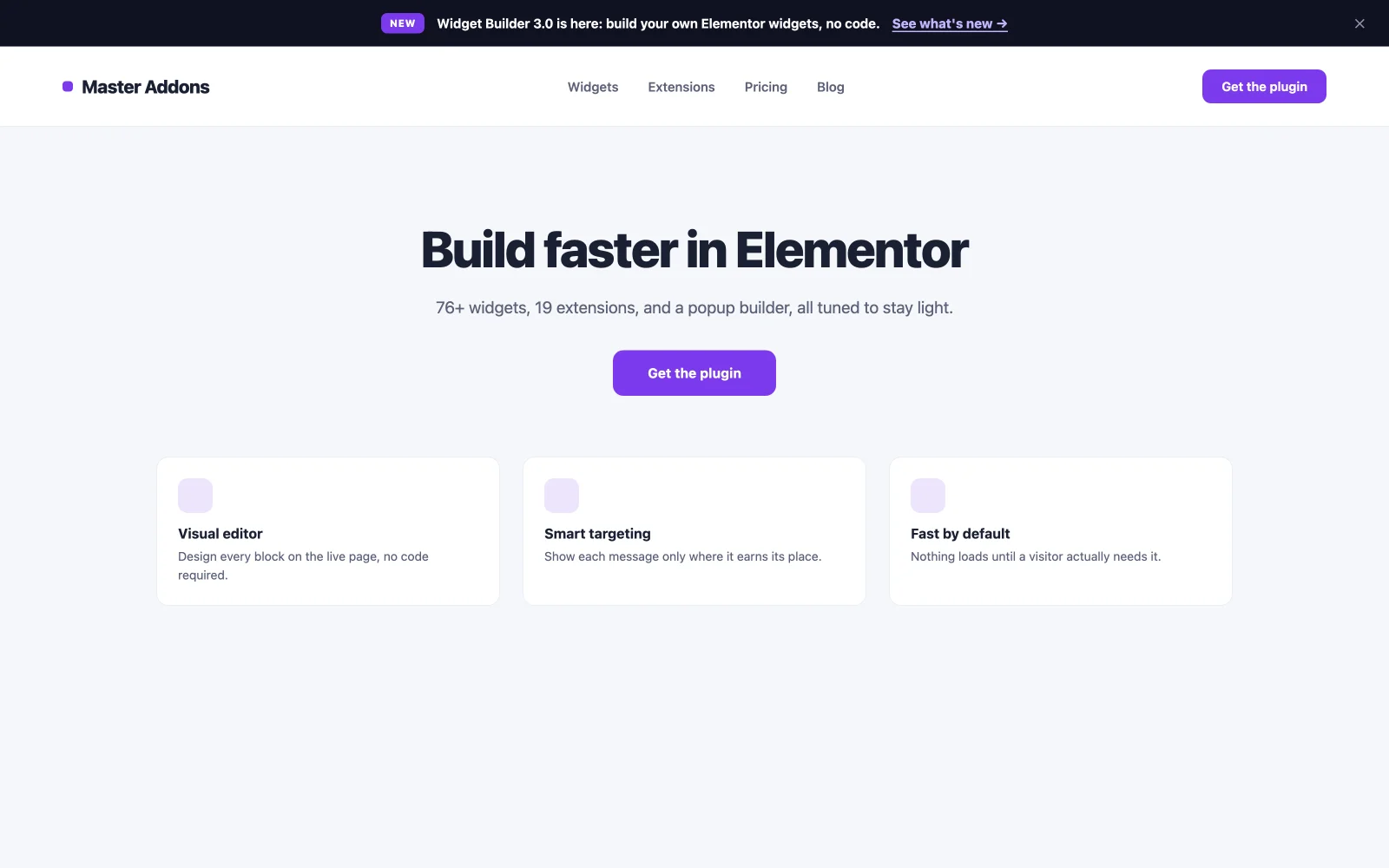
17। নতুন বৈশিষ্ট্য ঘোষণা বার
স্ক্রিনের শীর্ষে একটি পাতলা পৃষ্ঠা-লোড বার একটি আপডেট, একটি নতুন পৃষ্ঠা বা বিষয়বস্তু কভার না করে একটি লঞ্চের দিকে নির্দেশ করে৷ কারণ এটি একটি সিদ্ধান্তের দাবি করে না, বরখাস্তের হার কম থাকে এবং সেশন জুড়ে বার্তাটি দেখা যায়। বড় কিছু চালু করা হচ্ছে? একটি সঠিক সঙ্গে বার জোড়া Elementor শীঘ্রই আসছে পৃষ্ঠা প্রাক-লঞ্চ উইন্ডোর জন্য, তারপর বারটি প্রকাশের ঘোষণা দিন।
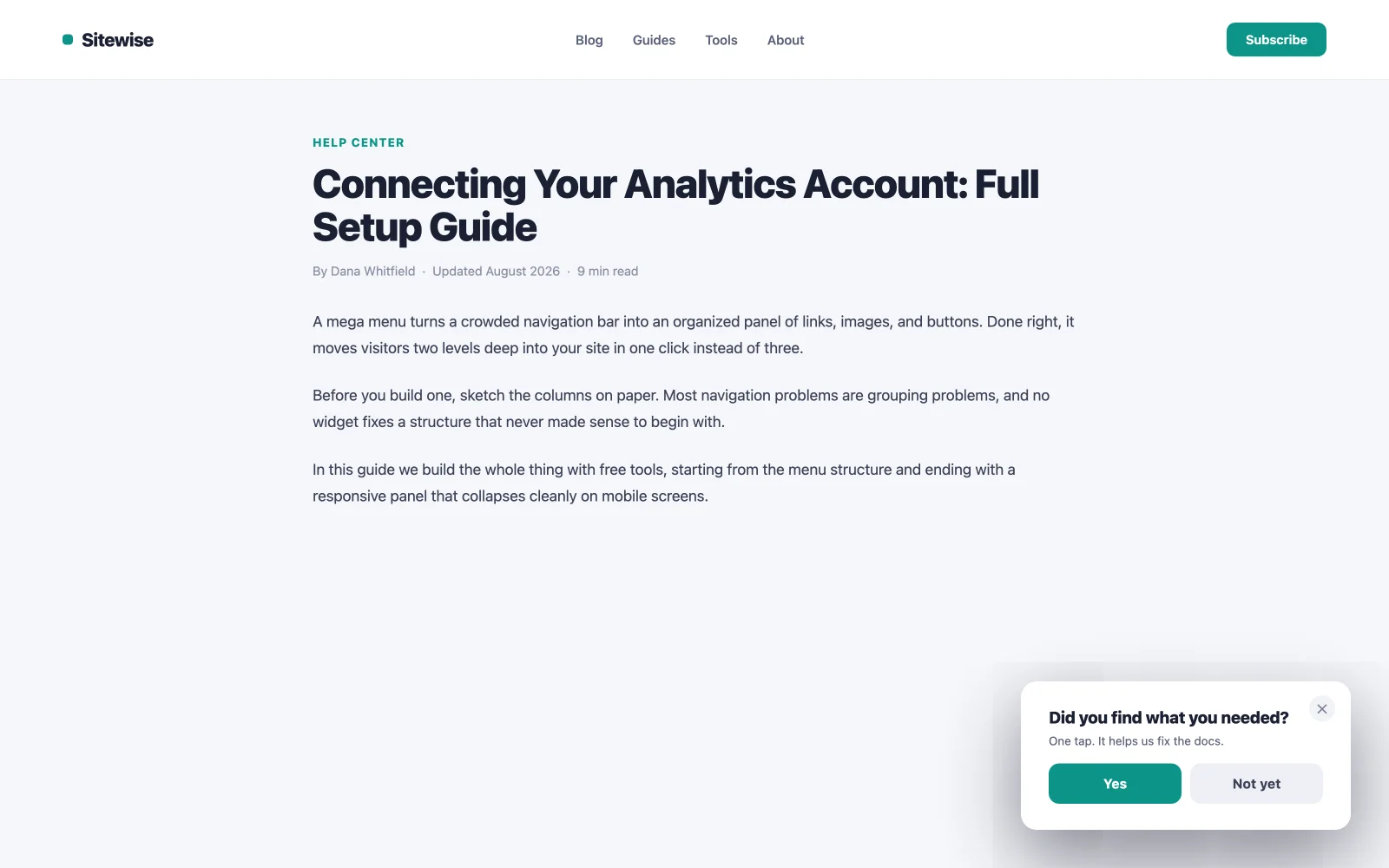
18। প্রতিক্রিয়া মাইক্রো-জরিপ পপআপ
একটি প্রশ্ন, দুই থেকে পাঁচটি ক্লিকযোগ্য উত্তর, বহিস্কার করা হয়েছে নিষ্ক্রিয়তার পরে। সময় হল অন্তর্দৃষ্টি: একজন দর্শক যিনি বিরতি দিয়েছেন তিনি কিছু প্রক্রিয়া করছেন, হতে পারে বিভ্রান্তি, হতে পারে দ্বিধা, এবং একটি একক-প্রশ্ন সমীক্ষা এটি ঘটছে যখন এটি ধরা পড়ে। কোন ফলো-আপ ফর্ম ছাড়াই এটিকে একটি ট্যাপে রাখুন, বা প্রতিক্রিয়া হার ভেঙে পড়বে।
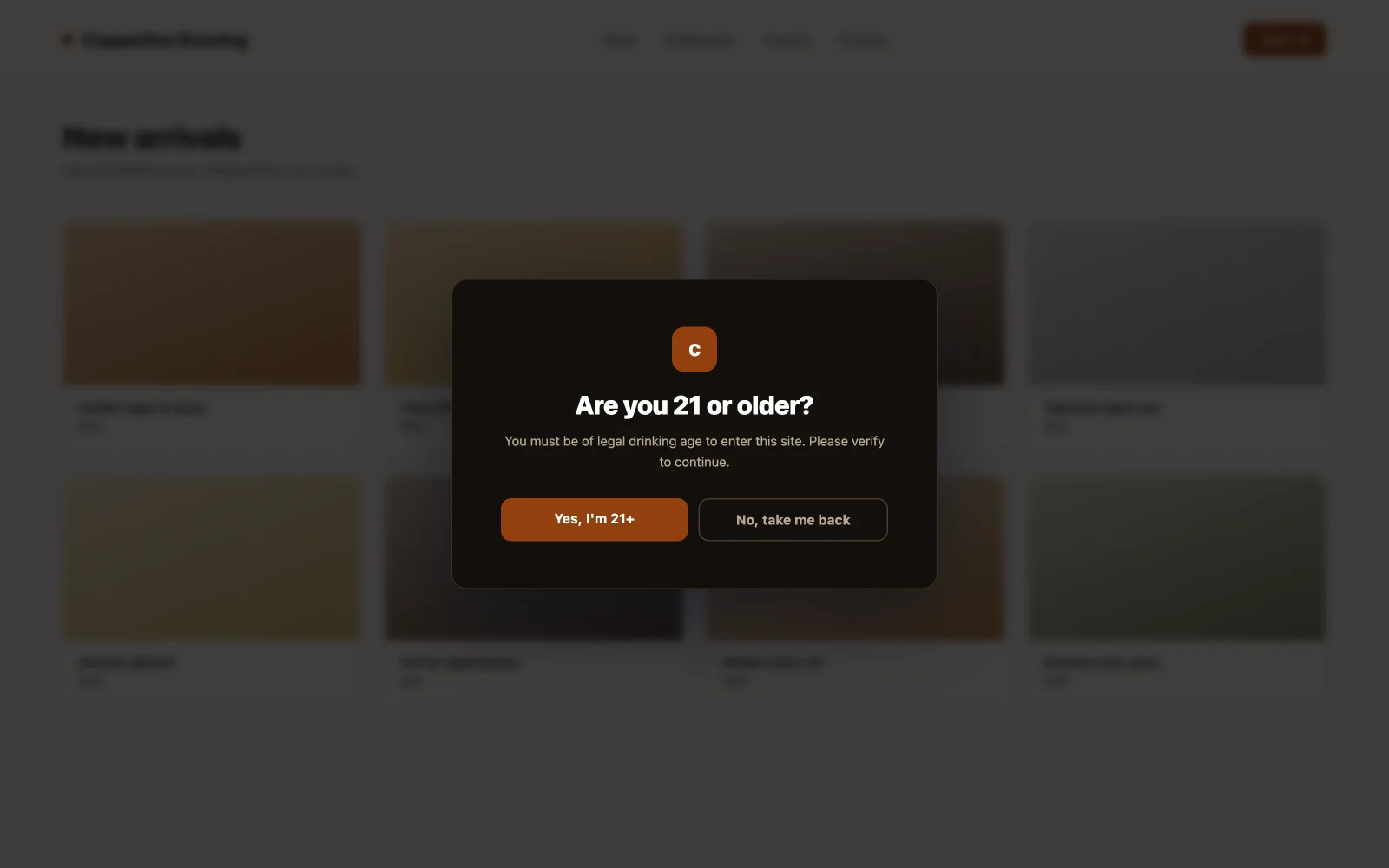
19। বয়স বা বিষয়বস্তুর গেট
একটি পূর্ণ-স্ক্রীন পৃষ্ঠা-লোড পপআপ যা দর্শক তাদের বয়স নিশ্চিত না হওয়া পর্যন্ত সামগ্রী ব্লক করে। অ্যালকোহল, ভ্যাপিং, কিছু স্বাস্থ্য কুলুঙ্গি এবং কিছু নিয়ন্ত্রিত সামগ্রীর জন্য প্রয়োজনীয়। এখানে রূপান্তর মানে ভিজিটর না হারিয়ে সম্মতি: দুটি পরিষ্কার বোতাম, ব্র্যান্ড স্টাইলিং যাতে এটি একটি আইনি অ্যামবুশের মতো দেখায় না এবং কম বয়সী পথের জন্য একটি পুনঃনির্দেশ। প্রতি সেশনে একবার ফায়ার করতে সেট করুন, প্রতিটি পৃষ্ঠার দৃশ্যে নয়।
20। ক্লিক-টু-ওপেন ডিটেইল মডেল
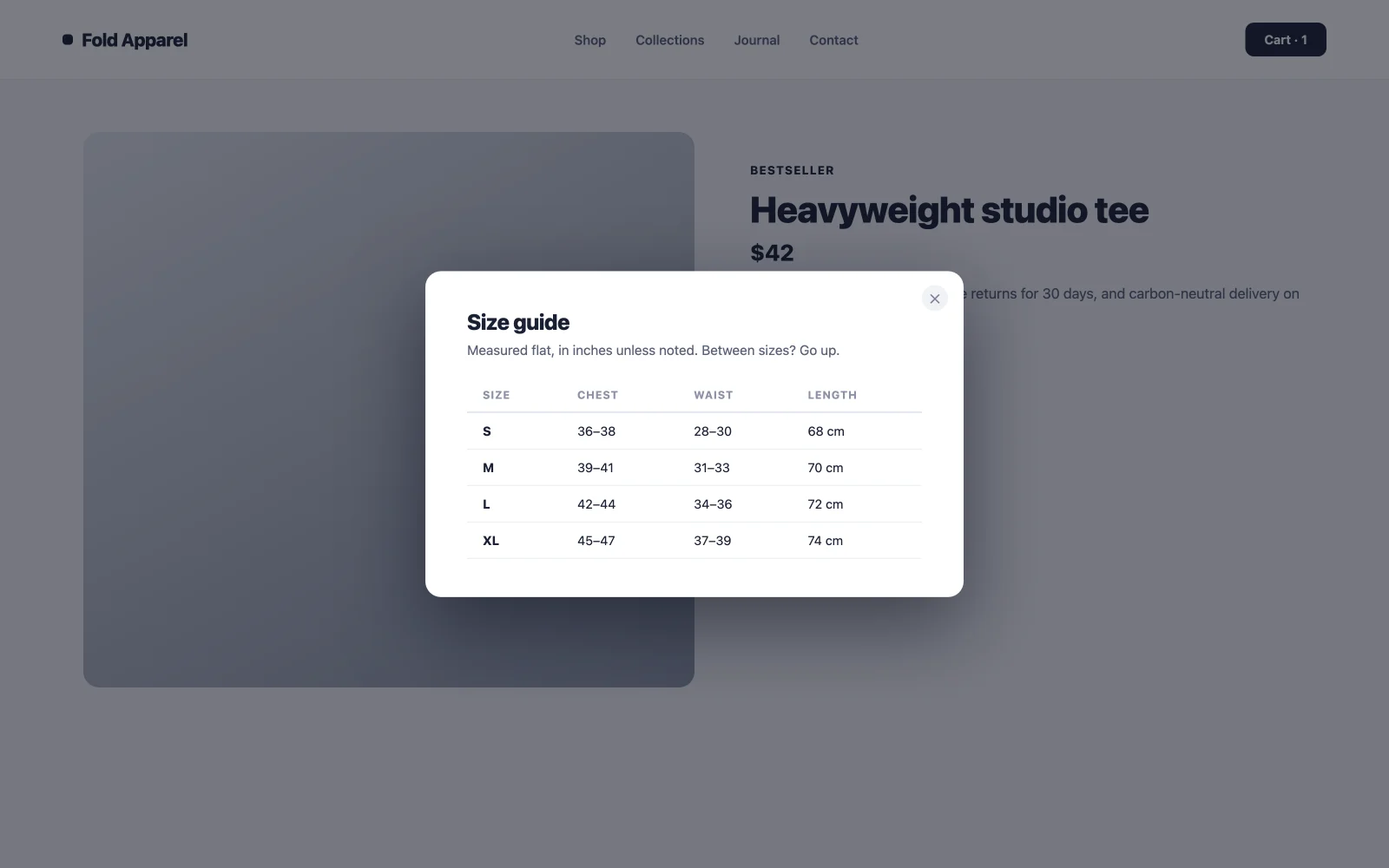
মূল্য নির্ধারণের নোট, স্পেক শীট, শিপিং শর্তাবলী, আকার নির্দেশিকা: বিষয়বস্তু যা 10% দর্শকের কাছে গুরুত্বপূর্ণ এবং অন্য 90% এর জন্য পৃষ্ঠাটিকে বিশৃঙ্খল করে। এটিকে একটি "বিশদ বিবরণ দেখুন" লিঙ্কের পিছনে রাখুন যা একটি মডেল খোলে। লেআউটটি পরিষ্কার থাকে, বিশদ-সন্ধানীরা একটি পৃষ্ঠা পুনরায় লোড না করেই তাদের উত্তর পান এবং আপনার প্রধান কল টু অ্যাকশন তার ফোকাস রাখে।
ইউটিলিটি এবং কমপ্লায়েন্স পপআপ উদাহরণ
এই পাঁচটি ব্যবহারিক কাজগুলি পরিচালনা করে যা প্রতিটি সাইটের শেষ পর্যন্ত প্রয়োজন। তারা খুব কমই কিছু বিক্রি করে, কিন্তু খারাপভাবে করেছে তারা আপনার দর্শকদের খরচ করে, তাই তারা রূপান্তরের কাজও করে।
21। কুকি সম্মতি বিজ্ঞপ্তি
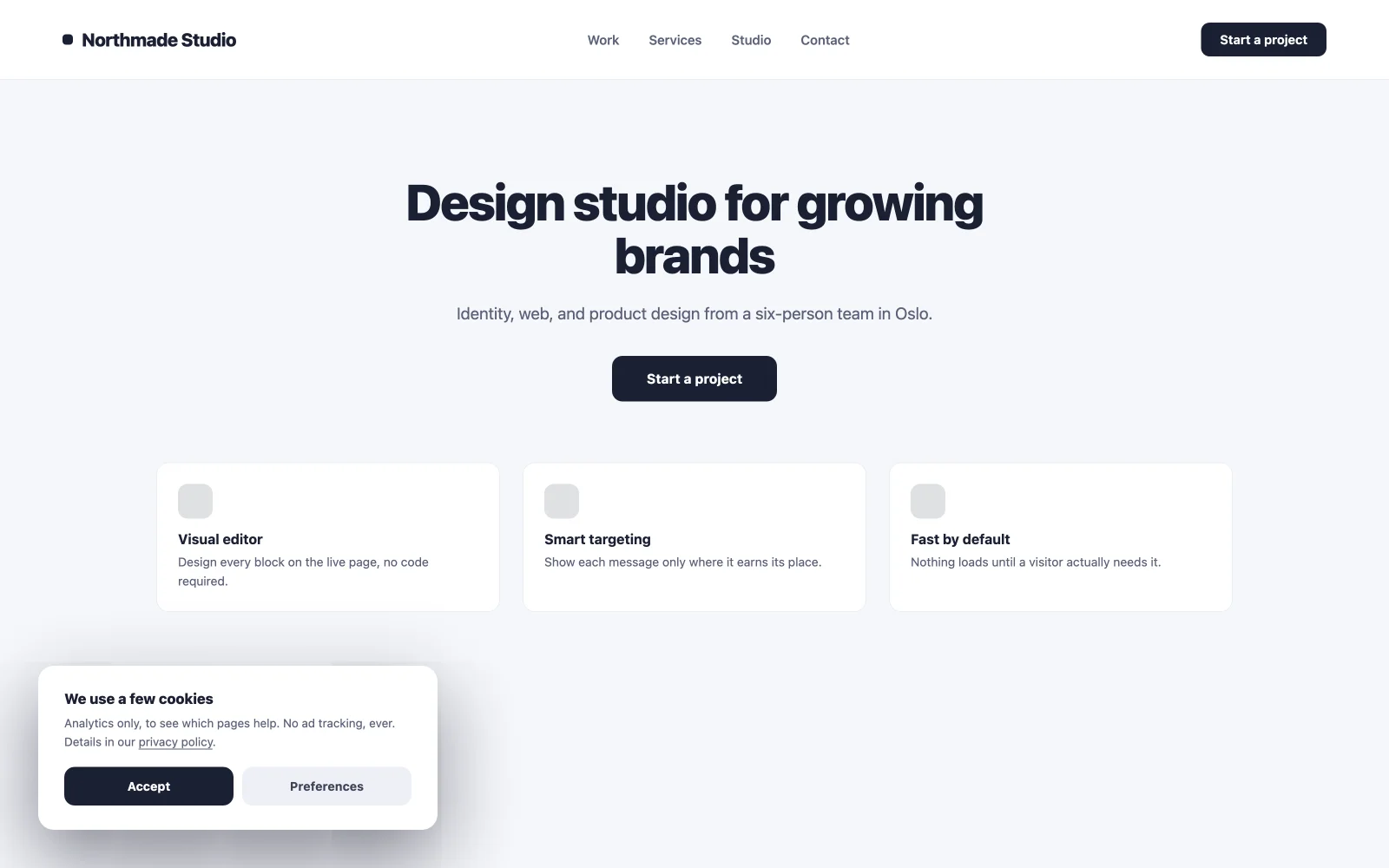
একটি ছোট পৃষ্ঠা-লোড বার যা সম্মতি রেকর্ড করে এবং পথের বাইরে থাকে। স্ক্রিনের নীচে, দুটি বোতাম, কোনও পূর্ণ-স্ক্রীন টেকওভার নেই। সম্মতি দেয়াল যা পৃষ্ঠাটিকে ব্লক করে একটি দর্শক একটি শব্দ পড়ার আগে বাউন্স রেট বাড়িয়ে দেয়। এটিকে সাইটের সাথে মেলে স্টাইল করুন যাতে এটি একটি বোল্ট-অন আইনি উইজেটের পরিবর্তে ডিজাইনের অংশ হিসাবে পড়ে।
22। লগইন বা রেজিস্ট্রেশন মডেল
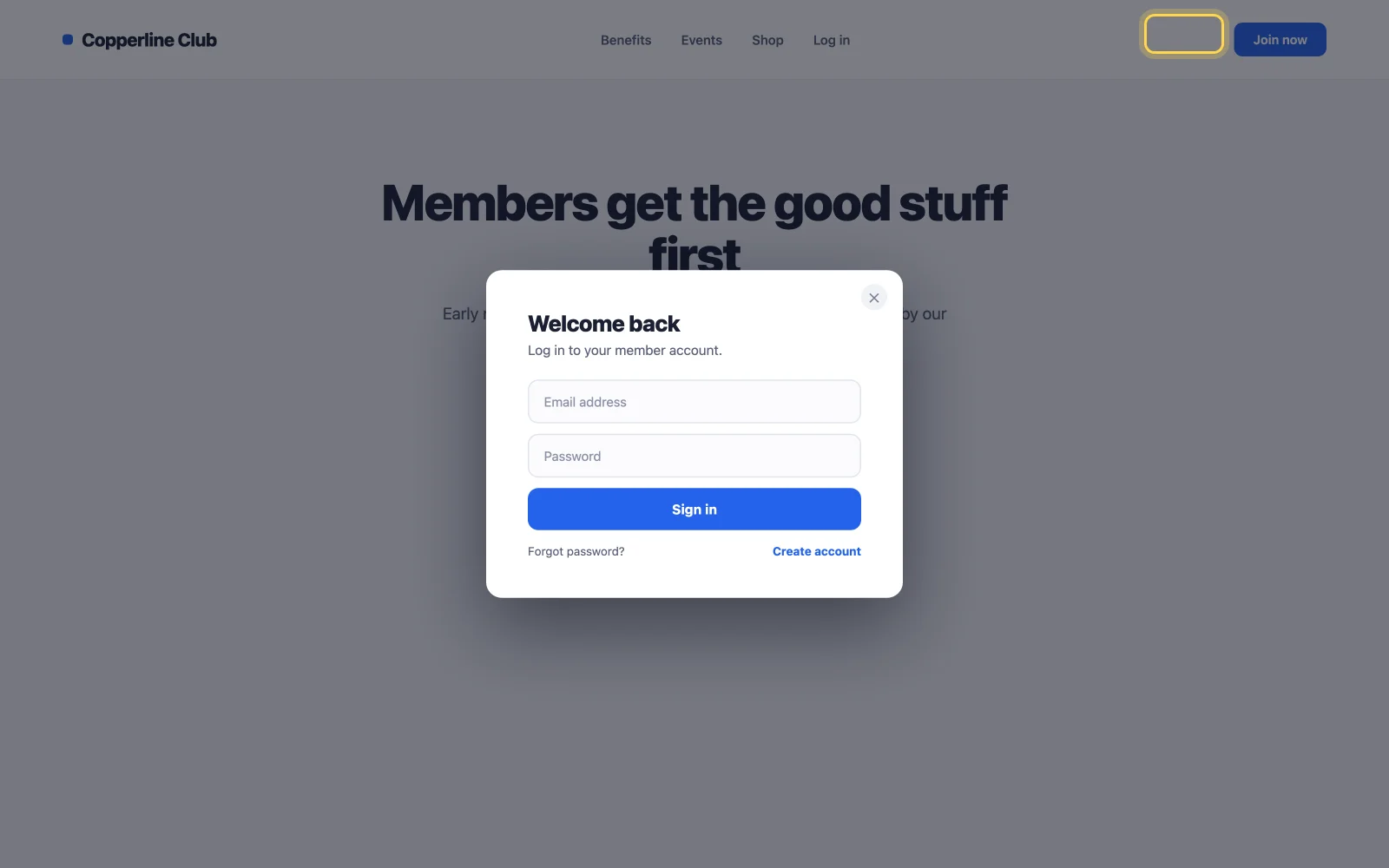
একটি পৃথক লগইন পৃষ্ঠায় রাউটিং করার পরিবর্তে একটি মডেলে ক্লিক করলে সাইন-ইন খুলুন। কম পৃষ্ঠা লোড মানে কম ড্রপ-অফ মিড-ফ্লো, যা সদস্যতা সাইট এবং স্টোরগুলিতে সবচেয়ে গুরুত্বপূর্ণ যেখানে লগইন ভিজিটর এবং চেকআউটের মধ্যে বসে। লাইব্রেরির লগইন টেমপ্লেটগুলি প্রি-স্টাইল করা হয়; আমদানি করুন, আপনার ফর্ম সংযোগ করুন, সম্পন্ন।
23। অবস্থান বা মুদ্রা নির্বাচক
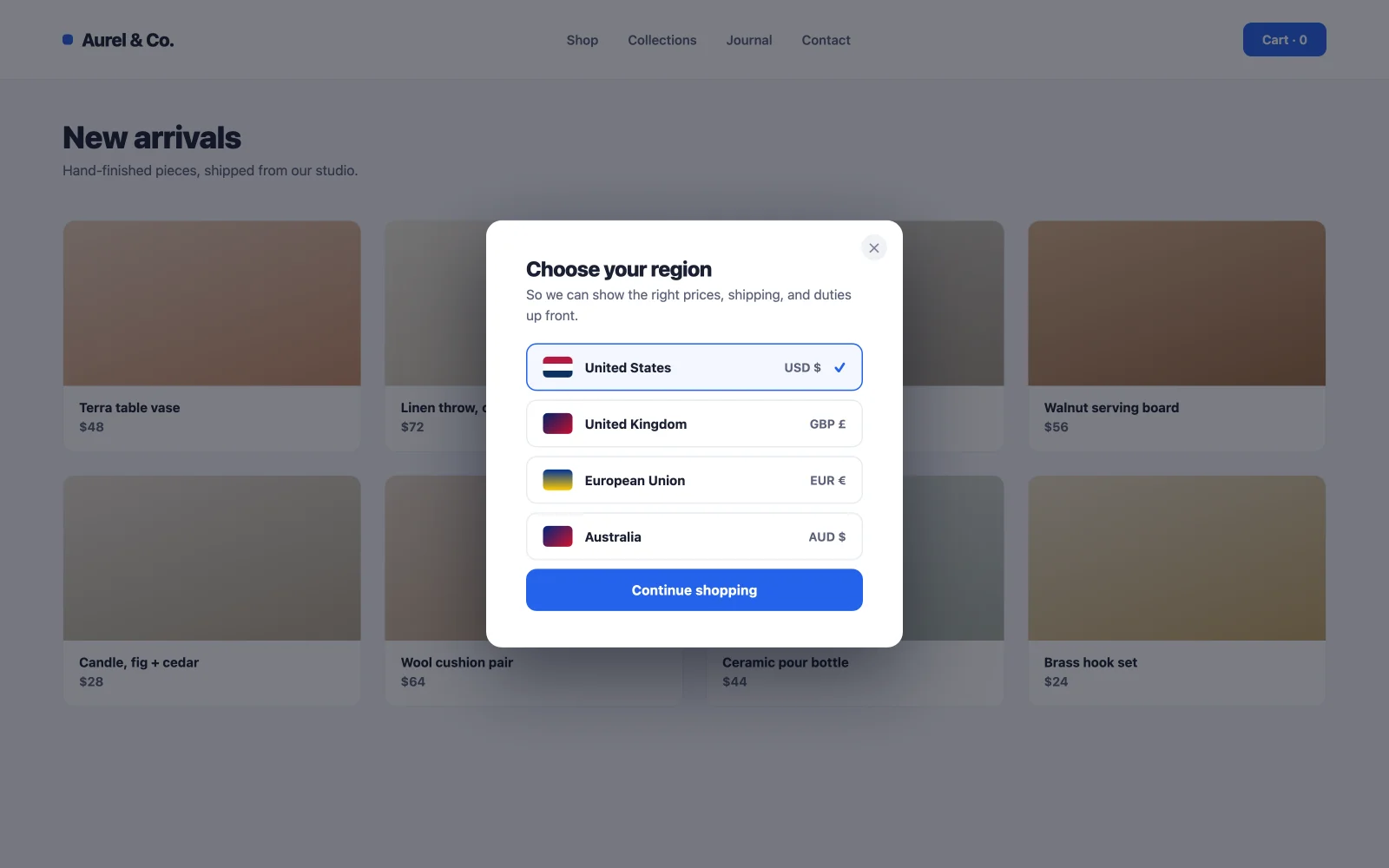
প্রথমবারের দর্শকদের পৃষ্ঠা লোডে একটি অঞ্চল বা মুদ্রা বাছাই করতে বলুন, তারপর পছন্দটি মনে রাখবেন। সঠিক মূল্য এবং শিপিং শর্তাবলী সামনে দেখানো আন্তর্জাতিক ইকমার্সের সবচেয়ে খারাপ রূপান্তর হত্যাকারীকে বাধা দেয়: চেকআউটে বিস্ময়। শুধুমাত্র নতুন দর্শকদের জন্য একবার আগুন; পুনরাবৃত্তি দর্শক ইতিমধ্যে উত্তর।
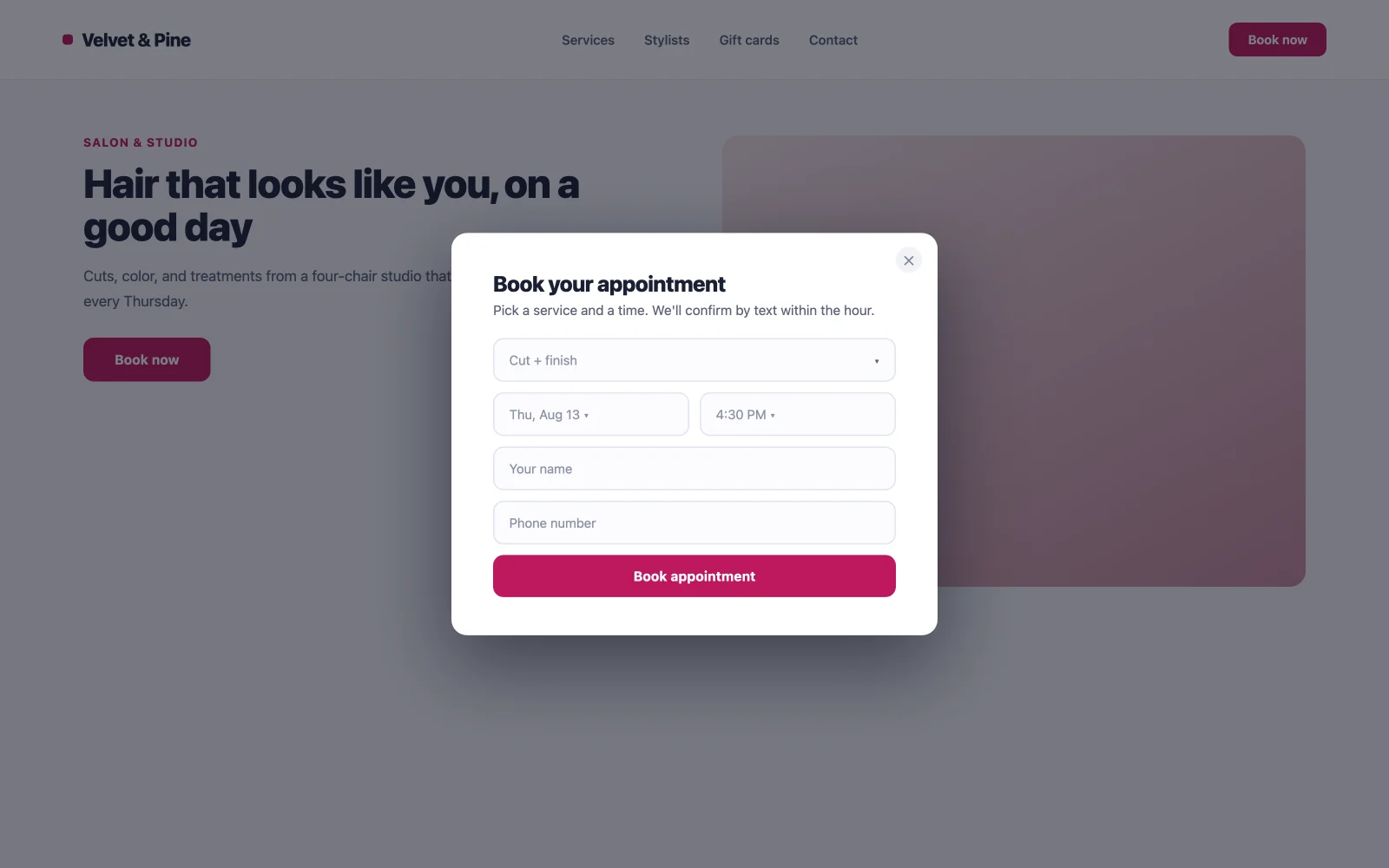
24। অ্যাপয়েন্টমেন্ট বা বুকিং ফর্ম পপআপ
ক্লিনিক, সেলুন, পরামর্শদাতা এবং যে কেউ সময় বিক্রি করেন তাদের জন্য: বুকিং ফর্ম ধারণ করে একটি ক্লিক-ট্রিগার করা পপআপের অর্থ হল সাইট জুড়ে প্রতিটি "Book now”" বোতাম একই ফর্ম খোলে, প্রতি পরিষেবাতে আলাদা বুকিং পৃষ্ঠা বজায় না রেখে৷ অভিপ্রায় এবং অ্যাপয়েন্টমেন্টের মধ্যে কম ধাপ, এবং আপনার প্রাপ্যতা পরিবর্তিত হলে আপডেট করার জন্য একটি ফর্ম।
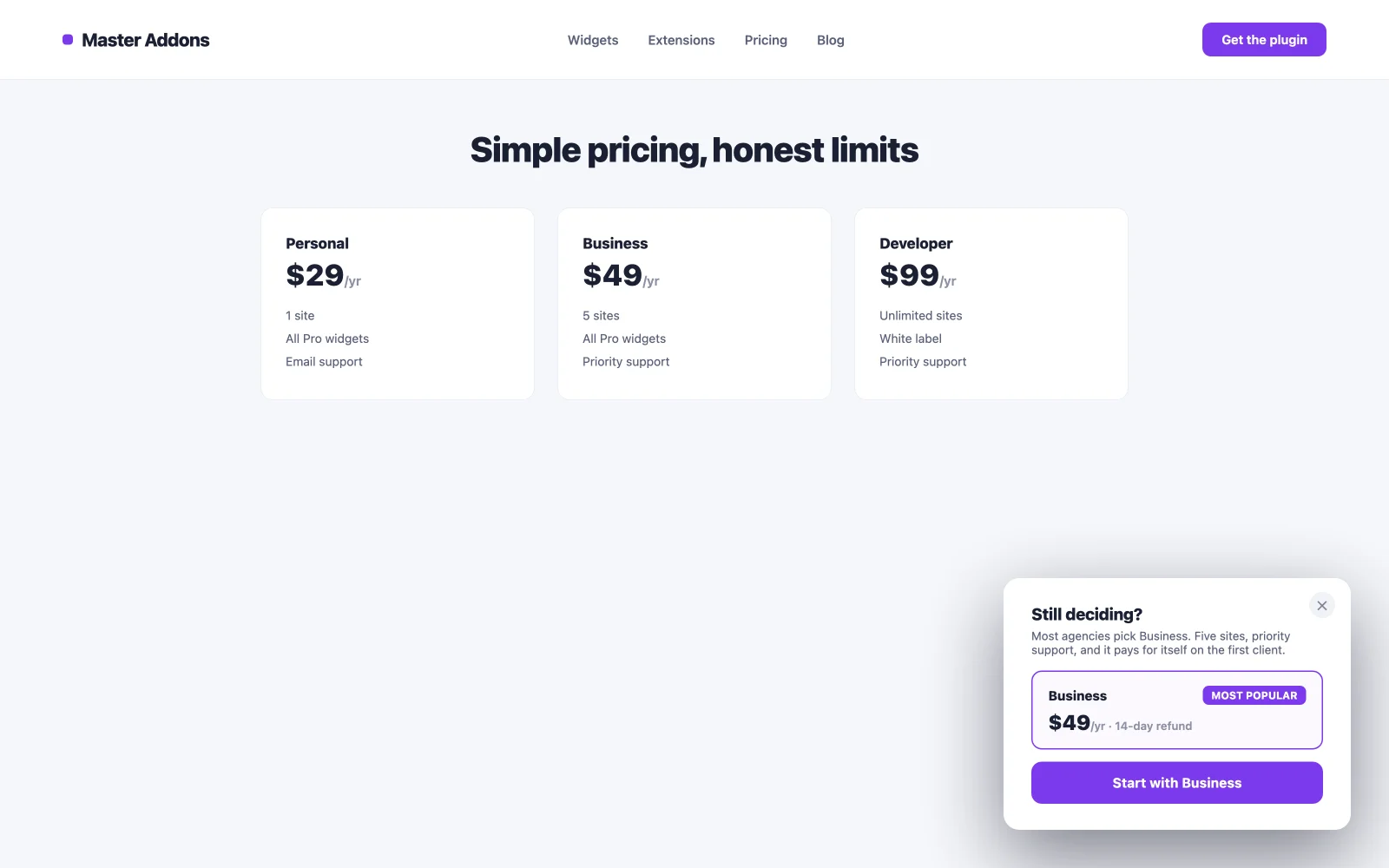
25। রি-এনগেজমেন্ট নাজ
একটি নিষ্ক্রিয়তার পরে বার্তা যা ট্যাব বন্ধ হওয়ার আগে একটি বিভ্রান্ত দর্শককে ফিরিয়ে আনে। প্রস্থান অভিপ্রায়ের চেয়ে ভিন্ন কাজ: প্রস্থান একটি সক্রিয় সিদ্ধান্ত নেয়, নিষ্ক্রিয়তা মনোযোগ আকর্ষণ করে যা অন্য উইন্ডোতে চলে যায়। একটি মৃদু “এখনও সিদ্ধান্ত নিচ্ছেন? এখানে আমাদের সবচেয়ে জনপ্রিয় বিকল্প হল" আপনার প্রত্যাশার চেয়ে বেশিবার সেশনটি পুনরায় চালু করে এবং এতে নিযুক্ত দর্শকদের কিছুই খরচ হয় না কারণ তারা এটি কখনই দেখতে পায় না।
প্রতিটি পপআপকে ডান ট্রিগারে মেলে
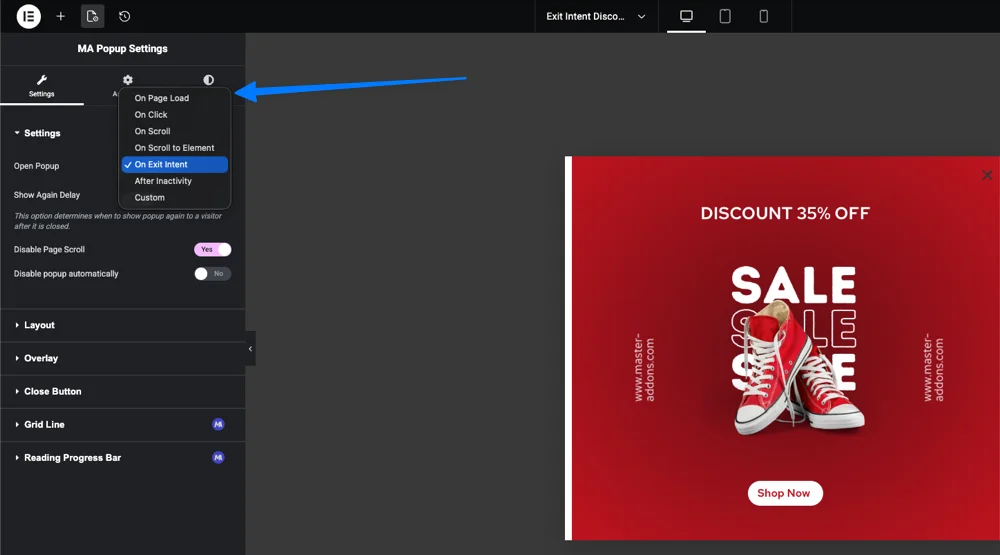
অফারটি ট্রিগার নির্ধারণ করে। মাস্টার অ্যাডনস পাঁচটি পাঠায় (পৃষ্ঠা লোড বিনামূল্যে, বাকি চারটি প্রো প্রয়োজন), এবং ভুলটি বাছাই করা একটি ভাল পপআপ কম পারফর্ম করার সবচেয়ে সাধারণ কারণ। এই টেবিল মানচিত্র উপরের উদাহরণ ট্রিগার।
| ট্রিগার | আগুন যখন | সেরা উদাহরণ ফিট | সতর্ক থেকো |
|---|---|---|---|
| ক্লিক এ (প্রো) | একজন দর্শক একটি সেট উপাদান ক্লিক করে | ডেমো অনুরোধ (5), ভিডিও লাইটবক্স (15), বুকিং ফর্ম (24) | সংযুক্ত করার জন্য একটি বোতাম বা লিঙ্ক প্রয়োজন |
| স্ক্রলে (প্রো) | পৃষ্ঠাটি একটি সেট শতাংশ স্ক্রোল করা হয় | বিষয়বস্তু আপগ্রেড (3), নিউজলেটার অপ্ট-ইন (2) | এটিকে খুব কম সেট করুন এবং আগ্রহ থাকার আগেই এটি জ্বলে যায় |
| পৃষ্ঠা লোড | একটি বিলম্ব পরে আপনি সেট | বিক্রয় ব্যানার (11), কুকি নোটিশ (21), বয়স গেট (19) | দুই সেকেন্ডের নিচে বিরক্ত হতে থাকে |
| প্রস্থান অভিপ্রায় (প্রো) | কার্সার ট্যাব বন্ধ করতে চলে | কার্ট পুনরুদ্ধার (10), শেষ সুযোগ সীসা চুম্বক (7) | ডেস্কটপ সংকেত, মোবাইলে দুর্বল |
| নিষ্ক্রিয়তার পরে (প্রো) | স্ক্রলিং এবং আন্দোলন বন্ধ | ফিডব্যাক সার্ভে (18), রি-এনগেজমেন্ট নাজ (25) | স্বাভাবিক বোধ করার জন্য যথেষ্ট দীর্ঘ অপেক্ষা করুন |
কিভাবে এই পপআপ বিনামূল্যে নির্মাণ
সমস্ত 25টি উদাহরণের জন্য বিল্ড একই। ফ্রি এলিমেন্টরের উপরে ফ্রি মাস্টার অ্যাডঅন প্লাগইন ইনস্টল করুন, মাস্টার অ্যাডঅন → পপআপ বিল্ডার খুলুন এবং একটি নতুন পপআপ যোগ করুন।
- লাইব্রেরি থেকে শুরু করুন, ফাঁকা ক্যানভাস নয়। দ্য টেমপ্লেট লাইব্রেরি 100+ পপআপ ডিজাইন রয়েছে: অপ্ট-ইন, ডিসকাউন্ট অফার, ভিডিও লাইটবক্স, কুকি নোটিশ, লগইন ফর্ম। আপনার উদাহরণের সাথে মিলে যাওয়া একটি খুঁজুন এবং এটি এক ক্লিকে আমদানি করে, সম্পূর্ণ সম্পাদনাযোগ্য।
- সাধারণ এলিমেন্টর উইজেট দিয়ে সম্পাদনা করুন। পাঠ্য, ফর্ম, চিত্র, কাউন্টডাউন: পপআপ ক্যানভাস ঠিক একটি পৃষ্ঠার মতো কাজ করে।
- উপরের টেবিল থেকে ট্রিগার বাছুন। পেজ লোড ফ্রি প্লাগইনে কাজ করে; অন্যদের মাস্টার অ্যাডঅন প্রো প্রয়োজন।
- প্রদর্শন শর্ত সেট করুন। ফ্রি প্লাগইনের পুরো সাইট, বা প্রো সহ নির্দিষ্ট পৃষ্ঠা এবং পোস্ট। এটি হল টার্গেটিং ধাপ যা বেশিরভাগ লোকেরা এড়িয়ে যায় এবং তারপর আশ্চর্য হয় কেন পপআপ লোকেদের বিরক্ত করে বা কখনই দেখায় না।
স্ক্রিনশট সহ সম্পূর্ণ ওয়াকথ্রু আমাদের গাইডে রয়েছে কিভাবে বিনামূল্যে Elementor এ একটি পপআপ যোগ করবেন.
একটি সৎ সীমা: একজন পপআপ নির্মাতা লিড ক্যাপচার করে এবং অফার দেখায়, কিন্তু এটি একটি ইমেল প্ল্যাটফর্ম বা একটি A/B টেস্টিং স্যুট নয়। আপনার যদি বিভক্ত পরীক্ষা এবং গভীর বিশ্লেষণের প্রয়োজন হয় তবে এটি একটি ডেডিকেটেড টুলের সাথে যুক্ত করুন; আমাদের তুলনা ওয়ার্ডপ্রেসের জন্য সেরা পপআপ বিল্ডার প্লাগইন মানচিত্র যে অঞ্চল। এই 25 এর বাইরে ডিজাইন অনুপ্রেরণার জন্য, এলিমেন্টরের নিজস্ব পপআপ উদাহরণ একটি স্ক্রোল মূল্য, এবং বিনামূল্যে প্লাগইন আছে ওয়ার্ডপ্রেস ডিরেক্টরি যখনই আপনি নির্মাণের জন্য প্রস্তুত।
প্রায়শই জিজ্ঞাসিত প্রশ্নাবলী
আমি কিভাবে এলিমেন্টরে পপ-আপ তৈরি করব?
ফ্রি এলিমেন্টরের কোনো অন্তর্নির্মিত পপআপ বিল্ডার নেই, তাই আপনি একটি প্লাগইন দিয়ে একটি যোগ করুন। এলিমেন্টর প্লাগইনের জন্য বিনামূল্যের মাস্টার অ্যাডঅন ইনস্টল করুন, মাস্টার অ্যাডঅন, পপআপ বিল্ডারে যান, নতুন যোগ করুন ক্লিক করুন, এলিমেন্টর উইজেটগুলির সাথে পপআপ ডিজাইন করুন, একটি ট্রিগার চয়ন করুন, প্রদর্শনের শর্ত সেট করুন এবং প্রকাশ করুন৷ প্রবাহ দশ মিনিটের কম সময় নেয়।
আমি কিভাবে বিনামূল্যে Elementor এ একটি পপআপ তৈরি করতে পারি?
বিনামূল্যে মাস্টার অ্যাডঅন পপআপ বিল্ডার ব্যবহার করুন। এটি এলিমেন্টরের বিনামূল্যের সংস্করণে চলে এবং পুরো সাইট জুড়ে পৃষ্ঠা লোডে পপআপ খোলে। অন ক্লিক, অন স্ক্রোল, প্রস্থান অভিপ্রায় এবং পরে নিষ্ক্রিয়তা ট্রিগার এবং পৃষ্ঠা-স্তরের টার্গেটিং মাস্টার অ্যাডঅন প্রো প্রয়োজন। এলিমেন্টর প্রো শুধুমাত্র তখনই প্রয়োজন যদি আপনি এলিমেন্টরের নিজস্ব পপআপ বিল্ডার চান।
আমি কিভাবে একটি বোতাম ক্লিকে একটি এলিমেন্টর পপআপ ট্রিগার করব?
মাস্টার অ্যাডনস প্রো-এর সাথে, পপআপ ট্রিগারটিকে অন ক্লিকে সেট করুন এবং একটি CSS ক্লাস যেমন ওপেন-পপআপে প্রবেশ করুন। তারপর অ্যাডভান্সড, সিএসএস ক্লাসের অধীনে বোতাম উইজেটে একই ক্লাস যুক্ত করুন। সেই ক্লাসের প্রতিটি বোতাম পপআপ খোলে এবং একই পদ্ধতি ছবি, আইকন এবং লিঙ্কের জন্য কাজ করে।
বিনামূল্যে Elementor পপআপ টেমপ্লেট আছে?
হ্যাঁ। মাস্টার অ্যাডনস পপআপ লাইব্রেরি বিনামূল্যে প্লাগইনের ভিতরে 100+ টেমপ্লেট পাঠায়, অপ্ট-ইন, বিক্রয় ব্যানার, ভিডিও লাইটবক্স, কুকি নোটিশ এবং লগইন ফর্মগুলি কভার করে৷ প্রতিটি এক ক্লিকে আমদানি করে এবং এলিমেন্টরে সম্পূর্ণ সম্পাদনাযোগ্য থাকে, কোনো ট্রায়াল সীমা বা ওয়াটারমার্ক ছাড়াই।
কেন আমার Elementor পপআপ দেখাচ্ছে না?
স্বাভাবিক কারণ হল ডিসপ্লে শর্ত অনুপস্থিত। কোনো অন্তর্ভুক্ত নিয়ম ছাড়া একটি পপআপ কখনই সামনের প্রান্তে প্রদর্শিত হয় না এমনকি যখন এটি সম্পাদকে ঠিক দেখায়। পপআপ সেটিংস খুলুন, একটি ডিসপ্লে শর্ত যোগ করুন যেমন সম্পূর্ণ সাইট বা একটি নির্দিষ্ট পৃষ্ঠা, সংরক্ষণ করুন এবং সম্পাদক পূর্বরূপের পরিবর্তে একটি সাধারণ ব্রাউজার ট্যাবে পরীক্ষা করুন৷।
সম্পর্কিত পড়া
