

একটি রেস্তোরাঁ পপআপ হল একটি ওভারলে যা একজন দর্শকের সামনে একটি জিনিস রাখে: একটি রিজার্ভেশন লিঙ্ক, আজকের বিশেষ, বা একটি তারিখের অফার৷ আপনি বিনামূল্যে এলিমেন্টর এবং বিনামূল্যে মাস্টার অ্যাডনস পপআপ বিল্ডারের সাথে গুরুত্বপূর্ণ উভয়ই তৈরি করতে পারেন এবং এটি এর মধ্য দিয়ে চলে।
যা মুক্ত স্তরকে ট্রিগার করে তা আসলে আপনাকে সিদ্ধান্ত নেয় আপনি কী তৈরি করতে পারেন, যাতে এটি একটি ফুটনোটে সমাহিত না হয়ে প্রথমে আসে।
এখানে উভয় পপআপ বিনামূল্যে দিয়ে নির্মিত হয় মাস্টার অ্যাডনস পপআপ বিল্ডার। আপনি যদি শুরু করার আগে একটি সমাপ্ত আকৃতি দেখতে চান, পপআপ উদাহরণ রাউন্ডআপ তাদের মধ্যে পঁচিশটি আছে।
একটি রেস্টুরেন্ট পপআপ কি করা উচিত, এবং কখন এটি এড়িয়ে যেতে হবে
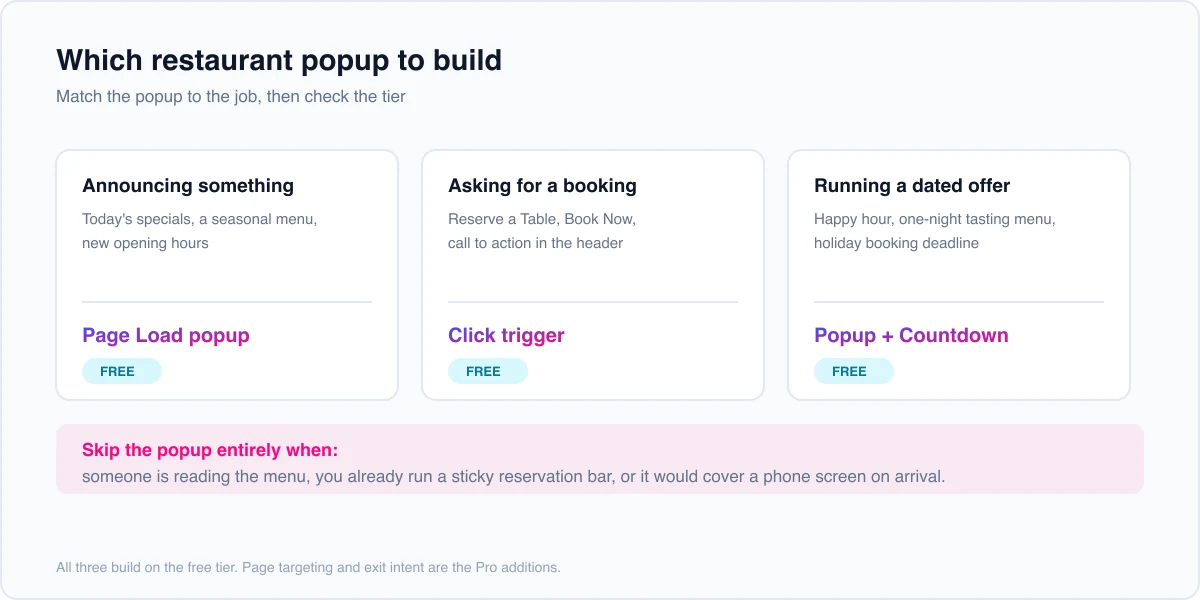
একটি পপআপ তার স্থান অর্জন করে যখন এটি একটি কাজ স্পষ্টভাবে করে: একটি রিজার্ভেশন পান, একটি বাস্তব বিশেষ ঘোষণা করুন বা একটি তারিখের ইভেন্ট প্রচার করুন৷ মনোযোগের জন্য আপনার মেনু বা আপনার ফোন নম্বরের সাথে প্রতিদ্বন্দ্বিতা করে এমন যেকোনো কিছু ব্যর্থ হয়েছে।
সম্পূর্ণ মেনু বা একটি একক ডিশ পৃষ্ঠার মতো লোকেরা সক্রিয়ভাবে পড়ছে এমন পৃষ্ঠাগুলিতে এটি এড়িয়ে যান। কেউ স্ক্রোল করার আগে এটি স্ক্রীন কভার করলে মোবাইলে এটি এড়িয়ে যান। এবং আপনি যদি ইতিমধ্যে একটি স্টিকি রিজার্ভেশন বার চালান তবে এটি সম্পূর্ণভাবে এড়িয়ে যান, কারণ দুটি প্রতিযোগী কল টু অ্যাকশন তাদের মধ্যে মনোযোগ বিভক্ত করে।
আপনার কি Elementor Pro দরকার?
একটি বিশেষ পপআপ বা একটি রিজার্ভেশন বোতামের জন্য নয়৷ এলিমেন্টরের নিজস্ব পপআপ বিল্ডার এলিমেন্টর প্রো-এর অ্যাডভান্সড টিয়ারের ভিতরে বসে, এন্ট্রি এসেনশিয়াল লাইসেন্স থেকে একটি পৃথক অর্থপ্রদানের পরিকল্পনা৷ মাস্টার অ্যাডনস একটি বিনামূল্যের পপআপ বিল্ডার পাঠায় যা নিয়মিত এলিমেন্টরের সাথে কাজ করে এবং সেই আপগ্রেডের প্রয়োজন নেই।
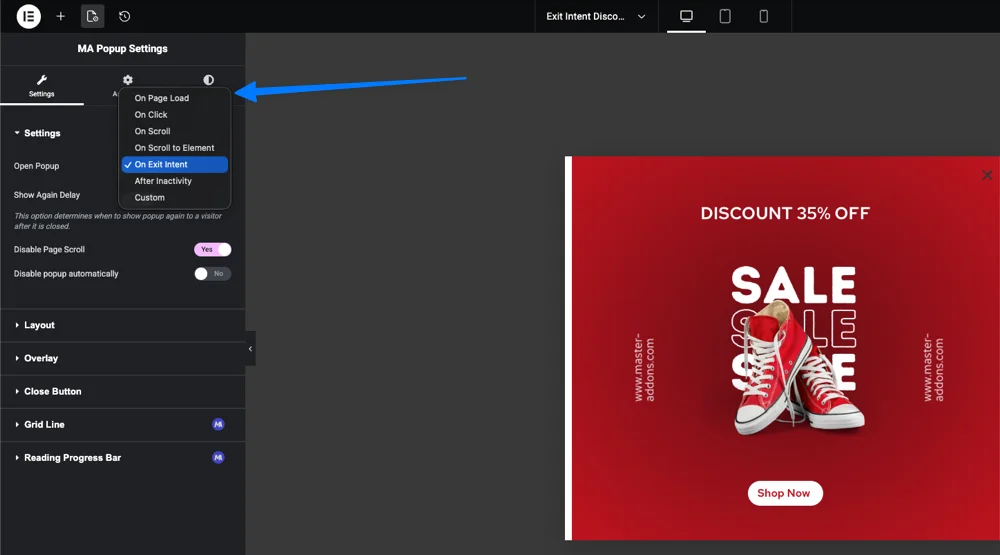
বিনামূল্যের স্তরের একটি কঠিন সীমা রয়েছে, এবং এটি স্পষ্টভাবে বলা মূল্যবান কারণ সেটিংস স্ক্রীন এটিকে স্পষ্ট করে তোলে না। পপআপ সেটিংসে আপনি যে স্বয়ংক্রিয় ট্রিগার বাছাই করুন না কেন, সামনের প্রান্তটি এটিকে পৃষ্ঠা লোড হিসাবে চালায় এবং পপআপ পুরো সাইট জুড়ে দেখায়। স্ক্রোল গভীরতা, প্রস্থান অভিপ্রায়, নিষ্ক্রিয়তা এবং পৃষ্ঠা-নির্দিষ্ট টার্গেটিং হল মাস্টার অ্যাডনস প্রো।
একটি বোতাম থেকে একটি পপআপ খোলা হল অন ক্লিক ট্রিগার, এবং এটি প্রোও। বিনামূল্যে পপআপ ট্রিগার উইজেট আপনি পপআপের ভিতরে একটি বন্ধ বোতাম রাখেন, তাই এটি একটি খোলে না। ধাপ 3 ক্লিক সেটআপ এবং একটি বিনামূল্যে বিকল্প কভার করে।
| রেস্টুরেন্ট পপআপ লক্ষ্য | ট্রিগার প্রয়োজন | বিনামূল্যে কাজ করে? |
|---|---|---|
| আজকের বিশেষ বা স্বাগত, আগমনে | পৃষ্ঠা লোড | হ্যাঁ |
| একটি বইতে একটি টেবিল রিজার্ভ করুন এখন ক্লিক করুন | ক্লিক এ | না, প্রো দরকার |
| পপআপের ভিতরে একটি “হয়তো পরে" বন্ধ বোতাম | পপআপ ট্রিগার উইজেট | হ্যাঁ |
| আজ রাতে একটি ছেড়ে যাওয়া ডিনার, শেষ টেবিল ধরুন | প্রস্থান অভিপ্রায় | না, প্রো দরকার |
| মেনু পড়া কাউকে পুরস্কৃত করুন | স্ক্রোল গভীরতা | না, প্রো দরকার |
| শুধুমাত্র মেনু পৃষ্ঠায় দেখান | পেজ টার্গেটিং | না, প্রো দরকার |
| এলিমেন্টরের নিজস্ব পপআপ বিল্ডার | যেকোন | না, Elementor Pro প্রয়োজন |
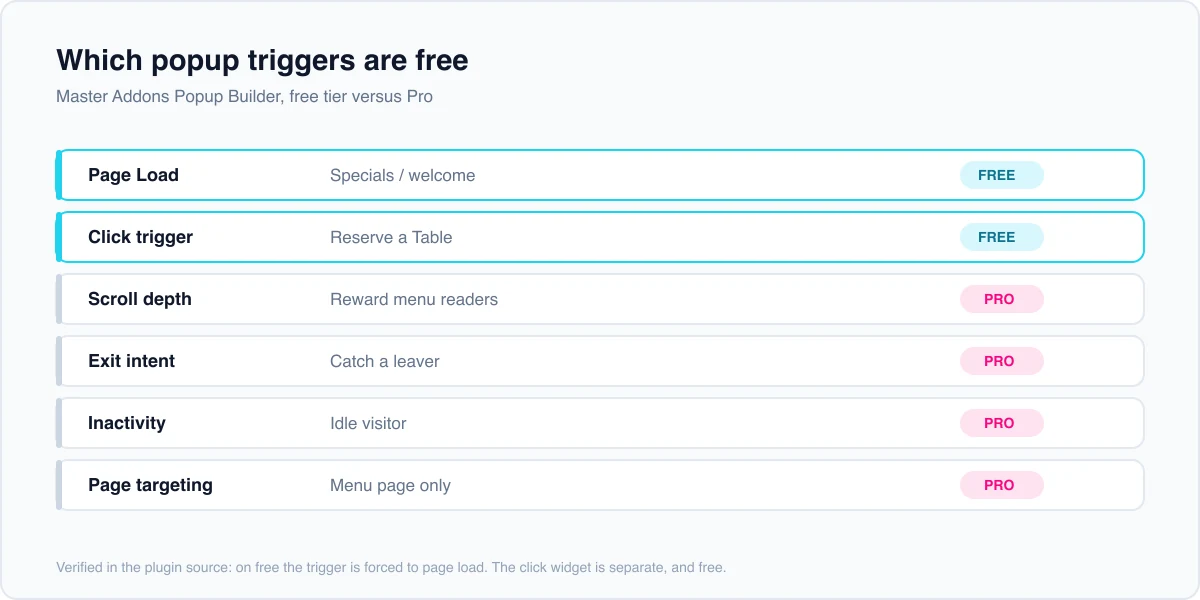
আমাদের ডিসপ্লে কন্ডিশনের ফ্রি বনাম প্রো ব্রেকডাউন ঠিক যেখানে সেই টার্গেটিং লাইনটি বসে তা কভার করে।
বিল্ডিং মূল্য তিনটি রেস্টুরেন্ট পপআপ
বেশিরভাগ রেস্তোরাঁর সাইটের জন্য সর্বাধিক তিনটির প্রয়োজন, এবং বিনামূল্যে পপআপ বিল্ডার প্রথম দুটি কভার করে৷।
- আজকের বিশেষ বা স্বাগত জানাই। প্রতি ভিজিটে একবার লোড হয়, একটি থালা বা মৌসুমী মেনু পরিবর্তন হাইলাইট করে।
- একটি টেবিল রিজার্ভ করুন। কেউ এখনই বুক করুন ক্লিক করলেই খোলে, তাই এটি প্রথম দেখায় বাধা দেওয়ার পরিবর্তে অভিপ্রায়ে সাড়া দেয়।
- একটি কাউন্টডাউন সহ ইভেন্ট বা সীমিত অফার। একটি শুভ ঘন্টা উইন্ডো, একটি ছুটির বুকিং সময়সীমা, একটি এক রাতের টেস্টিং মেনু।
আপনি নির্মাণ করার আগে লেআউট ধারণার জন্য, 25 এলিমেন্টর পপআপ উদাহরণ সংযত, ভাল স্কোপড পপআপগুলি কেমন দেখায় তা দেখায়৷।
ধাপ 1: পপআপ বিল্ডার চালু করুন
মাস্টার অ্যাডঅন ইনস্টল এবং সক্রিয় করুন, তারপর এর সেটিংস খুলুন এবং পপআপ বিল্ডার মডিউল সক্ষম করুন। এটি আপনার ড্যাশবোর্ডে একটি পপআপ পোস্টের ধরন যোগ করে, আপনার পৃষ্ঠাগুলি থেকে আলাদা৷।
একটি নতুন পপআপ তৈরি করুন, এটিকে এমন কিছুর নাম দিন যা আপনি তিন মাসের মধ্যে চিনতে পারবেন (বিশেষ পপআপ, রিজার্ভ টেবিল পপআপ), এবং এটি এলিমেন্টর সম্পাদকে খুলুন। সেখান থেকে এটি যেকোনো এলিমেন্টর পৃষ্ঠার মতো আচরণ করে।
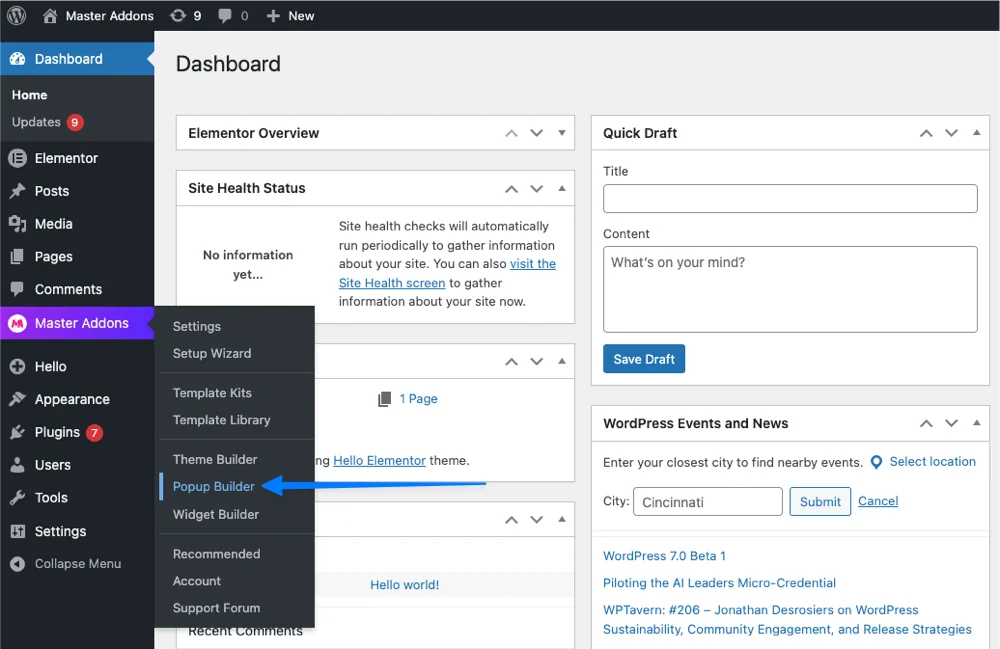
দ্য পপআপ নির্মাতা অনেক বিনামূল্যের মডিউল এক। দ্য উইজেট এবং এক্সটেনশন ডিরেক্টরি আর কি কি বিনামূল্যে জাহাজ আছে তার সম্পূর্ণ তালিকা আছে।
ধাপ 2: আজকের একটি বিশেষ পপআপ তৈরি করুন
এটিকে ছোট এবং নির্দিষ্ট রাখুন: একটি শিরোনাম, দাম সহ দুটি বা তিনটি আইটেম এবং আপনার মেনু বা রিজার্ভেশন পৃষ্ঠায় একটি বোতাম।
ক্লোজ বোতামটি কমপক্ষে 40 পিক্সেল লম্বা করুন যাতে একটি থাম্ব এটিকে আঘাত করতে পারে এবং আপনার আসল খাবারের ফটোগুলি ব্যবহার করতে পারে। অন্য কারো খাবারের স্টক ফটোগ্রাফি কোন ছবির চেয়ে খারাপ।
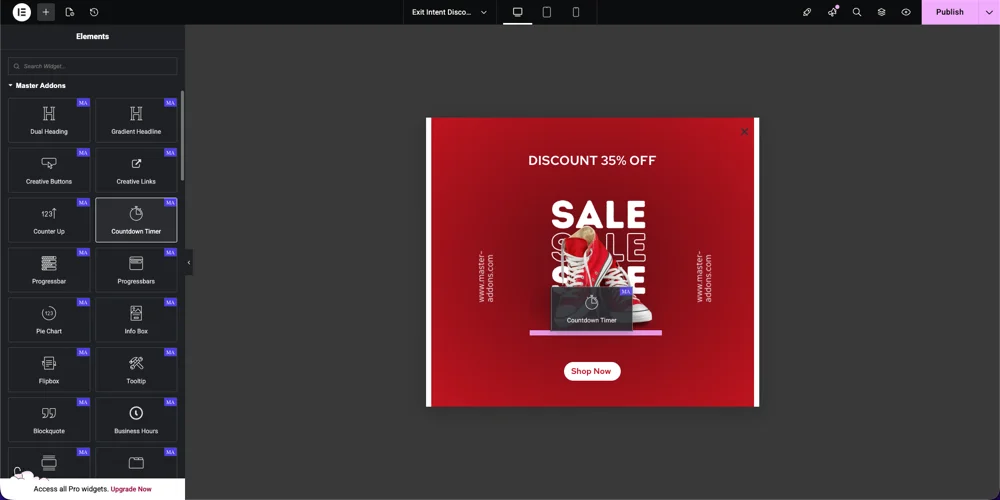
বিনামূল্যে এই ফায়ার পেজ লোড প্রতিটি পৃষ্ঠা জুড়ে, শুধুমাত্র হোমপেজ নয়। অনুলিপিটি তার সাথে মানানসই করুন: একটি সাধারণ স্বাগত অফার যা শুধুমাত্র একটি পৃষ্ঠায় অর্থপূর্ণ নয়। যদি অনুলিপিটি "যখন আপনি আমাদের মেনু দেখছেন," দিয়ে শুরু হয় তবে এটি সাইটব্যাপী পপআপের জন্য ভুল অনুলিপি।
ধাপ 3: একটি বোতামে ক্লিক করে একটি রিজার্ভ একটি টেবিল পপআপ যোগ করুন
এটি ধাপ 2 থেকে একটি ভিন্ন প্রক্রিয়া, এবং এটি এমন একটি যা বেশিরভাগ রেস্তোরাঁর সাইটগুলির সাথে নেতৃত্ব দেওয়া উচিত৷ একটি নির্ধারিত ট্রিগারের পরিবর্তে, পপআপটি তখনই খোলে যখন কেউ একটি বোতামে ক্লিক করে। মাস্টার অ্যাডঅন-এ এটি অন ক্লিক ট্রিগার, যার প্রো প্রয়োজন।
আপনার রিজার্ভেশন ফর্ম বা আপনার বুকিং সিস্টেমের একটি লিঙ্ক ধরে একটি দ্বিতীয় পপআপ তৈরি করুন। এর সেটিংসে, অন ক্লিকে ওপেন পপআপ সেট করুন এবং একটি CSS ক্লাস লিখুন যেমন .book-table, তারপর যোগ করুন book-table অ্যাডভান্সড, সিএসএস ক্লাসের অধীনে আপনার এখনই বুক বোতামে। পপআপের ভিতরে, বিনামূল্যে যোগ করুন পপআপ ট্রিগার একটি “Maybe later” বন্ধ বোতাম হিসাবে উইজেট। বিনামূল্যের প্লাগইনে, পরিবর্তে একটি রিজার্ভেশন পৃষ্ঠায় বুক নাও বোতামটি লিঙ্ক করুন৷।
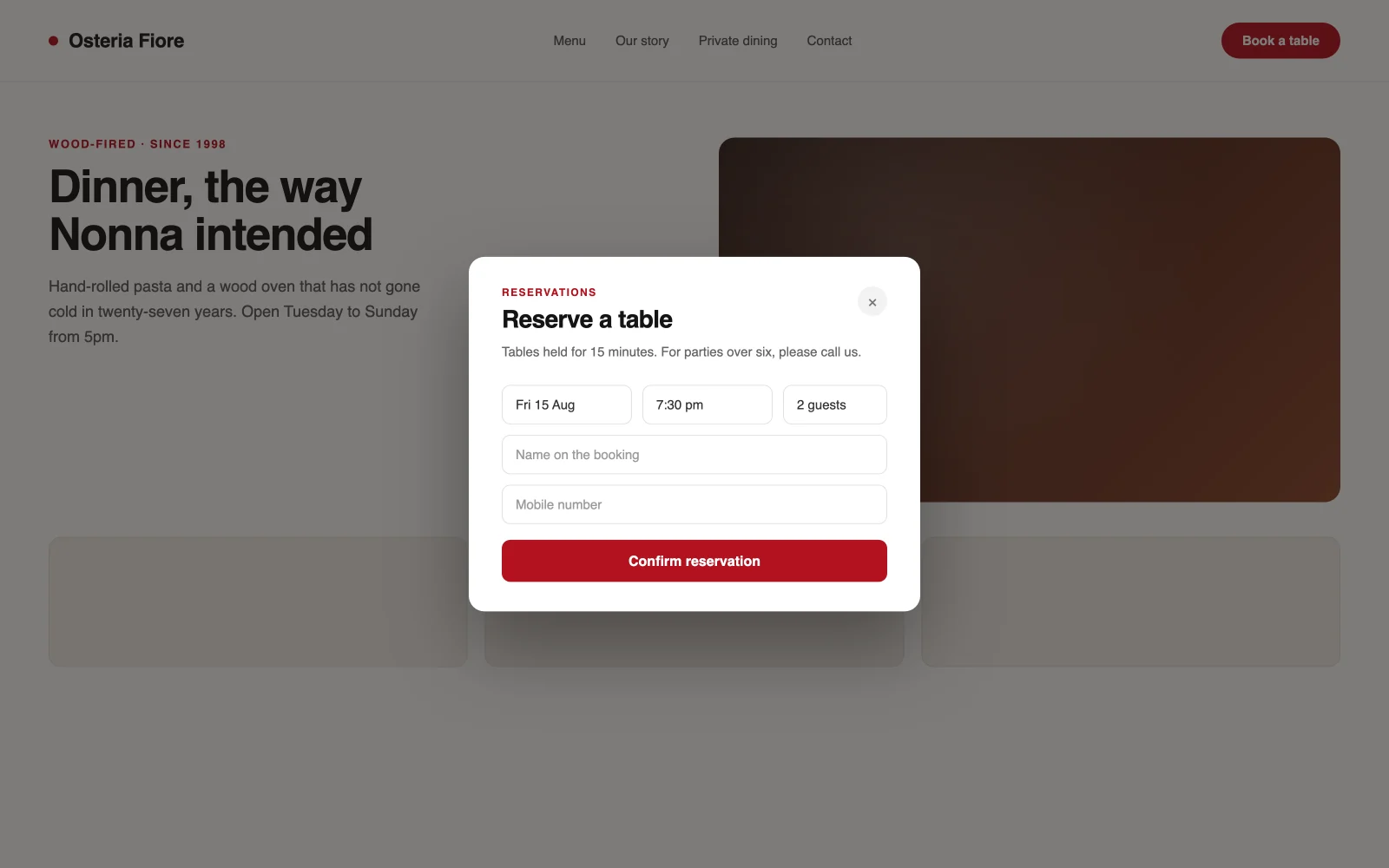
এটি এমন একজন দর্শককে কখনই বাধা দেয় না যিনি আগ্রহ দেখাননি। এটি খোলে যখন কেউ বুক করার সিদ্ধান্ত নেয়, যা একজন ভাল হোস্ট আসলে কীভাবে আচরণ করে তার কাছাকাছি। সাধারণ সেটআপ কভার করা হয় কিভাবে বিনামূল্যে Elementor এ একটি পপআপ যোগ করবেন.
ধাপ 4: সীমিত অফারগুলির জন্য একটি কাউন্টডাউন যোগ করুন
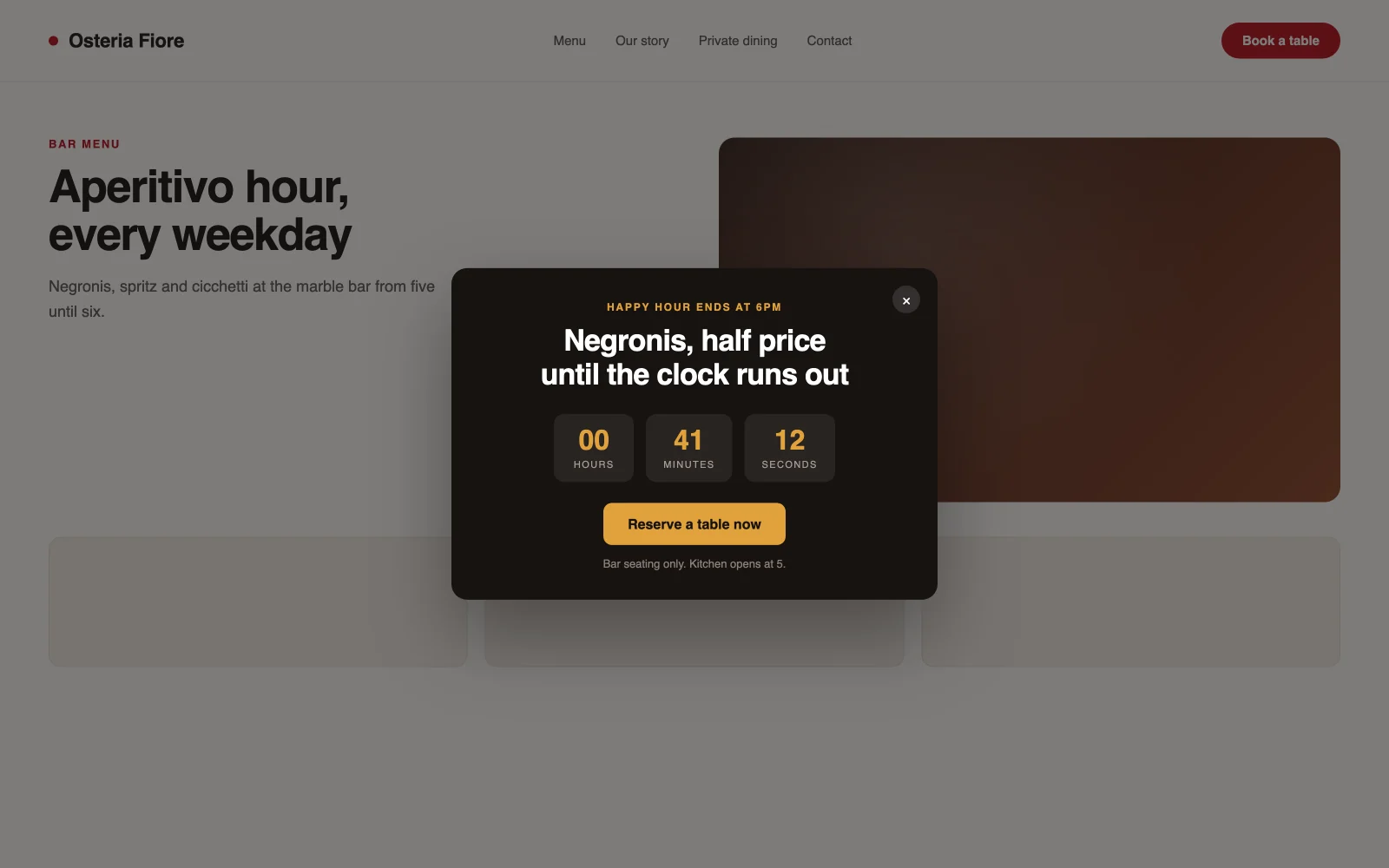
একটি শুভ ঘন্টা উইন্ডো বা এক রাতের ইভেন্টের জন্য, বিনামূল্যে ড্রপ করুন কাউন্টডাউন টাইমার উইজেট পপআপের ভিতরে এবং অফারটি আসলে বন্ধ হওয়ার শেষ সময় সেট করুন।
এটিকে কপির একটি লাইনের সাথে যুক্ত করুন যা সময়সীমার নাম দেয়, যেমন "হ্যাপি আওয়ার সন্ধ্যা 6 টায় শেষ হয়" এবং ধাপ 3 থেকে রিজার্ভেশন পপআপের জন্য একটি বোতাম। রিফ্রেশে পুনরায় সেট করা কাউন্টডাউন ব্যবহার করবেন না। নিয়মিত নোটিশ, এবং হারানো বিশ্বাস অর্জিত জরুরী চেয়ে বেশি খরচ।
ধাপ 5: কখন এবং কোথায় প্রদর্শিত হবে তা নিয়ন্ত্রণ করুন
বিনামূল্যে, এই ধাপে আগের থেকে কঠিন সীমা রয়েছে: পপআপ বিল্ডারের স্বয়ংক্রিয় ট্রিগারের উপর নির্ভর করে যেকোন পপআপ পেজ লোডে ফায়ার করে এবং সেটিংস ড্রপডাউন যাই হোক না কেন পুরো সাইটকে লক্ষ্য করে। ধাপ 3 থেকে ক্লিক রুট প্রভাবিত হয় না, কারণ এটি টাইমারের পরিবর্তে ক্লিকে খোলে।
শুধুমাত্র মেনু পৃষ্ঠায় একটি পপআপ দেখানোর জন্য, শুধুমাত্র পরিষেবার সময়, অথবা কেউ গ্যালারির পাশ দিয়ে স্ক্রোল করার পরেই, আপনার প্রয়োজন ডিসপ্লে কন্ডিশন এক্সটেনশন, যা প্রো। এটি একটি পপআপের মধ্যে পার্থক্য যা সর্বত্র দেখায় এবং একটি যা দেখায় যে এটি কোথায় অর্থপূর্ণ।
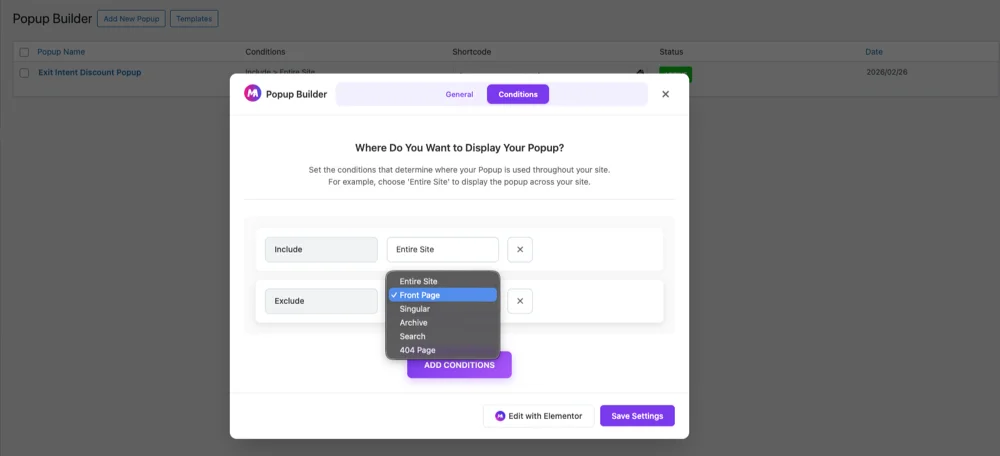
ততক্ষণ পর্যন্ত, সাধারণ সাইটব্যাপী বার্তা হিসাবে বিনামূল্যে পপআপ ডিজাইন করুন। একটি বিশেষ পপআপ এবং একটি ক্লিক-ট্রিগার করা রিজার্ভেশন বোতাম উভয়ই সেই সীমাবদ্ধতার মধ্যে কাজ করে, যে কারণে তারা এই নির্দেশিকাটি তৈরি করে।
আপনার ডিনারদের বিরক্ত করা থেকে পপআপ রাখা
একটি ভাল হোস্ট ঘরের দিকে তাকানোর আগে দরজায় ক্লিপবোর্ড সহ কারও সাথে দেখা করে না। একটি পপআপ তাৎক্ষণিকভাবে কেউ অবতরণ করে ঠিক তাই করে।
প্রতিটি পপআপের অস্তিত্বের একটি বাস্তব কারণ দিন: একটি প্রকৃত ঘটনা, একটি প্রকৃত ছাড়, বা একটি মেনু পরিবর্তন যা জানার যোগ্য৷ পপআপ প্রতি একটি অফার, একই পৃষ্ঠায় দুটি নয়, এবং যখনই লক্ষ্য একটি ঘোষণার পরিবর্তে বুকিং হয় তখন একটি ক্লিক ট্রিগার পছন্দ করুন৷।
মোবাইল কেস বিশেষভাবে দেখুন। একটি পপআপ যা স্ক্রীনকে কভার করে যখন কেউ আপনার খোলার সময়গুলির জন্য অনুসন্ধান থেকে আসে তা হল Google-এর অনুপ্রবেশকারী ইন্টারস্টিশিয়াল নির্দেশিকা বর্ণনা করে, এবং এটি বাইরে দাঁড়িয়ে থাকা একজন ব্যক্তির পক্ষেও অসহায়।
যদি আপনার আসল লক্ষ্য লোকেদের মেনু, ঘন্টা এবং রিজার্ভেশনগুলি কোনও ওভারলে ছাড়াই খুঁজে পেতে সহায়তা করে, ক রেস্টুরেন্ট মেগা মেনু সাধারণত যে কোনও পপআপের চেয়ে আরও পরিষ্কারভাবে সমাধান করে।
যদি পপআপ একটি অফারের পরিবর্তে খাবারের একটি ঘূর্ণায়মান সেট দেখায়, একটি ইমেজ ক্যারোজেল পপআপের ভিতরে সাধারণত স্ট্যাটিক তালিকার চেয়ে ভাল পড়ে।
প্রায়শই জিজ্ঞাসিত প্রশ্নাবলী
আমি কিভাবে ওয়ার্ডপ্রেসে একটি রেস্তোরাঁর ওয়েবসাইটে একটি পপআপ যোগ করব?
মাস্টার অ্যাডঅন ইনস্টল করুন, যা এলিমেন্টরে একটি বিনামূল্যের পপআপ বিল্ডার যোগ করে। এলিমেন্টর উইজেট দিয়ে লেআউট তৈরি করুন, এটি একটি পপআপ হিসাবে সংরক্ষণ করুন এবং প্রকাশ করুন। সম্পূর্ণ সাইট জুড়ে পৃষ্ঠা লোডের উপর পপআপ ফায়ার বিনামূল্যে, তাই এটি একটি পৃষ্ঠা-নির্দিষ্ট অফারের পরিবর্তে একটি বিশেষ বা স্বাগত বার্তা হিসাবে লিখুন৷।
Elementor এর পপআপ নির্মাতা কি বিনামূল্যে, এবং আমি কি বিনামূল্যে Elementor-এ একটি পপআপ তৈরি করতে পারি?
Elementor এর নিজস্ব Popup Builder হল Elementor Pro এর অ্যাডভান্সড টিয়ারের অংশ, তাই এটি বিনামূল্যে নয়। মাস্টার অ্যাডনস একটি পৃথক বিনামূল্যের পপআপ বিল্ডার যোগ করে যা নিয়মিত এলিমেন্টরের সাথে কাজ করে, যাতে আপনি এলিমেন্টর আপগ্রেড না করেই একটি রেস্টুরেন্ট পপআপ ডিজাইন এবং প্রকাশ করতে পারেন।
আমি কি শুধুমাত্র তখনই একটি পপআপ ট্রিগার করতে পারি যখন কেউ একটি বোতামে ক্লিক করে, যেমন একটি টেবিল রিজার্ভ করুন?
হ্যাঁ, মাস্টার অ্যাডনস প্রো সহ। অন ক্লিক ট্রিগারে পপআপ সেট করুন এবং আপনার বোতামটি ম্যাচিং সিএসএস ক্লাস দিন এবং এটি তখনই খোলে যখন একজন দর্শক সেই বোতামটি ক্লিক করেন। ফ্রি প্লাগইনে, পপআপগুলি পৃষ্ঠা লোডে খোলে, তাই পরিবর্তে একটি রিজার্ভেশন পৃষ্ঠায় বোতামটি লিঙ্ক করুন৷।
কখন একটি রেস্টুরেন্ট পপআপ আসলে পৃষ্ঠায় উপস্থিত হওয়া উচিত?
একটি বিশেষ বা স্বাগত পপআপের জন্য, পৃষ্ঠা লোড প্রতিটি দর্শকের কাছে একবার পৌঁছায় এবং এটি ঠিক আছে। রিজার্ভেশন কল টু অ্যাকশনের জন্য, একটি ক্লিক ট্রিগার আরও ভাল ফিট করে কারণ এটি বাধা দেওয়ার পরিবর্তে অভিপ্রায়ের উত্তর দেয়। প্রস্থান অভিপ্রায় এবং স্ক্রোল গভীরতা, যা একটি সংকেতের জন্য অপেক্ষা করে যে কেউ মেনু ছেড়ে যাচ্ছে বা পড়েছে, মাস্টার অ্যাডনস প্রো প্রয়োজন।
পপআপ কি রেস্টুরেন্ট ওয়েবসাইটের জন্য খারাপ?
তারা হতে পারে, যদি তারা মেনু দেখার আগে বা ঠিকানা খুঁজে পাওয়ার আগে কাউকে বাধা দেয়। একটি স্পষ্ট অফার, এটি দেখানোর একটি বাস্তব কারণ, এবং কোন স্ট্যাকড পপআপ একে অপরের সাথে লড়াই করছে না। একটি সত্যিকারের ইভেন্ট ঘোষণা করা একটি পপআপ এমন একটিকে ছাড়িয়ে যায় যা প্রতিটি দর্শককে অভিবাদন জানায় এবং মোবাইলে আগমনের সময় একটি পূর্ণ-স্ক্রীন ওভারলে হল Google-এর নির্দেশিকা যে প্যাটার্ন সম্পর্কে সতর্ক করে।
Elementor Pro না কিনে আমি কিভাবে একটি রেস্তোরাঁর ওয়েবসাইটে একটি বিনামূল্যের পপআপ যোগ করব?
মাস্টার অ্যাডঅন বিনামূল্যে ব্যবহার করুন। এটি আপনাকে একটি বিশেষ বা পৃষ্ঠা লোডে স্বাগত পপআপের জন্য পপআপ বিল্ডার দেয়, এছাড়াও একটি স্টাইল করা ক্লোজ বোতামের জন্য পপআপ ট্রিগার উইজেট, এবং এলিমেন্টর প্রো-এর প্রয়োজন নেই৷ একটি পপআপ যা একটি রিজার্ভ এ টেবিল ক্লিক, পৃষ্ঠা-নির্দিষ্ট টার্গেটিং, প্রস্থান অভিপ্রায় এবং স্ক্রোল ট্রিগার থেকে খোলে তা হল মাস্টার অ্যাডনস প্রো।
প্রথমে কি নির্মাণ করতে হবে
বিশেষের আগে ক্লিক-ট্রিগার করা রিজার্ভেশন পপআপ তৈরি করুন। এটি এমন একটি যা অর্থ উপার্জন করে, এটি কখনই কাউকে বাধা দেয় না এবং এটি সম্পূর্ণরূপে বিনামূল্যে স্তরে কাজ করে। একটি শুরু নকশা জন্য, এলিমেন্টর পপআপ টেমপ্লেট পৃষ্ঠায় একটি টেবিল রিজার্ভেশন পপআপ আছে।
একই উইজেট নির্মাতা এটি সেই ডিজাইনগুলি আমদানি করে যা আপনি একটি রিজার্ভেশন ব্লক তৈরি করতে ব্যবহার করবেন যা আপনি সাইট জুড়ে পুনরায় ব্যবহার করেন। যে স্তরের জন্য মূল্য নির্ধারণ করা হয় মূল্য পৃষ্ঠা.
বিশেষ পপআপ সেকেন্ড যোগ করুন, সাইটব্যাপী স্বাগত হিসাবে লেখা, এবং শুধুমাত্র প্রো-এর জন্য পৌঁছান যখন আপনার সত্যিকারের একটি পৃষ্ঠায় পপআপের প্রয়োজন হয় বা প্রস্থান করার সময় বহিস্কার করা হয়। অনেক রেস্টুরেন্ট সাইটের প্রয়োজন হয় না।
